Best Video Editing Software for Vloggers in 2026: 8 Tools Compared
Compare the best video editing software for vloggers in 2026, from free desktop editors to fast mobile apps, with prices, free plans and honest trade-offs.
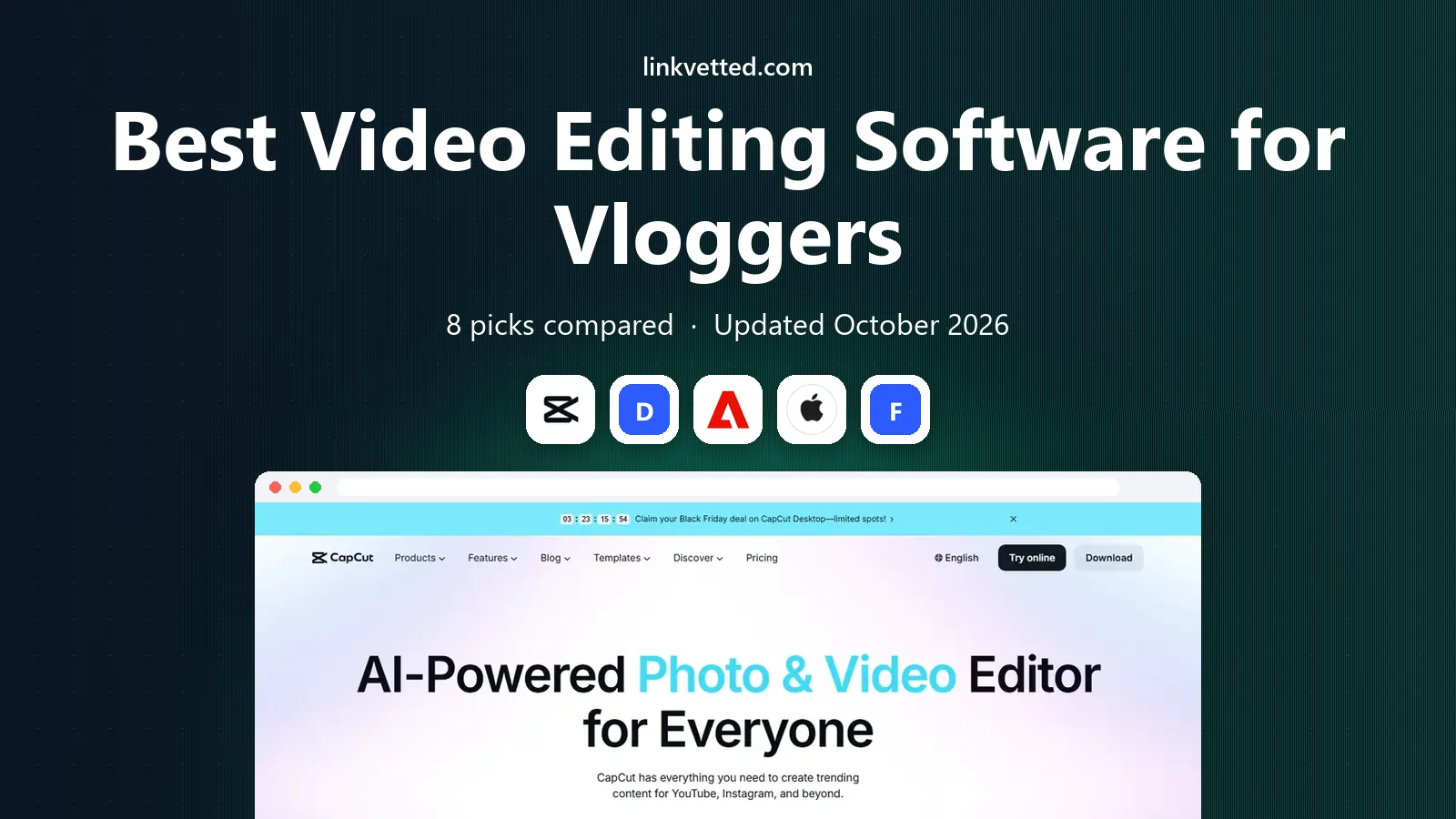
- Editor's choice
 CapCut
Short-form social vlogs
Starts at$19.99 per monthVisit capcut.comFull review - Great alternative
 DaVinci Resolve
Free professional editing
Starts atFreeVisit blackmagicdesign.comFull review - Also consider
 Adobe Premiere Pro
Team and Adobe workflows
Starts at$22.99 per monthVisit adobe.comFull review
TL;DR:
- DaVinci Resolve gives vloggers the most professional power for free, but it takes longer to learn than a phone-first editor.
- CapCut is our pick for short-form vlogs and fast social clips, while Premiere Pro suits creators who work in teams or with Adobe tools.
- Final Cut Pro and iMovie make the most sense on a Mac, and Filmora sits in the middle for beginners who want templates and guided help.
- Check export limits, watermarks, and subscription terms before you commit, because the free tier is not always the full editor.
Quick comparison
| Tool | Best for | Starts at | Free plan? | |
|---|---|---|---|---|
| CapCut | Short-form social vlogs | $19.99 per month | Yes | Visit |
| DaVinci Resolve | Free professional editing | Free | Yes | Visit |
| Adobe Premiere Pro | Team and Adobe workflows | $22.99 per month | Free trial | Visit |
 Final Cut Pro | Mac creators who buy once | $299.99 one-time | Free trial | Visit |
 Filmora | Beginners who want templates | $9.99 per month | Yes | Visit |
 Clipchamp | Simple Windows editing | Free | Yes | Visit |
 iMovie | Free Mac and iPhone editing | Free | Yes | Visit |
 Movavi Video Editor | Everyday vlog edits | See website | Free trial | Visit |
The best video editing software for vloggers
Vloggers need speed, clean captions, good color, and exports that fit YouTube, TikTok, and Instagram without a second round of fixes. These eight tools cover that range, from a free phone app to a full desktop suite.

CapCut is the fastest route from a phone clip to a posted vlog, and that is why so many short-form creators start here. The timeline is simple, captions can be generated in a few taps, and the template library covers trends that would take far longer to build by hand. For daily vlogs, travel clips, and talking-head updates, that speed matters more than a deep color page.
The trade-off is control. Long YouTube vlogs with layered audio, multicam footage, or careful color work will feel cramped, and the desktop app does not match the mobile experience in every area. Check which features carry a Pro label before you build a workflow around them, and confirm the current price in your region, since app store prices can vary.
- Fast mobile and desktop editing
- Auto captions and templates
- Strong vertical video tools
- Advanced color and audio control is limited
- Some templates and 4K exports sit behind Pro
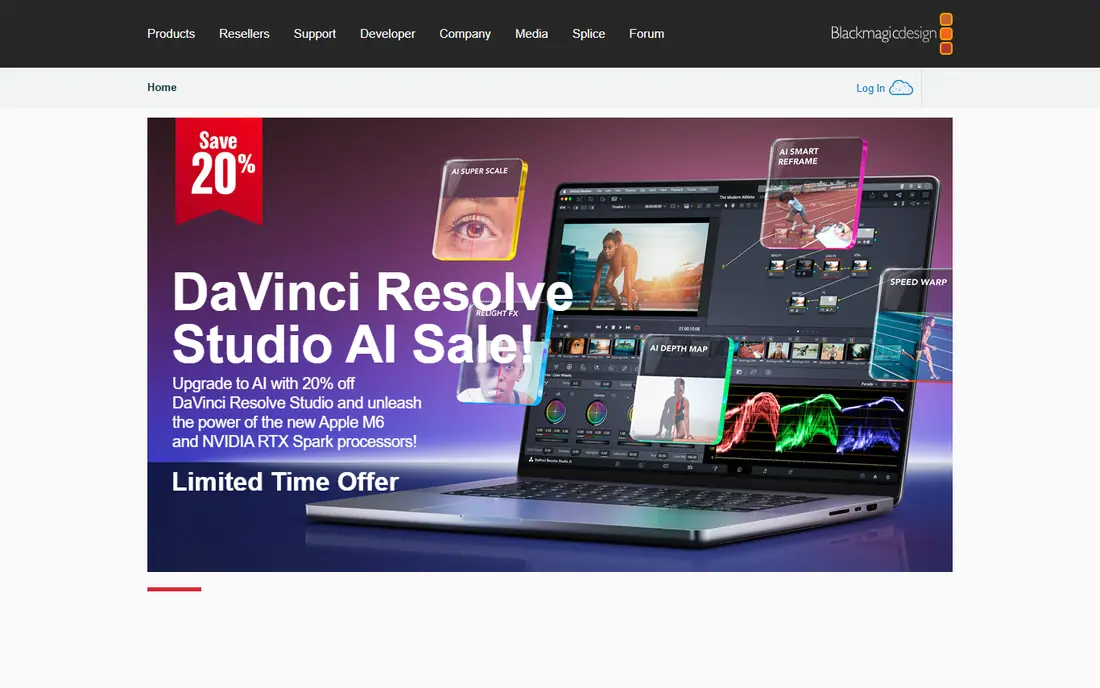
DaVinci Resolve is the strongest free option for vloggers who want to grow into serious editing without paying a monthly fee. The free version includes editing, color grading, Fairlight audio, and Fusion effects, which is a combination that paid tools often split across several apps. If your vlog style relies on a consistent color look, this is where that look is easiest to build and reuse.
The cost is time and hardware. The interface uses separate pages for editing, color, audio, and effects, so a new user can feel lost at first. A modest laptop can still cut 1080p vlogs, but 4K work with effects will ask more of your processor and graphics card. The $295 Studio version adds AI tools and higher frame rates, but most vloggers can start free and upgrade only if a specific Studio feature becomes essential.
- Full editing, color, audio, and effects in one app
- No watermark on the free version
- Exports up to 4K
- Steep learning curve
- Needs a capable computer for heavy projects
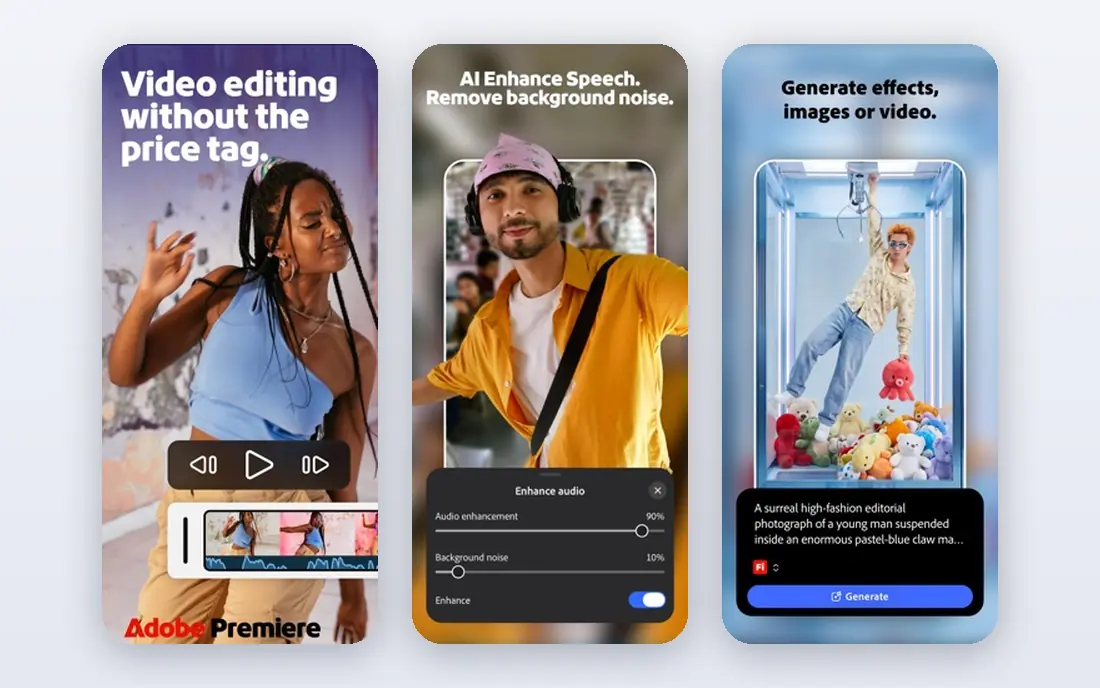
Premiere Pro remains the default for creators who collaborate with editors, agencies, or other Adobe users. Project files, presets, and team workflows transfer more easily than with a niche editor, and the integration with After Effects for titles and Audition for audio cleanup saves time on polished vlogs. Text-based editing, which lets you cut by editing a transcript, is also a real time saver for talking-head vlogs.
The main drawback is the ongoing cost. There is no one-time purchase, so a creator who edits only a few videos a month pays the same as a daily editor. Performance can also be uneven on older machines, especially with 4K footage and effects stacked on the timeline. It is worth the price when Adobe compatibility is part of your work, and less convincing when a free editor already covers your format.
- Industry-standard timeline and format support
- Works with After Effects and Audition
- Text-based editing tools
- Subscription only
- Can feel heavy on older computers
Final Cut Pro is our pick for Mac vloggers who want speed without a subscription. On Apple Silicon, playback and exports are notably fast, and the magnetic timeline helps you assemble a vlog without constantly managing gaps and collisions between clips. The one-time price also makes long-term costs easy to predict, which matters for creators who plan to edit for years.
The limits are platform and collaboration. Final Cut Pro does not run on Windows, so a Windows-based editor cannot open your project directly. Some plugin and template libraries are also smaller than the Premiere ecosystem. If you edit alone on a Mac, those limits rarely matter. If you share projects with a mixed team, check file exchange before you commit.
- Fast on Apple Silicon
- One-time purchase
- Magnetic timeline speeds up assembly
- Mac only
- Less common for cross-platform team projects
Filmora is built for creators who want a good-looking vlog without learning a professional suite first. The interface is clear, effects and titles are easy to drag onto the timeline, and AI tools for captions and background removal handle common vlog chores. For a new YouTuber, that guidance can be the difference between posting regularly and stalling on the edit.
The free version is best treated as a trial, because exports carry a watermark. Paid plans remove that limit and open more effects, but the price should be compared with a one-time purchase if you plan to use it for years. Filmora also lacks the deep color and audio depth of Resolve or Premiere, so creators who later want fine control may outgrow it.
- Friendly interface
- Large template and effects library
- AI captions and background removal
- Free version adds a watermark
- Advanced color tools are thinner than Resolve
Clipchamp is a good starting point for Windows vloggers who want a clean, browser-based editor without a download or a steep setup. You can trim clips, add text, use templates, and export 1080p video from the free tier, which covers many talking-head and travel vlogs. Because it is tied to Microsoft, it also fits naturally into a Windows and OneDrive workflow.
It is not a replacement for a full desktop suite. Complex multicam edits, detailed color work, and heavy effects are outside its comfort zone, and the paid features vary with Microsoft 365 plans. Use Clipchamp when speed and simplicity matter most, and move to Resolve or Premiere when your edits start to need layers, masks, or precise audio mixing.
- Runs in the browser and on Windows
- Simple templates
- No install needed for web editing
- Advanced editing is limited
- Some features need a Microsoft 365 plan
iMovie is still the best free first editor for Apple users, and it is often all a new vlogger needs. You can cut clips on an iPhone, finish on a Mac, and share directly to YouTube, with trailers and themes that make early videos look polished. The learning curve is gentle, which helps creators who would rather film than study editing menus.
The ceiling arrives quickly. You get fewer video tracks, fewer title styles, and less audio control than in Final Cut Pro or Resolve, and there is no version for Windows or Android. Treat iMovie as a free, capable starter and a way to learn pacing and structure. When you need more tracks, better color, or plugin support, Final Cut Pro is the natural next step on the same devices.
- Free on Apple devices
- Very easy to learn
- Good trailers and basic titles
- Limited tracks and effects
- No Windows or Android version
Movavi Video Editor aims at the same middle ground as Filmora, with a calm interface and a solid set of transitions, titles, and effects for everyday vlogs. It handles 1080p and 4K footage, includes basic color and audio tools, and does not ask new editors to learn a professional page layout. For family vlogs, hobby channels, and short business updates, that balance is often enough.
The trial is limited, so check the current paid price and what it includes before you rely on it for a series. Movavi also lacks the advanced color grading and team features of the professional tools on this list. It earns its place here for creators who want a simple paid editor without a monthly Adobe bill, and who value a tidy workflow over deep post-production control.
- Clear interface for beginners
- Useful effects and transitions
- Works on Windows and Mac
- Trial exports carry a watermark
- Pricing varies by plan and region
How we picked these
We compared official feature pages, pricing pages, and app store listings, plus public reviews from creators who edit vlogs on phones and desktops. We favored tools that are still maintained in 2026, that export in common social formats, and that offer a clear free tier or trial so a new vlogger can test the workflow before paying. We also weighed platform fit, because the best Mac editor is of little use to a Windows creator, and the best phone editor may frustrate someone cutting a 20 minute YouTube vlog.
We did not claim hands-on testing in a lab, and we did not rank tools by a single score. Instead, we matched each tool to a vlog style, from short social clips to longer edited YouTube episodes, and noted where the free tier ends and paid features begin. Prices can change, so confirm the current plan on the vendor site before you buy.
What to check before you choose an editor
Start with your main platform and your main video length. Short vertical clips favor CapCut, Clipchamp, or iMovie, while longer YouTube vlogs favor Resolve, Premiere Pro, or Final Cut Pro. If you film on a phone and post the same day, mobile speed and auto captions matter more than color depth. If you film with a camera and spend an evening on color and audio, desktop power matters more.
Hardware, formats, and exports
Check that the editor supports your camera format and your export target without extra conversion. A tool that stutters on 4K footage will slow every edit, even if its feature list looks strong. Also check subtitle and caption export, because captions help viewers who watch with sound off and improve accessibility.
Cost over a year, not just a month
A $19.99 monthly plan costs far more over two years than a $299 one-time purchase, so map the price to how often you edit. If you post weekly, a subscription can be worth it for templates and updates. If you post monthly, a free editor or a one-time purchase usually wins. Always check whether the free tier adds a watermark, limits resolution, or caps monthly exports.
FAQ
What is the best free video editing software for vloggers?
DaVinci Resolve is the strongest free desktop choice, because it includes professional editing, color, and audio without a watermark. CapCut and iMovie are better free picks when you want speed on a phone or a simple Mac workflow. The right free tool depends on whether you value depth or speed more.
Do vloggers need Premiere Pro or Final Cut Pro?
No, most new vloggers do not need either one at first. Free tools can cut, caption, and export a clean vlog, and paid professional tools mainly help when you collaborate, need advanced color, or work with complex audio. Upgrade when a specific limit, such as track count or format support, starts slowing your work.
Which editor is best for TikTok and YouTube Shorts?
CapCut is built for vertical short-form video, with templates, captions, and effects tuned for that format. Filmora and Clipchamp also handle vertical exports well, and Resolve can do the same work with more setup. Pick the tool that lets you finish and post fastest, because consistency matters for short-form channels.
Is CapCut free for vloggers?
CapCut has a free tier that covers basic editing, captions, and 1080p export, which is enough for many short vlogs. Some templates, effects, and 4K exports require Pro, so check the labels on the features you use most. If your workflow depends on Pro features, compare the monthly cost with a one-time desktop purchase.
What computer specs do vloggers need for 4K editing?
For 1080p vlogs, a modern laptop with 16 GB of memory and solid-state storage is usually enough. For 4K, aim for more memory, a dedicated graphics card where possible, and fast storage, because large files and effects raise the load quickly. If your computer struggles, edit with proxy files or cut in 1080p and export in 4K only when needed.