Best Video Editing Software for Small Business in 2026: 9 Tools Compared
We compare the best video editing software for small business, from free pro editors to simple social tools, with current pricing and honest trade-offs.
- Editor's choice
 Adobe Premiere Pro
Professional client work
Starts at$22.99 per monthVisit adobe.comFull review - Great alternative
 DaVinci Resolve
Free professional editing
Starts atFreeVisit blackmagicdesign.comFull review - Also consider
 Filmora
Easy desktop editing
Starts atFrom $9.99 per monthVisit filmora.wondershare.comFull review
TL;DR:
- DaVinci Resolve gives small businesses a genuinely professional editor for free, which makes it our first stop for most teams.
- Adobe Premiere Pro still makes sense when you hire freelancers or work with agencies, since it is the tool most of them already use.
- CapCut and Clipchamp cover fast social video at little or no cost, while Camtasia and Descript serve training and talking-head content better.
- Subscription costs add up fast, so we checked one-time options alongside monthly plans before recommending a pick.
Quick comparison
| Tool | Best for | Starts at | Free plan? | |
|---|---|---|---|---|
| Adobe Premiere Pro | Professional client work | $22.99 per month | Free trial | Visit |
| DaVinci Resolve | Free professional editing | Free | Yes | Visit |
| Filmora | Easy desktop editing | From $9.99 per month | Yes | Visit |
 Camtasia | Tutorials and training videos | $179.88 per year | Free trial | Visit |
 Clipchamp | Quick Windows editing | Free | Yes | Visit |
 CapCut | Short social video | Free | Yes | Visit |
 Descript | Editing by transcript | See website | Yes | Visit |
 InVideo | Template-driven promos | See website | Yes | Visit |
 WeVideo | Browser-based team editing | See website | Yes | Visit |
The best video editing software for small business
Small businesses rarely need a Hollywood toolset. They need clean cuts, readable captions, a steady brand look, and exports that work on every platform. The nine tools below cover that range, from free professional editors to browser tools your whole team can open.

Premiere Pro remains the default choice when a business works with outside editors, agencies, or freelancers. Files, project templates, and presets move between editors with little friction, which matters when someone else finishes a project you started. It also pairs directly with After Effects, Audition, and Photoshop, so motion graphics and audio cleanup stay inside one workflow.
The honest catch is cost and complexity. At $22.99 per month on an annual plan, it is a real line item for a small team, and beginners can feel lost in its panels and settings. If you edit one short video a month, a simpler tool will serve you better. If video is a weekly output and you may hand work to a pro, Premiere Pro is the safe, standard pick.
- Industry standard timeline
- Deep Adobe integration
- Strong audio and color tools
- Subscription cost adds up
- Steep learning curve for beginners
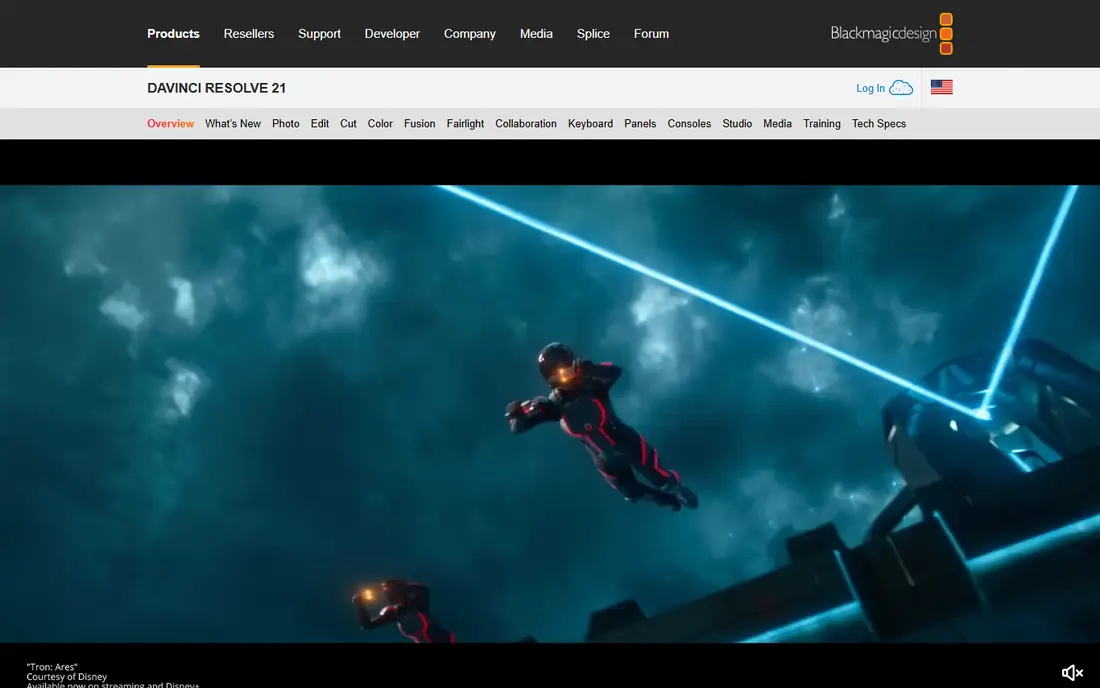
DaVinci Resolve is the strongest value in this whole list. The free version includes a full timeline editor, color grading pages, Fairlight audio, and effects, with no watermark on exports. For a small business, that means client-ready videos without a monthly bill, and the paid Studio version at $295 one-time adds advanced tools only when you truly need them.
We recommend starting here if your computer is reasonably modern. Resolve does ask more of your hardware than a browser editor, and its many pages can confuse a first-time editor. Work through one project end to end before judging it. Most small teams find that the free version covers everything they planned to pay for elsewhere.
- Full professional editor at no cost
- Superb color tools
- No watermark on exports
- Demanding on older computers
- Interface can overwhelm new editors

Filmora sits in the middle ground between a phone app and a pro suite. Its timeline is easy to learn, its templates speed up intros and social cuts, and its AI tools can remove backgrounds or silence gaps without manual work. For owners who edit their own marketing videos, that speed matters more than having every professional control.
The trade-off is ceiling. Free exports are watermarked, and color and audio controls are simpler than those in Resolve or Premiere Pro. Filmora is our pick for a business owner who wants good-looking videos quickly and does not plan to hire an editor. If your needs grow past templates, you can move up later without losing the habit of regular posting.
- Friendly interface
- Large template and effects library
- Helpful AI tools
- Free exports carry a watermark
- Advanced color work is limited
Camtasia is the tool we point training-heavy businesses toward first. It records your screen and webcam together, then lets you cut, zoom, annotate, and caption in the same program. That single workflow saves real time when you produce onboarding videos, software walkthroughs, or course lessons, and the result looks polished without a separate recording app.
Its limits show on creative marketing work. Camtasia is not designed for multi-camera shoots or heavy effects, and its yearly price is higher than a general editor like Filmora. Buy it when screen content is your main video type. For mixed marketing and tutorial work, pair it with a cheaper social editor rather than forcing one tool to do both jobs.
- Screen recording and editing in one tool
- Simple annotations and callouts
- Good for training libraries
- Pricier than general editors
- Not built for cinematic projects
Clipchamp is Microsoft's browser-based editor, and it is the easiest free starting point on a Windows PC. You can trim clips, add text and stock media, record a webcam or screen, and export in 1080p without a watermark on the free tier. For a small business that posts short updates, testimonials, or product clips, that is often enough.
The catch is that it lives online, so a weak connection slows editing, and it lacks the depth of Resolve or Premiere Pro for longer projects. Premium features come through Microsoft 365 plans, which may already be in your budget. If your team works on Windows and wants the shortest path from footage to a finished post, Clipchamp is a sensible default.
- Runs in the browser on Windows
- Free 1080p exports without watermark
- Simple templates
- Needs a steady internet connection
- Fewer advanced controls than desktop editors
CapCut is built for the pace of short-form video. Auto captions, trending templates, quick cuts, and direct export sizes for TikTok, Reels, and Shorts make it the fastest way to turn raw phone footage into a post. The free tier covers a lot, and Pro at $19.99 per month adds premium effects, cloud storage, and extra AI features.
For a small business, the main caution is licensing: read the current commercial use terms before using templates and music in paid ads. CapCut is best as a social-first tool, not your only editor for long-form content. Use it when speed and social formats matter most, and keep a desktop editor for website videos and ads that need a more controlled look.
- Fast social templates and captions
- Works on phone and desktop
- Generous free tier
- Pro features sit behind a subscription
- Business users should check commercial use terms
Descript changes how talking-head video gets edited. It transcribes your footage, and deleting a sentence in the transcript deletes it from the video. That makes podcast clips, webinars, interviews, and course videos far faster to cut, and its filler-word removal cleans up speech in one pass. Teams that dread timeline scrubbing often finish in Descript in half the time.
Its weakness is visual editing. If your video depends on b-roll, motion graphics, or careful color work, Descript is not the right main tool. Pricing has also shifted over time, so check the vendor page before budgeting. We recommend it as a second tool for spoken content, paired with a traditional editor for everything else.
- Edit video by editing text
- Strong transcription
- Easy removal of filler words
- Pricing changes often, so check the site
- Less suited to visual effects work
InVideo suits businesses that need promos without filming anything. Pick a template, swap in your text, logo, and colors, add stock footage, and export a finished ad or announcement. Its text-to-video workflow also helps when you have a script but no footage, which is common for service businesses and online sellers.
The risk is sameness. Templates can look familiar if you skip custom fonts, colors, and footage, so spend a few minutes branding each video. Free exports are watermarked, and paid plans vary, so check current pricing on the vendor site. InVideo earns its place when volume matters more than a fully custom shoot.
- Huge template library
- Text-to-video options
- Fast promo creation
- Free exports carry a watermark
- Template look can feel generic without custom branding
WeVideo is a browser editor built for teams and classrooms. Multiple people can work from shared media libraries, leave comments, and export without installing software, which helps distributed teams and businesses using Chromebooks or shared machines. Its interface is simpler than a desktop suite, so new staff can contribute quickly.
Paid plans are where full-resolution exports and brand kits live, so check pricing against your team size. Like other browser tools, it depends on a solid connection and is not ideal for long, effects-heavy projects. Choose WeVideo when collaboration and easy access matter more than advanced editing power.
- Works on any computer through the browser
- Team sharing and commenting
- Classroom-friendly controls
- Paid plans needed for full HD and branding
- Performance depends on your connection
How we picked these
We compared official feature pages, pricing pages, and app store listings for each tool, plus public user reviews, and kept only editors that exist and work today. We favored tools with a clear small-business use, a free tier or trial where possible, and exports that work on the platforms small businesses actually post to. We did not claim hands-on testing, and prices noted here should be rechecked on the vendor site before purchase, since plans change.
What to check before you pay
Start with your video type, not the feature list. A business that films talking-head tips needs captions and clean audio more than color grading, while a product seller needs templates and fast exports. Match the tool to the weekly job, then test the free tier on a real video before paying.
Next, check total cost over a year, not just the monthly figure. A $22.99 monthly plan costs about $276 a year, while a $295 one-time purchase can be cheaper within two years. Also check export limits, watermark rules, and commercial music terms, since those decide whether a finished video can actually run as an ad. Finally, confirm your computer or connection can run the tool comfortably, because a powerful editor on a weak machine wastes more time than a simple editor saves.
FAQ
What is the best free video editing software for a small business?
DaVinci Resolve is our top free pick, because the free version is a full professional editor with no watermark. Clipchamp is the easier free option on Windows, and CapCut covers free social editing. The right free tool depends on whether you need professional control or fast social posts.
Do I need Premiere Pro for small business videos?
No, unless you work with freelance editors or agencies that use it. Most small businesses can produce strong marketing videos with Resolve, Filmora, or a browser editor. Premiere Pro earns its fee when collaboration with professionals is a regular part of your workflow.
How much should a small business budget for video editing software?
Budget nothing to start if you use a free tier, then $10 to $25 per month for a typical paid plan, or about $300 one-time for a professional perpetual license. Add payment for stock music or footage only if your plan does not include it, and recheck prices before committing.
Which tool is best for social media videos?
CapCut is fastest for short-form social video, thanks to templates, auto captions, and platform-sized exports. Clipchamp and InVideo are strong alternatives when you prefer browser editing or template-driven promos. For polished brand videos, use a desktop editor instead.
Can I edit videos on a Chromebook or shared computer?
Yes, with browser editors like Clipchamp, WeVideo, and InVideo, which need no install and work across machines. They depend on a steady internet connection, so test export quality on your connection first. Desktop editors need a Windows or Mac machine with enough storage and memory.