Best Tools for UI Design in 2026: 8 Tools Compared
Compare the best tools for ui design, including Figma, Sketch, Framer, Penpot, and Lunacy, on price, collaboration, prototyping, and free plans in 2026.
- Editor's choice
 Figma
Team collaboration
Starts at$16 per monthVisit figma.comFull review - Great alternative
 Sketch
Mac native design
Starts at$12 per monthVisit sketch.comFull review - Also consider
 Framer
Design to published site
Starts at$10 per monthVisit framer.comFull review
TL;DR:
- Figma remains the safest team choice for browser based collaboration, while Sketch suits Mac based designers who want native speed.
- Penpot and Lunacy offer strong free or low cost routes, with Penpot adding open source and self hosting options.
- Framer suits designers who want to publish real websites from designs, while ProtoPie and Axure RP suit high fidelity prototyping.
- Adobe XD is now in maintenance mode, so new projects should not start there unless a team already relies on Creative Cloud.
- Check platform support first, since Sketch is Mac only for editing and several tools differ on Windows, Linux, and web access.
Quick comparison
| Tool | Best for | Starts at | Free plan? | |
|---|---|---|---|---|
| Figma | Team collaboration | $16 per month | Yes | Visit |
| Sketch | Mac native design | $12 per month | Free trial | Visit |
| Framer | Design to published site | $10 per month | Yes | Visit |
 Penpot | Open source design | Free | Yes | Visit |
 Lunacy | Free desktop design | Free | Yes | Visit |
 UXPin | Code based prototypes | $29 per month | Free trial | Visit |
 ProtoPie | Interactive prototypes | $11 per month | Free trial | Visit |
 Axure RP | Logic heavy prototypes | $29 per month | Free trial | Visit |
The best tools for ui design
These eight tools cover interface design, prototyping, and developer handoff. We compared official feature pages, pricing pages, app store listings, and public reviews, with attention to collaboration, platform support, and component systems.
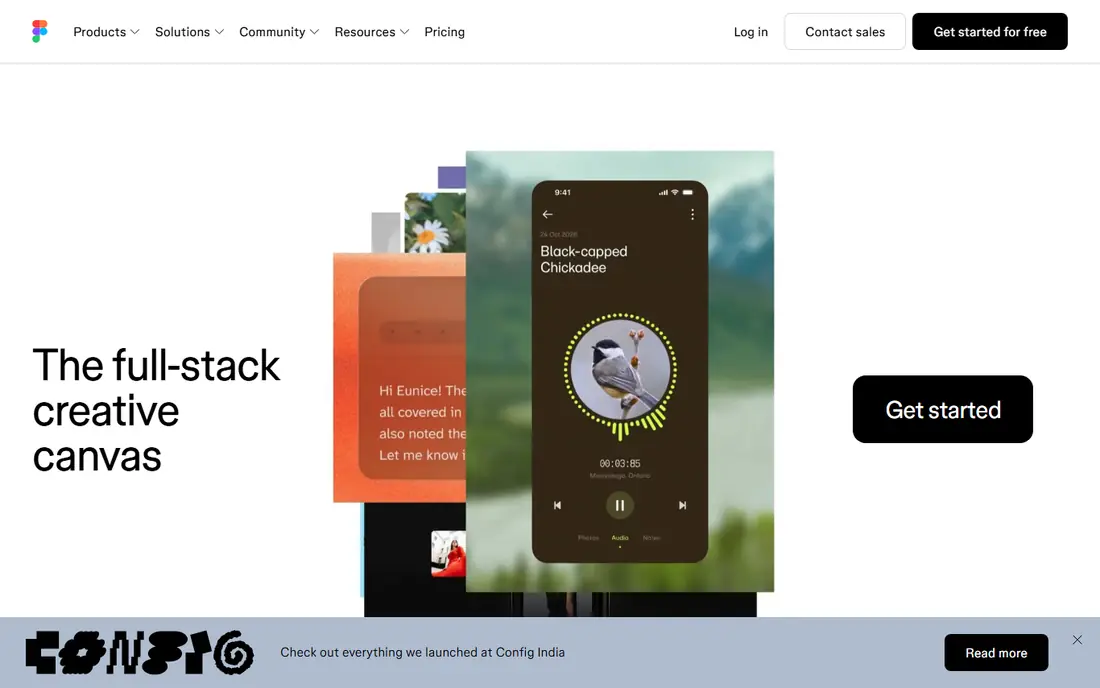
Figma is the standard choice for product teams that design together in a browser. Multiple designers can edit the same file at once, stakeholders can comment without a paid seat in many cases, and shared libraries keep components consistent across files. Variables, variants, and auto layout give design systems a solid base that developers can inspect for measurements and code. The cost side needs attention. Professional seats are billed per editor per month, and larger teams add Dev Mode seats and other costs on top. Figma also depends on an internet connection for full collaboration, so offline work is weaker than with a desktop editor. Even with those limits, Figma is our pick for most teams, because hiring, libraries, and developer handoff all revolve around it in 2026.
- Real time browser collaboration
- Strong component and variable system
- Large plugin and library ecosystem
- Paid seats add up for large teams
- Offline work is limited compared with desktop tools
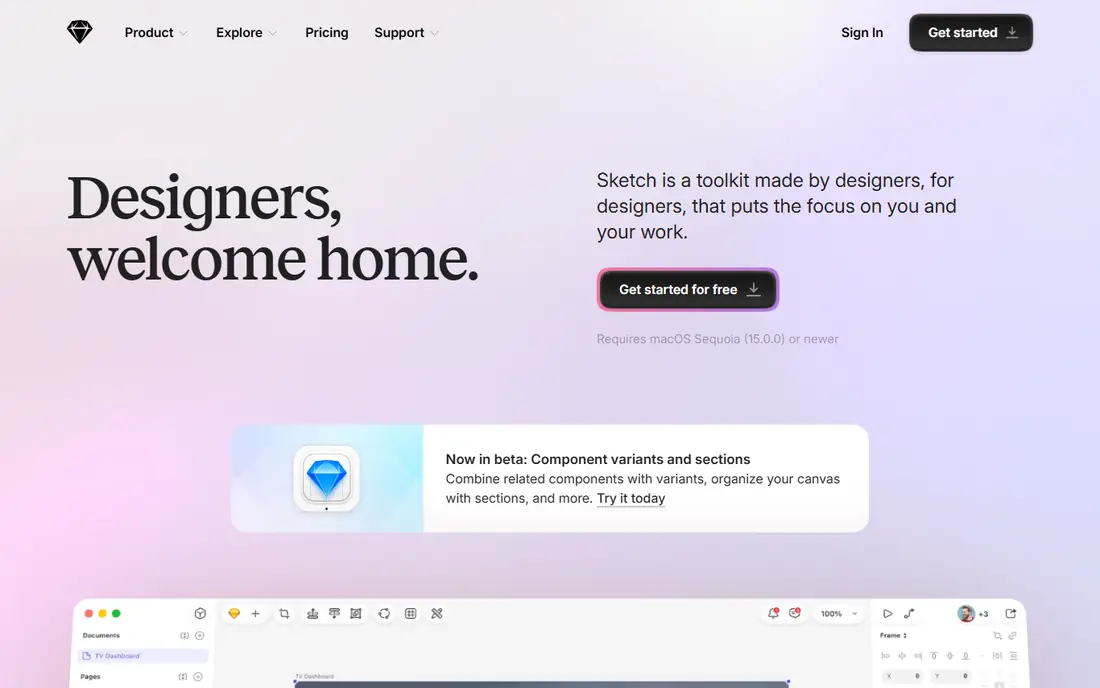
Sketch appeals to designers who work on a Mac and who want a fast, native editor rather than a browser tab. Files open quickly, offline work is straightforward, and the workspace in the browser lets stakeholders view and inspect designs without a Mac. Symbols, libraries, and a long history of plugins support serious product work, and the open file format helps teams that want more control over their files. The Mac only editor is the deciding limit. Windows and Linux team members cannot edit in Sketch, so mixed platform teams usually choose Figma or Penpot instead. There is also no permanent free editing plan, only a trial, so cost starts sooner. For a Mac based studio or solo designer, Sketch remains a polished, focused alternative to browser tools.
- Fast native Mac editor
- Offline work
- Open file format and free viewer access
- Editor is Mac only
- No permanent free editing tier
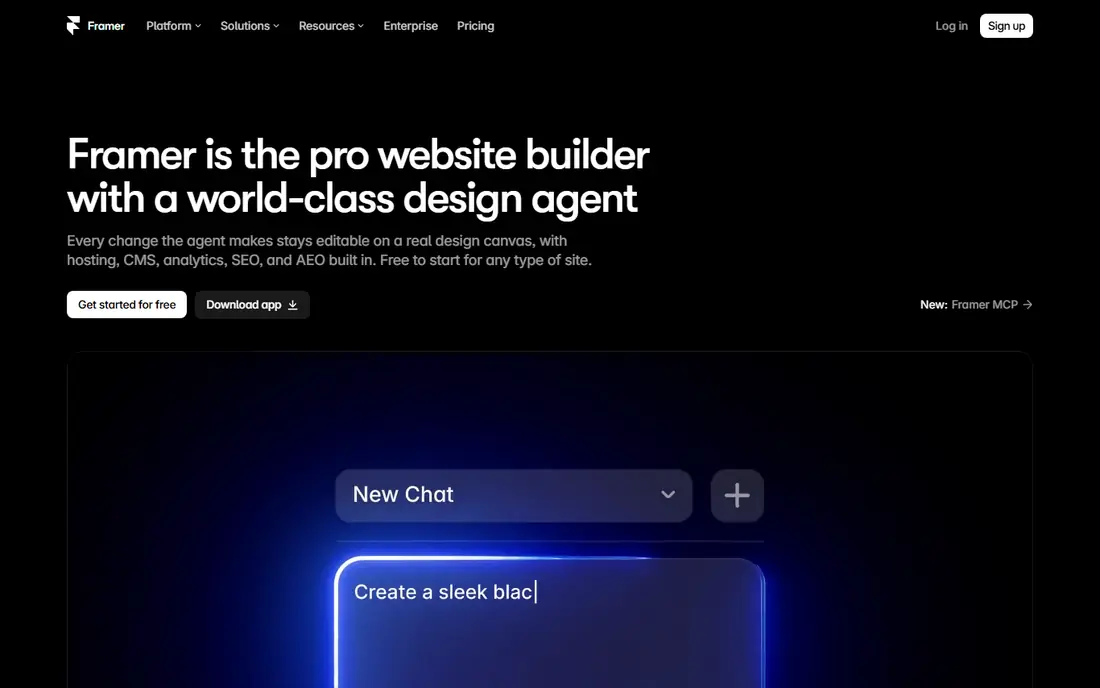
Framer stands apart because a design can become a live website without a separate build step. Designers lay out pages, add interactions and animations, and publish to a custom domain from the same tool. That path suits marketing sites, landing pages, and portfolios where speed from idea to live page matters more than a complex app component system. Pricing needs a careful read, since Framer bills per site on some plans plus per editor, which can surprise teams that expect a single per user price. Framer is also less centered on native mobile app design systems than Figma or Sketch. For web focused designers, agencies, and founders who need a real site fast, Framer is a strong pick. For large app teams, it works better as a companion tool than as the sole design system home.
- Designs become real published websites
- Strong animation tools
- Free tier for design work
- Billing per site plus per editor can add up
- Less suited to native app design systems
Penpot is the best open source option for teams that want a capable UI design tool without a large subscription bill. The hosted cloud plan is free for small teams, and teams with privacy or hosting needs can run Penpot on their own servers. Being web based, it works on Windows, Mac, and Linux alike, which removes the platform limits that affect Sketch. The trade off is ecosystem depth. Penpot has fewer plugins and community libraries than Figma, and some newer features arrive later. Teams that depend on a specific Figma plugin or a large shared library should check for an equivalent before switching. For budget conscious teams, schools, nonprofits, and privacy focused firms, Penpot offers a genuine design tool, not just a free viewer, at a price that is hard to beat.
- Free cloud plan for small teams
- Open source and self hosting
- Web based on any system
- Plugin library is smaller than Figma
- Some advanced features lag behind leaders
Lunacy, from Icons8, gives solo designers a free desktop design app on all three major systems, with built in icons, photos, and illustrations. That bundle helps beginners and freelancers who do not want to hunt for assets across several sites. Lunacy can open Sketch files, which helps designers who receive Sketch work but do not use a Mac. Collaboration is the weaker side. Lunacy is stronger as a personal desktop tool than as a real time team workspace, and the free cloud tier caps document counts. Paid plans remove some limits, but teams that need live co editing should still look at Figma or Penpot. For a solo designer on Windows or Linux who wants a free, capable desktop editor, Lunacy is an easy recommendation.
- Free desktop apps for Windows, Mac, and Linux
- Built in graphics and assets
- Reads Sketch files
- Free tier caps cloud documents
- Collaboration is thinner than Figma
UXPin suits teams that want prototypes built from real code components rather than pictures of components. Designers can use coded libraries, add states, variables, and conditional logic, and hand developers a prototype that behaves much closer to the final product. That closeness reduces surprises in development, especially for complex forms, dashboards, and data heavy interfaces. The price and learning curve are real barriers. Entry plans cost more than Figma or Sketch, and setting up code components takes design system skill. Beginners or small marketing teams will likely find Figma faster for simple screens. For product teams with a mature design system and developers involved early, UXPin can shorten the gap between design and shipped product in a way that picture based tools cannot match.
- Prototypes use real code components
- Strong design system support
- Conditional logic
- Higher entry price
- Steeper learning curve for beginners
ProtoPie is a prototyping specialist, not a general design editor. Its strength is realistic interaction: taps, swipes, device sensors, voice, and conditional flows that make a prototype feel like a working app. Designers import screens from Figma or Sketch, then add logic and motion in ProtoPie and share a playable link for testing. That workflow suits user testing, stakeholder demos, and complex flows such as onboarding or checkout. Because ProtoPie is not meant for drawing every screen from scratch, teams still need a design tool beside it. Pricing is per user, with a trial for evaluation, so small teams should confirm how many editors they need. For teams that test interactions seriously, ProtoPie earns its place as a second tool. For simple click through prototypes, Figma built in prototyping is usually enough.
- High fidelity interactions without code
- Sensors and device inputs
- Easy sharing
- Not a full interface design editor
- Best used beside Figma or Sketch
Axure RP has served enterprise UX teams for years, and its strength remains logic heavy prototypes and specifications. Variables, conditional flows, dynamic panels, and documentation outputs help teams define complex systems, such as admin tools, multi step forms, and data workflows, before development starts. Adaptive views support different screen sizes within one prototype. The interface feels less modern than Figma or Framer, and new designers may need training to use Axure well. The price also sits above simpler tools. Teams that need polished marketing visuals will prefer a modern editor. Teams that need a detailed, testable specification for a complex product, with logic that stakeholders can click through, will still find Axure RP hard to replace.
- Deep logic, variables, and documentation
- Strong for enterprise specs
- Adaptive views
- Dated feel compared with modern editors
- Higher price and learning curve
How we picked these
We compared official feature pages, pricing pages, app store listings, and public reviews, and we kept only tools that support interface design or high fidelity prototyping in October 2026. We favored tools with a clear collaboration or prototyping strength, published pricing, and a usable free plan or trial. We excluded Adobe XD as a primary pick for new projects because Adobe lists it in maintenance mode, though we note it in the takeaways for existing Creative Cloud users.
How to choose a UI design tool
Start with platform and team shape
Confirm which systems your editors use. A Mac only team can choose Sketch, while a mixed Windows, Mac, and Linux team needs a web tool such as Figma or Penpot. Also count editors versus viewers, since viewer seats are often cheaper or free, and that split changes the total bill.
Judge the component system, not just the canvas
A tool that draws pretty screens but handles components poorly will slow a growing product. Test variants, shared libraries, variables, and developer inspection on a real screen from your product. Check how changes to a main component flow to copies, and how developers copy measurements and code.
Test prototyping on a real flow
Build one real flow, such as sign up or checkout, in each shortlisted tool. Simple click throughs are easy everywhere, but conditional logic, form states, and device inputs separate specialists such as ProtoPie and Axure RP from general editors. Choose the simplest tool that handles your hardest flow well.
FAQ
What is the best UI design tool for beginners?
Figma is the easiest starting point for most beginners because it runs in a browser, offers a free plan, and has a huge library of tutorials and templates. Penpot and Lunacy are strong free alternatives, especially for users on Linux or for users who want a desktop app. Beginners should start with one tool and learn components early, rather than switching tools each week.
Is Figma free?
Figma offers a free Starter plan with limits on design files and collaboration features. Paid Professional plans add unlimited files, shared libraries, and advanced features, billed per editor per month. Solo users and small projects can often start free, while teams usually need a paid plan for full library and version controls.
What is the best free UI design tool?
Penpot is the strongest fully free option for teams, with a free hosted plan and self hosting. Lunacy is the strongest free desktop option for solo designers on Windows, Mac, and Linux. Figma free plan is also useful, though paid features matter more as team size and file count grow.
Can I use Sketch on Windows?
No, the Sketch editor runs on macOS only. Windows and Linux users can view and inspect Sketch designs in a browser workspace, but they cannot edit files in Sketch itself. Mixed platform teams should choose Figma, Penpot, or another web based tool for editing.
What is the difference between UI design and prototyping tools?
UI design tools create screens, components, and visual systems, while prototyping tools add interaction, logic, and motion to those screens. Many modern tools do both at a basic level, but specialists such as ProtoPie and Axure RP handle complex logic better. Most teams use a design editor for screens and add a prototyping specialist only when flows get complex.
Should I still use Adobe XD in 2026?
Adobe lists XD in maintenance mode, and it is no longer sold as a standalone app in the way it once was. Existing Creative Cloud users can still open and maintain XD files, but new projects are better started in Figma, Sketch, Penpot, or Framer. Migrating early avoids building a growing file set in a tool with no clear future path.