Best Software for Pixel Art Animation in 2026: 8 Tools Compared
best software for pixel art animation compared for game sprites and retro art, with timelines, onion skin, palettes, tiles and sprite sheet export in 2026.

- Editor's choice
 Aseprite
Serious pixel animation
Starts at$19.99 one-timeVisit aseprite.orgFull review - Great alternative
 Piskel
Free browser animation
Starts atFreeVisit piskelapp.comFull review - Also consider
 Pixelorama
Free open-source animation
Starts atFreeVisit pixelorama.orgFull review
TL;DR:
- Aseprite is the clear first pick for serious pixel animation, with a one-time price of $19.99.
- Piskel, Pixelorama and LibreSprite cover most beginner and hobby needs for free.
- Onion skin, frame tags, palettes and sprite sheet export matter more than brush counts for animation work.
- Paid tools like Pro Motion NG and Pyxel Edit suit artists who want deeper tile and palette control.
- Check export formats for your game engine before you start a large project, not after you finish it.
Quick comparison
| Tool | Best for | Starts at | Free plan? | |
|---|---|---|---|---|
| Aseprite | Serious pixel animation | $19.99 one-time | No | Visit |
| Piskel | Free browser animation | Free | Yes | Visit |
| Pixelorama | Free open-source animation | Free | Yes | Visit |
 LibreSprite | Free Aseprite-style editing | Free | Yes | Visit |
 GraphicsGale | Windows pixel animation | Free | Yes | Visit |
 Pro Motion NG | Advanced tile and palette work | See website | No | Visit |
 Pyxel Edit | Tile-based game art | See website | No | Visit |
 Krita | General art with animation | Free | Yes | Visit |
The best software for pixel art animation
Pixel art animation software needs a frame timeline, onion skin to see nearby frames, palette control and clean export to sprite sheets or GIFs. The tools below range from free browser editors to paid desktop tools built for game production.
Aseprite is the standard desktop editor for pixel art and game sprites, with layers, cels, a frame timeline, onion skinning, frame tags and tilemap tools in one focused workspace. Its pixel-perfect drawing, indexed colour modes and palette tools help artists keep colours controlled across a whole character set, which matters when a game needs dozens of matching animations. Export covers PNG, GIF, image sequences and sprite sheets with JSON data, plus command-line automation for asset pipelines.
The price is a one-time $19.99 purchase, which includes Windows, macOS and Linux builds, and there is no subscription. The source code can also be compiled for free, though that route needs technical setup. Aseprite has no AI generation tools and no mobile app, so artists who want those features should look elsewhere. For game artists who animate sprites every week, it is the most reliable pick in this list.
- Purpose-built pixel timeline
- Onion skin and frame tags
- Sprite sheet and JSON export
- No free plan for compiled builds
- No AI tools
- Desktop only
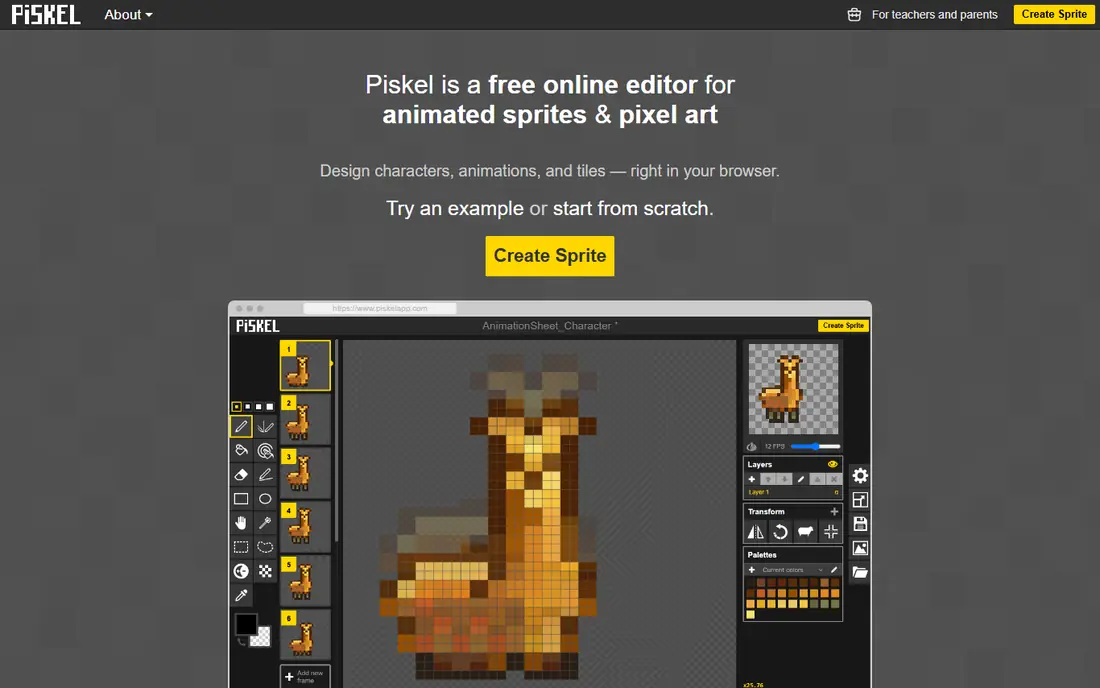
Piskel is a free, open-source pixel art editor that runs in the browser, with offline desktop builds also available. It offers frame-by-frame animation, onion skinning, layers and sprite sheet export in a clean interface that beginners can learn in an afternoon. That low barrier makes it ideal for game jams, school projects and artists testing whether pixel animation suits them.
Piskel lacks the deeper tilemap, palette and automation tools found in Aseprite or Pro Motion NG, and very large animations can feel less smooth. It also has no paid support tier, so help comes from community docs and forums. For a free start, a quick prototype or a small sprite set, Piskel is hard to beat, and many artists keep it for sketches even after buying a paid tool.
- Free and browser-based
- Simple timeline and onion skin
- Easy sprite sheet export
- Fewer advanced tools
- Large projects can feel limited
- No desktop polish of paid tools
Pixelorama is a free, open-source pixel art editor built for animation, with a frame timeline, onion skinning, frame tags, layers and sprite sheet export. It runs on Windows, macOS and Linux, with a web build for quick work, and it supports PNG, GIF and APNG export. Its open development model means new features arrive often, and artists who value free software can use it for commercial game work without a licence fee.
The trade is maturity. Pixelorama has a smaller community and fewer tutorials than Aseprite, and some workflows feel less polished. Artists who need deep tilemap tools, command-line pipelines or extensive plugin support may still prefer a paid tool. For a free, capable animation editor that covers the core pixel workflow well, Pixelorama is a strong second pick after Piskel for beginners.
- Free and open source
- Timeline with onion skin and tags
- Runs on desktop and web
- Smaller community than Aseprite
- Some tools are still maturing
- Interface takes getting used to
LibreSprite is a free, open-source fork of an older Aseprite codebase, offering a similar timeline, layers, onion skin and sprite sheet workflow without a purchase. It runs on Windows, macOS and Linux, with a browser build for quick edits, and it suits artists who want a desktop pixel editor at no cost. Its workflow will feel familiar to anyone who has used Aseprite, which shortens the learning curve.
Development is slower than Aseprite or Pixelorama, so newer features, tilemap improvements and engine export options lag behind. The interface also feels older than current paid tools. LibreSprite still covers the basics well: draw, animate with onion skin, manage palettes and export sheets or GIFs. For a free desktop editor with a familiar layout, it remains a useful option, especially on older machines.
- Free and open source
- Familiar Aseprite-style workflow
- Desktop and web builds
- Slower development
- Fewer new features
- Interface feels dated
GraphicsGale is a long-running Windows pixel art editor with animation, palette control and export tools built for game sprites and retro graphics. Its pixel-specific features, including selective colour replacement, palette editing and frame management, help artists work quickly on small sprites. A free version covers many core tasks, with a paid version adding more features, though buyers should check current pricing on the vendor site.
GraphicsGale only runs on Windows, which rules it out for macOS and Linux artists unless they use compatibility tools. Its interface also feels dated next to Aseprite, though the underlying tools remain capable. For a Windows artist who wants a free or low-cost pixel editor with strong palette work, GraphicsGale is still worth trying, especially for classic-style game art.
- Strong pixel-specific tools
- Palette control
- Flexible export options
- Windows only
- Interface feels dated
- Free version has limits
Pro Motion NG is a Windows pixel art and animation tool aimed at professional game artists, with tile editing, animation timelines, palette tools and project management for larger sprite sets. Third-party guides cite a price around $19.95, with a free tier for limited use, though buyers should confirm current terms on the vendor site. Its tile workflow helps artists build levels and animated tiles that stay consistent across a game.
The learning curve is steeper than Piskel or Aseprite for beginners, and Windows-only support limits its audience. Its interface packs many options into a dense workspace, which rewards study but can overwhelm a first-time user. For an artist who works mainly with tiles, needs precise palette control and wants a production-grade Windows tool, Pro Motion NG is a serious alternative to Aseprite.
- Deep tile and animation tools
- Strong palette control
- Built for game production
- Windows only
- Learning curve is steep
- Pricing needs checking on vendor site
Pyxel Edit is a pixel art editor built around tiles, making it a natural fit for platformers, top-down games and other tile-based projects. Artists can draw tiles, arrange them into tilesets and see how they repeat in a level view, which reduces seams and mismatched edges. Animation support covers frame-based sprite work, though it is simpler than Aseprite for complex character animation with many tags and layers.
Pyxel Edit is a paid tool, and buyers should check the current price and platform support on the vendor site before buying. Its community and tutorial base are smaller than Aseprite, so finding help for unusual workflows can take longer. For a tile-heavy game, Pyxel Edit can save real time, and many artists pair it with Aseprite, using Pyxel Edit for tiles and Aseprite for character animation.
- Tile-first workflow
- Clean tileset tools
- Good for platformers and top-down games
- Animation tools are simpler than Aseprite
- Pricing needs checking
- Smaller community
Krita is a free, open-source digital painting app with a full animation timeline, layers, brushes and colour tools, which makes it useful for artists who animate in a pixel style but also paint, sketch or work on larger illustrations. Its animation tools cover frame-by-frame work, onion skin and video export, and its brush engine is far richer than any pixel-only editor. That breadth suits artists who do not want a separate tool for every style.
Krita is not built for pixel art specifically. Pixel-perfect drawing, indexed palettes and sprite sheet export need extra setup or plugins, and its large interface can feel heavy for a small sprite. It also lacks the tilemap and engine JSON export that game artists often need. For an artist who already uses Krita for illustration and wants to try pixel animation without buying another tool, it is a capable free starting point.
- Free and full-featured
- Strong brushes and layers
- Animation timeline included
- Not pixel-specific
- Sprite sheet export needs extra steps
- Interface is large for pixel work
How we picked these
We compared official product pages, pricing pages, documentation and public guides for pixel art animation tools in October 2026. We kept only tools that still support frame animation, onion skin or timeline work today, and we balanced free, open-source and paid options. Where a vendor does not publish a clear price, we wrote See website rather than guessing.
How to choose a pixel animation tool
Start with your export target. If you build for Unity, Godot, Phaser or a web game, check sprite sheet, JSON atlas, GIF and PNG sequence support before you invest hours in a tool. A tool that exports clean sheets will save more time than any brush feature.
Next, test onion skin, frame tags and palette control on a short walk cycle. A walk cycle exposes timeline, spacing and colour problems quickly, and it shows whether the interface helps or slows you down. Also check platform support, file formats and whether your project files will still open in a year. For team work, prefer tools with clear file formats and version control friendly exports, such as image sequences or JSON sheets.
A simple starter workflow
Begin in Piskel or Pixelorama for a first character, then move to Aseprite if you animate regularly. Keep palettes small, name frame tags clearly, and export a test sheet into your engine early. That early test catches scale, pivot and timing problems while they are still cheap to fix.
FAQ
What is the best software for pixel art animation?
Aseprite is the best overall pick for serious pixel animation, thanks to its timeline, onion skin, palettes and engine-friendly export, at a one-time $19.99 price. Piskel and Pixelorama are the best free picks for beginners and hobby projects.
Is Aseprite free?
The compiled builds sold on the vendor site cost $19.99 as a one-time purchase. The source code is available to compile for free, but that route needs technical setup, so most buyers should budget for the paid build.
Can I animate pixel art in a browser?
Yes, Piskel and Pixelorama both offer browser builds, and Piskel runs fully in the browser with no install. Browser tools suit sketches, jams and small sprites, while desktop tools suit larger game projects.
What is onion skinning?
Onion skinning shows faint copies of nearby frames while you draw the current frame, which helps you judge movement, spacing and timing. It is a core animation feature, and every tool in this list except some basic editors should offer it.
Do I need a paid tool to make game sprites?
No, free tools like Piskel, Pixelorama, LibreSprite and Krita can produce professional sprite sheets. Paid tools add polish, tile tools, automation and support, which matter more as projects grow in size and complexity.
What export format should I use for games?
Use sprite sheets with JSON data for most engines, PNG sequences for video or editing, and GIFs for previews and social sharing. Check your engine docs for sheet layout, pivot and frame duration support before you export a full character set.