Best Software for MOV to MP4 Conversion in 2026: 10 Tools Compared
We compared the best software for mov to mp4 conversion on quality, speed, batch work and price, so you can convert MOV files easily without losing quality.
- Editor's choice
 HandBrake
Free, high-quality conversion
Starts atFreeVisit handbrake.frFull review - Great alternative
 VLC Media Player
Free occasional conversion
Starts atFreeVisit videolan.orgFull review - Also consider
 FFmpeg
Free command-line conversion
Starts atFreeVisit ffmpeg.orgFull review
TL;DR:
- HandBrake is the best free choice for MOV to MP4 conversion, with no watermarks and strong quality controls.
- VLC Media Player is a good free backup for occasional conversions, though its conversion controls are basic.
- Wondershare UniConverter and Movavi Video Converter suit users who want presets, batch work and editing in one paid tool.
- CloudConvert, FreeConvert and Zamzar are best for occasional online conversions with no software install.
Quick comparison
| Tool | Best for | Starts at | Free plan? | |
|---|---|---|---|---|
| HandBrake | Free, high-quality conversion | Free | Yes | Visit |
| VLC Media Player | Free occasional conversion | Free | Yes | Visit |
| FFmpeg | Free command-line conversion | Free | Yes | Visit |
 Wondershare UniConverter | Paid presets and batch work | $9.99 per month | Free trial | Visit |
 Movavi Video Converter | Easy paid conversion | $39.95 per year | Free trial | Visit |
 Adobe Media Encoder | Professional Adobe workflows | See website | Free trial | Visit |
 CloudConvert | Online conversion, no install | $8 one-time credits | Yes | Visit |
 FreeConvert | Simple online conversion | Free | Yes | Visit |
 Zamzar | Quick online file conversion | Free | Yes | Visit |
 Any Video Converter | Free and paid desktop conversion | Free | Yes | Visit |
The best software for MOV to MP4 conversion
MOV is a common format from Apple devices and cameras, but MP4 plays on more devices, apps and websites. Converting MOV to MP4 usually means keeping the same video and audio, or re-encoding it to H.264 or H.265 in an MP4 container, so the file works everywhere without a visible quality drop. We compared official pricing and feature pages and public tests to find desktop, command-line and online tools that handle MOV to MP4 well, with different levels of control and price.
HandBrake is our pick for most people because it is free, reliable and gives real control over quality. It runs on Windows, Mac and Linux, supports hardware encoding on modern computers, and offers presets for common devices plus detailed controls for resolution, frame rate, bitrate and codecs. For MOV to MP4, you can choose an MP4 container with H.264 for broad compatibility, or H.265 for smaller files on newer devices, and queue many files for batch conversion.
The interface can feel technical at first, with many settings that beginners may not need. Start with a preset that matches your device or a general 1080p preset, test one file, and only adjust bitrate or codec if the result is too large or too soft. There is no official phone support, only community forums and guides, but for a free tool with no watermarks and no file limits, HandBrake is hard to beat.
- Completely free and open source
- No watermarks
- Strong quality, preset and hardware encoding controls
- Steeper learning curve for beginners
- Minimal editing beyond trimming and cropping

VLC Media Player is best known as a free video player, but it can also convert MOV to MP4 through its media conversion menu. That makes it a useful backup when you need one file converted quickly and do not want to install another app. It is free, open source and available on Windows, Mac and Linux, and it handles a wide range of input formats beyond MOV.
Conversion quality and speed are not as strong as HandBrake, and batch work, presets and detailed encoding controls are limited. VLC also offers less guidance on which settings to choose, so beginners may get a file that is larger or lower quality than expected. Use VLC for occasional, simple conversions, and choose HandBrake or a paid converter for regular work, batch jobs or files where quality matters.
- Free on Windows, Mac and Linux
- Already installed on many computers
- Simple conversion for occasional files
- Conversion controls are basic
- Slower and less polished than dedicated converters
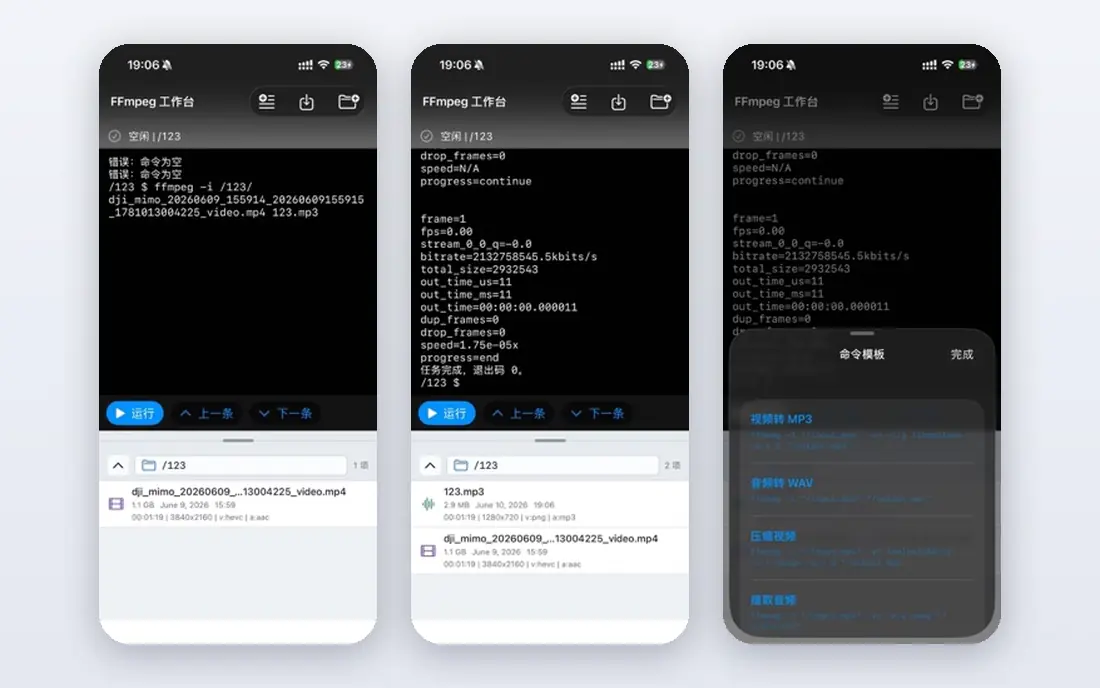
FFmpeg is a free, open-source command-line tool that powers many converters behind the scenes, including CloudConvert and other online services. For MOV to MP4, it can copy video and audio streams into an MP4 container without re-encoding, which is fast and lossless when the codecs already suit MP4, or it can re-encode to H.264 or H.265 with precise control over quality, size and frame rate. Scripts can batch-convert whole folders, which is why video professionals and developers rely on it.
The barrier is the command line. There is no built-in graphical interface, so a beginner must learn commands or use a front-end app built on FFmpeg. That learning curve is worth it for users who convert often, automate workflows or need exact control. If you prefer buttons and presets, choose HandBrake or Movavi instead, and know that many of those tools use FFmpeg-style logic under the surface.
- Free and extremely flexible
- Fast copy or re-encode workflows
- Ideal for batch and automation
- Command-line only, so beginners need to learn commands
- No graphical interface by default
Wondershare UniConverter, now often sold as UniConverter AI, is a paid desktop converter for users who want presets, batch work and extra media tools in one app. Monthly plans start at 9.99 dollars, with yearly plans around 29.99 dollars in recent comparisons, and the app covers conversion, compression, editing, downloading and disc output. Presets for YouTube, Instagram, iPhone and Android mean beginners can pick a target and convert without learning codec settings, while hardware acceleration speeds up large batches.
The trial is limited: it converts only part of a video length and applies watermarks, so the full experience needs a paid license. That makes UniConverter a poor choice for a single free conversion, but a good choice for creators who convert often and want support, presets and batch tools together. Check the current plan terms before buying, because AI credits and feature limits vary by tier.
- Guided presets for devices and social apps
- Full batch queue
- Editing, compression and AI tools included
- Trial applies watermarks and limits length
- Paid license needed for full use
Movavi Video Converter suits users who want a simple, guided converter and are willing to pay for it. The interface is clear, presets cover common devices and formats, and conversion is fast on modern hardware. Personal licenses have been reported from 39.95 dollars for a one-year subscription, with lifetime options around 49.95 to 69.95 dollars depending on the offer, and a Video Suite bundle adds an editor and screen recorder for users who need more than conversion.
The free trial is heavily limited: it watermarks exports, converts only part of audio files in some reports, and blocks batch processing, with a seven-day trial period in some listings. That means Movavi is not a free solution, despite the free download. For users who convert regularly and prefer a polished, easy interface over HandBrake controls, the paid license is reasonable. For one-off conversions, start with HandBrake or an online tool instead.
- Simple interface with presets
- Fast conversion
- Supports over 180 input formats
- Trial watermarks exports and limits batch work
- Yearly or lifetime license needed for full use
Adobe Media Encoder is the conversion and export engine for Premiere Pro, After Effects and other Adobe apps, and it handles MOV to MP4 as part of a professional video workflow. Users can build presets, use watch folders to convert files automatically, queue many jobs, and match broadcast or delivery specs with precise codec, resolution and audio controls. For editors already in Creative Cloud, it keeps conversion inside the same workflow as editing, color and audio work.
It is not a good buy on its own for simple conversion. Media Encoder requires a Creative Cloud subscription, so the cost is high if you do not already use Adobe apps, and the interface assumes video knowledge. Editors, agencies and production teams that already pay for Creative Cloud will find it the most integrated choice. Everyone else should choose HandBrake, UniConverter or Movavi for MOV to MP4 work.
- Deep Adobe integration
- Professional presets and watch folders
- Strong batch and queue control
- Requires a Creative Cloud subscription
- Overkill for simple MOV to MP4 jobs
CloudConvert is a web-based converter that has served users since 2012, with support for nearly all audio, video, document and image formats. For MOV to MP4, you upload a file, choose MP4 and codec options, and download the result without installing software, which suits Chromebooks, shared computers and occasional users. A free tier covers small jobs, and paid credits start from around 8 dollars for one-time use, with subscription plans for regular users and an API for developers.
The limits are file size, speed and privacy trade-offs common to online tools. Large 4K MOV files take time to upload and download, and credits are consumed by conversion minutes, so heavy users may pay more than a desktop license costs. Avoid uploading sensitive or private video to any online converter if you can convert locally instead. For occasional, non-sensitive conversions, CloudConvert is a reliable, no-install option.
- No software install
- Wide format support
- API for automated conversions
- Good quality controls
- Large files use credits quickly
- Upload and download time depends on connection
FreeConvert is a straightforward online converter for users who want to convert a MOV file to MP4 in a browser with minimal steps. Upload, choose MP4, adjust basic settings if needed, and download the result. The free tier suits occasional conversions, while paid plans raise file size limits and remove daily caps for regular users. It is a good choice for a quick job on a computer where you cannot install software.
Free limits matter for larger work. The free tier caps file size and daily conversions, and large files convert slower online than in HandBrake or UniConverter on a local machine. Privacy also matters: do not upload sensitive footage to a free online service if a local tool can do the job. For small, non-sensitive files, FreeConvert is simple and effective.
- Simple web interface
- Free tier for occasional files
- No install needed
- Free tier has file size and daily limits
- Slower for large files than desktop tools
Zamzar is one of the longest-running online converters, with a simple upload, choose format and download workflow that suits non-technical users. It supports MOV to MP4 alongside hundreds of other format pairs, and it can email a download link when a conversion finishes, which helps on slower connections. The free tier handles small files, while paid plans raise size limits, speed and storage for regular users.
Control is limited compared with HandBrake or FFmpeg. Zamzar does not offer the same depth of codec, bitrate and preset controls, and free conversions can be slower during busy periods. It is best for a quick, small MOV file that needs to become MP4 for sharing or playback. For large, high-quality or batch work, a desktop converter will be faster and give better results.
- Very simple three-step conversion
- Supports many file types
- Email delivery option
- Free tier limits file size and speed
- Less control over codec settings than desktop tools
Any Video Converter offers a free desktop converter for Windows and Mac, with a paid Ultimate version for users who need more presets, faster conversion and extra tools. The free version handles MOV to MP4 for basic jobs, while Ultimate, reported at around 49.95 dollars for a lifetime license in some listings, adds full batch support, more device presets and faster hardware-accelerated conversion. That tiered approach lets users start free and upgrade only if they convert often.
The interface feels less polished than Movavi or UniConverter, and free users miss some advanced features. Still, for a desktop tool that starts free and does not require a browser upload, Any Video Converter is a practical middle option between HandBrake and paid suites. Test the free version with a real MOV file first, and only pay for Ultimate if batch speed or presets matter to your workflow.
- Free version for basic conversion
- Paid Ultimate version adds presets and faster conversion
- Batch support
- Free version has fewer features than Ultimate
- Interface feels dated compared with Movavi
How we picked these
We compared official pricing and feature pages and public tests, focusing on MOV input support, MP4 output quality, codec choices, batch handling, speed, price and ease of use. We favored tools that are actively maintained in 2026, handle common MOV codecs from Apple devices and cameras, and offer a free plan or trial where possible. Where trial limits include watermarks, we say so, because a watermarked trial is not the same as a free converter.
What to check before you buy
Start with your source file. If your MOV already uses H.264 video and AAC audio, a stream copy into MP4 can be fast and lossless, which FFmpeg and some desktop tools support. If it uses ProRes, HEVC or another codec, you will need to re-encode, so choose a bitrate and resolution that keep quality without creating a huge file. Test one representative file first, check it on the device or platform where it will play, and only then convert a whole batch.
Also check privacy and file size. Local tools keep your video on your computer, while online tools require uploads, so use local conversion for private, client or unreleased footage. For paid tools, confirm whether the price is monthly, yearly or lifetime, and what trial limits apply, because watermarked trials can waste time on a file you cannot use. The best software for MOV to MP4 conversion is the one that gives you a playable MP4 at the quality you need, without surprise watermarks or limits.
FAQ
What is the best free software for MOV to MP4 conversion?
HandBrake is the best free choice for most users, with no watermarks, strong quality controls and batch support on Windows, Mac and Linux. VLC works for occasional single files, and FFmpeg suits users comfortable with the command line. Avoid paid tools with watermarked trials if you need a free, usable MP4 file.
Will converting MOV to MP4 lose quality?
It can, if you re-encode at a low bitrate, but a careful conversion at a suitable bitrate keeps quality very close to the original. If the MOV already uses H.264 and AAC, a stream copy into MP4 avoids re-encoding loss entirely. Test with a short clip first, compare the output on your target device, and raise the bitrate if you see blocking or soft detail.
What is the best online MOV to MP4 converter?
CloudConvert is the most capable online option, with good format support, quality controls and an API for automation. FreeConvert and Zamzar are simpler choices for small, occasional files. For large, private or batch work, a desktop tool such as HandBrake or UniConverter will be faster and safer than uploading files to a website.
Is MOV to MP4 conversion safe for private videos?
Local conversion with HandBrake, VLC, FFmpeg or a paid desktop tool keeps your video on your own computer, which is safest for private footage. Online converters require uploads to a third-party server, so avoid them for sensitive, client or unreleased video. Check the privacy policy of any online tool you use, and delete uploaded files from the service when the conversion is done if that option is offered.
Sources
- https://handbrake.fr
- https://www.videolan.org/vlc/
- https://ffmpeg.org
- https://videoconverter.wondershare.com/pricing
- https://www.movavi.com/videoconverter/
- https://www.adobe.com/products/media-encoder.html
- https://cloudconvert.com/pricing
- https://www.freeconvert.com/pricing
- https://www.zamzar.com/pricing
- https://www.any-video-converter.com