Best Software for Homelab Automation in 2026: 8 Tools Compared
Best software for homelab automation compared: 8 tools for smart homes, servers, backups and workflows, with free plans, pricing and honest limits today.

- Editor's choice
 Home Assistant
Smart home automation
Starts atFreeVisit home-assistant.ioFull review - Great alternative
 Node-RED
Visual flow automation
Starts atFreeVisit nodered.orgFull review - Also consider
 Ansible
Repeatable server setup
Starts atSee websiteVisit ansible.comFull review
TL;DR:
- Home Assistant is our first pick for most people because it ties lights, sensors, locks and media together in one local system.
- Proxmox VE, Unraid and TrueNAS cover the base layer, so pick one of those before adding automation on top.
- Node-RED and n8n suit people who think in flows and want custom logic without writing a full application.
- Ansible fits repeatable server setup, while Portainer and CasaOS make container management much easier to see and control.
- Free and open source tools can run a full homelab, but you still need time for updates, backups and security.
Quick comparison
| Tool | Best for | Starts at | Free plan? | |
|---|---|---|---|---|
| Home Assistant | Smart home automation | Free | Yes | Visit |
| Node-RED | Visual flow automation | Free | Yes | Visit |
| Ansible | Repeatable server setup | See website | Free trial | Visit |
 Proxmox VE | Virtual machines and containers | Free | Yes | Visit |
 Unraid | Mixed-drive home servers | $49 one-time | Free trial | Visit |
 TrueNAS | Storage-first home servers | Free | Yes | Visit |
 Portainer | Container management | Free | Yes | Visit |
 n8n | Workflow automation | Free | Yes | Visit |
The best software for homelab automation
A homelab usually needs two kinds of software: a base that runs services, and a brain that decides when things should happen. The tools below cover both jobs, and we list the base platforms alongside the automation tools so you can build in the right order.

Home Assistant is the hub most homelab owners reach first, and for good reason. It brings lights, thermostats, locks, cameras, sensors and media players into one dashboard, and its automation editor lets you build rules from triggers, conditions and actions without starting in code. Because the core runs on your own hardware, lights and routines can keep working when your internet connection drops, and your device data does not have to pass through a vendor cloud for basic control.
The catch is scope. Home Assistant rewards a little patience, especially when you add Zigbee or Z-Wave devices, set up backups, or clean up a dashboard that has grown messy. Optional remote access through Nabu Casa costs $6.50 per month or $65 per year, but it is not required for local use. If your main goal is a home that responds to presence, time, weather and sensor readings, start here and add other tools around it.
- Very wide device support
- Runs locally by default
- Large community and add-on library
- Learning curve for advanced setup
- Some devices need extra hardware for local protocols
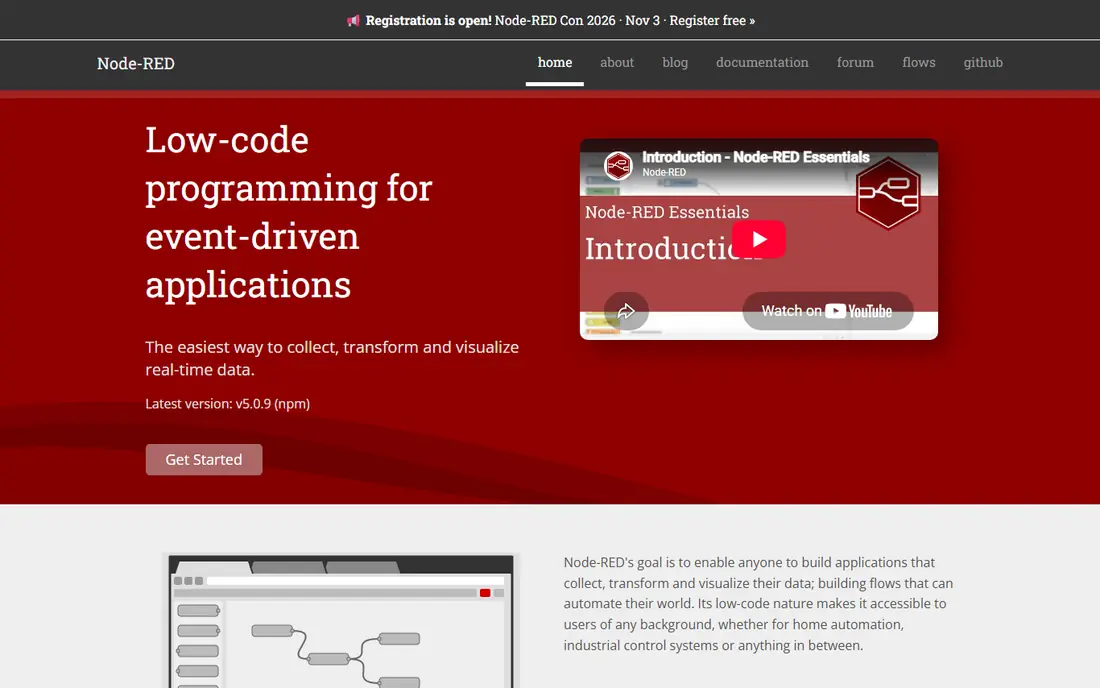
Node-RED turns automation into a diagram. You drag nodes onto a canvas, connect them, and watch messages move through the flow, which makes it easy to test an idea before you commit to it. It is a strong fit for people who want logic that goes beyond a simple trigger, such as checking several sensors, calling a web service, formatting a message and then deciding what to do next. Many Home Assistant users run Node-RED next to it for the flows that feel clumsy in a standard automation editor.
The trade-off is upkeep. A flow that grows over months can become hard to read, and you need clear names, notes and backups to keep it manageable. Node-RED itself is free and open source, so the main cost is the machine it runs on and the time you spend maintaining it. Keep it on your local network unless you have a clear plan for authentication and secure remote access.
- Visual drag-and-drop flows
- Huge library of community nodes
- Works well alongside Home Assistant
- Flows can get messy at scale
- Needs care with security when exposed to the internet

Ansible is less about turning on a light and more about making sure every server in your lab ends up in a known, repeatable state. You describe the desired setup in a playbook, then run it against one machine or many, which helps when you rebuild a server, add a second host, or apply the same hardening steps across your lab. That repeatability is the point. Instead of remembering a long list of manual steps, you keep the steps in a file you can read, change and run again.
For a single small server, Ansible can feel like extra work, and the commercial automation platform around it is aimed at larger teams, so home users should check current trial and pricing details before assuming a paid plan fits. The open source core remains the practical entry point for most homelab owners. Use it when setup chores keep repeating, not when you only need one quick rule for a light switch.
- Plain-text playbooks you can version and reuse
- Agentless approach for many systems
- Strong fit for multi-machine labs
- Steeper start for beginners
- Paid platform pricing is not simple for home use
Proxmox VE is the base layer for many serious homelabs. It lets you run virtual machines for full operating systems and lightweight containers for single services, all managed from a web interface. That separation matters for automation, because you can restart, snapshot or roll back one service without taking down the rest of your lab. It also makes testing safer, since a broken experiment can live in its own virtual machine.
The software itself is free and open source, with paid subscriptions available for enterprise support and update repositories. Home users can run it without a subscription, but they should plan for enough memory, especially if Windows virtual machines or several services run at once. Check that your network card, storage controller and CPU features are supported before you wipe a machine for it, and set up backups early, because a host failure affects everything running on it.
- Full virtual machines plus lightweight containers
- Snapshots and backups built in
- Web interface for the whole host
- Needs more memory for several virtual machines
- Hardware compatibility still needs checking before install
Unraid suits people who want a home server without becoming a storage expert first. Its array lets you mix drives of different sizes, add parity protection, and run containers and virtual machines from a friendly web interface. The community app library makes it easy to install common services such as media servers, photo tools and file sync, which is a big part of why so many first-time homelab owners choose it.
Pricing starts at $49 as a one-time Starter licence for up to six storage devices, with higher tiers at $109 and $249 for unlimited devices and longer update coverage, and a 30-day trial is available. The honest limit is that parity helps with a failed drive, but it does not replace a separate backup of files you cannot replace. Plan a second copy for photos, documents and important data, and treat Unraid as the convenient host, not the whole safety plan.
- Easy mix of different drive sizes
- Large app library for containers
- One-time licence model
- Paid licence required after trial
- Parity protection is not a backup by itself
TrueNAS is the pick when your homelab is first and foremost a place to keep data safe. It is built around ZFS, which checks data integrity, supports snapshots, and lets you roll back files or datasets when something goes wrong. That makes it a natural home for media libraries, backups from other machines, and shared folders for a household, with apps and containers available on newer releases for services that should live close to the storage.
It is less forgiving on modest hardware than a simple container host, and it works best with several drives rather than a single disk. The community edition is free, while commercial TrueNAS products and support are separate. If you have one small mini PC and no real storage plan, start with a lighter host instead. If data integrity and snapshots are the priority, TrueNAS earns its extra setup effort.
- Strong data integrity features
- Good sharing and snapshot options
- Free community edition
- Wants multiple drives to shine
- Hardware and memory needs are higher than a basic container host
Portainer gives containers a face. Instead of managing everything from the command line, you can see running containers, logs, volumes, networks and stacks in a web interface, and start, stop or update services with a few clicks. That visibility helps a lot in a homelab, where a forgotten container can quietly use resources or hold an old image for months. It also helps new users learn what Docker is doing, because the interface shows the pieces rather than hiding them behind commands.
Portainer is not a host system by itself, so you still need an operating system and a Docker host underneath it, and some business features sit behind paid plans. The free community edition covers the core management most home users need. Pair it with Proxmox, Unraid, TrueNAS or a plain Linux server, and use it as the daily control panel for your containers rather than the whole automation brain.
- Clear visual view of containers and stacks
- Simplifies common Docker tasks
- Community edition is free
- Does not replace a full host operating system
- Business features are paid
n8n fills the gap between home automation and general workflow automation. It connects apps, APIs, databases and AI services into visual workflows, and it lets you drop into code when a visual node is not enough. That makes it useful for jobs such as syncing data between services, sending formatted alerts, processing files, or building a small internal tool that reacts to events from your lab. The self-hosted community edition is free, with unlimited executions on your own server, while cloud plans start at $24 per month billed monthly for a limited execution count.
The main thing to watch is how executions are counted on paid cloud plans. A workflow that polls an external service every few minutes can use many executions, so webhook-based triggers are usually the cheaper and cleaner choice. For homelab use, self-hosting on hardware you already run keeps costs low, but you take on updates and security yourself. Use n8n when your automation needs to talk to outside services, not just devices inside your home.
- Visual workflows with code when needed
- Large integration library
- Free self-hosted community edition
- Cloud plans are metered by executions
- Polling workflows can use executions faster than expected
How we picked these
We compared official feature pages, pricing pages and documentation, plus public community guidance, for tools that are actively maintained and widely used in homelabs in October 2026. We favoured tools that cover a distinct job, from smart home control to storage to workflow automation, so readers can mix them rather than buying overlapping products. We checked that each tool still exists, noted free and paid starting points, and flagged limits that matter in daily use, such as hardware needs, licence terms and backup gaps.
What to set up first in a homelab
Start with the base, then add the brain. Choose a host platform that matches your hardware and storage plan, get backups working, and only then add smart home or workflow automation on top. A host that is easy to restore matters more than a clever rule, because every automation depends on the machine underneath it.
Keep backups separate from automation
Automations can delete, move or overwrite files if a rule is wrong, so your backup should live outside the service being automated. Use snapshots where your platform supports them, keep a second copy of irreplaceable files, and test a restore before you trust the setup. A backup you have never restored is a guess, not a plan.
Keep local control where it matters
Local-first tools keep lights, locks and core services working during an internet outage, while cloud tools are often better for alerts and outside services. A common pattern is to run home control locally and use a workflow tool only for notifications and external sync. That split limits the damage when one service has an outage.
Start small, then add one service at a time
Install one service, use it for a week, and write down what it needs before adding the next one. Homelabs fail most often from too many half-finished services, not from a missing feature. A short list of working services beats a long list of broken ones, and it makes troubleshooting far easier when something stops.
FAQ
What is the best software for homelab automation for a beginner?
Home Assistant is the best starting point for most beginners because it covers smart home devices, dashboards and automations in one place, and its community documentation is extensive. Pair it with a simple host such as Unraid or a basic Linux server if you do not want to manage virtual machines yet. Start with a few devices, learn the automation editor, and add Node-RED later only when a flow feels too complex for standard rules.
Do I need Proxmox, Unraid or TrueNAS as well as Home Assistant?
You need a host for Home Assistant, but it does not have to be a separate platform in every case. Home Assistant can run on its own hardware or in a container or virtual machine on Proxmox, Unraid or TrueNAS, and the right choice depends on your storage and virtualisation plans. If you only want smart home control, a dedicated small machine is enough. If you want several services, a host platform makes separation and backups easier.
Is homelab automation free?
Much of it can be free in software terms, since Home Assistant, Node-RED, Proxmox VE, TrueNAS community edition, Portainer community edition and self-hosted n8n have free options. You still pay for hardware, electricity, storage and, in some cases, optional services such as remote access or paid support. Budget for a backup drive as well, because free software does not make your data safe on its own.
Can I automate a homelab without coding?
Yes, for most common jobs. Home Assistant has a visual automation editor, Node-RED and n8n use visual flows, and Portainer and CasaOS-style dashboards reduce command-line work for containers. Coding helps for custom logic and for Ansible playbooks, but it is not required to turn lights on at sunset, restart a failed service, or send an alert when a sensor changes.
How do I keep a homelab secure?
Keep automation tools on your local network by default, use strong unique passwords, enable two-factor authentication where it is offered, and update hosts and containers on a regular schedule. Avoid exposing dashboards and automation editors directly to the internet without authentication and encryption, and use a VPN or a trusted remote access service instead. Backups also matter for security, since a clean restore is often the fastest recovery from a bad update or a compromised service.