Best Screen Mirroring App in 2026: 8 Apps Compared
Compare the best screen mirroring apps for phone to TV and phone to PC, with free options, remote control features, quality tips and prices for 2026 today.
- Editor's choice
 ApowerMirror
Full phone to PC control
Starts at$29.95 per yearVisit apowersoft.comFull review - Great alternative
 LetsView
Free mirroring
Starts atFreeVisit letsview.comFull review - Also consider
 AirDroid Cast
Presentations and casting
Starts at$3.99 per monthVisit airdroid.comFull review
TL;DR:
- LetsView is our pick for free phone to PC mirroring, with no cost for core screen sharing.
- ApowerMirror suits people who also need Android remote control, recording and annotation.
- AirDroid Cast and Reflector are strong for presentations, since they focus on a stable, clear display.
- Scrcpy is the best free option for Android users who are comfortable with a desktop tool and a USB connection.
Quick comparison
| Tool | Best for | Starts at | Free plan? | |
|---|---|---|---|---|
| ApowerMirror | Full phone to PC control | $29.95 per year | Free trial | Visit |
| LetsView | Free mirroring | Free | Yes | Visit |
| AirDroid Cast | Presentations and casting | $3.99 per month | Free trial | Visit |
 Reflector | Mirroring to a computer | See website | Free trial | Visit |
 AirServer | Receiving AirPlay and Cast | See website | Free trial | Visit |
 Vysor | Android control from PC | See website | Yes | Visit |
 Scrcpy | Free Android mirroring | Free | Yes | Visit |
 1001 TVs | Phone to TV casting | See website | Yes | Visit |
The best screen mirroring apps
The best screen mirroring app depends on the direction you need. Some tools send a phone to a TV, others send a phone to a computer, and a few let you control the phone from that computer. The list below covers each case.
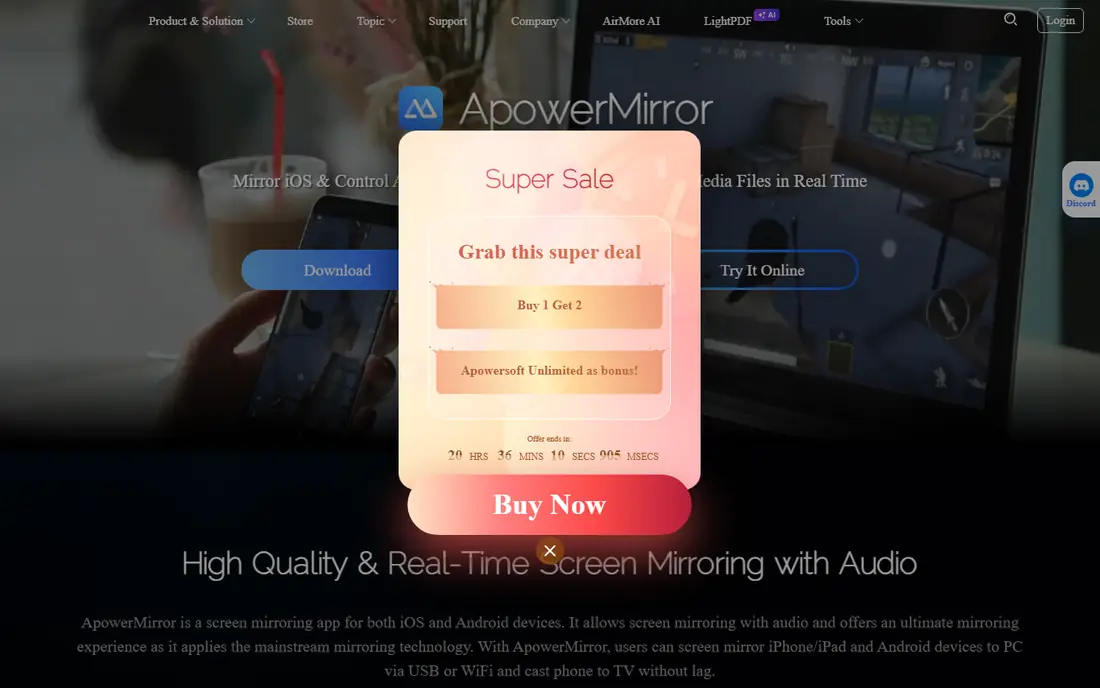
ApowerMirror is the most complete choice if you want more than a passive display. You can mirror up to several devices, record the phone screen from your computer, take screenshots and add notes during a presentation. For Android, you can also control the phone with a mouse and keyboard, which helps when demoing an app or playing a mobile game on a larger screen.
The free trial is useful for a short test, but regular use will need the yearly plan. That cost is fair if you present, teach or create app demos often. If you only need to show a screen once in a while, a free tool such as LetsView will do the same basic job without a subscription.
- Mirrors Android and iOS to PC or Mac
- Android control with mouse and keyboard
- Recording and annotation
- Full features need a paid plan
- IOS control is more limited than Android control

LetsView is our free pick because it covers the core job well. You install it on your phone and computer, connect on the same Wi-Fi network, and your phone screen appears on the larger display. It also offers recording, screenshots and a whiteboard tool, which are handy for lessons and team demos.
It does not replace a paid remote-control tool. You cannot fully control an iPhone from a PC, and support options are lighter than a business product. For home use, classrooms and casual presentations, those limits rarely matter. Start here if cost is your main concern, and only move to a paid app if you need control or priority support.
- Free for core mirroring
- Works across Android, iOS, Windows and Mac
- Screen recording and screenshots
- No remote control for iOS
- Fewer business features than paid tools
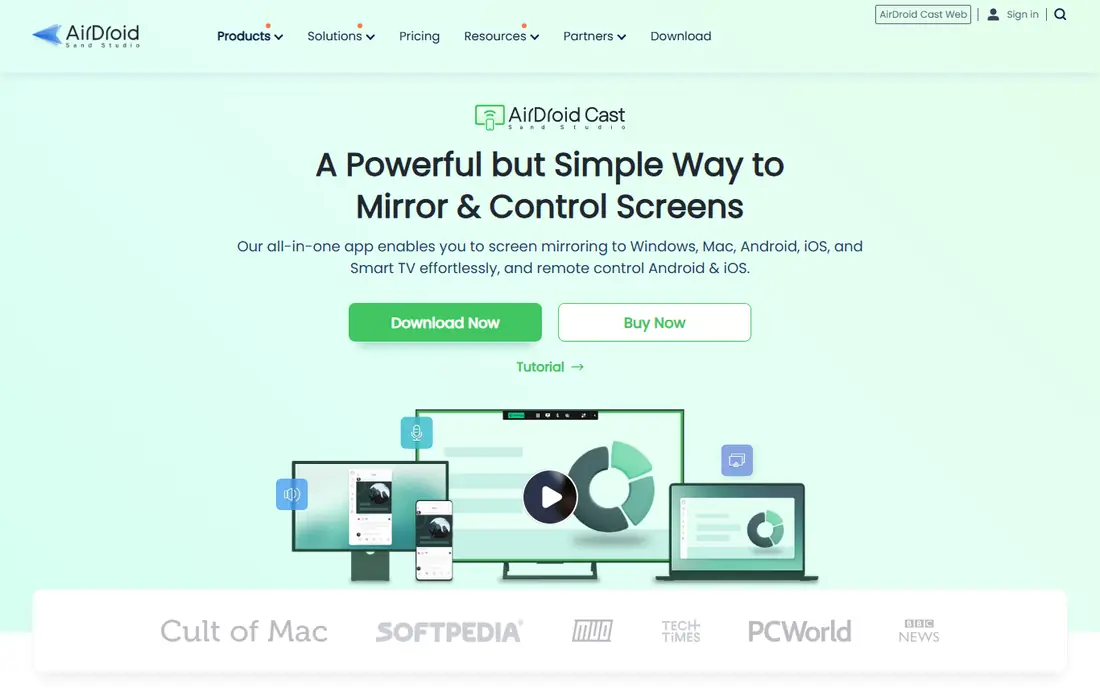
AirDroid Cast is part of the wider AirDroid family, which also handles file transfer and device management. Cast focuses on one job: getting a phone screen onto a bigger display with good quality. You can cast to a computer app or to a web browser, which helps when you cannot install software on a shared machine.
For presenters, the browser option is a real advantage. You can open a cast link on a meeting room computer and start without a long setup. The monthly price is modest for frequent use, though occasional users may prefer the free LetsView route. Check the trial to confirm quality on your own Wi-Fi network before you pay.
- Cast to PC, Mac, TV or browser
- Clear audio and video
- Works with Android and iOS
- Some advanced features need a paid plan
- Browser casting depends on network quality
Reflector turns a Mac or Windows computer into a mirroring receiver. That makes it useful in a classroom or office where many people need to share to one screen. Phones can connect using the built-in casting tools they already have, so guests do not need to install a special sender app in many cases.
It is not the right pick if you want to send your phone to a TV directly, since Reflector runs on a computer. For a teacher or presenter who runs sessions from a laptop, it is a tidy setup. The trial lets you test device compatibility, which matters because casting standards vary by phone and network.
- Receives AirPlay, Google Cast and Miracast
- Clean receiver for classrooms
- Recording built in
- Receiver only, not a phone sender app
- Paid license needed for regular use
AirServer is similar to Reflector, but it has a long history as a receiver for Apple and Google casting. That makes it a good fit for rooms with a mix of iPhones, Android phones and Chromebooks. You install it once on the display computer, and devices on the same network can find it through their normal cast menus.
The downside is that it is a receiver product, not a single phone app you open and tap. You need to understand your network and firewall settings if a device cannot see the receiver. For schools, studios and offices that share one screen, that extra setup pays off. Home users who only mirror to a TV may find a simpler sender app easier.
- Receives AirPlay, Google Cast and Miracast
- Good for mixed device rooms
- Works on Mac and Windows
- Setup takes more care than a simple app
- Pricing is per device license
Vysor is aimed at Android users who want to use their phone from a computer. You can see the screen, click, type and interact without picking up the phone. Developers use it to demo apps and test layouts, and office workers use it to reply to messages while working on a desktop.
The free tier covers basic mirroring, which is enough to test the idea. Paid tiers add higher quality, wireless connection and more features. iPhone users should skip Vysor entirely, since it does not support iOS. If you live on Android and want control, not just display, Vysor is a practical choice.
- View and control Android from a browser or desktop
- USB and wireless options
- Useful for developers
- Android only
- Higher quality and wireless features need a paid plan
Scrcpy is a free, open-source tool for Android mirroring and control. It is known for low delay, which matters for games and app demos, and it works over USB or Wi-Fi once set up. There are no ads, no subscription and no account needed, which is rare in this category.
The catch is setup. You need to enable developer options and USB debugging on your phone, and run the tool from a computer. That is fine for technical users, but it is not a one-tap app for a family TV night. If you are comfortable with those steps, Scrcpy offers paid-level performance at no cost.
- Free and open source
- Low latency over USB
- Control Android from PC with keyboard and mouse
- Android only
- Setup needs a computer and developer options
- No simple TV casting
1001 TVs focuses on the living room case: getting phone content onto a TV. You can mirror the full screen, cast photos and videos, and connect to a range of smart TVs and boxes. The interface is simple, which helps when family members or guests need to connect without a tutorial.
As with all Wi-Fi mirroring, your network matters more than the app name. A crowded or weak network will cause lag, no matter which tool you pick. Try the free tier on your own TV first, and check that your TV model is supported. For phone to TV use, this is an easy, low-cost starting point.
- Casts phone to TV, PC and Mac
- Simple interface
- Supports photos, video and screen mirroring
- Quality depends on Wi-Fi
- Some features vary by device and platform
How we picked these
We compared official product pages, app store listings and documented features for screen mirroring apps available in October 2026. We favored tools that still work on current Android and iOS versions, and that clearly state which direction they mirror: phone to TV, phone to PC, or both. We excluded tools that only offer remote desktop access without a clear mirroring mode, and tools with no current official homepage.
Prices are starting prices from vendor pages where we could verify them. Where a vendor sells per-device licenses or varies price by region, we wrote See website rather than guess. We did not claim hands-on testing, and we based the comparison on published features, pricing and platform support.
How to choose a screen mirroring app
Start with the destination, not the app store ranking. Phone to TV, phone to PC and PC receiver are different jobs, and an app that excels at one may be weak at another. A receiver such as Reflector or AirServer is best when many people share one display computer. A sender such as LetsView or ApowerMirror is best when you carry the phone and need to show it anywhere.
Check your network and devices first
Mirroring over Wi-Fi needs both devices on a stable network, and some networks in offices or hotels block device discovery. Test on the network you will actually use, not just at home. For important presentations, a USB connection with Scrcpy or Vysor is more reliable than Wi-Fi, when your phone supports it.
Decide if you need control or just display
Display-only mirroring is enough for watching video, showing photos and giving a talk. Control matters for app demos, mobile gaming on a PC and remote help. Control features are usually Android only, since iOS limits remote control for security reasons. If you need to control an iPhone from a PC, expect a limited experience and check the vendor page before you buy.
Watch for limits on free plans
Free mirroring apps often limit time, quality, watermarking or the number of devices. That is fine for a quick test, but it can interrupt a lesson or meeting. If you mirror weekly, a modest paid plan is usually worth it for a stable, watermark-free session. Always test audio as well as video, since some tools mirror video but handle sound differently by platform.
FAQ
What is the best free screen mirroring app?
LetsView is our best free pick for phone to PC mirroring, and Scrcpy is the best free pick for Android users who want low-delay control from a computer. For phone to TV, 1001 TVs offers a free tier worth testing. Free plans may limit quality or features, so test on your own devices before an important session.
What is the best app for screen mirroring to a TV?
For a TV, look for an app that supports your TV brand and casting standard. 1001 TVs is a simple free starting point, and many TVs also support built-in AirPlay or Google Cast without an extra app. If your TV is older, a receiver app on a connected computer, or a streaming stick, may be a more reliable route.
What is the best phone mirroring app for presentations?
AirDroid Cast and Reflector are strong for presentations, since they focus on a clear, stable display on a computer or browser. ApowerMirror adds recording and annotation, which helps for training sessions. Use a wired or strong Wi-Fi connection for presentations, and test audio before the audience arrives.
Can I mirror an iPhone to a PC for free?
Yes, with limits. LetsView and AirDroid Cast offer free or trial mirroring from iPhone to PC, and Reflector can receive AirPlay on a computer during a trial. You can view and record the screen, but you should not expect full remote control of an iPhone from a PC, since iOS restricts that.
Why does screen mirroring lag?
Lag usually comes from a weak or crowded Wi-Fi network, not the app alone. Move closer to the router, close other video streams, and lower the mirroring quality if the app allows it. A USB connection, where supported, usually gives lower delay than Wi-Fi and is the best option for games and live demos.