Best Restoration Software in 2026: 9 Tools Compared
We compared the best restoration software for old photos, damaged files and faded prints, covering prices, free plans and repair features to help you choose.
- Editor's choice
 VanceAI Photo Restorer
One-click photo repair in a browser
Starts atSee websiteVisit vanceai.comFull review - Great alternative
 Adobe Photoshop
Full manual control for serious repairs
Starts at$22.99 per monthVisit adobe.comFull review - Also consider
 Remini
Mobile face restoration
Starts atSee websiteVisit remini.aiFull review
TL;DR:
- For most people, a browser tool with a free tier is the fastest way to repair a small batch of old photos without learning photo editing.
- Desktop editors give more control over scratches, tears and color, but they take longer to learn and cost more up front.
- The best restoration tool for you depends on the damage: face repair, colorization, scratch removal and file recovery are different jobs.
- Always work on a copy of the original scan, and save the restored version as a separate file so the original stays untouched.
Quick comparison
| Tool | Best for | Starts at | Free plan? | |
|---|---|---|---|---|
| VanceAI Photo Restorer | One-click photo repair in a browser | See website | Yes | Visit |
| Adobe Photoshop | Full manual control for serious repairs | $22.99 per month | Free trial | Visit |
| Remini | Mobile face restoration | See website | Free trial | Visit |
 MyHeritage Photo Tools | Family photos tied to a family tree | See website | Yes | Visit |
 Topaz Photo AI | Sharpening and enlarging old prints | See website | Free trial | Visit |
 Fotor | Quick budget repairs in a browser | $8.99 per month | Yes | Visit |
 AKVIS Retoucher | Manual scratch and tear repair | See website | Free trial | Visit |
 Photomyne | Scanning whole albums with a phone | See website | Free trial | Visit |
 DxO PhotoLab | High quality raw and print cleanup | See website | Free trial | Visit |
The best restoration software
Old photos fade, tear and pick up scratches, and the right tool can bring back detail without turning a face into plastic. The nine options below cover quick browser repairs, careful manual work and whole album scanning.
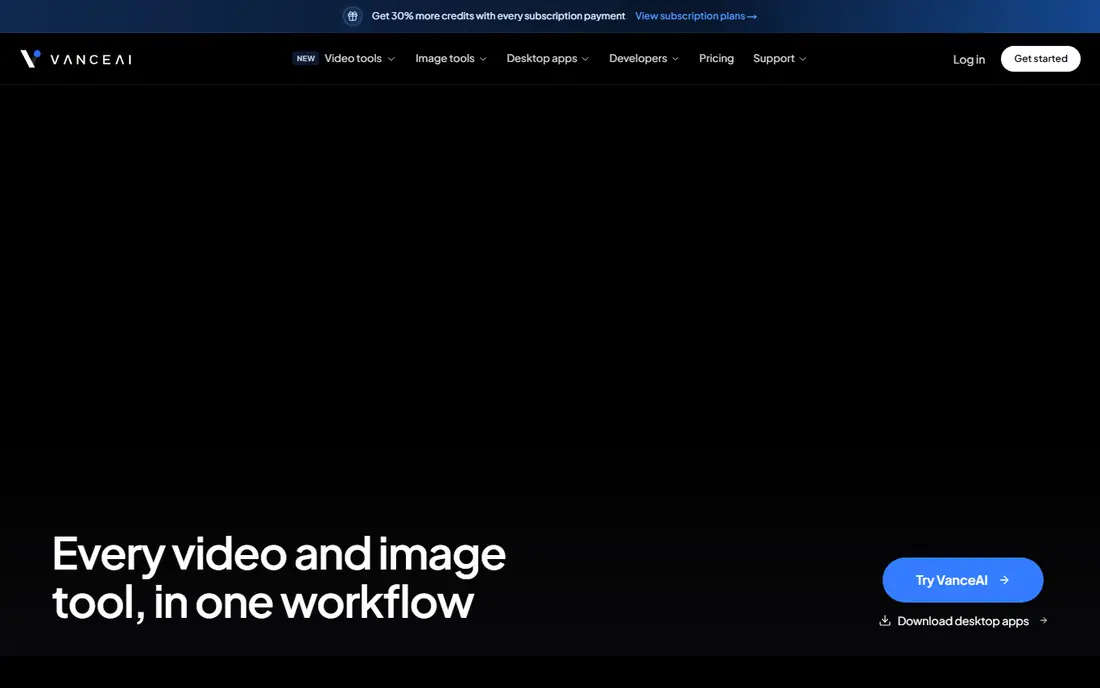
VanceAI Photo Restorer is built around one job, which is repairing old and damaged photos in a browser. You upload a scan, pick the restoration option, and the tool works on scratches, noise and faded color in one pass. For a shoebox of family prints, that focused workflow saves time compared with opening a full photo editor and hunting for the right filters.
The catch is the credit model. A free tier lets you test the tool on a few images, but a large archive will need a paid plan, so check how many credits a high resolution scan uses before you commit. Very torn photos still need manual cleanup afterwards, and faces in low resolution scans can look soft. Still, for most people starting out, this is our pick for a first try because it is fast, clear and does not ask you to learn editing first.
- Dedicated restoration workflow
- Batch processing
- No software install needed
- Credit based pricing can add up
- Results vary on badly torn photos
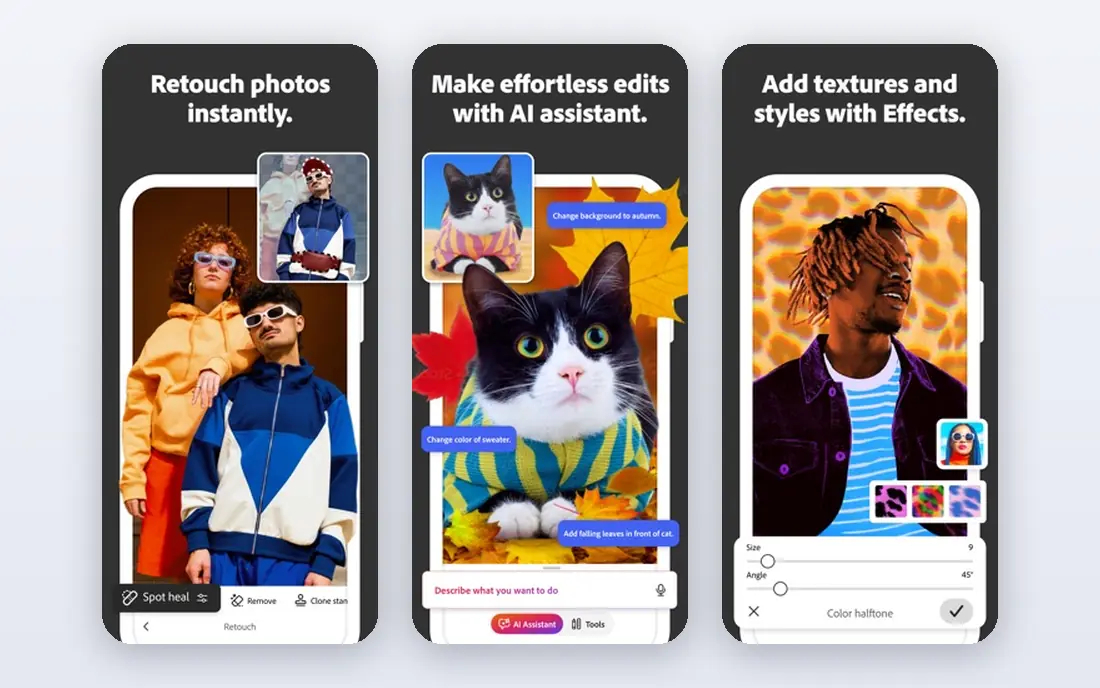
Photoshop remains the standard when a photo needs careful hand work rather than a one click fix. Its clone stamp, healing brush and content aware fill let you rebuild a torn corner or remove a crease line by line, and its color tools handle faded prints with far more care than an automatic pass. If a photo matters a lot, and you are willing to learn, no browser tool matches this level of control.
That control comes with a price and a learning curve. The monthly subscription is hard to justify for a single weekend project, and beginners can spend hours on a photo that an automatic tool would finish in a minute. Photoshop fits best when you have several valuable photos, or you already use it for other editing. For a quick repair of one snapshot, start elsewhere and come back here only if the result is not good enough.
- Precise clone, heal and content aware tools
- Strong color correction
- Huge tutorial library
- Subscription cost
- Steep learning curve for beginners
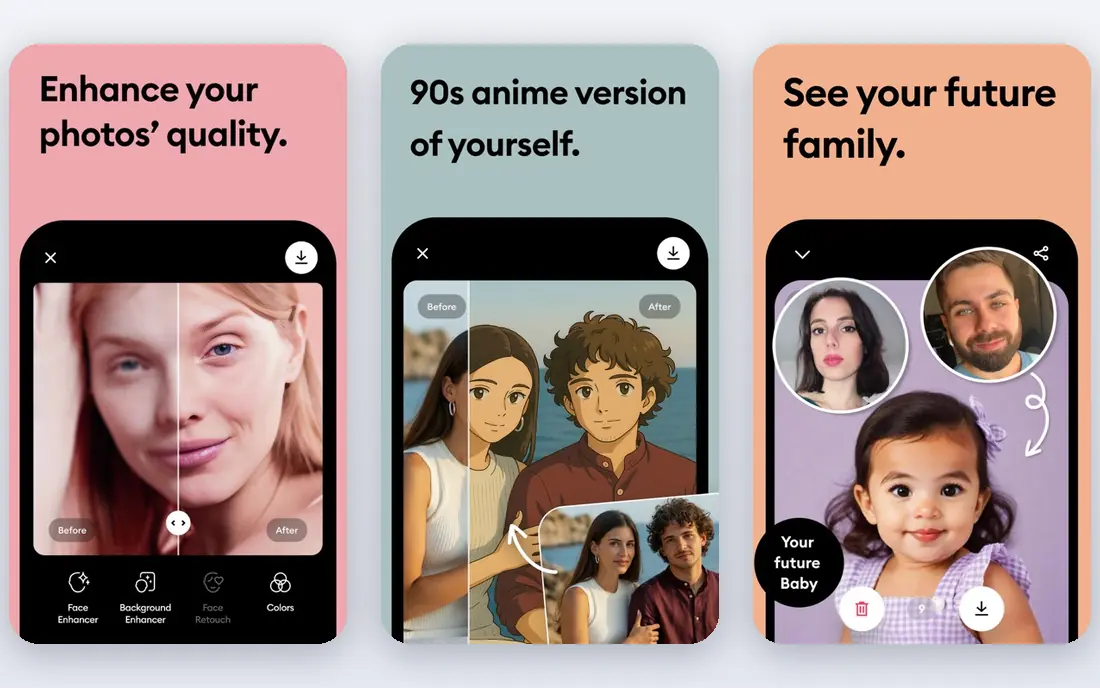
Remini made its name by recovering facial detail from blurry and low resolution portraits, and on a phone it is still one of the easiest ways to improve an old portrait. You pick a photo, run the enhancement, and compare the before and after in seconds. For social sharing or a framed print of a grandparent, that speed is a real benefit.
The limits show up quickly. Remini is not a full editor, so you cannot paint out a tear or fix a missing corner with care, and its weekly or monthly pricing can cost more than expected if you keep it running. Treat it as a face repair specialist, not a general restoration tool. Use it for portraits, then use another tool if the photo also needs scratch or tear work.
- Strong facial detail recovery
- Simple phone workflow
- Fast results
- Subscription pricing adds up
- Limited manual editing
MyHeritage Photo Tools suit people who are already building a family tree and want their photo archive repaired in the same place. Its tools can enhance a faded photo, add color to a black and white print, and sharpen faces, all from the same account that holds your family records. That pairing is handy when you are scanning albums for relatives and want to share restored copies with family members.
On its own, as a pure restoration tool, it is less flexible than Photoshop or VanceAI, and the free allowance covers only a small number of photos. If genealogy is part of the project, the bundle makes sense. If you only need to fix photos, compare the standalone tools first, since you may pay for family tree features you never use.
- Photo repair, colorization and animation in one place
- Ties into genealogy research
- Best value only with a subscription
- Free use is limited
Topaz Photo AI is the pick when an old scan is soft, noisy or too small to print. It sharpens detail, reduces noise and enlarges images while trying to keep natural texture, which matters for prints that will be framed. Photographers like it because it runs on the desktop and fits into an existing editing workflow rather than forcing everything through a browser.
It is not the best choice for torn or stained photos, since it does not focus on rebuilding missing areas. Push the sharpening too far and skin can look waxy, so use a light hand and compare at full size before saving. For faded prints that are intact but soft, it earns its place in this list, and the free trial lets you test it on your own scans first.
- Strong sharpening and upscaling
- Works as a desktop app
- Preview before you pay
- Not a scratch repair specialist
- Can over sharpen if pushed too far
Fotor is a good budget option for people who want a simple browser editor that can also repair and enhance photos. Its one click tools handle brightness, color and sharpness well, and the interface is clear enough for someone who has never edited a photo before. The free plan is usable for small jobs, which makes it a low risk way to test whether an automatic fix is enough.
The trade off is precision. Fotor will not rebuild a torn edge as carefully as Photoshop, and its automatic results can look flat on badly faded prints. It fits best for everyday snapshots that need a lift, not for valuable photos that need careful repair. If your photos are lightly damaged, start here and save money. If they are badly damaged, move to a specialist tool.
- Low cost
- Easy browser editor
- One click enhancement
- Less precise than desktop editors
- Some features need a paid plan
AKVIS Retoucher is a specialist for the unglamorous work of restoration: scratches, dust, stains, creases and small tears. You mark the damaged area and the tool fills it based on the surrounding image, which gives more control than a fully automatic pass without the full complexity of Photoshop. It also works as a plug-in for larger editors, so it can fit into a workflow you already use.
The interface feels older than its rivals, and new users may need a short tutorial before they get clean results. It also lacks the face repair and colorization features of newer AI tools, so it pairs best with an enhancer rather than replacing one. For scans full of scratches from a dusty album, though, it is a focused and capable choice.
- Focused scratch, stain and dust removal
- Works as a standalone app or plug-in
- Good control
- Dated interface
- Smaller tutorial community than Photoshop
Photomyne solves the step before restoration, which is getting a whole album into digital form without a flatbed scanner. Point your phone at an album page and it detects and crops each photo, then lets you enhance and share the results. For a large family archive, that speed matters more than perfect repair on any single image.
Restoration itself is lighter here than in the specialist tools above. It can improve color and sharpness, but it will not rebuild a torn photo with care. Think of Photomyne as the digitizing tool, with restoration as a bonus, and plan to send your most important scans to a stronger editor afterwards. For volume work, it is still one of the most practical options in this list.
- Fast phone scanning
- Automatic cropping of album pages
- Easy sharing
- Restoration features are lighter than desktop tools
- Subscription needed for full use
DxO PhotoLab is aimed at photographers, but its noise reduction and color tools also help scanned prints that are grainy or color shifted. It handles raw files well, corrects lens problems in camera scans, and gives careful control over tone without pushing images into an artificial look. If you scan with a camera or a high end scanner, this is a strong cleanup step before any manual repair.
It is not a tear or scratch specialist, and beginners may find the controls dense at first. Use it when image quality matters and you want a clean, natural result, then add a scratch tool for physical damage. For prints that are faded but intact, its careful approach is a real strength.
- Strong noise reduction and lens correction
- Careful color handling
- Desktop workflow
- Not built for tear repair
- Higher learning curve than browser tools
How we picked these
We compared official feature pages, pricing pages, app store listings and public reviews for tools that repair photos, rather than general photo editors with no repair focus. We favored tools that are still sold and supported in 2026, that state their pricing or free tier clearly, and that cover different kinds of damage, from faces and scratches to whole albums. Where a price could not be verified on the vendor site at the time of writing, we listed it as See website instead of guessing.
What to check before you pay
Start with the damage, not the tool. A faded but intact print needs color and sharpness work, while a torn print needs manual repair, and a whole album needs fast scanning first. Test any tool on three of your worst photos, not your best ones, and look at the result at full size. Check the export size too, since some browser tools cap resolution on free plans, which matters if you plan to print.
Also check how the tool handles your files. A browser tool uploads your photos to a server, so read its privacy page if the images are private family photos. A desktop tool keeps files local, which some people prefer. Finally, scan at a high resolution, at least 600 dots per inch for prints you may enlarge, and keep the original scan untouched. Restoration should always be a copy, never a replacement for the only original.
FAQ
What is the best restoration tool for old photos?
The best restoration tool for most people is a browser tool such as VanceAI Photo Restorer for quick repairs, or Photoshop for careful manual work. If the photo is a portrait, Remini can recover facial detail well. Try a free tier first on your own scans, since results depend heavily on the original damage.
Is there a free best restoration software option?
Yes, several tools in this list offer a free tier or trial, including VanceAI Photo Restorer, Fotor and MyHeritage Photo Tools. Free tiers usually limit the number of photos or the export size, so they suit small batches. For a large archive, a paid plan is usually better value than repeating free trials.
Can restoration software fix torn photos?
It can improve torn photos, but a large missing area still needs manual work in a tool such as Photoshop or AKVIS Retoucher. Automatic tools fill small tears well, yet they may invent detail in a large gap. For valuable photos, keep expectations realistic and consider a professional restorer for severe damage.
Does restoration software work on documents as well as photos?
Some tools handle documents, but photo tools are tuned for faces and color, not text. For faded documents, a scanner app with contrast controls or a document cleanup tool often works better. Check that the tool you pick states document support before you rely on it for text.
Will restored photos look natural?
They can, if you avoid pushing sharpening and color too far. Automatic tools sometimes smooth skin or oversaturate color, so compare the result with the original at full size. A light touch usually looks more natural than a maximum strength setting, especially for portraits.
How should I scan photos before restoring them?
Scan at 600 dots per inch or higher, save as TIFF or high quality JPEG, and clean the scanner glass first. Scan the whole print with a small border, so you can crop later without losing edge detail. Keep the original scan in a separate folder and restore only copies.