Best Remote Desktop Software in 2026: 9 Tools Compared
We compare nine remote desktop tools for home use, support teams and offices, covering security, speed, pricing and setup, so you can pick with confidence.
- Editor's choice
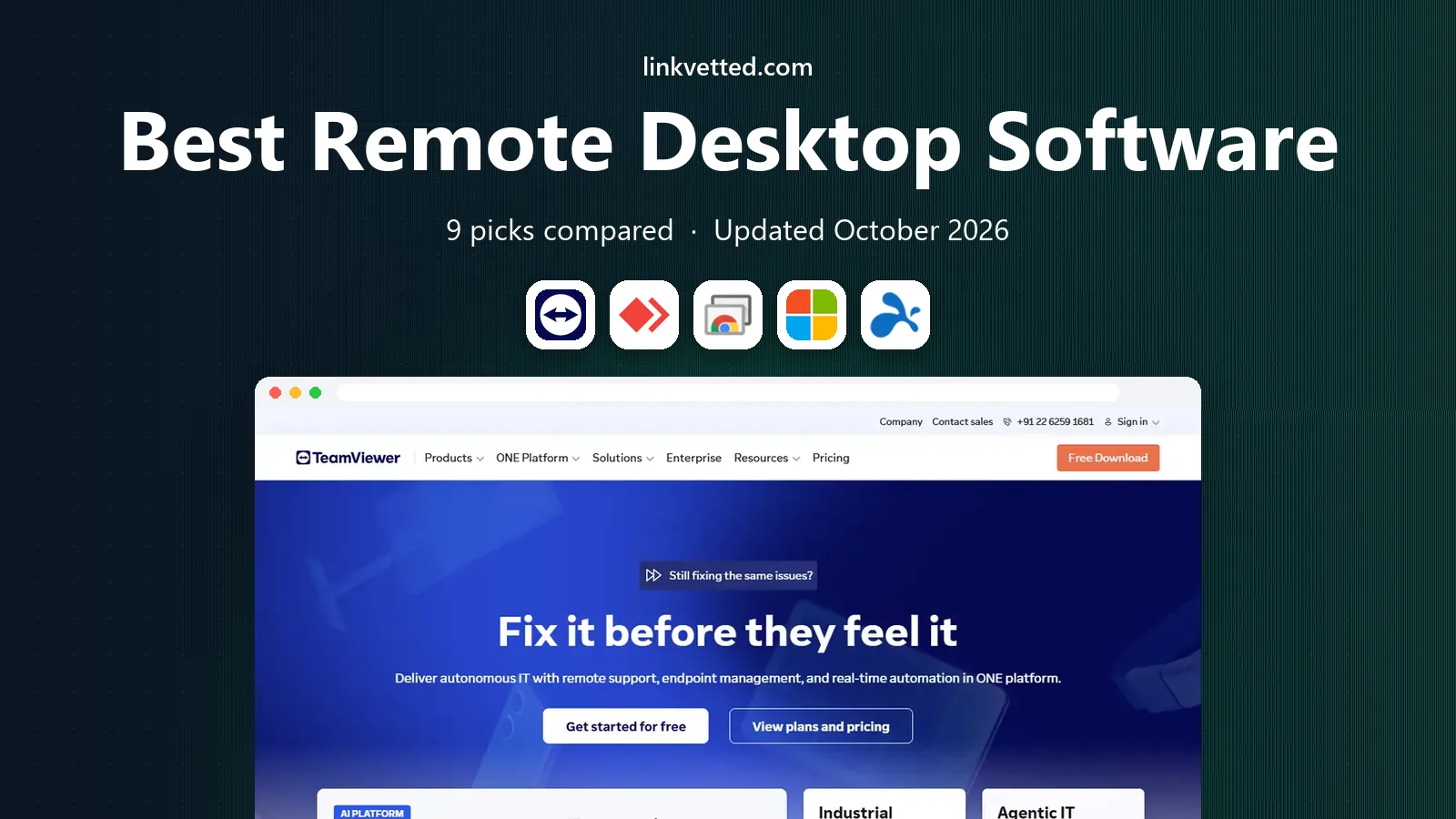
 TeamViewer
General remote access and support
Starts atSee websiteVisit teamviewer.comFull review - Great alternative
 AnyDesk
Fast, light remote connections
Starts atSee websiteVisit anydesk.comFull review - Also consider
 Chrome Remote Desktop
Simple free access for personal use
Starts atFreeVisit remotedesktop.google.comFull review
TL;DR:
- Home users need simple, low-cost access, while support teams need unattended access, session controls and audit trails.
- Security basics matter most: strong passwords, two-factor authentication and clear permission settings for every device you connect to.
- Free tiers suit occasional help for family or a single PC, but business use usually needs a paid plan with proper controls.
- Test speed on your real connection before you commit, since performance varies with bandwidth, distance and screen settings.
Quick comparison
| Tool | Best for | Starts at | Free plan? | |
|---|---|---|---|---|
| TeamViewer | General remote access and support | See website | Yes | Visit |
| AnyDesk | Fast, light remote connections | See website | Yes | Visit |
| Chrome Remote Desktop | Simple free access for personal use | Free | Yes | Visit |
 Microsoft Remote Desktop | Windows users in Microsoft setups | Free | Yes | Visit |
 Splashtop | Business access with good value | See website | Free trial | Visit |
 Zoho Assist | Support teams on a budget | See website | Free trial | Visit |
 RealVNC Connect | Secure access with device control | See website | Yes | Visit |
 GoTo Resolve | IT support and device management | See website | Free trial | Visit |
 RustDesk | Self-hosted open-source access | Free | Yes | Visit |
The best remote desktop software
We compared official feature pages, pricing notes, security options and platform support for tools that let you control another computer from your own device. The list covers free personal tools, business platforms and a self-hosted option for users who want full control over their server.

TeamViewer is the tool many people already know, and that familiarity helps when you need to guide someone else through a connection. Share an ID and a one-time password, and the other person can connect without complex network setup. It supports Windows, Mac, Linux, Android and iOS, plus file transfer, chat and remote printing on eligible plans.
The main caution is licensing. Personal use is free, but business use needs a paid licence, and commercial-use detection can interrupt sessions that look like work use. If you support clients or staff, buy the right plan from the start and set two-factor authentication on every account.
- Works across many platforms
- Simple ID and password connection
- File transfer and session tools
- Free use is for personal use only
- Business pricing can rise with team size

AnyDesk focuses on speed and a small footprint, which helps on older PCs and slower connections. The app installs quickly, connects with an address code, and keeps latency low for everyday tasks such as fixing settings, moving files or guiding a colleague. Mobile apps let you check a desktop from a phone when needed.
Business users will need a paid plan for team management, address book controls and session permissions. Personal users, by contrast, can use the free tier for occasional help. AnyDesk suits anyone who values a quick, responsive connection over a large management suite.
- Lightweight app
- Fast performance on modest connections
- Cross-platform support
- Free tier is for personal use
- Advanced management needs paid plans

Chrome Remote Desktop is the simplest option for reaching your own PC from another device. Set it up through Chrome, link it to your Google account, and connect from a browser or mobile app with a PIN. For a home user who left a file on a desktop PC, that simplicity is enough.
It is not a business support platform. There is no central team console, detailed session logging or device policy control of the kind IT teams need. Use it for personal access and family help, and choose a paid business tool for client support or staff devices.
- Free for personal use
- Simple browser setup
- Works through Chrome on many systems
- Fewer business controls
- No built-in team management or advanced support tools
Microsoft Remote Desktop, based on the Remote Desktop Protocol, suits offices that already run Windows. If your work PC runs a Pro edition and your network allows it, you can connect from Windows, Mac, mobile or web clients without buying extra software. It handles multiple monitors and local resources well in a managed setup.
Home users may find setup harder than a cloud tool, since it can involve network settings, firewall rules and secure access through a VPN. That effort makes sense in a business network with IT support, but a casual user will find TeamViewer or Chrome Remote Desktop faster to start.
- Built into Windows Pro and higher
- Good for office networks
- Supports multiple monitors
- Setup needs network and firewall care
- Best experience is Windows to Windows
Splashtop offers a strong balance of performance and price for small businesses and remote workers. Business Access lets you reach office PCs from home, transfer files and use multiple monitors, while Remote Support adds tools for helping clients. Performance holds up well for office apps and everyday desktop work.
Plan choice matters, because personal, business and support products are sold separately. Check which plan covers unattended access, user management and the number of computers you need. For a small team that wants dependable access without top-tier pricing, Splashtop is a practical pick.
- Good performance for the price
- Unattended access
- File transfer and multi-monitor support
- Personal and business plans differ
- Some features need higher tiers
Zoho Assist is built for support teams that help customers or staff through attended and unattended sessions. A technician can start a browser session, guide a user, transfer files and reboot a remote machine, all without asking the user to install a heavy client first. That flow suits help desks and small IT teams.
It is less focused on simple personal access to your own PC, so home users may prefer a simpler tool. Teams already using Zoho products get extra value from shared logins and integrations. For budget-conscious support work, Zoho Assist covers the core needs well.
- Browser-based support sessions
- Unattended access
- Fits well with other Zoho apps
- Interface is more support-focused than personal access
- Some features need higher plans
RealVNC Connect, based on VNC technology, appeals to users who want clear control over how devices connect. It offers encrypted sessions, device authentication and team permissions, and it works across desktop and mobile platforms. IT teams and technical users value the ability to manage access per device.
Setup takes more care than a simple ID-based tool, especially across firewalls and networks. The free tier suits a small number of personal devices, while business use needs a paid plan. If security controls and direct access matter more than one-click simplicity, RealVNC is a solid choice.
- Strong encryption and access controls
- Direct device connections
- Works on many platforms
- Setup is more hands-on than cloud-first tools
- Free tier covers limited devices
GoTo Resolve, formerly LogMeIn Resolve, goes beyond a simple remote screen. It adds device monitoring, patching, ticketing and background management, which helps IT teams support many endpoints from one console. Technicians can run diagnostics, manage updates and handle support requests without switching tools.
That breadth makes it heavy for personal use. Home users should pick a free tool instead, while IT teams with many devices will value the combined console. Check the trial and pricing for your team size, since larger deployments are priced by quote.
- Combines remote support with device management
- Ticketing and monitoring tools
- Unattended access
- More than a home user needs
- Pricing is quote-based for larger teams
RustDesk is an open-source remote desktop tool that lets you connect with an ID and password, much like commercial tools, while also letting you run your own relay server. That self-hosting option appeals to privacy-conscious users and teams that want data to stay on their own infrastructure. The client runs on Windows, Mac, Linux, Android and iOS.
The trade-off is effort and support. Running a server, keeping it updated and securing it takes technical skill, and help comes mainly from community docs and forums. If you have those skills and want control, RustDesk is a strong free option. If you want vendor support, choose a commercial tool instead.
- Open source
- Self-hosting option
- No vendor lock-in for the core client
- Self-hosting needs server skills
- Support is community-led rather than commercial
How we picked these
We compared official feature pages, pricing notes, security documentation and platform support for tools that offer remote control, not just screen sharing. We kept a mix of free personal tools, business support platforms and a self-hosted option, and we favoured tools with clear security controls such as encryption and two-factor authentication. We did not claim hands-on testing; our comparison rests on vendor pages and public documentation.
How to choose and secure remote access
Start by naming the job: personal access to your own PC, help for family, or support for staff and clients. Personal access needs only a simple, secure tool, while support work needs unattended access, session records and permission controls. A tool that fits one job may be wrong for the other, so do not buy a team platform for a single home PC.
Security should be set up before the first real session. Use a strong, unique password, turn on two-factor authentication, limit which devices can connect, and remove access when a helper no longer needs it. Keep the software updated, watch for unexpected sessions, and never share a permanent password in chat or email. A careful setup matters more than any single feature.
FAQ
Is remote desktop software safe?
It can be safe when you use strong passwords, two-factor authentication, current software and trusted connections only. Risk rises when users share passwords, leave unattended access open, or accept sessions from unknown callers, so treat every access grant as a security decision.
Can I use remote desktop software for free?
Yes, several tools offer free personal tiers, including Chrome Remote Desktop, RustDesk and personal plans from TeamViewer, AnyDesk and RealVNC. Business use usually needs a paid licence with team controls and support.
What internet speed do I need for remote desktop use?
Basic office work and support tasks work on modest broadband, while video, design work and fast screen updates need higher speeds and low latency. Lower the screen resolution and colour depth if a session feels slow.
Do I need to install software on both computers?
Most tools need an app or agent on the computer being controlled, while the viewer can often run in a browser or a light app. Chrome Remote Desktop and Zoho Assist reduce install steps, but unattended access still needs a host app on the target PC.
How is remote desktop different from screen sharing in a meeting?
Screen sharing shows your screen to others in a call, while remote desktop lets another person control the computer, move files and run apps. That control is useful for support, but it needs stricter permissions than a simple meeting share.