Best Remote Computer Access Software in 2026: 9 Tools Compared
Compare the best remote computer access software in 2026, with pricing, free plans, unattended access, and the right pick for home or work use today in detail.
- Editor's choice
 TeamViewer
General remote access and support
Starts atSee websiteVisit teamviewer.comFull review - Great alternative
 AnyDesk
Fast, light connections
Starts atSee websiteVisit anydesk.comFull review - Also consider
 Splashtop
Affordable business access
Starts atSee websiteVisit splashtop.comFull review
TL;DR:
- The best remote computer access software depends on whether you support other people or just reach your own machines.
- Free personal tiers exist, but commercial use usually needs a paid plan and can trigger warnings on free accounts.
- Unattended access, multi-monitor support, and file transfer matter more in daily use than headline connection speed.
- Security features such as two-factor authentication, session logs, and granular permissions should come before price.
Quick comparison
| Tool | Best for | Starts at | Free plan? | |
|---|---|---|---|---|
| TeamViewer | General remote access and support | See website | Yes | Visit |
| AnyDesk | Fast, light connections | See website | Yes | Visit |
| Splashtop | Affordable business access | See website | Free trial | Visit |
 RemotePC | Low cost access to your own computers | See website | Free trial | Visit |
 Zoho Assist | Small support teams | See website | Yes | Visit |
 ConnectWise ScreenConnect | IT teams and managed providers | See website | Yes | Visit |
 Chrome Remote Desktop | Free personal access | Free | Yes | Visit |
 RealVNC Connect | Cross-platform VNC access | See website | Free trial | Visit |
 GoTo Resolve | IT support with device management | See website | Free trial | Visit |
The best remote computer access software
We compared official feature pages, pricing pages, app listings, privacy policies, and public reviews, with a focus on unattended access, security controls, and real pricing for small teams.
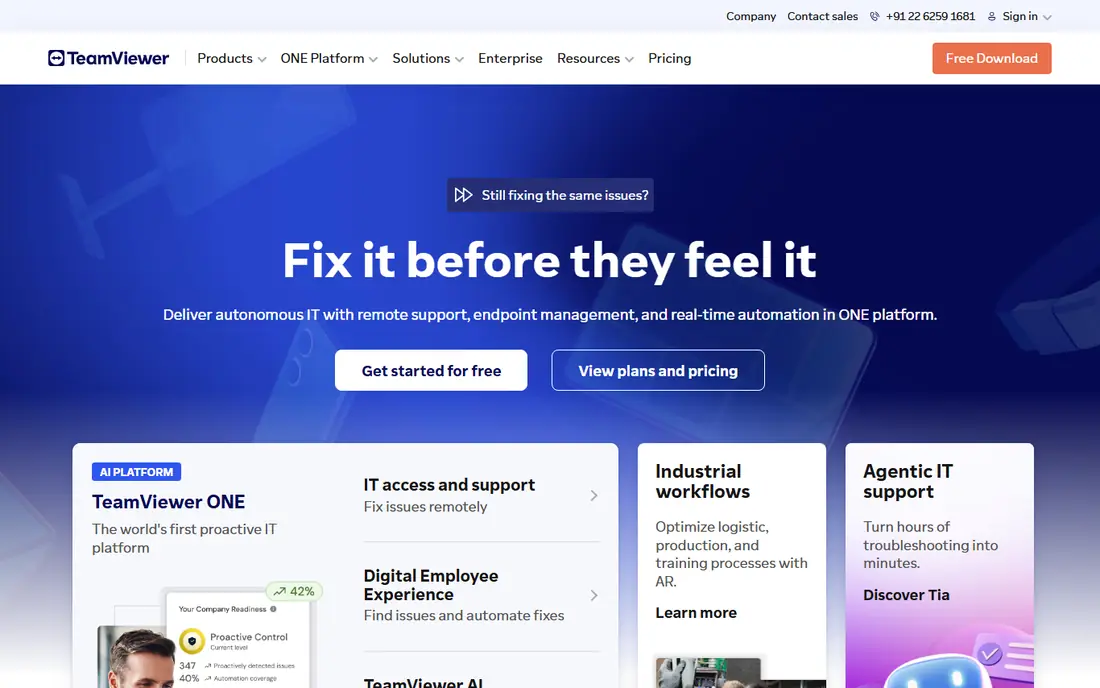
TeamViewer is the best known name in this category for a reason. It works across Windows, Mac, Linux, and mobile, supports unattended access, and includes file transfer, session recording, and multi-monitor views. For a team that supports many kinds of devices, that breadth reduces the need for a second tool. The downside is price and the strict line between personal and commercial use. Personal use is free, but business use needs a paid plan, and accounts can be flagged when use looks commercial. If you support clients or staff, budget for a paid plan from the start.
- Broad device and platform support
- Unattended access and file transfer
- Strong security controls
- Paid plans can be costly for small teams
- Free personal use may be flagged if it looks commercial
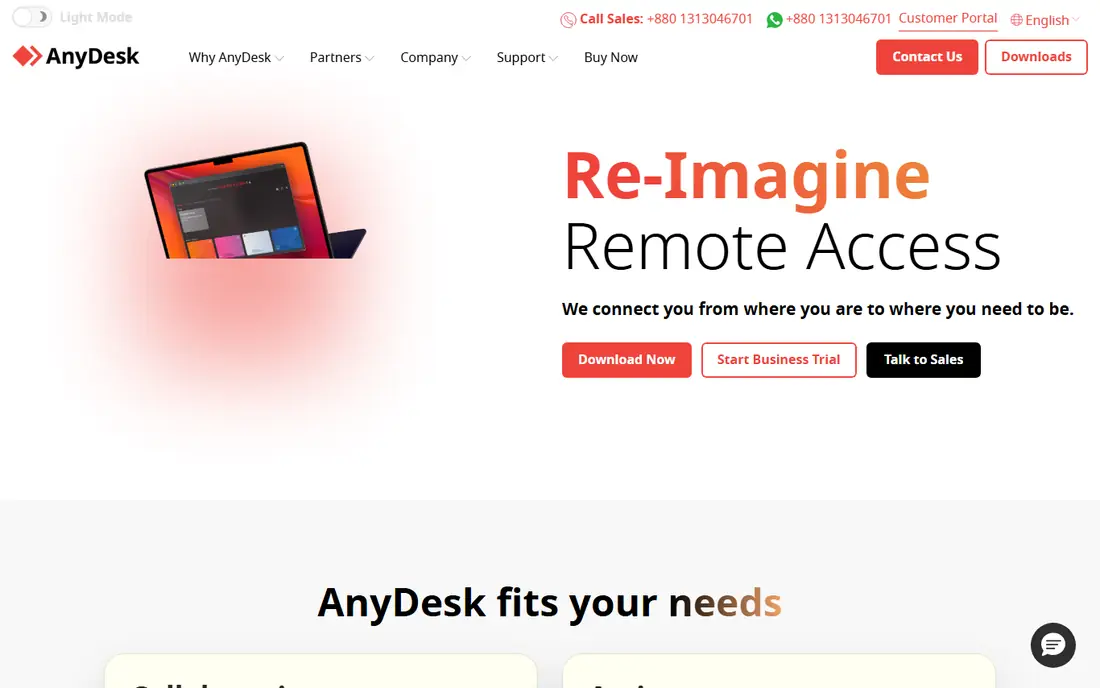
AnyDesk feels quick because its client is small and its codec is built for low latency. That matters on a slow connection or when you need to control a machine without lag. Setup is simple, with an address code for each device and unattended access for machines you own. AnyDesk has changed its licensing model in recent years, so check the current pricing for your region rather than relying on old comparisons. Personal use has a free option, but business use needs a paid plan. For speed first, it remains a strong pick.
- Small, fast client that works on weak connections
- Low latency for daily work
- Cross-platform support
- Pricing model has changed and varies by region
- Commercial use needs a paid licence
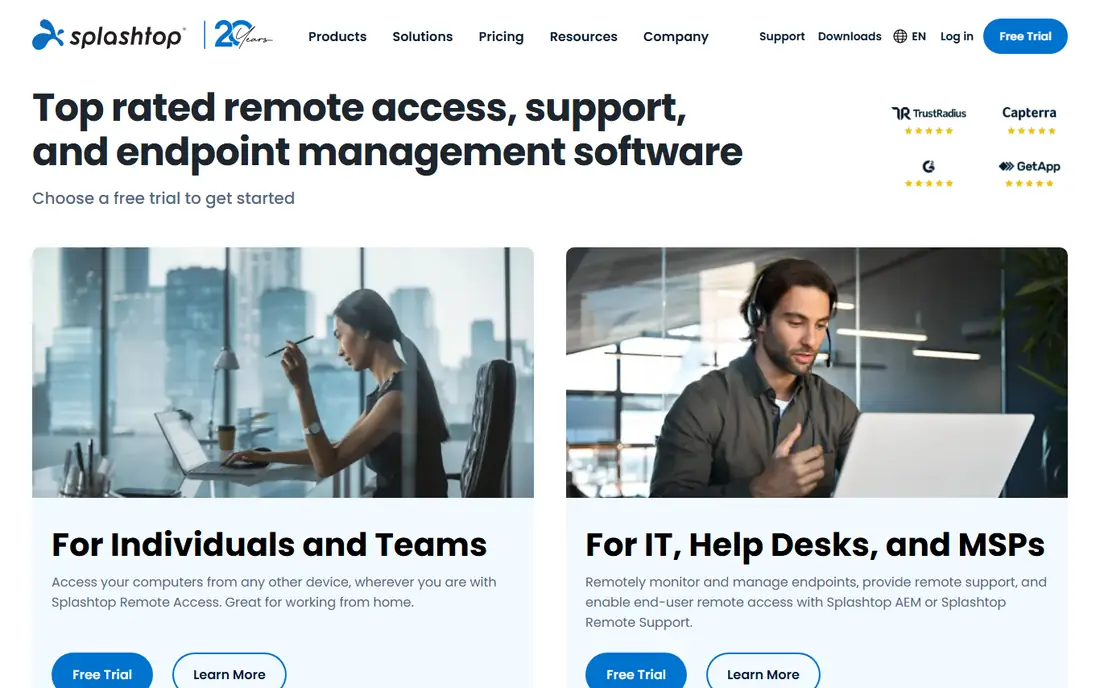
Splashtop splits its range into access products for your own computers and support products for helping others, which keeps pricing clearer once you know which one you need. Business Access suits remote workers, while SOS suits technicians who connect to client machines on demand. Performance is solid for office work, and multi-monitor support is included on business plans. The range can confuse at first, so read the product page for the exact use case before you buy. For a small business that wants TeamViewer-style function at a lower price, Splashtop is often the best value on this list.
- Good value for business plans
- Strong performance for remote work
- Separate products for access and support
- Different products can confuse first-time buyers
- Some advanced features sit on higher tiers
RemotePC is priced by computer rather than by user on many plans, which makes it cheap for a person or small team that mainly needs to reach their own machines. You can set up unattended access, transfer files, and work across monitors without a complex console. For a home office with two or three computers, that model is hard to beat. It is less ideal as a full help desk tool for supporting many clients, where per-technician products fit better. If your main need is to reach your own desktop from a laptop or phone, RemotePC is a practical, low cost choice.
- Low price for access to your own machines
- Unattended access and file transfer
- Simple setup
- Less suited to large support teams
- Interface is plainer than some rivals
Zoho Assist suits a small support team that wants per-technician pricing and a free starting tier. Technicians can start a session from a browser, and clients can join without a full install in many cases. Unattended access, file transfer, and session reports cover the core support workflow. It does not have the same brand reach as TeamViewer, and some advanced tools need a paid tier. For a Zoho shop, or a small team that wants a low cost support tool, it is a strong fit, and the free plan lets you test it with real clients.
- Free plan for small teams
- Browser-based sessions with no install on the client side
- Works with Zoho Desk
- Some features need paid plans
- Performance varies with connection quality
ScreenConnect, from ConnectWise, is built for technicians who support many machines each day. It offers unattended access, session grouping, auditing, and tools that fit managed service providers. A single-technician option helps a solo IT pro start without enterprise pricing. The admin side takes more time to learn than a simple access tool, and costs grow with team size. If you run IT support as a business, that depth is worth it. If you only need to reach your own computer, a simpler tool on this list will do.
- Built for IT support teams
- Strong session management and auditing
- Single-technician option for small teams
- Setup and admin take more effort
- Pricing can rise as you add technicians and features
Chrome Remote Desktop is the simplest way to reach your own computer for free. Install the extension, set a PIN, and connect from another computer or phone. For occasional personal use, such as grabbing a file from a home PC while traveling, it covers the need with very little setup. It lacks the admin controls, session logs, and support workflows that businesses need, and it is not a substitute for a paid support tool. For personal use, though, it is hard to argue with free, simple, and reliable access.
- Free for personal use
- Simple setup through a Google account
- Works in Chrome on most systems
- Fewer business features and admin controls
- No full help desk workflow
RealVNC Connect is the modern form of VNC, a long-running remote access standard. It works across Windows, Mac, Linux, Raspberry Pi, and mobile, which helps in mixed fleets and maker or lab setups. Cloud connections simplify setup, while direct connections suit networks that prefer local control. Setup can feel more technical than TeamViewer or AnyDesk, especially for direct connections and firewall rules. For users who value an open standard and broad platform coverage, RealVNC remains a solid, well supported choice.
- Long-running VNC standard with broad platform support
- Cloud and direct connection options
- Good for mixed device fleets
- Setup can be more technical
- Pricing is per device on some plans
GoTo Resolve, formerly part of LogMeIn, combines remote support with endpoint management, patching, and background tools for IT teams. That mix suits a small IT department that wants to support and maintain machines from one console, rather than juggling separate tools. Session controls and audit trails support accountable support work. For a single user who only needs to reach one PC, GoTo Resolve is more than needed and may cost more than a simple access tool. For an IT team, the combined console can save time and reduce the number of vendors to manage.
- Remote support plus device management in one console
- Good for IT teams managing endpoints
- Strong security controls
- More than a solo user needs
- Pricing needs a quote on some tiers
How we picked these
We compared official feature pages, pricing pages, app store listings, privacy policies, and public reviews, and we favored tools with clear unattended access, file transfer, multi-monitor support, and security controls. We also checked whether pricing was per user, per technician, or per device, because that choice changes the real cost for a small team. Free personal tiers were noted separately from business plans, since the terms differ.
What to check before you choose
First, decide whether you support other people or only your own machines. Support tools price by technician and include session tools, while access tools price by user or device and focus on unattended reach. Mixing those two needs up is the most common reason buyers end up with the wrong plan.
Security comes before speed
Turn on two-factor authentication, use strong unattended passwords or PINs, and limit who can connect to each machine. Check session logs, permission controls, and whether the vendor supports single sign-on on business plans. A fast connection means little if an old account can still reach a work machine after staff leave.
Test on your real network
Remote tools behave differently on home Wi-Fi, office networks, and mobile data. Test unattended access, file transfer, and multi-monitor switching from the places you actually work. Also test how the tool handles a reboot, a locked screen, and a weak connection, because those moments are when support tools earn their keep.
Count the real cost
Compare the total for your team size, not the headline monthly price. Per-user, per-technician, and per-device models diverge fast, and some plans add hardware, add-ons, or AI features on top. Ask for a written quote when pricing is not published, and check renewal terms before a yearly plan.
FAQ
What is the best remote computer access software?
For general use, TeamViewer and AnyDesk are strong all-round picks, while Splashtop and RemotePC offer better value for many small teams. For free personal use, Chrome Remote Desktop is the simplest choice. The best pick depends on whether you support clients or only your own machines.
What is the best computer remote access software for a small business?
Splashtop, Zoho Assist, and RemotePC suit small businesses on price, while ScreenConnect and GoTo Resolve suit IT teams that support many endpoints. Check whether pricing is per user, per technician, or per device, and trial the tool with your own machines before you commit.
Is there a free remote access tool?
Yes, Chrome Remote Desktop is free for personal use, and TeamViewer and AnyDesk offer free personal tiers. Zoho Assist and ScreenConnect also offer free options for small teams, with limits. Business use usually needs a paid plan, so read the licence terms before you use a free tier at work.
Is remote access software safe?
It can be safe when set up well, with two-factor authentication, strong PINs, limited permissions, and session logs. Risk rises when unattended access uses weak passwords, old accounts stay active, or staff share login details. Treat remote access like a door to your network, and lock it accordingly.
Can I access my computer from my phone?
Yes, most tools on this list offer mobile apps for viewing and controlling a computer. Phone control works best for quick checks, file grabs, and simple fixes, while long work sessions are easier on a laptop with a full keyboard and larger screen.
Do I need unattended access?
You need it if you want to reach a machine when no one is there to accept the session, such as a home PC or an office desktop after hours. If you only help people who are present, on-demand sessions are enough, and they are simpler to secure.