Best Project Management Software for Individuals in 2026: 8 Tools Compared
Compare the best project management software for individuals, with tasks, boards, calendars, prices, the best fit for solo work and study, and 2026 picks.
- Editor's choice
 Todoist
Fast daily task management
Starts atSee websiteVisit todoist.comFull review - Great alternative
 TickTick
Tasks, habits, and calendar
Starts atSee websiteVisit ticktick.comFull review - Also consider
 Notion
Tasks plus notes and docs
Starts atSee websiteVisit notion.soFull review
TL;DR:
- Todoist is our pick for most individuals because it is fast, simple, and works everywhere.
- TickTick suits people who want tasks, habits, and a calendar in one low-cost app.
- Notion suits individuals who want tasks plus notes, docs, and a personal wiki in one place.
- Trello and Asana suit visual planners, with boards and timelines that make progress easy to see.
- The best tool is the one you will open daily, so pick for habit fit, not for the longest feature list.
Quick comparison
| Tool | Best for | Starts at | Free plan? | |
|---|---|---|---|---|
| Todoist | Fast daily task management | See website | Yes | Visit |
| TickTick | Tasks, habits, and calendar | See website | Yes | Visit |
| Notion | Tasks plus notes and docs | See website | Yes | Visit |
 Asana | Visual projects and timelines | See website | Yes | Visit |
 Trello | Simple visual boards | See website | Yes | Visit |
 ClickUp | All-in-one workspace for solo users | See website | Yes | Visit |
 Monday Work Management | Visual planning and tracking | See website | Yes | Visit |
 Sunsama | Guided daily planning and focus | See website | No | Visit |
The best project management software for individuals
Individual project tools differ from team tools: you need fast capture, a clear today view, and a way to see deadlines without managing other people. The eight tools below cover simple task lists, visual boards, all-in-one workspaces, and guided daily planning, so you can match the tool to how you actually work.

Todoist is built for speed. You type a task in plain language, such as “pay rent every month on the 1st,” and Todoist sets the date and recurrence for you. That fast capture matters for individuals, because a tool that takes ten seconds to add a task gets used, while a slower tool gets ignored. Projects, labels, filters, and priorities help you organize work without a complex setup.
The limits are around planning views. Todoist has boards and a calendar view, but deep time blocking and habit tracking need other tools or integrations. The free tier covers core tasks well, while Pro adds reminders, filters, and more projects. If you want a task list you will actually open every morning, Todoist is the safest pick in this list.
- Very fast capture
- Natural language dates
- Works on all platforms
- Limited built-in calendar view on lower plans
- No native time blocking
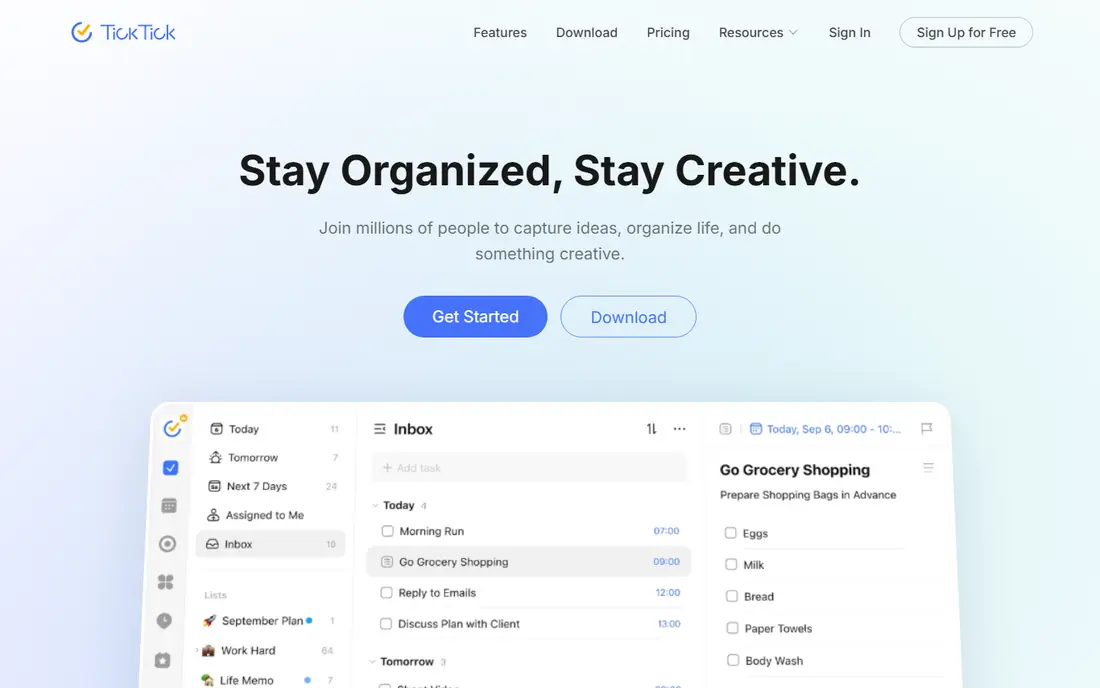
TickTick combines tasks, a calendar, habit tracking, and a Pomodoro focus timer in one app, which suits individuals who want a daily system without stitching several apps together. You can plan a day, track a habit streak, run a focus session, and see deadlines on a calendar, all from the same list. That breadth is rare at TickTick's price, and the Premium plan is lower cost than many rivals.
The interface can feel busy at first, because so many features sit in one app, and team collaboration is basic compared with Asana or Monday. For a solo user, that trade-off is usually fine. If you want tasks, habits, and focus in one place, TickTick gives you more for less than most competitors.
- Tasks plus habits and Pomodoro timer
- Built-in calendar
- Low-cost Premium plan
- Interface can feel busy
- Collaboration features are basic
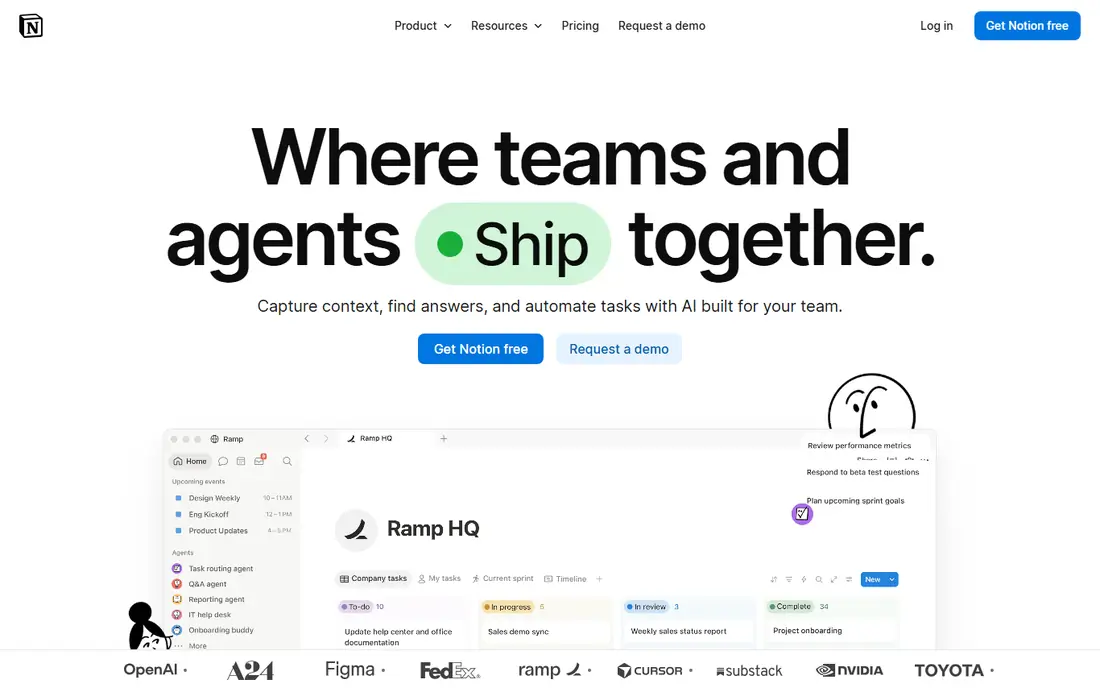
Notion is a flexible workspace where tasks live alongside notes, docs, databases, and wikis. An individual can build a personal dashboard with a task list, a reading list, a project tracker, and meeting notes, all linked together. That flexibility suits students, writers, and freelancers who want one place for work and reference material, not just a task list.
Setup takes more time than Todoist or TickTick, because Notion gives you a blank page and expects you to design your system. Task reminders and quick capture are also less direct than a dedicated task app. The free tier is generous for personal use, so you can build slowly and only pay when you need more storage, guests, or AI features. If you love organizing notes and tasks together, Notion is hard to beat.
- Flexible pages, databases, and docs
- Strong free tier
- Great for personal knowledge
- Can be slow to set up
- Task reminders are less direct than Todoist
Asana is best known as a team tool, but its personal plan works well for an individual with several projects, deadlines, and recurring work. You can switch between list, board, calendar, and timeline views, use templates for common projects, and set dependencies so a late task shows its impact. That visual range helps when you juggle a job, a side project, and personal goals at once.
For a single simple list, Asana can feel heavy, and the best views and automations sit on paid plans. The free personal tier is still useful, with core tasks and projects included. If you like seeing work on a timeline and you may later share projects with others, Asana scales from solo use to team use without a switch.
- Clear list, board, and timeline views
- Good templates
- Strong mobile app
- Can feel heavy for a single person
- Advanced features need paid plans
Trello uses boards, lists, and cards, which makes it the easiest visual tool in this list to understand in minutes. You create a board for a project, add cards for tasks, and drag them from “to do” to “doing” to “done.” That simple motion gives a satisfying sense of progress, and it works well for personal projects, home moves, trip planning, and study plans.
Complex projects with dependencies, timelines, and heavy reporting will strain Trello, and some useful Power-Ups need paid plans. The free tier covers core boards and cards well, so most individuals can use Trello without paying. If you think in boards and want the lowest learning curve, Trello is a strong pick.
- Very easy boards
- Drag-and-drop cards
- Useful Power-Ups
- Limited for complex projects
- Reporting is basic
ClickUp tries to replace several tools at once, with tasks, docs, goals, calendars, and dashboards in one workspace. An individual can track tasks, write notes, set goals, and view work as a list, board, calendar, or Gantt chart, without switching apps. The free tier is generous, which makes ClickUp attractive for a solo user on a budget.
The breadth is also the risk. ClickUp has so many settings that new users can spend more time configuring than doing work, and the interface can feel busy. Start with one view and a few projects, then add features only when you need them. If you want one app for almost everything and you enjoy customizing, ClickUp offers the most for free.
- Many views, docs, and goals in one app
- Generous free tier
- Customizable
- Can feel overwhelming
- Setup takes time to get right
Monday Work Management uses colorful boards, timelines, and dashboards to show work status at a glance, with templates for personal projects, study plans, and freelance work. Automations can move items, send reminders, and update status without manual work, which helps an individual who manages many small tasks. The visual style makes progress easy to see, which some people find motivating.
Pricing is built for teams, with per-seat billing and minimum seats on paid plans, so solo users should check the free tier or the individual plan carefully. Monday can also feel heavy for a simple task list. If you like visual boards, dashboards, and automations, and you may later work with a team, Monday is a polished option.
- Colorful visual boards
- Useful automations
- Good templates
- Pricing is per seat with minimums
- Can be heavy for solo use
Sunsama is different from the other tools here: it guides you through a daily planning ritual, helping you pick tasks from your tools and calendar, estimate time, and schedule them into your day. That ritual suits people who feel busy but not productive, because it forces a realistic plan instead of an endless list. Integrations pull tasks from Todoist, Asana, Trello, and other tools, so Sunsama can sit on top of a system you already use.
There is no free tier, and the monthly cost is higher than a simple task app, so Sunsama needs to earn its place by changing how you plan. A trial will tell you quickly whether the guided ritual helps or feels like extra work. If you struggle with prioritization and time estimates, Sunsama may be worth the cost.
- Guided daily planning ritual
- Calendar and task integration
- Focus mode
- No free tier
- Higher cost than simple task apps
How we picked these
We compared official feature pages, pricing pages, and user reviews for tools with a real personal plan or free tier, fast task capture, and views that suit solo work. We kept simple task apps, visual boards, all-in-one workspaces, and guided planning tools in the same list, but flagged their different strengths. We did not claim hands-on testing, and we used vendor pages for pricing, since many tools price by seat or by plan tier.
How to pick a tool you will actually use
Match the tool to your planning style
List thinkers do well with Todoist or TickTick, visual thinkers do well with Trello, Asana, or Monday, and note thinkers do well with Notion or ClickUp. If you already have a system that works, do not switch for features alone. A new tool only helps if it fixes a specific friction in your current routine.
Keep the system small
Start with one inbox for new tasks, one today view, and one weekly review. Add projects, labels, and automations only when a real task needs them. A system with fifty projects and no daily review will fail no matter how good the tool is.
Review weekly, not just daily
Spend ten minutes each week clearing done tasks, rescheduling overdue items, and picking the top three tasks for the next week. That weekly review is what turns a task list into a project system, and it matters more than the app you choose.
FAQ
What is the best individual project management software for students?
Todoist or TickTick suit most students, because they are fast, low-cost, and work on phones and laptops. Notion suits students who also need notes, reading lists, and research in one place. Start free, keep one list per course, and use a weekly review to stay on top of deadlines.
What is the best project management app for individuals who work alone?
Todoist is the best general pick for solo work, with TickTick close behind if you also want habits and a calendar. Trello suits solo users who think in boards, while Sunsama suits solo users who need help planning each day. Pick the app whose daily view you like looking at, since you will see it every morning.
Is Notion good for personal project management?
Yes, if you want tasks plus notes, docs, and databases in one workspace. Notion is less direct for quick task capture and reminders than Todoist, so some users pair Notion for planning with Todoist for daily tasks. Use Notion alone if you value a linked personal wiki more than the fastest task entry.
Do I need a paid plan for personal project management?
Most individuals do not, at least at first. Free tiers from Todoist, TickTick, Notion, Trello, Asana, ClickUp, and Monday cover core tasks and projects well. Pay only when you hit a real limit, such as reminders, storage, guests, or advanced views, and test the paid features during a trial first.
How do I move from a to-do list to project management?
Group related tasks into a project with a clear outcome and deadline, break the project into steps, and set one next action for each project. Review projects weekly, move stalled projects forward with a small next step, and archive finished projects. That structure, more than any app, is what makes project management work.