Best Presentation Tools for Non-Designers in 2026: 8 Tools Compared
Best presentation tools for non designers compared in 2026: top presentation software for non-designers that turns an outline into a clean deck fast now.
- Editor's choice
 Gamma
Fast AI decks for non-designers
Starts at$9 per monthVisit gamma.appFull review - Great alternative
 Canva
Templates and brand assets
Starts at$15 per monthVisit canva.comFull review - Also consider
 Google Slides
Free collaborative decks
Starts atFreeVisit slides.google.comFull review
TL;DR:
- Gamma is the fastest path from an outline to a finished looking deck for non-designers.
- Canva wins when one tool must cover presentations, social posts, and brand assets.
- Google Slides is the best free pick for live collaboration and simple decks.
- Beautiful.ai and Pitch suit business decks where consistent layout matters more than freeform design.
Quick comparison
| Tool | Best for | Starts at | Free plan? | |
|---|---|---|---|---|
| Gamma | Fast AI decks for non-designers | $9 per month | Yes | Visit |
| Canva | Templates and brand assets | $15 per month | Yes | Visit |
| Google Slides | Free collaborative decks | Free | Yes | Visit |
 Microsoft PowerPoint | Corporate PowerPoint decks | See website | Free trial | Visit |
 Beautiful.ai | Polished business decks | $12 per month | Free trial | Visit |
 Pitch | Startup and team pitch decks | See website | Yes | Visit |
 Prezi | Non-linear zoomable talks | See website | No | Visit |
 Visme | Data driven presentations | See website | Yes | Visit |
The best Presentation Tools for Non-Designers
Non-designers do not need more design controls. They need a tool that makes a clean deck from an outline, keeps spacing and fonts consistent, and exports a file that opens correctly elsewhere. The tools below split into two camps: AI first tools that draft the deck for you, and template tools that give you control after the draft. Our pick for most non-designers is Gamma for speed, while Canva is the pick when you also need social, print, and brand assets in one place.
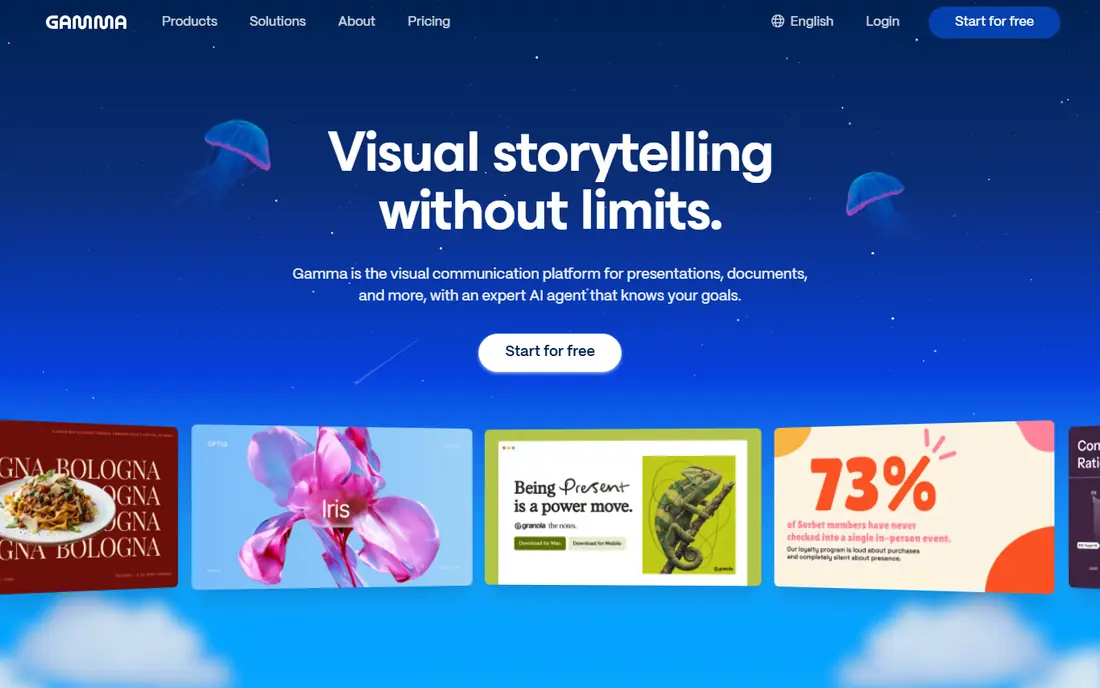
Gamma fits non-designers who need a solid deck fast. Its clearest strength is fast first drafts from a paragraph or outline, which matters when a deck is due soon and design time is short. For teams that want a web deck you can share by link, this focus keeps the day to day work simpler than a broad platform that tries to cover every related job at once.
The catch is its limits on the plan you would actually buy. That does not rule it out, but it does mean you should check AI credit limits on your plan before you commit, and run a small pilot with a real project rather than a demo file. If that pilot passes, Gamma is a sound pick for fast ai decks for non-designers.
We compared Gamma on its official feature and pricing pages, public documentation, and user reviews. What stood out was its speed from outline to deck. What held it back in our comparison was its PowerPoint export cleanup.
- Prompt, outline, or document to deck in minutes
- Shareable web decks
- PDF and PPTX export
- Exported PowerPoint files can need layout cleanup
- Style can look generic without edits
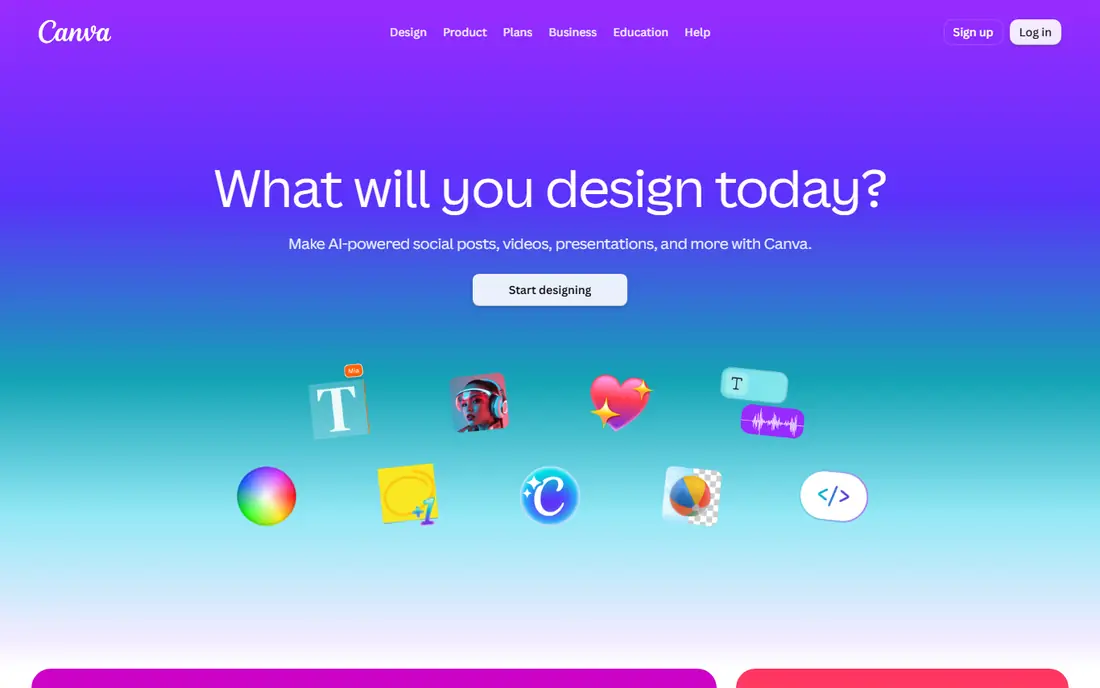
Canva fits small businesses and teachers who need many formats. Its clearest strength is template control plus brand assets, which matters when a deck is one of many assets you make. For teams that need social, print, and slides together, this focus keeps the day to day work simpler than a broad platform that tries to cover every related job at once.
The catch is its limits on the plan you would actually buy. That does not rule it out, but it does mean you should check which AI features sit on Pro versus free before you commit, and run a small pilot with a real project rather than a demo file. If that pilot passes, Canva is a sound pick for templates and brand assets.
We compared Canva on its official feature and pricing pages, public documentation, and user reviews. What stood out was its template and asset range. What held it back in our comparison was its manual layout effort.
- Huge template library
- Magic Design drafts
- Brand kits, stock assets, and video in one place
- Presentation workflow needs more manual layout work than Gamma
- Pro cost adds up for teams
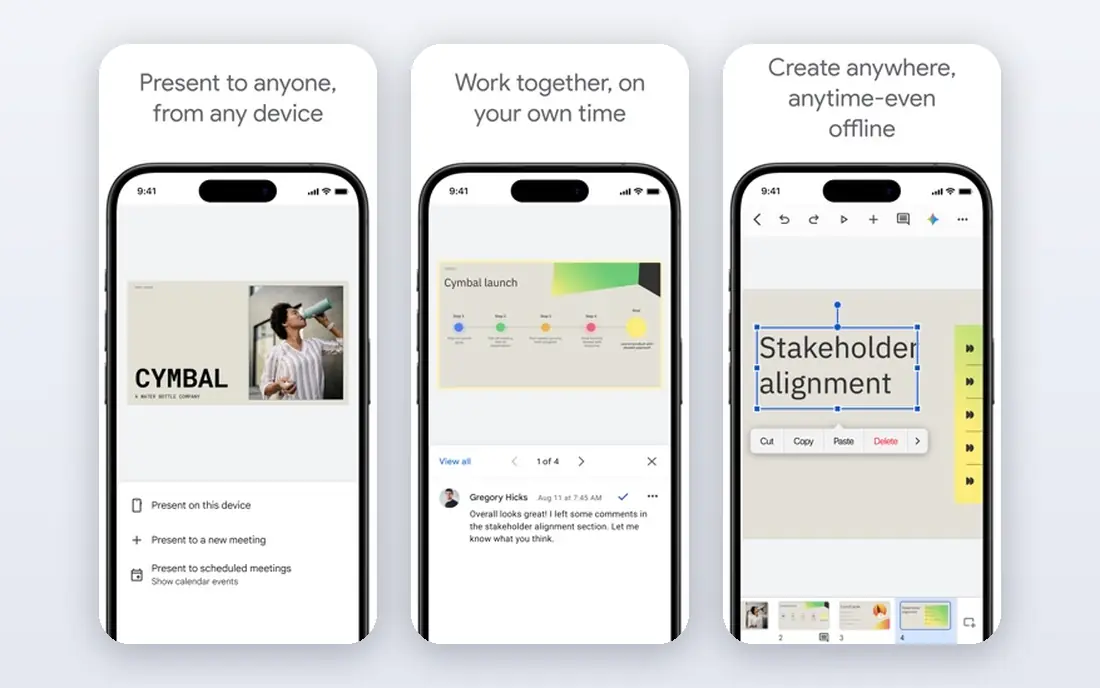
Google Slides fits teams that collaborate live on simple decks. Its clearest strength is free collaboration with no paywall, which matters when a deck must be edited by several people at once. For teams that want a familiar, low friction editor, this focus keeps the day to day work simpler than a broad platform that tries to cover every related job at once.
The catch is its limits on the plan you would actually buy. That does not rule it out, but it does mean you should check Gemini features included in your Google plan before you commit, and run a small pilot with a real project rather than a demo file. If that pilot passes, Google Slides is a sound pick for free collaborative decks.
We compared Google Slides on its official feature and pricing pages, public documentation, and user reviews. What stood out was its free collaboration. What held it back in our comparison was its limited design automation.
- Free with a Google account
- Real time collaboration
- Live Sheets data
- Simple editor
- Design polish needs manual work
- AI help is limited without a paid Google plan
Microsoft PowerPoint fits corporate teams that must deliver PPTX files. Its clearest strength is native PowerPoint files for corporate work, which matters when a deck must match a corporate template exactly. For teams that need Excel charts and presenter tools, this focus keeps the day to day work simpler than a broad platform that tries to cover every related job at once.
The catch is its limits on the plan you would actually buy. That does not rule it out, but it does mean you should check which Microsoft 365 plan you already pay for before you commit, and run a small pilot with a real project rather than a demo file. If that pilot passes, Microsoft PowerPoint is a sound pick for corporate powerpoint decks.
We compared Microsoft PowerPoint on its official feature and pricing pages, public documentation, and user reviews. What stood out was its PPTX fidelity. What held it back in our comparison was its varying AI availability.
- Native PPTX fidelity
- Strong templates and presenter tools
- Excel data and corporate compliance
- Paid Microsoft 365 plans vary
- AI Copilot features need higher tiers
Beautiful.ai fits consultants and business teams that need consistent decks. Its clearest strength is layout discipline for business decks, which matters when every deck must look on brand without a designer. For teams that need slides that stay balanced as text changes, this focus keeps the day to day work simpler than a broad platform that tries to cover every related job at once.
The catch is its limits on the plan you would actually buy. That does not rule it out, but it does mean you should check trial length and Pro limits before you commit, and run a small pilot with a real project rather than a demo file. If that pilot passes, Beautiful.ai is a sound pick for polished business decks.
We compared Beautiful.ai on its official feature and pricing pages, public documentation, and user reviews. What stood out was its automatic layout reflow. What held it back in our comparison was its limited freeform freedom.
- Smart Slides that reflow as content changes
- Consistent brand layouts
- Team controls
- No free plan for full use
- Freeform design is limited by design
Pitch fits founders and small teams building pitch decks. Its clearest strength is collaborative pitch decks with analytics, which matters when a deck must win investor attention. For teams that need to see how readers engage, this focus keeps the day to day work simpler than a broad platform that tries to cover every related job at once.
The catch is its limits on the plan you would actually buy. That does not rule it out, but it does mean you should check free plan member limits before you commit, and run a small pilot with a real project rather than a demo file. If that pilot passes, Pitch is a sound pick for startup and team pitch decks.
We compared Pitch on its official feature and pricing pages, public documentation, and user reviews. What stood out was its pitch focused templates. What held it back in our comparison was its team pricing at scale.
- Teamspaces and templates for pitch decks
- Collaboration and sharing
- Per slide analytics
- Paid plans for larger teams
- AI features vary by plan
Prezi fits presenters who tell a story, not a slide list. Its clearest strength is zoomable talks that follow a map, which matters when a talk needs a big picture view, not just slides. For teams that want movement between ideas, this focus keeps the day to day work simpler than a broad platform that tries to cover every related job at once.
The catch is its limits on the plan you would actually buy. That does not rule it out, but it does mean you should check export and offline options on your plan before you commit, and run a small pilot with a real project rather than a demo file. If that pilot passes, Prezi is a sound pick for non-linear zoomable talks.
We compared Prezi on its official feature and pricing pages, public documentation, and user reviews. What stood out was its distinctive presentation style. What held it back in our comparison was its learning curve for linear decks.
- Zoomable, non-linear presentations
- Templates for storytelling talks
- Video presentation option
- Linear slide expectations can clash with its style
- No free plan for full use
Visme fits teams whose decks are mostly charts and reports. Its clearest strength is data heavy decks and reports, which matters when a deck must explain numbers clearly. For teams that need charts, maps, and infographics together, this focus keeps the day to day work simpler than a broad platform that tries to cover every related job at once.
The catch is its limits on the plan you would actually buy. That does not rule it out, but it does mean you should check data limits on your plan before you commit, and run a small pilot with a real project rather than a demo file. If that pilot passes, Visme is a sound pick for data driven presentations.
We compared Visme on its official feature and pricing pages, public documentation, and user reviews. What stood out was its chart and data tools. What held it back in our comparison was its limited free plan.
- Charts and data widgets
- Infographics and reports
- Brand and template controls
- Free plan is limited
- Data features need a paid plan for serious use
How we picked these
We compared official feature pages, pricing pages, documentation, and public reviews for each product, and we kept only products that exist, work in October 2026, and fit the topic on their own terms. We checked starting prices on vendor sites and used See website where a vendor does not publish a simple starting price or prices by quote. We favored products with clear controls for safety, privacy, and rollback, and we noted limits plainly instead of hiding them behind praise.
What to check before you choose a presentation tool
Check the limits that matter most
Free plans, credit caps, seat minimums, export limits, and quote-only pricing change the real cost fast. Read the pricing page for the plan you would actually buy, not the cheapest headline price, and confirm what happens when you hit a limit mid-project.
Plan for the day something goes wrong
The best tool in this kind of list is often the one that makes it easy to pause, roll back, export your work, or cancel. Keep a copy of your work outside the tool, note who owns the account, and confirm support hours before a deadline depends on it.
Start with the smallest real test
Pick one real project, one real audience, and one clear success measure before you pay for a full plan. A short pilot shows whether setup, limits, and support match the sales page, and it gives you a clean comparison point if you try a second tool later.
FAQ
What is the top presentation software for non-designers?
Gamma is our top pick for speed, Canva is the top pick for template control and brand assets, and Google Slides is the top free pick. The best choice depends on whether you value speed, control, or cost most.
Can AI make a whole presentation for me?
Yes, tools such as Gamma and Canva Magic Design can draft a full deck from a prompt or outline. You should still check facts, tighten wording, and fix layout before you present, because AI drafts can be generic or wrong.
Is Google Slides really free?
Yes, Google Slides is free to create and edit with a Google account, with real time collaboration included. Paid Google Workspace plans add storage, admin controls, and some AI features.
Do I need PowerPoint if my team uses Google Slides?
Not always, but PowerPoint is the safer pick when clients or employers require native PPTX files, corporate templates, or Excel linked charts. Export a test deck first to check fidelity.
How do I make a deck look good without design skill?
Use one template, one font pair, and one accent color, keep each slide to one idea, and use large type with short lines. Tools with layout guardrails, such as Beautiful.ai, help by reflowing slides as you edit.