Best PNG to SVG Free Tools in 2026: 9 Tools Compared
We compared the best PNG to SVG free tools for logos, icons, and line art, checking free exports, trace quality, and file limits before you convert today.
- Editor's choice
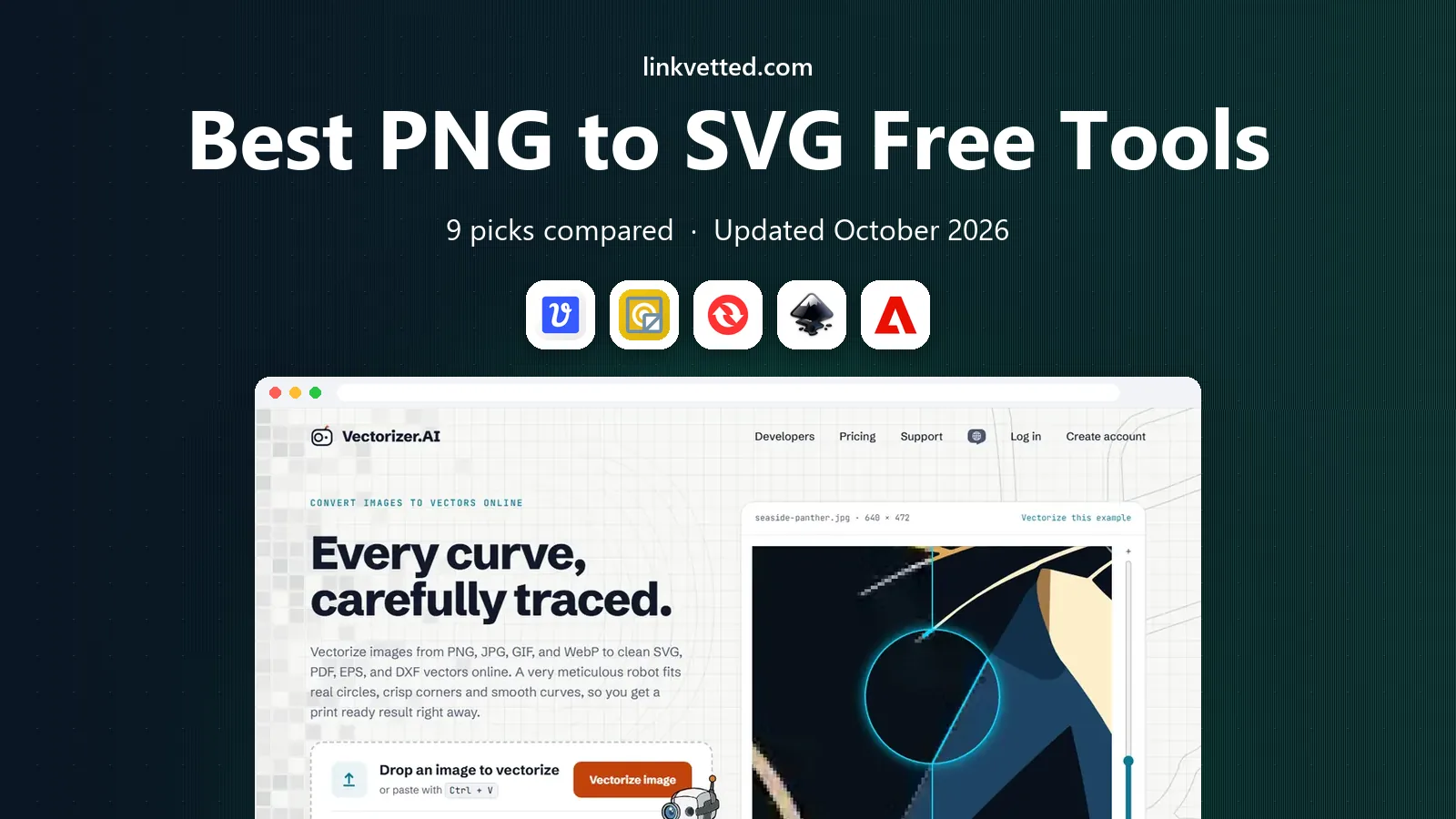
 Vectorizer.AI
High-quality AI tracing for complex logos
Starts at$9.99 per monthVisit vectorizer.aiFull review - Great alternative
 Vector Magic
Faithful tracing with hands-on cleanup
Starts at$7.95 per monthVisit vectormagic.comFull review - Also consider
 Convertio
Quick online format conversion
Starts atFreeVisit convertio.coFull review
TL;DR:
- Inkscape is the only truly free full editor here, with no caps, watermarks, or subscription for tracing.
- PNG2SVG is the fastest free online option for simple logos when you do not need fine controls.
- Vectorizer.AI gives the cleanest AI traces, but downloading the result needs a paid plan.
- Convertio is best for a quick format change, not for a careful logo trace with editable paths.
- Photos do not trace well to SVG, so use these tools for logos, icons, line art, and diagrams.
Quick comparison
| Tool | Best for | Starts at | Free plan? | |
|---|---|---|---|---|
| Vectorizer.AI | High-quality AI tracing for complex logos | $9.99 per month | Free trial | Visit |
| Vector Magic | Faithful tracing with hands-on cleanup | $7.95 per month | Free trial | Visit |
| Convertio | Quick online format conversion | Free | Yes | Visit |
 Inkscape | Full free vector editing and tracing | Free | Yes | Visit |
 Adobe Express | Simple web conversion inside Adobe tools | Free | Yes | Visit |
 Recraft | Vector generation and conversion in one canvas | Free | Yes | Visit |
 Autotracer | Simple free online tracing for line art | Free | Yes | Visit |
 PNG2SVG | Fastest truly free online conversion | Free | Yes | Visit |
 Logomakr | Multi-layer SVG with editable colors | Free | Yes | Visit |
The best PNG to SVG free tools
A PNG looks sharp on screen until you print it large or cut it on a machine, and then the pixels show. Converting to SVG turns the image into paths that scale cleanly, but free tools differ a lot on what free really means. Some give a finished file for free, some only show a preview, and some add a watermark. We compared the tools below on free exports, trace quality, and ease of use.
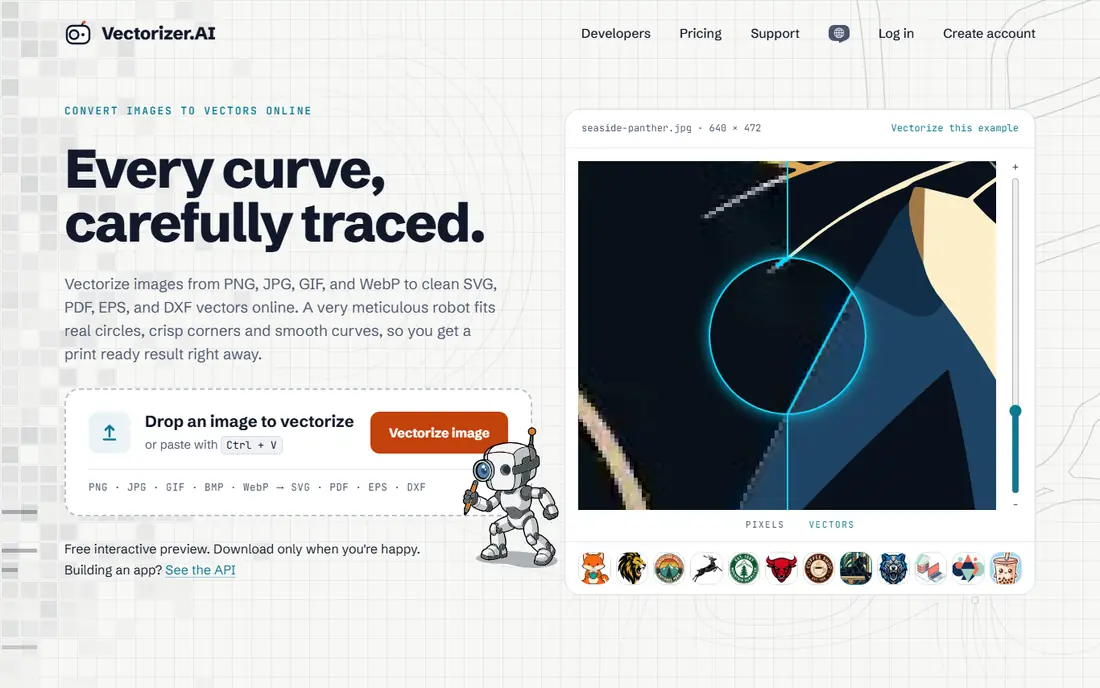
Vectorizer.AI is the benchmark other AI tracers get measured against. You upload a PNG, and its engine fits full shapes and smooth curves rather than only simple outlines, which helps on logos with subtle shading.
Output quality is the reason to try it first on a hard image. Corners stay cleaner, color handling is more faithful, and transparency is preserved, so the result needs less cleanup in a vector editor.
The catch is the free tier. You can preview a trace for free, but downloading the finished file needs a subscription starting around ten dollars a month. Use it to judge quality, and pay only when the result is worth it.
- AI tracing handles gradients and detail well
- Full color and transparency support
- SVG, PDF, EPS, and DXF output
- Free preview only, downloads need a paid plan
- Cloud upload needed for every conversion
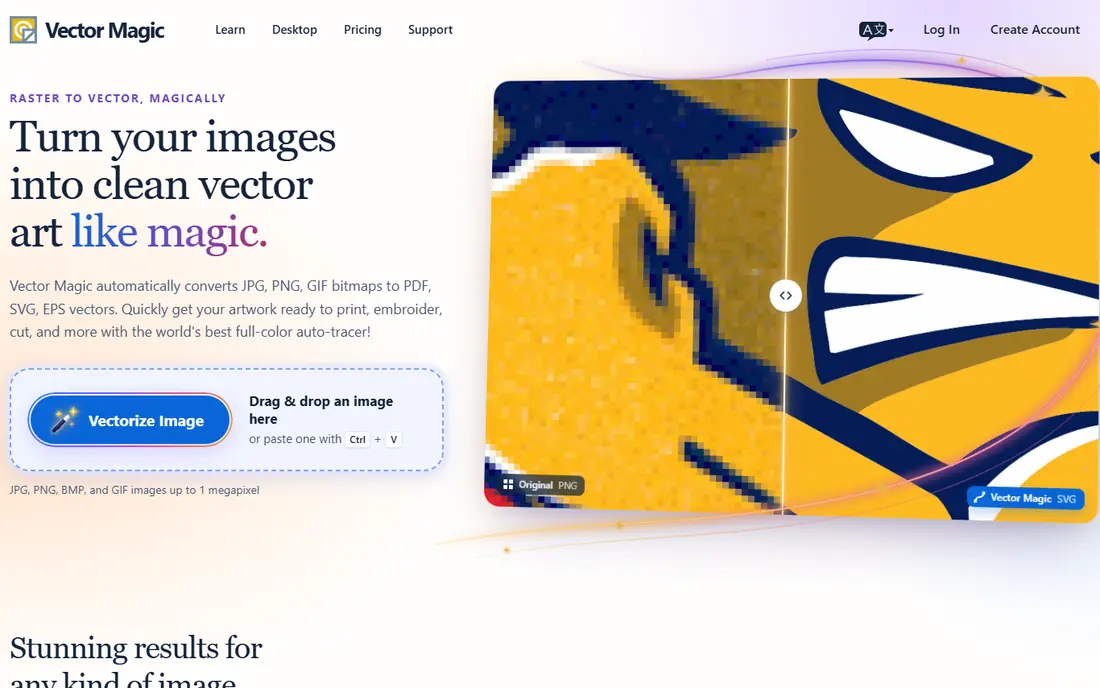
Vector Magic has been tracing logos for years, and it still earns a place for clean source images that need careful control. You can adjust the trace, clean up stray nodes, and compare the result against the original before you export.
Hands-on editing is the strength. Where AI tools guess, Vector Magic lets you fix edges and colors yourself, which matters for a logo that will go on packaging or signage and must match brand colors exactly.
There is no free export. The free tier shows a preview, and the desktop version is a larger one-time purchase. It suits designers who trace often, not someone converting a single icon.
- Careful tracing with manual cleanup tools
- Desktop and online versions
- SVG, AI, PDF, and EPS output
- No free export, preview only on the free tier
- Desktop version costs about $295 one time
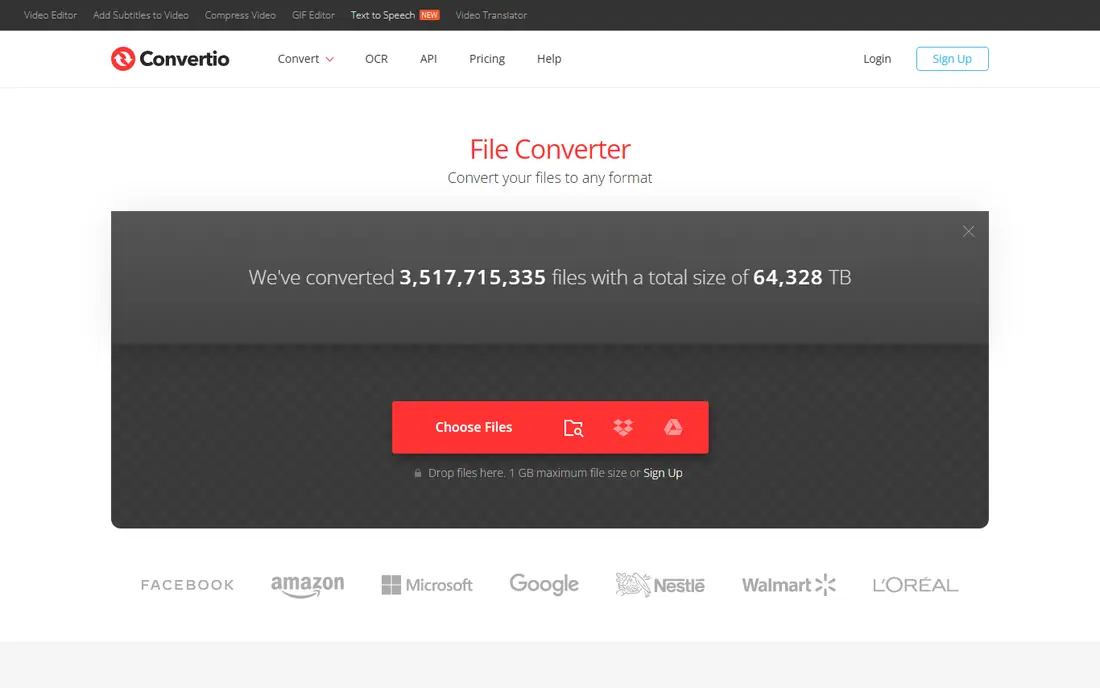
Convertio is the fastest way to change a file format when you do not need a polished trace. You upload a PNG, pick SVG, and download the result in a few clicks, with no software to install.
Breadth is the plus. Convertio handles hundreds of formats, so it fits a workflow where you convert documents, audio, and images in the same place. For a simple icon, that speed is enough.
Trace quality is the limit. Convertio does a basic conversion rather than a detailed vector trace, so complex logos may come out rough. Use it for quick swaps, and use Inkscape or Vectorizer.AI for client logos.
- Simple browser conversion with no install
- Supports many file formats
- Fast for single files
- Basic conversion, not a careful trace
- Free tier has file size and daily limits
Inkscape is the only tool here that is both a converter and a full vector editor, and it costs nothing. Its Trace Bitmap feature turns a PNG into paths, and you can then edit colors, nodes, and shapes in the same program.
Control is the real advantage. You can set color counts, smoothing, and brightness thresholds, then clean up the result by hand. That combination beats a one-click web tool for any logo that needs to look professional.
The learning curve is real. The interface has many panels, and first-time users may need a tutorial to get a clean trace. Once you learn the basics, though, Inkscape removes the need to pay for tracing at all.
- Open-source and free forever
- Trace Bitmap with detailed controls
- Full vector editing after tracing
- Learning curve for new users
- Interface feels dated compared with web tools
Adobe Express suits users who already work in Adobe tools and want a simple web conversion without installing software. You upload an image, convert it, and use the result in other Adobe projects.
Convenience is the draw. If your team already uses Adobe Express for social graphics and presentations, adding a quick SVG conversion keeps everything in one place without learning a new tool.
Trace controls are limited compared with Inkscape or Vector Magic. For a detailed logo, you will likely need to clean the result elsewhere. It is a handy shortcut, not a replacement for a dedicated tracer.
- Free with an Adobe account
- Simple browser workflow
- Useful if you already use Adobe tools
- Limited trace controls
- Some features need a paid Adobe plan
- Not a full vector editor
Recraft covers two jobs at once: converting an existing PNG to SVG, and generating a new vector from a text prompt. That range helps designers who need both a trace and fresh artwork in the same project.
Editing after conversion is smooth. You can recolor, reduce color counts, and adjust shapes on the same canvas, then export for web or print. Integrations with Figma and Framer also reduce export and import steps.
Free export limits are the caution. The free plan covers a lot, but vector export can be locked behind paid plans for heavier use. Check the current free terms before you plan a batch of conversions around it.
- Converts PNG to SVG and generates vectors from text
- In-canvas editing and recoloring
- Figma and Framer integrations
- Vector export is limited on the free tier
- Broader design platform may feel large for one conversion
Autotracer is a straightforward online tracer for simple images. You upload a PNG, choose basic settings, and download an SVG without installing software or creating a complex account setup.
Line art is where it shines. Simple logos, diagrams, and black-and-white illustrations trace cleanly, and the workflow is fast enough to test several settings in a few minutes.
Daily limits and control are the trade-offs. Free conversions are capped per day, and fine color work is thinner than in Inkscape. Use Autotracer for quick line art, and move to a desktop tool for detailed color logos.
- Browser tracing with no install
- Free conversions each day
- Good for simple line art
- Limited free conversions per day
- Fewer controls than desktop tracers
PNG2SVG is the tool to try when you want a finished SVG in under a minute and do not want to pay or sign up for a trial. It converts in the browser and gives you a file you can actually use.
The free terms are the selling point. Unlike preview-only tools, PNG2SVG gives a finished file without a watermark, which makes it honest about the word free in a category full of trials.
Quality is basic. With almost no trace settings, detailed logos can come out rough, and you cannot fine-tune colors or smoothing. For simple icons it is enough, but for a brand logo, clean the result in Inkscape.
- Free forever with no watermark on finished files
- No install
- Instant browser conversion
- Almost no trace settings
- Output quality is basic on detailed images
Logomakr stands out by giving a multi-layer SVG rather than a flat trace. Each color sits on its own editable path, and the background is removed automatically, which makes recoloring much easier.
Editable output is the practical win. If a client asks to change one brand color, you can edit that layer without retracing the whole logo. That saves time for designers who reuse logos across print and web.
The tool is newer and less proven than long-running tracers, so test it on your own logo before you rely on it for client work. It also suits logos and icons far better than photos or detailed illustrations.
- Multi-layer SVG output with each color on its own path
- Background removal
- No watermark on free output
- Newer tool with less track record than Inkscape or Vector Magic
- Best for logos, not photos
How we picked these
We compared official product pages, pricing pages, and public guides for each tool, focusing on PNG to SVG conversion rather than general image editing. We looked for free export rules, watermark limits, daily caps, trace controls, color handling, transparency support, and output formats. We also noted whether the tool runs in a browser or on your computer, since that affects privacy for client logos.
How to choose a PNG to SVG free tool
Start with your source image. A clean logo with few colors traces well in almost any tool, while a detailed illustration needs finer controls for colors, smoothing, and node cleanup. If the logo has text, check whether the trace keeps letter shapes clean, and be ready to tidy small paths by hand in an editor like Inkscape.
Check what free really gives you
Before you invest time, confirm whether the free tier downloads a finished SVG, adds a watermark, or only shows a preview. A preview-only tool can still help you judge quality, but it will not finish the job for free. Also check daily limits and file size caps, since a tool that works for one logo may block a batch of icons.
Think about privacy and editing
Browser tools upload your image to a server, which is fine for a public logo but less ideal for an unreleased brand mark. Desktop tools like Inkscape keep files on your computer and give full editing control after the trace. For print or cutting machines, export a test file and check it at large size before you send it to a printer or cutter.
FAQ
What is the best free PNG to SVG converter?
Inkscape is the best truly free option because its Trace Bitmap tool downloads finished SVGs with no watermark and no daily cap. PNG2SVG is the simplest free online choice for quick conversions. Vectorizer.AI gives higher-quality AI traces, but downloads need a paid plan.
Can I convert PNG to SVG for free without a watermark?
Yes, with Inkscape and PNG2SVG you can get finished files without a watermark. Several other tools offer free previews or watermarked downloads, so read the free terms before you start. If a tool says free preview only, expect to pay for the download.
Is PNG to SVG conversion good for photos?
No. SVG works best for logos, icons, line art, and diagrams with clear shapes and limited colors. Photos have too much detail and shading, so a traced photo often looks posterized or messy. For photos, keep a high-resolution PNG or use WebP instead.
What is the difference between a trace and a format swap?
A true trace redraws the image as vector paths with editable shapes and colors. A simple format swap may wrap the pixels in an SVG file without creating real paths, which will not scale cleanly. Check whether the output lets you edit colors and shapes in a vector editor.
Do I need to install software to convert PNG to SVG?
No. Online tools like PNG2SVG, Convertio, and Autotracer run in a browser with no install. Desktop tools like Inkscape need an install but give more control and keep files local. Choose online for speed and desktop for privacy and detailed cleanup.