Best Photo Editing Software for PC in 2026: 8 Tools Compared
Compare the best photo editing software for PC, from free editors to pro tools for RAW photos, layers, retouching, batch work, value and more in 2026.
- Editor's choice
 Adobe Photoshop
Deep retouching and compositing
Starts at$22.99 per monthVisit adobe.comFull review - Great alternative
 Adobe Lightroom
Organizing and editing large photo sets
Starts at$11.99 per monthVisit adobe.comFull review - Also consider
 Affinity
Free pro-level layer editing
Starts atFreeVisit affinity.serif.comFull review
TL;DR:
- Adobe Photoshop and Lightroom still set the standard for pro work, but they now cost a monthly subscription, so the total adds up over time.
- Affinity is now free, which makes it the strongest value pick for PC users who want full layer editing without a subscription.
- Lightroom and Capture One suit photographers who sort and edit large shoots, while Photoshop, Affinity and DxO PhotoLab suit deeper retouching and image quality work.
- Free tools such as GIMP and Paint.NET cover a lot of everyday editing, but they need more patience and add-ons for RAW workflow and batch jobs.
- Check your PC specs before you buy, because AI tools, large RAW files and many layers can slow an older machine.
Quick comparison
| Tool | Best for | Starts at | Free plan? | |
|---|---|---|---|---|
| Adobe Photoshop | Deep retouching and compositing | $22.99 per month | No | Visit |
| Adobe Lightroom | Organizing and editing large photo sets | $11.99 per month | No | Visit |
| Affinity | Free pro-level layer editing | Free | Yes | Visit |
 Capture One | Studio and tethered shooting | See website | Free trial | Visit |
 DxO PhotoLab | Image quality and noise reduction | See website | Free trial | Visit |
 Luminar Neo | Fast AI-assisted edits | See website | Free trial | Visit |
 GIMP | Free open-source editing | Free | Yes | Visit |
 Paint.NET | Simple free Windows editing | Free | Yes | Visit |
The best photo editing software for PC
The best photo editing software for PC depends on how you shoot, how many photos you handle, and how much control you want over each image. Some people need a fast way to fix exposure and color across hundreds of photos. Others need layers, masks and precise retouching for a single image. We compared official feature pages, pricing pages and app listings, and we kept only tools that run on Windows PCs and are still supported in 2026.

Photoshop remains the reference tool when an edit goes beyond simple fixes. Layers, masks, smart objects and blending modes give you control over every part of an image, and its removal and generative fill tools help with hard retouching jobs that simpler editors cannot handle. If you composite images, design graphics, prepare print files or retouch portraits in detail, this depth is hard to replace. The trade is time and cost, because Photoshop rewards practice and it is sold as a subscription, so you keep paying to keep access.
For most everyday photo fixes, Photoshop is more tool than you need. It has no built-in photo library workflow like Lightroom, so sorting a wedding shoot or a travel set can feel slow. We would pick it for people who already know they need layers and pixel-level control, and we would point casual editors to a cheaper or free option first. Check the current plan on Adobe's site before you buy, because plan names and included storage change.
- Deep layer and masking tools
- Strong selection and removal tools
- Large plugin and tutorial base
- Subscription only
- Steep learning curve for beginners
- Heavy on older PCs
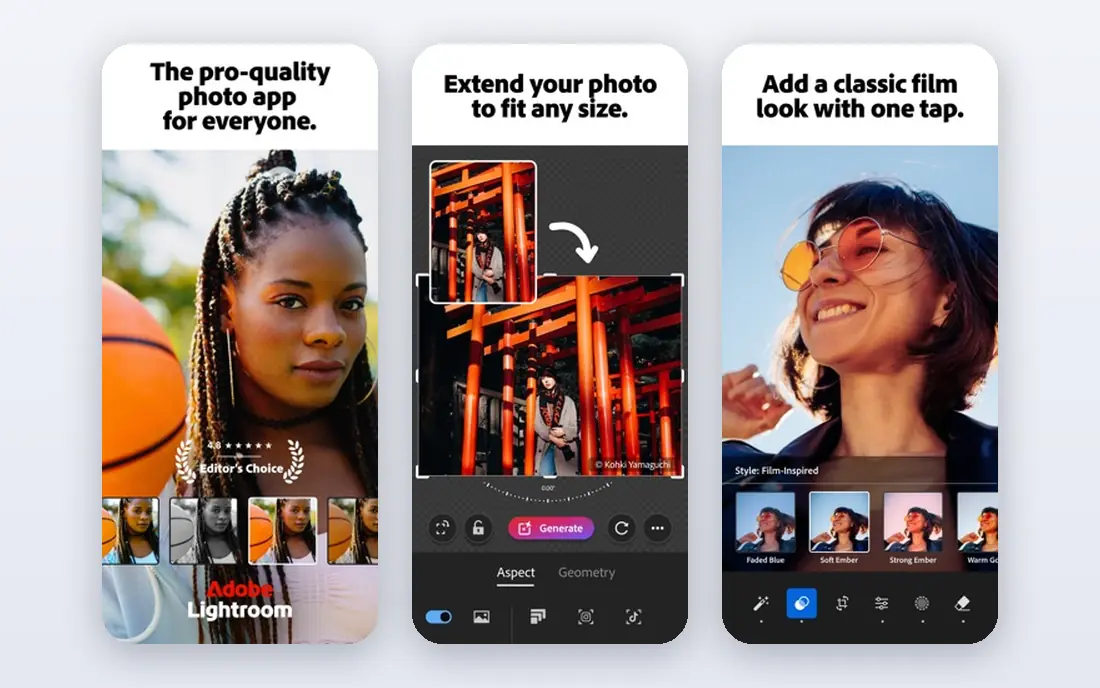
Lightroom is built for photographers who come home with hundreds or thousands of photos. You can import, rate, keyword and sort a shoot, then apply the same exposure, color and lens corrections across many images at once. Its RAW tools, presets and AI masking help with portraits, skies and subjects without forcing you into layers for every edit. For a top photo editing software for pc workflow, this combination of organizing and editing in one place is the main reason many photographers stay with it.
The limit is compositing. Lightroom can remove spots and distractions and make local adjustments, but it is not a Photoshop replacement for complex composites or heavy manipulation. It also works best when you accept Adobe's cloud model and plan limits, so check storage before you commit a large library. If your work is mostly sorting, color and batch output, Lightroom is the most efficient pick here.
- Strong library and batch editing
- Good RAW processing
- Cloud sync across devices
- Subscription only
- Limited layer compositing
- Cloud storage limits depend on plan
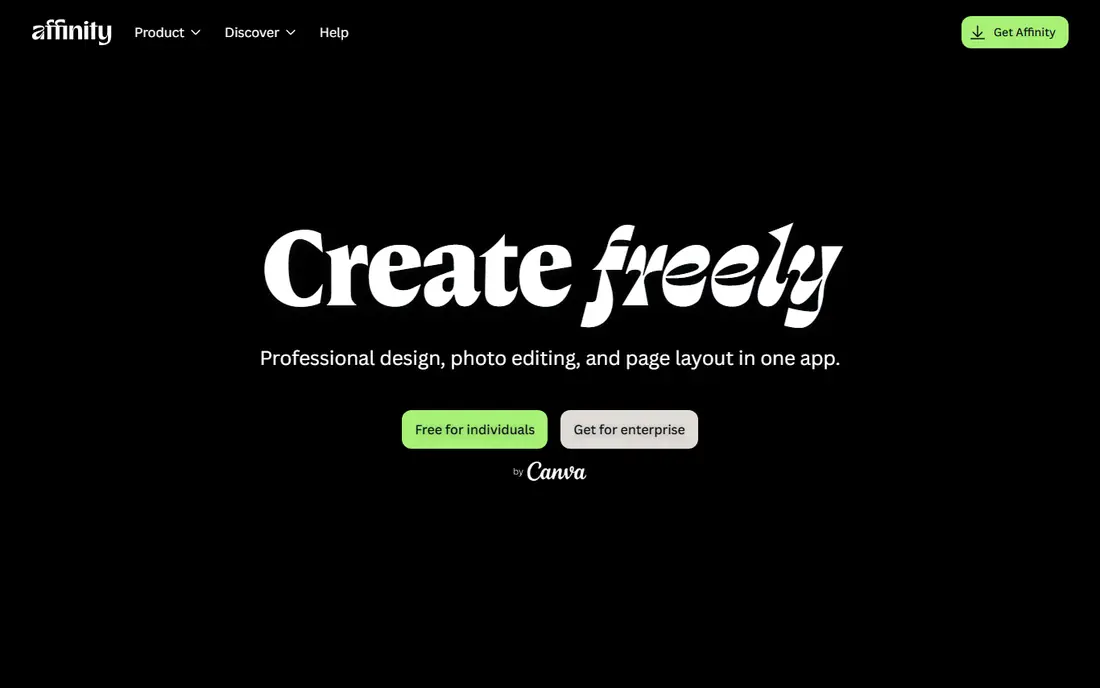
Affinity, from Serif and now part of Canva, is the standout value in this list because the full app is now free. You get layers, live filters, masks, RAW development, panorama stitching, focus stacking and HDR merge in one desktop app for Windows. For a PC user who wants Photoshop-style control without a monthly bill, that is a hard combination to beat. It also feels quick on mid-range hardware, which matters when you work with large files.
The main gap is organization. Affinity does not manage a photo library the way Lightroom or Capture One do, so you will still need folders or another tool to sort large shoots. Plugin support is also narrower than Photoshop, and some very specific pro workflows may still need Adobe tools. Even with those limits, Affinity is our pick for most people who want serious editing on a PC for no ongoing cost. Download it from the official Affinity site and confirm system needs for your PC.
- Full layer editing with no subscription
- Fast on many PCs
- Strong retouching and panorama tools
- No built-in photo library like Lightroom
- Fewer plugins than Photoshop
- Learning curve for new users
Capture One is a favorite in studios for a reason. Tethered shooting lets you see images on a large screen as you shoot, check focus and color at once, and adjust settings without breaking the flow of a session. Its color tools are precise, its session system keeps a job tidy, and its RAW processing gives clean detail for portraits, products and fashion work. If you shoot for clients and need reliable color from capture to delivery, this is a serious pro option.
For casual use, Capture One can feel like too much. The interface assumes you know RAW editing terms, and pricing varies by plan and region, so check the official site for current terms. It is also less of a quick fix tool than Lightroom or Luminar Neo. We would shortlist it for studio photographers, high-volume portrait work and anyone who already values tethered shooting.
- Excellent color and tethered capture
- Strong session workflow
- Good for studio portraits and products
- Higher cost than many rivals
- Learning curve
- Less suited to casual quick edits
DxO PhotoLab earns its place on image quality alone. Its noise reduction handles high ISO photos well, and its lens corrections are built from lab measurements for specific camera and lens pairs, which helps with sharpness and distortion. RAW files often look cleaner and more detailed after PhotoLab than after a general editor, especially for low-light and wildlife shots. Local adjustments, masking and color tools cover most serious editing needs without forcing you into a subscription model for the core app.
The trade is workflow. PhotoLab has library features, but they are not as complete as Lightroom for sorting very large collections, and some users pair it with another tool for catalog work. Editions and upgrade pricing also change, so confirm the current edition on DxO's site. If image quality is your first priority and you shoot RAW often, PhotoLab deserves a trial.
- Strong noise reduction and lens corrections
- Excellent RAW detail
- Good local adjustment tools
- No photo library as deep as Lightroom
- Interface takes time to learn
- Price varies by edition
Luminar Neo is for people who want a good result quickly. Sky replacement, portrait retouching, relighting and object removal are guided by AI tools, so a travel photo or portrait can improve in minutes without learning masks and layers. The interface is friendly, presets give a fast starting point, and it works as a standalone editor or as a plugin for other tools. For social posts, blogs and family photos, that speed is a real benefit.
The limit is precision. When you need exact selections, complex composites or full manual control, Photoshop and Affinity give you more room. Some advanced tools also sit behind paid tiers, so read the plan details before you buy. We would pick Luminar Neo for editors who value speed over deep control, and for anyone who finds traditional editors slow or confusing.
- Fast sky, portrait and relight tools
- Friendly interface
- Good for quick social and travel edits
- Less precise manual control than Photoshop
- Some features need a paid plan
- Catalog tools are basic
GIMP is the best free photo editing software for pc users who want real editing power without paying. It is open source, it runs on Windows, and it covers layers, masks, selections, retouching and color tools in depth. A large community makes plugins and tutorials, and for many tasks it can stand in for Photoshop, especially for web graphics, retouching and compositing on a budget. If cost is the barrier, GIMP removes it.
The catch is polish and workflow. The interface is less refined than paid rivals, RAW handling usually needs an extra tool, and batch and library features are not as smooth as Lightroom. You may also spend time setting it up the way you like it. Even so, for students, hobbyists and small businesses, GIMP is a strong free pick, and it pairs well with a free RAW tool for a full no-cost setup.
- Free with layers, masks and plugins
- Runs on Windows
- Large community and tutorials
- Interface feels dated
- RAW workflow needs add-ons
- No official support team
Paint.NET started as a simple Windows editor and grew into a capable free tool for everyday fixes. Cropping, resizing, color correction, layers and basic retouching are all simple to learn, and it runs well on modest PCs that would struggle with heavier editors. Plugins add more effects and file support, and the interface stays clear for beginners. If you mainly fix phone and camera photos for web use, school work or a small business, Paint.NET is enough.
It is not a pro RAW editor. Batch work, deep color management and advanced retouching are limited, and it is Windows only, so Mac users need another pick. For a top free photo editing software option on a PC, though, it is one of the easiest free editors to start with. Try it first if you want quick edits without a learning curve, then move to Affinity or GIMP when you need more control.
- Free and easy to learn
- Fast on modest PCs
- Good plugins for extra tools
- Windows only
- Limited RAW and batch tools
- Less depth than GIMP or Affinity
How we picked these
We compared official product pages, pricing pages and app store listings for tools that run on Windows PCs in October 2026. We favored tools that are still supported, handle common photo formats, and cover different needs, from free quick edits to studio RAW work. We left out mobile-only editors, discontinued tools and tools that only work as a web demo, because this list is for PC software you can rely on for real work.
We also weighed cost over time, not just the first price. A subscription can cost more than a one-time or free tool within a year or two, so we noted where a plan is ongoing and where a tool is free. Where pricing varies by plan, region or edition, we wrote See website rather than guessing a number that could be out of date by the time you read this.
What to check before you choose
Match the tool to your photo volume
If you edit a few photos a week, a simple editor such as Paint.NET, GIMP or Affinity will serve you well. If you edit hundreds of photos after each shoot, Lightroom or Capture One will save more time through batch edits, presets and library tools. Volume is often a better guide than feature lists, because a powerful editor that slows your sorting will cost you hours.
Check RAW, layers and export needs
RAW support matters if you shoot in RAW, because it gives more room to fix exposure and color. Layers matter if you composite, retouch in detail or build graphics. Export matters if you print, post online or deliver to clients, so check file formats, color profiles and batch export before you commit. A tool that looks good in a demo can still fail on one of these practical points.
Test on your own photos
Use free plans and trials with your own files, not just sample images. Open a noisy low-light photo, a portrait with skin detail, and a large batch from a real shoot. Check speed on your PC, check how the interface feels after an hour, and check that exports look right on the screens and printers you use. A short trial with real work tells you more than a long feature list.
FAQ
What is the best photo editing software for PC for beginners?
Affinity and Paint.NET are good starting points, because both are free and cover layers, cropping and color without a subscription. Luminar Neo is also friendly if you prefer guided AI tools and presets. Start with a free tool, learn the basics of exposure and color, and move to a pro tool only when you hit a limit you can name.
What is the best free photo editing software for PC?
Affinity is now the strongest free pick for serious editing, with full layer tools and RAW support at no cost. GIMP is the best free open-source choice for deep editing and plugins, while Paint.NET is the simplest free Windows editor for quick fixes. The right free pick depends on how much control you want and how much time you want to spend learning.
Is Photoshop or Lightroom better for PC photo editing?
Photoshop is better for deep retouching, layers and compositing, while Lightroom is better for organizing and editing large sets of photos. Many pro photographers use both, with Lightroom for sorting and color and Photoshop for detailed work on selected images. If you can only pick one, choose Lightroom for volume and Photoshop for single-image depth.
Can I edit RAW photos on a PC without a subscription?
Yes. Affinity, GIMP with a RAW add-on, DxO PhotoLab and Capture One all handle RAW files without forcing you into the same monthly model as Adobe. Affinity and GIMP are free, while DxO PhotoLab and Capture One use paid licenses or trials, so check current pricing on their official sites. RAW editing without a subscription is practical, though library tools may be simpler than Lightroom.
What PC specs do I need for photo editing software?
A modern multi-core processor, at least 16 GB of RAM, an SSD and a decent graphics card will handle most editing well. Large RAW files, many layers and AI tools benefit from more RAM and a stronger graphics card, while simple editors such as Paint.NET run well on modest machines. Check the system needs on the vendor site for the tool you pick, and test with your own files before you buy.