Best Photo Editing Software for Beginners in 2026: 9 Tools Compared
Compare the best photo editing software for beginners in 2026, with free options, one time buys, and simple editors for phones, web, and desktop use today.
- Editor's choice
 Adobe Lightroom
Learning real photo editing
Starts at$11.99 per monthVisit adobe.comFull review - Great alternative
 Canva
Fast design and photo edits
Starts atFreeVisit canva.comFull review - Also consider
 Photoshop Elements
Guided desktop edits
Starts at$99.99Visit adobe.comFull review
TL;DR:
- Adobe Lightroom is the best starting point for beginners who want to learn real photo editing, with presets, color tools, and cloud sync.
- Canva and Pixlr are the easiest first editors for people who want fast results without installing complex software.
- Affinity Photo and GIMP give serious editing power for free, though both take longer to learn than Lightroom or Canva.
- Photoshop Elements suits hobbyists who want guided edits and a fixed term license instead of a monthly subscription.
- Start with a free tool, learn exposure, color, and cropping, and only pay when you hit a clear limit in that tool.
Quick comparison
| Tool | Best for | Starts at | Free plan? | |
|---|---|---|---|---|
| Adobe Lightroom | Learning real photo editing | $11.99 per month | Free trial | Visit |
| Canva | Fast design and photo edits | Free | Yes | Visit |
| Photoshop Elements | Guided desktop edits | $99.99 | Free trial | Visit |
 Affinity Photo | Free professional style editing | Free | Yes | Visit |
 GIMP | Free pixel editing and retouching | Free | Yes | Visit |
 Luminar Neo | Fast AI assisted edits | See website | Free trial | Visit |
 Pixlr | Browser editing with no install | Free | Yes | Visit |
 Photopea | Free Photoshop style web editing | Free | Yes | Visit |
 Fotor | Simple filters and quick fixes | Free | Yes | Visit |
The best photo editing software for beginners
We compared official pricing pages, feature pages, and app store listings for the best photo editing apps for beginners. The list mixes phone, web, and desktop tools, since beginners start in different places. Prices change often, so check the vendor pricing page before you buy, and use a free plan or trial first where one is offered.
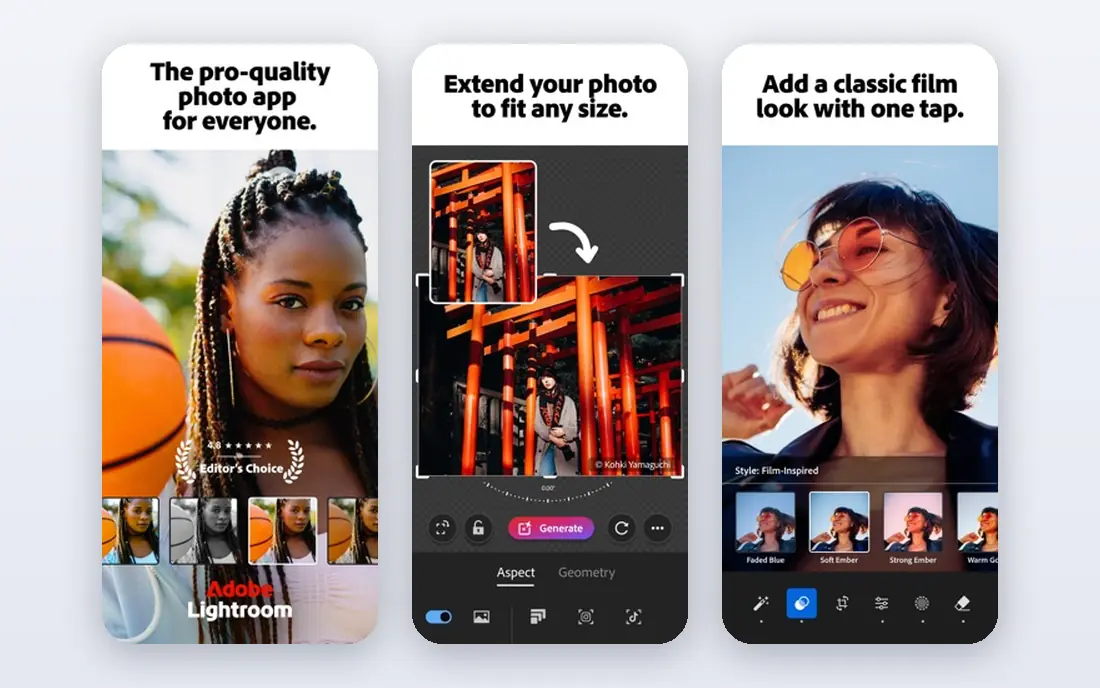
Lightroom is our pick for most beginners who want to learn photo editing properly. You can import photos, fix exposure and color, apply presets, and organize a growing library in one app. Edits sync to your phone, so you can start on a desktop and finish on the couch, and the preset system gives fast results while you learn what each slider does.
The honest catch is the subscription and the two version split. Lightroom, the cloud version, and Lightroom Classic, the desktop version, share a plan but work differently, and new users often mix them up. If you want a single, guided path and you are happy to pay monthly, Lightroom at $11.99 per month is still the clearest route from beginner to confident editor.
- Presets, color tools, and masking in one workflow
- Cloud sync across phone and desktop
- Huge tutorial library
- Subscription only
- Cloud version and Classic version can confuse new users
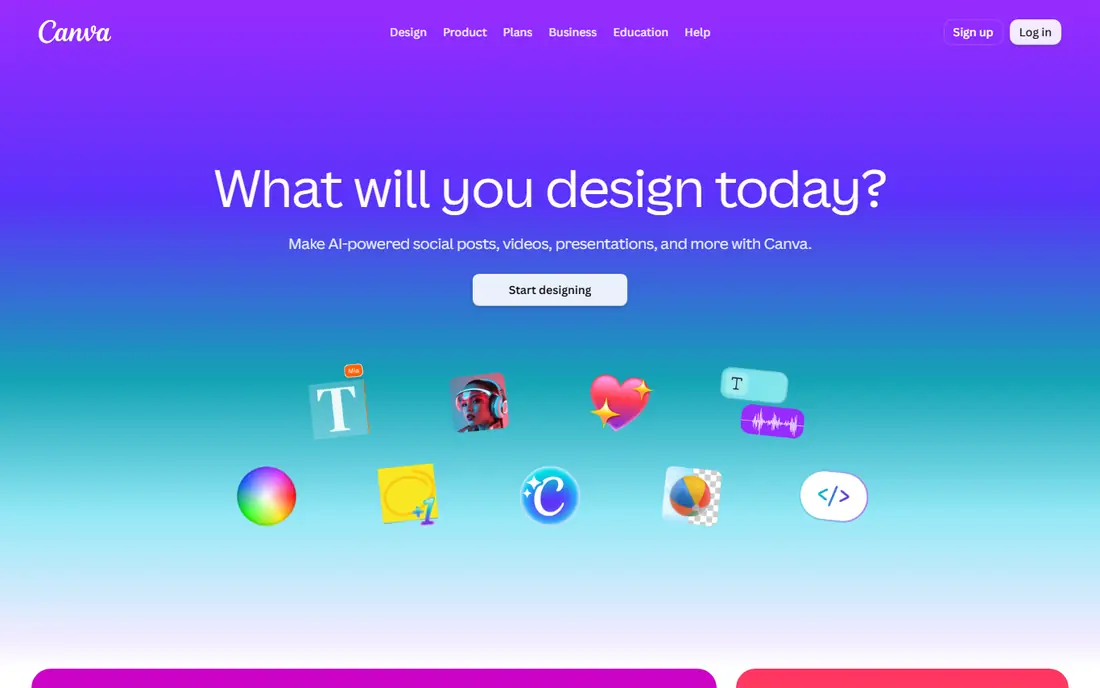
Canva is the easiest editor in this list for people who want a good looking photo fast. You can upload a photo, apply a filter, add text, crop for a social format, and export in minutes, with templates doing much of the layout work. That speed makes Canva ideal for social posts, invitations, and small business graphics, even if it is not a deep photo editor.
The limit is control. Canva does not match Lightroom for RAW files, detailed color work, or large photo libraries. If your main goal is sharing photos online with clean text and design, Canva free is enough to start. If you want to learn photography editing in depth, pair Canva with Lightroom or Affinity Photo rather than relying on Canva alone.
- Drag and drop editor
- Templates for social posts and prints
- Filters, text, and background tools
- Not a full RAW photo editor
- Best features sit behind Pro
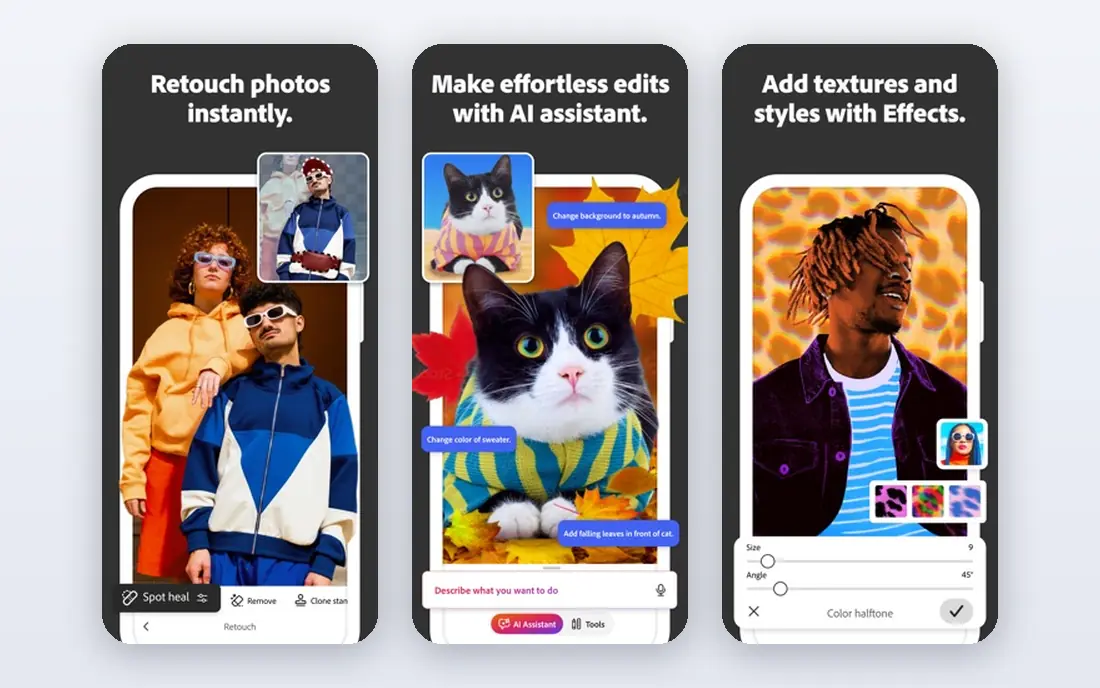
Photoshop Elements is built for hobbyists who want more than a phone filter but less than full Photoshop. Guided Edits explain effects such as double exposures, sky swaps, and photo to painting looks in clear steps, so you learn as you edit. Automatic organization, including face recognition and smart tags, helps if your photo library is growing fast.
The trade is a ceiling. Elements does not include every professional tool, and its catalog is simpler than Lightroom. For most family photos, travel shots, and prints, that ceiling will not matter. At $99.99 for a fixed term license, Elements also suits people who dislike monthly billing and want to own their editor for a set period.
- Guided Edits walk you through effects step by step
- Automatic organization
- One time style license for a fixed term
- Lacks some professional tools such as full CMYK support
- Catalog tools are simpler than Lightroom
Affinity Photo is the best value in this list for beginners who want to grow. Since Canva acquired Serif, the core Affinity app is free to download and use, with layers, masks, retouching, panorama stitching, HDR merge, and RAW development included. That is professional level power at no cost, and it opens and saves Photoshop files, so you are not locked out of common workflows.
The catch is guidance. Affinity gives you the tools but does not hold your hand as much as Lightroom presets or Elements Guided Edits. Beginners who enjoy learning will love it, while people who want one click results may prefer Canva or Luminar Neo first. If you are willing to watch a few tutorials, Affinity Photo can carry you from first edits to advanced work without a subscription.
- Full layer editing, masks, and RAW support for free
- PSD compatibility
- Fast performance
- Learning curve is steeper than Canva or Pixlr
- Smaller tutorial base than Adobe
GIMP, the GNU Image Manipulation Program, is the classic free Photoshop alternative, and it remains a strong choice for pixel editing. You can retouch portraits, composite images, remove objects, and work with layers and masks, all without paying. The open source community offers many plugins and tutorials, which helps when you hit a new task.
The downside is polish. GIMP looks and feels older than Affinity Photo or Lightroom, and its RAW handling is less direct, so photographers often pair it with a RAW tool such as Darktable. If you want free, deep editing and you do not mind a less modern interface, GIMP is a solid pick. If you want a smoother first experience, start with Affinity Photo.
- Free and open source
- Layers, masks, and retouching
- Huge plugin and tutorial community
- Interface feels dated
- RAW workflow needs extra tools
- Learning curve for complete beginners
Luminar Neo suits beginners who want impressive results quickly. Its AI tools can enhance a photo in one click, replace a dull sky, soften portrait skin, and fix backlit scenes with Relight, without manual masking. That speed makes it fun for travel and family photos, where you want a strong result in minutes rather than a long edit session.
The limit is organization and long term cost. Luminar Neo is not built to manage a huge library like Lightroom, and some generative features may need renewal after the first year, depending on your license. Check the current perpetual and subscription options on the Skylum pricing page before you buy, and use the free trial to see whether the AI look suits your taste.
- One click AI enhancements
- Sky replacement and portrait tools
- Relight for backlit photos
- Catalog tools are weaker than Lightroom
- Some AI features need renewal after the first year
Pixlr is a good first editor if you do not want to install anything. You open it in a browser, upload a photo, and use filters, adjustments, overlays, and AI background removal to get a clean result fast. That makes it ideal for school projects, social posts, and quick fixes on a shared or low storage computer.
The trade is depth and ads. Pixlr is not a replacement for Lightroom or Affinity Photo for RAW work or large libraries, and the free version shows ads. For the best photo editing apps for PC users who want no install, Pixlr is still a strong starting point, and you can move to a desktop editor later without losing what you learned about exposure and color.
- Runs in a browser with no install
- Quick filters and AI background removal
- Easy for casual edits
- Free version includes ads
- Needs an internet connection
- Less depth than desktop editors
Photopea is a browser editor that looks and feels much like Photoshop, with layers, masks, selection tools, and support for PSD files. That makes it a great free bridge for beginners who want to learn Photoshop style editing without paying or installing software. It also handles RAW files, which sets it apart from simpler web editors.
The catch is that the free version is ad supported, and heavy files can feel slower in a browser than in a desktop app. A paid premium plan removes ads, but most beginners can start free and learn the core tools first. If you want to test whether layer editing suits you, Photopea is the lowest cost way to find out.
- Photoshop style layers and tools in a browser
- Opens PSD and RAW files
- No install needed
- Ad supported free version
- Performance depends on your browser and computer
Fotor is a friendly choice for beginners who want quick, clean results and a little design help. You can apply filters, fix brightness and color, retouch a portrait lightly, and build a collage in one place. The web and app versions make it easy to edit on a phone or computer without learning a complex interface.
The limit is depth. Fotor is best for the best and easiest photo editing software use case, where speed matters more than fine control. If you later want detailed RAW editing, layers, or print work, move to Lightroom or Affinity Photo. For everyday photos, social posts, and old photo touch ups at a basic level, Fotor is a low stress place to start.
- Simple filters, beauty retouching, and collage tools
- Easy web and app workflow
- Affordable Pro plan
- Free version includes ads
- Less control than Lightroom or Affinity Photo
- Best for quick edits, not deep work
How we picked these
We compared official pricing pages, feature pages, and app store listings, and we favored tools that are still maintained, offer a free plan or trial, and give a clear beginner path. We did not claim hands-on testing, and we did not invent prices, ratings, or feature claims. Where pricing differs by plan or region, we used See website and advised readers to check the vendor page before buying.
A simple beginner workflow that works in any editor
Fix exposure and crop first
Start every edit with the basics. Straighten the horizon, crop out distractions, and fix exposure before you touch color or filters. A well cropped, well exposed photo often needs little else, and it teaches you to see light and composition before you rely on effects.
Learn color in small steps
Next, adjust white balance, then saturation and vibrance in small moves. Push a slider too far and skin tones and skies will look unnatural, so compare your edit with the original often. Presets can help here, but study what each preset changes, since that is how you learn to make your own look.
Save and export for the right use
Save your edited master file in a high quality format, then export a smaller copy for social media or web use. Keep originals untouched, so you can re edit later without quality loss. For old photos, scan at a high resolution first, then fix dust, scratches, and fading in small steps rather than applying a heavy filter at once.
FAQ
What is the best photo editing software for beginners?
Adobe Lightroom is the best overall choice for beginners who want to learn real editing, thanks to presets, color tools, and a huge tutorial library. Canva is better for fast social and design edits, while Affinity Photo is better if you want free professional power. The best beginner photo editing software depends on whether you value learning, speed, or cost most.
What is the best free photo editing software for beginners?
Affinity Photo and GIMP are the strongest free desktop editors, with Photopea and Pixlr as the best free browser options. Affinity Photo is smoother for most beginners, GIMP is deeper for pixel work, and Photopea is best if you want Photoshop style layers online. All four let you learn without paying, so try two and keep the one you open most.
What is the best photo editing app for beginners on a phone?
Canva, Pixlr, and Lightroom mobile are all strong phone options, with Canva best for fast design, Pixlr best for quick browser style edits, and Lightroom mobile best for learning color and presets. If you shoot on a phone and share online, start with Lightroom mobile or Canva, then move to a desktop editor when you want more control.
Is Photoshop Elements good for beginners?
Yes, Photoshop Elements is a good choice for hobbyists who want guided edits and a fixed term license instead of a subscription. Guided Edits explain effects step by step, and automatic organization helps with a growing library. It lacks some professional tools, but most beginners will not hit that ceiling for a long time.
What is the best inexpensive photo editing software?
Affinity Photo and GIMP cost nothing for core editing, which makes them the best inexpensive options by far. Photopea and Pixlr are also free in a browser, with paid plans to remove ads. Among paid tools, Photoshop Elements at $99.99 for a fixed term and Lightroom at $11.99 per month are both reasonable, depending on whether you prefer a fixed term or a subscription.
Can beginners restore old photos with these tools?
Yes, at a basic level. Scan old photos at high resolution, then use Affinity Photo, GIMP, Photoshop Elements, or Photopea to fix dust, scratches, fading, and contrast in small steps. For heavily damaged photos, a dedicated restoration service or a more advanced retoucher may give a better result, but most family photos improve a lot with simple cleanup and color correction.