Best Photo Editing Apps in 2026: 8 Apps Compared
Compare the best photo editing apps for phones, desktop and the web, with current pricing, free plans and honest trade-offs for every skill level in 2026.

- Editor's choice
 Adobe Lightroom
Everyday photographers
Starts at$11.99 per monthVisit adobe.comFull review - Great alternative
 Adobe Photoshop
Detailed retouching and compositing
Starts at$22.99 per monthVisit adobe.comFull review - Also consider
 Affinity
Professional editing without a subscription
Starts atFreeVisit affinity.serif.comFull review
TL;DR:
- Adobe Lightroom is our pick for most photographers because it pairs strong RAW editing with syncing across phone, tablet and desktop.
- Affinity and GIMP give serious desktop editing without a monthly bill, while Photopea covers quick browser edits for free.
- Canva and Luminar Neo suit people who want fast, guided results more than deep manual control.
- Prices change often, so check the vendor page linked for each app before you pay.
Quick comparison
| Tool | Best for | Starts at | Free plan? | |
|---|---|---|---|---|
| Adobe Lightroom | Everyday photographers | $11.99 per month | Free trial | Visit |
| Adobe Photoshop | Detailed retouching and compositing | $22.99 per month | Free trial | Visit |
| Affinity | Professional editing without a subscription | Free | Yes | Visit |
 Canva | Quick designs and social posts | Free | Yes | Visit |
 GIMP | Free desktop editing with deep tools | Free | Yes | Visit |
 Luminar Neo | Fast AI-assisted photo fixes | See website | Free trial | Visit |
 Capture One | Studio and colour-critical work | See website | Free trial | Visit |
 Photopea | Free browser editing | Free | Yes | Visit |
The best photo editing apps
The best photo editing apps are the ones that match how you actually shoot, not the ones with the longest feature list. Some people edit a handful of phone photos each week, while others process hundreds of RAW files for clients. We compared official feature pages, pricing pages and app store listings to sort that difference out.
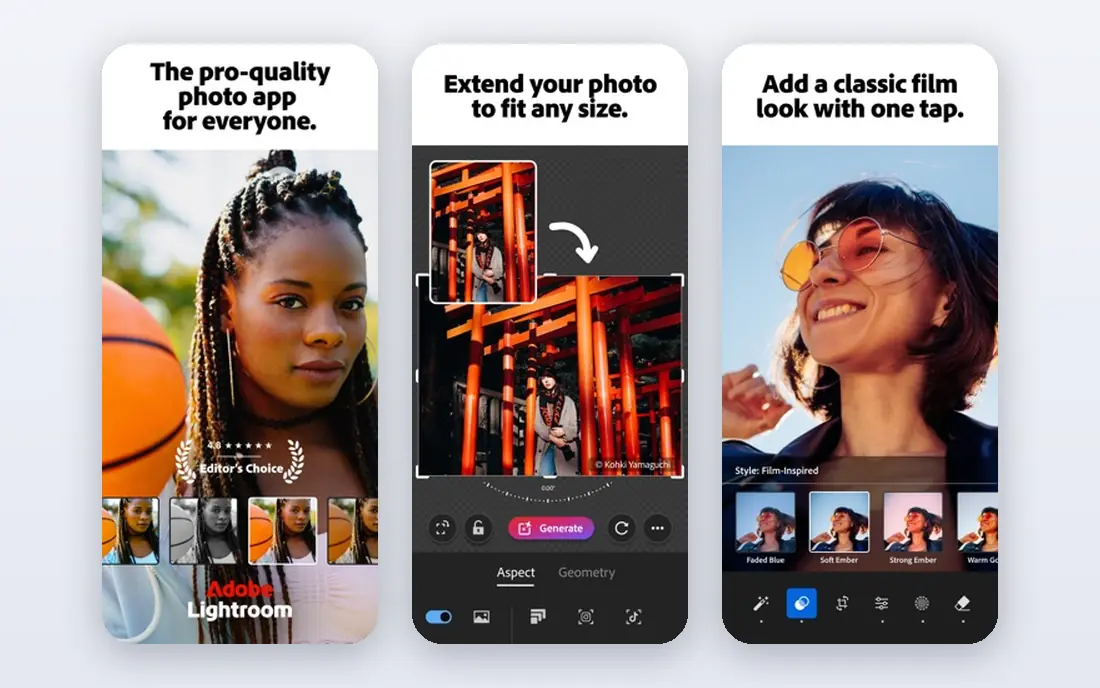
Lightroom is the most complete all-round photo editor for people who shoot regularly. Its RAW tools handle exposure, colour, noise and lens corrections with enough depth for serious work, and its catalog keeps large libraries searchable by date, camera, lens and keyword. If you shoot on a phone and a camera, the syncing is a real benefit, because an edit started on your phone can be finished on a desktop without exporting and reimporting files.
The catch is the ongoing cost and the ceiling on pixel-level work. Lightroom is built for developing photos, not for cutting out a subject and rebuilding a background layer by layer. That is a fair trade for most photographers, and the Photography plan that pairs Lightroom with Photoshop is worth checking if you often hit that ceiling. For everyday editing, though, Lightroom alone covers a very large share of real jobs.
- Strong RAW editing and organisation
- Edits sync across devices
- Good presets and masking tools
- Subscription only
- Some advanced retouching still needs Photoshop

Photoshop remains the standard when an image needs to be rebuilt rather than simply developed. Layers, masks, smart objects and precise selections let you combine exposures, clean up product shots and retouch portraits at a level that simpler editors cannot match. Its selection and fill tools have also improved a great deal, which saves time on jobs that used to demand painstaking manual work.
That depth comes with a learning curve and a monthly price that adds up. Beginners can feel lost in the panels and menus, and casual editors will not use most of what they pay for. Photoshop makes the most sense for designers, retouchers and photographers who regularly need compositing, or for people who buy it as part of the Photography plan rather than on its own.
- Deepest layer, mask and retouching tools
- Huge plugin and tutorial ecosystem
- Strong generative fill and selection tools
- Subscription only
- Steeper learning curve for beginners

Affinity changed the value calculation for desktop editing in 2026, because its core tools are now free. You get layers, masks, selections, compositing and RAW development without signing up for a subscription, which makes it an easy first download for anyone who wants Photoshop-style control on a budget. It also covers vector and layout work in the same app, which helps designers who switch between photo edits and page work.
The honest limit is the newer AI side. Some Canva AI Studio features need a paid Canva plan, so if generative tools are central to your work, check exactly what is included before you commit. The community and tutorial library is also smaller than Adobe's, which can slow down beginners. For straightforward professional editing, however, Affinity is now hard to beat on price.
- Core photo, vector and layout tools in one free app
- Layers, masks and RAW development included
- No monthly fee for the core tools
- Some AI features need a paid Canva plan
- Smaller tutorial library than Photoshop
Canva is not trying to replace Lightroom or Photoshop, and that is why it works so well for its audience. If your main job is turning a photo into a social post, a flyer, a thumbnail or a simple ad, Canva gets you there in minutes with templates, text tools and a large asset library. The browser version means you can start on a laptop and finish on a phone without installing anything heavy.
The trade-off is control. RAW development is limited, and detailed retouching is not the point of the app. Paid plans add background removal, brand tools and more assets, so the free version is best seen as a strong starting point rather than a full studio. Use Canva for speed and presentation, and pair it with a dedicated photo editor when image quality is the main job.
- Very easy templates and layouts
- Good for social posts, flyers and presentations
- Works in a browser with no install
- Weaker RAW and detailed retouching tools
- Best features sit behind a paid plan
GIMP has been the free desktop alternative to Photoshop for years, and it still earns that place. It handles layers, masks, retouching, colour work and compositing, and its plugin library extends it into specialised jobs such as batch processing and scripted edits. Because it is open source, there is no subscription, no account lock-in and no surprise price change.
The interface is the main drawback. Menus and panels feel less polished than paid rivals, and newcomers may need time to find tools that are obvious elsewhere. RAW files also need a companion workflow rather than the built-in path you get in Lightroom. If you can live with those quirks, GIMP gives you a serious editor for nothing, and it is a sensible choice for students, hobbyists and small businesses on a tight budget.
- Free and open source
- Layers, masks, retouching and plugins
- Runs on Windows, Mac and Linux
- Interface feels dated
- RAW support needs a plugin or companion app
Luminar Neo is built for photographers who want a finished-looking photo quickly. Its AI tools can enhance a flat image, replace a dull sky, clean up skin and remove distractions with a few sliders, which is a big time saver for portrait and travel photographers who deliver many images. It also works as a plugin for Lightroom Classic and Photoshop, so you do not have to abandon a workflow you already like.
The limits show up in organisation and long-term costs. Its catalog is not as strong as Lightroom for very large libraries, and generative tools on perpetual plans are typically included for a year rather than forever, so read the licence terms carefully. Luminar Neo is best for people who value speed and guided edits over manual control, and who are happy to check the current bundle price before buying.
- One-click enhancement and sky replacement
- Portrait and outdoor photo tools in one place
- Perpetual licence option for desktop
- Weaker catalog tools than Lightroom
- Some generative tools are time-limited on perpetual plans
Capture One is the editor many studio and commercial photographers choose when colour accuracy matters most. Its colour tools are precise, its tethered shooting is reliable on set, and its session workflow suits jobs where images need to be reviewed, graded and delivered quickly. If you shoot products, fashion or portraits for clients, those strengths are not cosmetic, they affect the final delivery.
The price is the obvious barrier, and the interface assumes you already know photo editing terms. Casual photographers will find Lightroom easier and cheaper, and they will not miss much. Capture One earns its place for working professionals who need tethering and colour control every day, and who can justify a premium tool with client work.
- Excellent colour tools and tethered shooting
- Strong session workflow for studio jobs
- Perpetual licence still offered
- Premium price
- Less friendly for casual editors
Photopea is the fastest route to a layered editor when you are on a borrowed computer or a Chromebook. It opens in a browser, supports layers, masks, adjustment layers and PSD files, and covers a surprising amount of Photoshop ground for a free tool. For quick compositing, resizing, format conversion and layered edits, it is often all you need.
The free version is supported by ads, and the interface will feel dense if you have never used a layered editor. It also lacks the catalog, syncing and RAW workflow of Lightroom, so it is not a full photo library replacement. As a free, no-install editor for occasional serious edits, though, Photopea is one of the most useful tools on this list.
- Photoshop-style layers in a browser
- Opens PSD and common image formats
- No install needed
- Ads in the free version
- Needs an internet connection for the web app
How we picked these
We started from official product pages, pricing pages and app store listings, and we kept only editors that are available now and that genuinely edit photos rather than just applying a filter. We favoured tools with clear pricing, a real free tier or trial, and a distinct audience, so the list is not eight versions of the same app. We also checked for recent changes, such as Affinity moving its core tools to free, because an older recommendation based on a one-time price would now be out of date.
What to check before you choose
Match the editor to your file type
Phone JPEGs, RAW files and layered design files need different tools. Lightroom, Affinity, Capture One and Luminar Neo handle RAW well, while Canva and Photopea are better for finished images and graphics. If you shoot RAW, make the RAW workflow your first test, not the filter library.
Count the total cost, not just the headline price
A low monthly fee can still cost more over two years than a perpetual licence, and a free app can still charge for AI features or asset libraries. Check how long generative tools are included, how many devices a licence covers, and what happens to your catalog if you stop paying. Export a few edited originals before you commit to any subscription.
Try your own photos, not sample images
Sample photos are chosen to flatter an editor. Import a noisy indoor shot, a backlit portrait and a dull sky from your own library, and time how long each fix takes. The editor that handles your worst photos with the least fuss is usually the right one, even if another app looks more impressive in a demo.
FAQ
What is the best photo editing app for beginners?
Canva is the easiest start for social posts and simple designs, while Lightroom is the easiest serious start for photographers who want to learn RAW editing. Both have guided tools and large help libraries, so pick Canva for graphics and Lightroom for photos.
What is the best free photo editing app?
Affinity, GIMP and Photopea are the strongest free options, and each suits a different user. Affinity suits desktop photographers, GIMP suits people who want plugins and deep control, and Photopea suits anyone who needs a layered editor in a browser.
Is Lightroom or Photoshop better for photo editing?
Lightroom is better for developing and organising many photos, while Photoshop is better for retouching, compositing and pixel-level changes to a single image. Many photographers use both, and the Photography plan pairs them for that reason.
What is the best photo editing software for professionals?
Capture One suits studio work where colour and tethering matter, Lightroom suits high-volume wedding and event work, and Photoshop suits retouching and compositing. The right professional pick depends on the job, not on a single ranking.
Can I edit photos without a subscription?
Yes. Affinity core tools, GIMP and Photopea are free, and Luminar Neo and Capture One offer perpetual licences. Check what each licence includes, because AI tools and future upgrades may still cost extra.