Best Photo Editing Apps for Face and Body in 2026: 9 Apps Compared
We compared the best photo editing apps for face and body retouching for portraits, from quick touch-ups to full editors, with lawful-use guidance included.
- Editor's choice
 Facetune
Detailed face and body retouch
Starts atSee websiteVisit facetuneapp.comFull review - Great alternative
 Airbrush
Quick portrait cleanup
Starts atFreeVisit airbrush.comFull review - Also consider
 Adobe Lightroom
Full portrait editing
Starts atFreeVisit adobe.comFull review
TL;DR:
- Facetune is our pick for detailed face and body retouching, because it offers separate tools for skin, eyes, smile and shape.
- Airbrush suits quick portrait cleanups, with one-tap retouching and simple blemish, teeth and makeup tools.
- Adobe Lightroom is the best full editor for portraits, with colour, light and local adjustments that keep skin looking natural.
- Snapseed is the best free editor, with precise tools, no subscription and no watermark.
- Edit only photos you own or have permission to edit, and never use retouching tools to create non-consensual or deceptive images of another person.
Quick comparison
| Tool | Best for | Starts at | Free plan? | |
|---|---|---|---|---|
| Facetune | Detailed face and body retouch | See website | Yes | Visit |
| Airbrush | Quick portrait cleanup | Free | Yes | Visit |
| Adobe Lightroom | Full portrait editing | Free | Yes | Visit |
 Snapseed | Free precise editing | Free | Yes | Visit |
 PicsArt | Creative editing and beauty tools | Free | Yes | Visit |
 BeautyPlus | AI beauty and makeup edits | Free | Yes | Visit |
 YouCam Perfect | Group selfies and beautify tools | Free | Yes | Visit |
 TouchRetouch | Object and background cleanup | See website | No | Visit |
 VSCO | Film-style colour for portraits | Free | Yes | Visit |
The best photo editing apps for face and body
The best photo editing app for face and body work depends on how much control you want. Some apps clean up a selfie in seconds, others reshape and relight with fine control, and full editors handle colour and light for a whole portrait. All apps here are legitimate photo editing and retouching tools. Use them only on photos you own or have permission to edit, with consent from any person pictured, and never to create undressing, non-consensual or deceptive imagery.
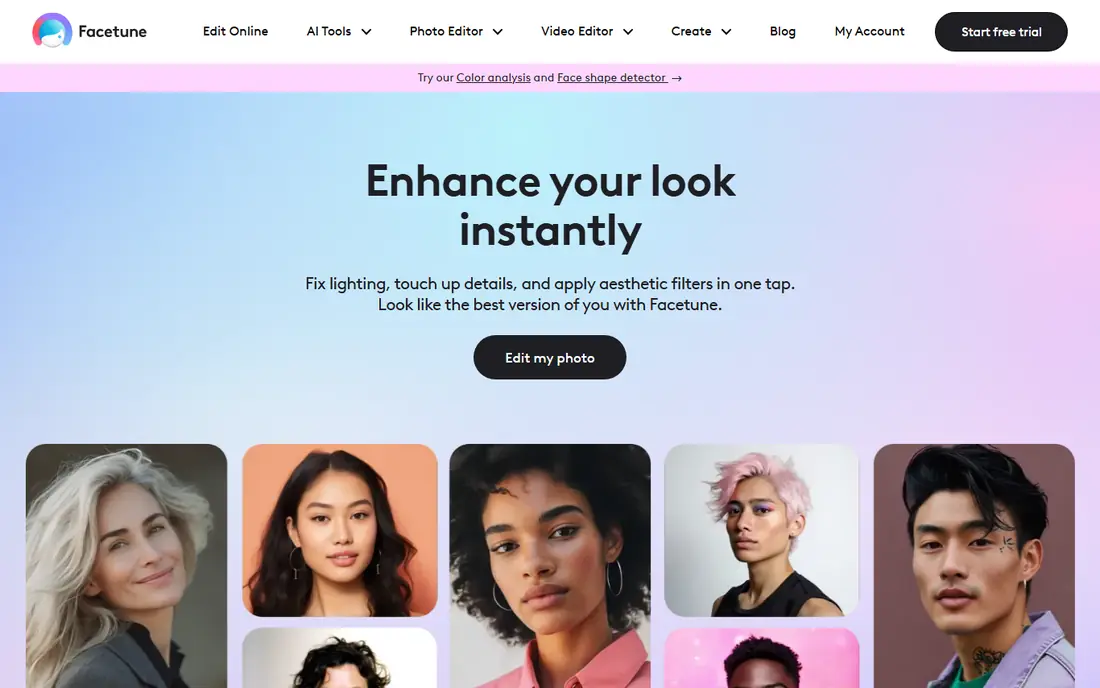
Facetune is the most complete face and body editor on this list. You can smooth skin while keeping texture, whiten teeth, brighten eyes, adjust a smile, try hair colour, and refine shape with separate controls for face and body. AI relight and makeup tools add further options for portraits that need a polished finish for social sharing or professional headshots.
The free tier covers basic edits, while the full set sits behind a subscription with pricing shown in the app store. The main risk is over-editing. Small moves look natural, while large shape changes quickly look false, especially in group photos. For detailed, controlled retouching of your own portraits, Facetune remains our top pick.
- Separate tools for skin, eyes, teeth, smile, hair and shape
- AI relight and makeup options
- Strong portrait focus
- Full tool set needs a subscription
- Easy to over-edit if sliders are pushed too far
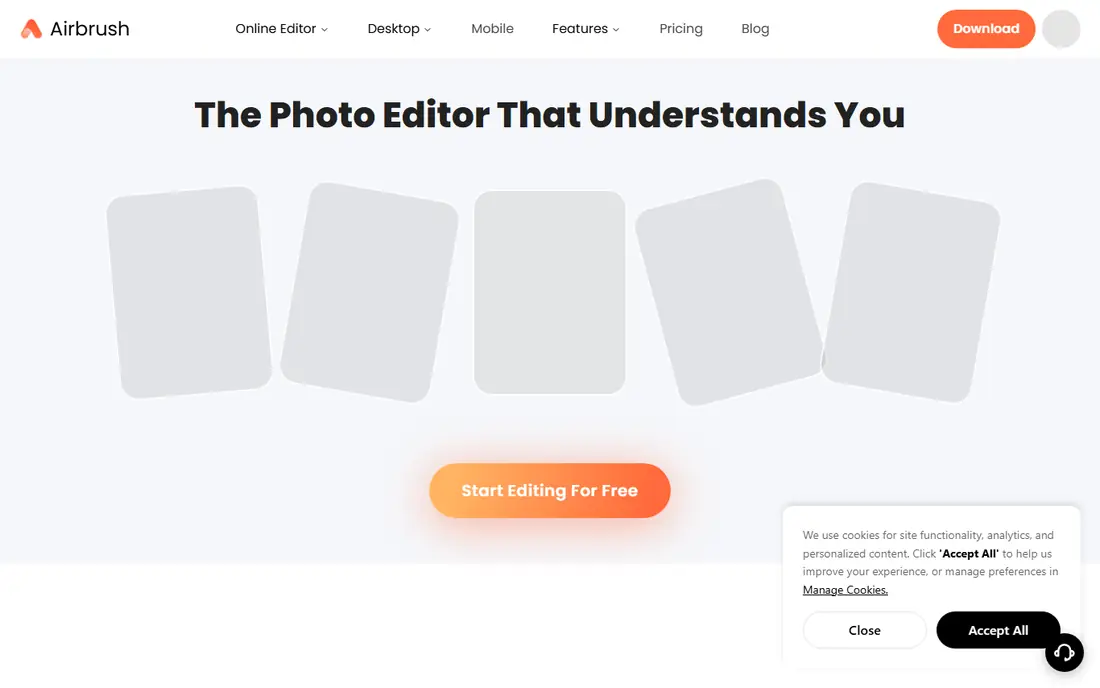
Airbrush is the fastest way to clean up a face. One pass of AI retouch handles a portrait on its own, and separate tools remove blemishes, smooth skin tone, whiten teeth and clear dark circles. Makeup and hair tools add lipstick, brows or a new hair colour, while background tools blur or swap a busy scene behind you.
The app is free to download, with a premium subscription opening the full tool set after a free trial in many stores. Everything points at selfies and portraits, so reach for Lightroom or Snapseed when you need exposure, colour or scenery work. For a quick, natural-looking cleanup before posting, Airbrush is hard to beat for speed.
- One-tap AI retouch
- Blemish, smooth, teeth and eye tools
- Makeup and background tools included
- Full tools need a paid plan
- Portrait focused rather than a full photo editor
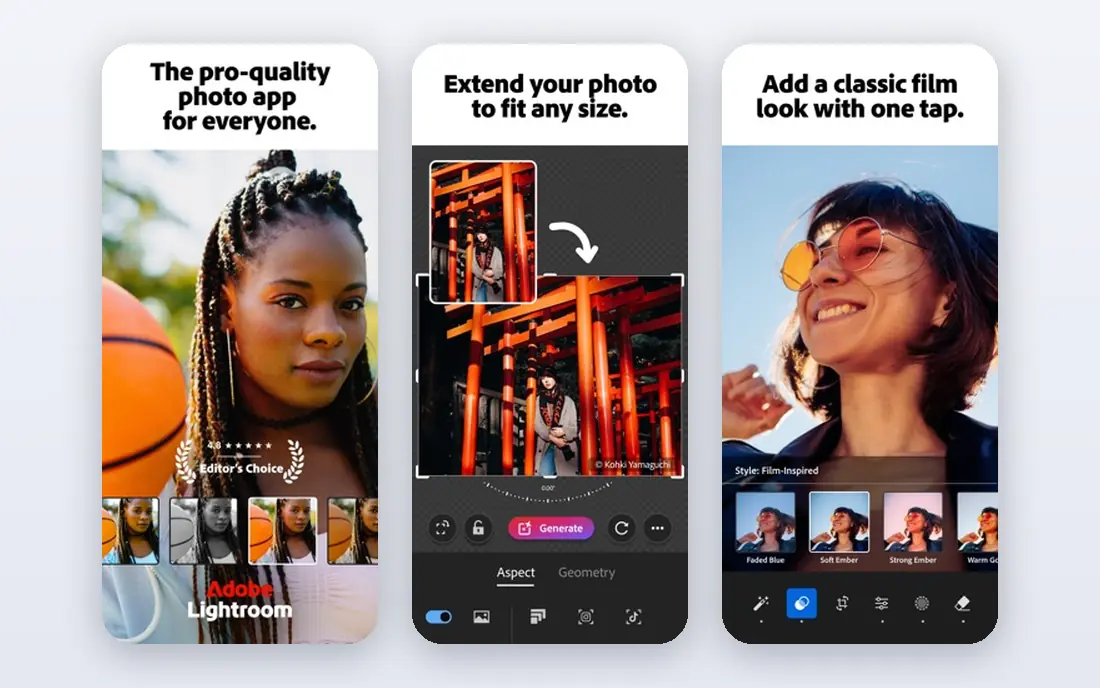
Lightroom is the best full editor for portraits when you care about light and colour as much as skin. You can adjust exposure, white balance, tone curves and colour grading, then use masking to brighten eyes, soften skin locally, or darken a distracting background. RAW support gives more room to recover highlights and shadows than a JPEG edit allows.
Retouching here is less direct than in Facetune, since there is no single reshape slider for every feature. That restraint is a strength for natural portraits. The mobile app is free with basic tools, while premium features need a subscription. If you edit portraits regularly and want one app for colour, light and careful retouching, Lightroom is the professional choice.
- Professional colour and light controls
- Local adjustments and masking
- RAW support and cloud sync
- Retouching is less direct than Facetune
- Full features need a subscription
Snapseed is the best free editor on this list, and it is owned by Google. It offers tuning, selective adjustments, healing, brushes and perspective tools, with non-destructive stacks that let you undo or change any step later. For portraits, selective edits let you brighten a face, soften a background or fix exposure without affecting the whole image.
It lacks the dedicated face reshape tools of Facetune or Airbrush, so it suits cleanups and colour work more than heavy retouching. The interface rewards a little learning, but the payoff is a free, precise editor with no subscription pressure. If you want one free app for most portrait edits, start with Snapseed.
- Free with no subscription, ads or watermark
- Precise selective edits
- Non-destructive stacks
- No dedicated face reshape tools
- Interface takes time to learn
PicsArt combines a photo editor, a beauty retouch tool and a design app in one place. You can smooth skin, adjust facial features, add makeup looks, then move into filters, stickers, text and collages for social posts. That range suits creators who want a portrait edit and a finished post from the same app.
The free tier covers many basics, while a paid plan opens the full effect and tool library. The interface can feel busy, with many options competing for attention. For pure, natural retouching, Facetune or Lightroom will be cleaner. For creative portraits with effects and design, PicsArt is the most versatile choice here.
- Broad editing, collage and design tools
- Beauty and retouch options
- Large sticker and effect library
- Many features need a paid plan
- Interface can feel busy
BeautyPlus focuses on quick, natural-looking beauty edits. Its AI tools smooth skin, remove blemishes and enhance a face in one tap, while manual tools handle makeup, hair colour, eye brightness and small facial details. A real-time camera mode lets you preview beautification before you take a photo, which suits selfie shooters.
Advanced tools need a subscription, and the free version includes ads. The controls are beginner friendly, and results stay natural when sliders are kept modest. For users who want a simple beauty editor with strong makeup options, BeautyPlus is a solid alternative to Airbrush, especially for selfies.
- AI beauty enhancements
- Skin smoothing and blemish removal
- Makeup, hair and eye tools
- Many advanced tools need a subscription
- Free version includes ads
YouCam Perfect is built for selfies, including group selfies where several faces need the same cleanup. Beautify tools smooth skin, brighten eyes and adjust facial features, while body tuning tools handle posture and proportions for full-body shots. Collage and animation options help turn edited photos into social posts.
A paid plan opens the full tool set, while the free tier covers basic beautification. For professional headshots or natural colour work, Lightroom or Snapseed will give a cleaner result. For social selfies and group photos where speed matters, YouCam Perfect is a friendly and capable choice.
- Beautify tools for group selfies
- Body and face tuning
- Collage and animation options
- Many features need a paid plan
- Beauty focus may not suit professional portraits
TouchRetouch does one job better than any all-rounder here. It removes bins, signs, stray hands, power lines and other background clutter, filling the gap with matching background. AI detection now finds wires, shadows and background objects for you, which saves time on busy portraits taken outdoors.
It is not a face or body editor, so pair it with Facetune, Airbrush or Lightroom for a full portrait workflow. TouchRetouch is a paid app, with pricing shown in the app store, and it is worth the cost if you often shoot portraits in cluttered places. Clean background, clean face, and a natural result follow from that pairing.
- Best-in-class object removal
- AI detection for wires and background clutter
- Simple brush tools
- Not a face or body retoucher on its own
- Paid app with no free tier
VSCO suits portrait shooters who care most about colour. Its film-style presets and careful tone tools give portraits a consistent, muted or warm look without heavy retouching. Skin tones stay plausible when presets are used lightly, which is why VSCO remains popular with photographers who dislike over-processed selfies.
Face retouching is limited, so VSCO works best after a cleanup in Airbrush or Snapseed, or for portraits that need colour only. The free tier includes a starter preset set, while a paid plan opens the full library. For a portrait style you can repeat across many photos, VSCO is the most tasteful colour tool here.
- High-quality film-style presets
- Careful colour and tone tools
- Clean, distraction-free editing
- Limited face retouching
- Full preset library needs a paid plan
How we picked these
We compared official feature pages, pricing pages and app store listings for each app, and required each one to offer legitimate face, body or portrait editing in October 2026. We favoured apps that keep skin texture, offer consent-respecting editing of your own photos, and avoid tools designed for undressing or non-consensual imagery. We did not claim hands-on testing we did not do, and prices marked as See website should be checked in the app store, since subscription terms vary by region.
Editing portraits with care
Edit your own photos, or photos you have clear permission to edit, and keep changes modest for portraits of other people. Small cleanups, such as removing a temporary blemish or fixing harsh light, read as natural. Large shape changes can mislead viewers, especially in professional, dating or identity contexts, and should be disclosed or avoided where honesty matters.
Never edit a photo of another person into a sexual, nude or deceptive image, and never share an edited image that could harm, embarrass or misrepresent someone without their consent. If a tool or service offers undressing, face swapping onto another body, or non-consensual imagery, do not use it. Report such tools where the store or platform allows, and keep your edits to lawful, consensual retouching of photos you own.
FAQ
What is the best photo editing app for face and body?
Facetune is our pick for detailed face and body retouching, because it offers separate tools for skin, eyes, smile, hair and shape. Airbrush is better for quick cleanups, Lightroom is better for full colour and light work, and Snapseed is the best free editor. The best photo editing app for face and body depends on how much control you want.
Is there a free photo editing app for face and body?
Yes. Snapseed is free with no subscription, ads or watermark, and Airbrush, BeautyPlus, YouCam Perfect, PicsArt and VSCO all offer free tiers. Free tiers usually limit advanced retouching, presets or effects, so check the app store listing before you rely on a specific tool for a paid project.
Which app is best for natural-looking retouching?
Lightroom and Snapseed give the most natural results, because they focus on light, colour and local adjustments rather than heavy reshaping. Facetune and Airbrush can also look natural when sliders are kept low. Avoid pushing skin smoothing or shape tools to their maximum, since that quickly removes texture and looks false.
Can I edit body shape in photos?
Yes, Facetune, Airbrush, BeautyPlus and YouCam Perfect all offer body tuning tools for your own photos. Use them modestly and only on photos you own or have permission to edit. Never use body editing tools to create non-consensual, sexual or deceptive images of another person, and be honest in contexts where appearance matters, such as professional or dating profiles.
Do these apps work for group photos?
YouCam Perfect is the best pick for group selfies, since its beautify tools can handle several faces at once. Facetune and Airbrush work well for single portraits, while Lightroom and Snapseed handle group colour and exposure. For a group shot, fix light and colour first, then apply only light retouching to faces.