Best PDF Merge Services With No Watermark in 2026: 9 Services Compared
Best PDF merge services with no watermark compared for 2026, including free online tools and desktop options that keep your merged files clean. Clean files.
- Editor's choice
 iLovePDF
Easy online merging
Starts atSee websiteVisit ilovepdf.comFull review - Great alternative
 PDF24
Free merging with no daily limits
Starts atFreeVisit pdf24.orgFull review - Also consider
 Sejda
Clean online merging
Starts atSee websiteVisit sejda.comFull review
TL;DR:
- PDF24, iLovePDF, Sejda, and PDFsam all merge PDFs without adding a watermark on their free tiers, with limits on size or tasks.
- Desktop tools such as PDF24 Creator and PDFsam keep files on your own computer, which is safer for sensitive documents.
- Online tools are faster for occasional merges, but check file size limits, daily task limits, and how long files are stored.
- If you merge PDFs daily or handle large files, a paid plan or a desktop app will save more time than juggling free limits.
- Always check the merged file page order and quality before sharing it, especially when combining scans and text PDFs.
Quick comparison
| Tool | Best for | Starts at | Free plan? | |
|---|---|---|---|---|
| iLovePDF | Easy online merging | See website | Yes | Visit |
| PDF24 | Free merging with no daily limits | Free | Yes | Visit |
| Sejda | Clean online merging | See website | Yes | Visit |
 PDFsam Basic | Desktop merging | Free | Yes | Visit |
 Smallpdf | Simple online merging | See website | Yes | Visit |
 PDF Candy | Many PDF tools in one place | See website | Yes | Visit |
 EasePDF | Simple online tools | See website | Yes | Visit |
 PDF2Go | Online merging and editing | See website | Yes | Visit |
 Soda PDF | Online and desktop PDF tools | See website | Yes | Visit |
The best PDF merge services with no watermark
Merging PDFs should leave you with a clean file, not a branded stamp across every page. The services below were picked because their free tiers produce merged PDFs without a watermark, and because they cover online, desktop, and privacy focused use.
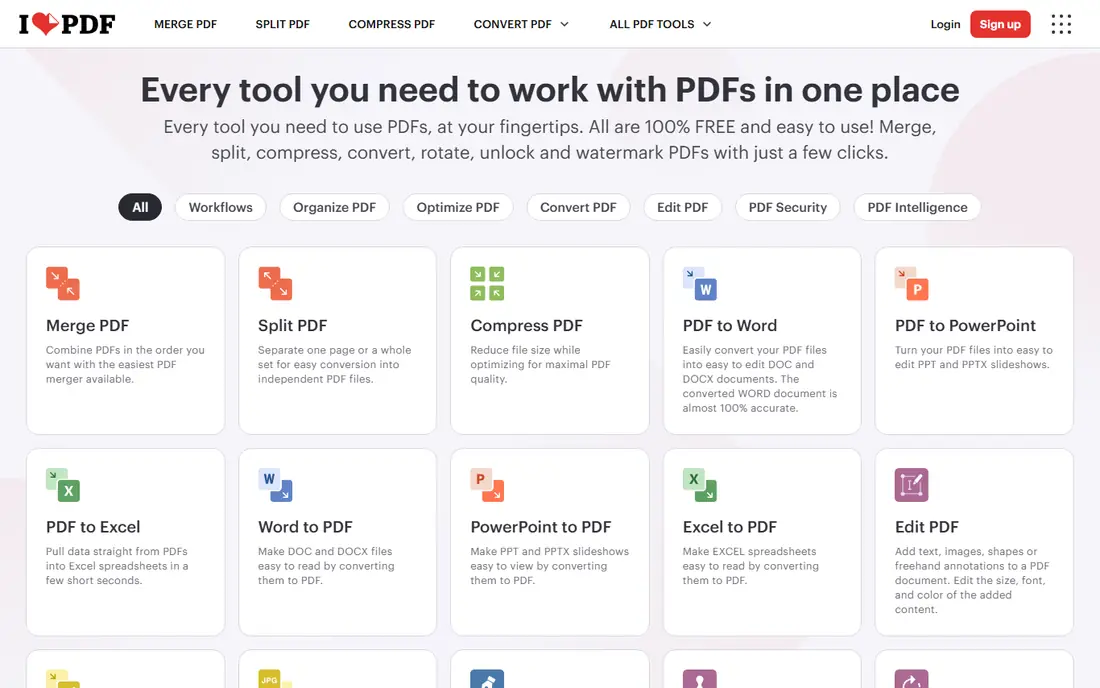
iLovePDF is the easiest online merger for most people. Upload files, drag them into order, merge, and download a clean PDF with no watermark on the free tier. The same site also covers splitting, compressing, converting, and signing, so you can fix a file without opening another service.
Free use has limits on the number of tasks and on file size, so heavy daily users will hit a ceiling. For occasional merges, such as combining job applications, school forms, or scanned receipts, iLovePDF is fast and reliable. Avoid uploading highly sensitive documents to any online tool when a desktop option is available.
- Clear drag and drop merging
- No watermark on merged files
- Many other PDF tools in one account
- Free tier limits tasks and file sizes
- Files are uploaded to servers
- Ads on free use
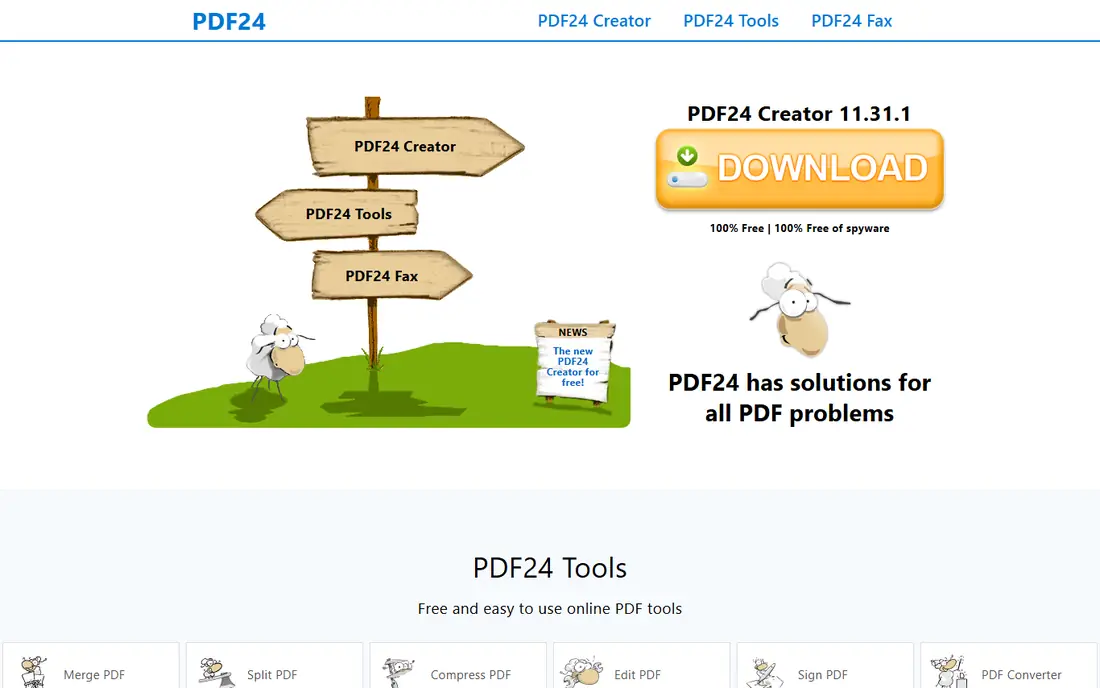
PDF24 stands out because its free tools have generous limits and its Windows desktop app, PDF24 Creator, processes files on your own computer. That local option is a major advantage for contracts, medical forms, and other sensitive files that you would rather not upload. The online merger is also simple, with drag and drop ordering and no watermark.
The design is plain, and the desktop app is Windows only, so Mac users will use the web tools instead. If you merge PDFs often and want a free tool without daily task caps, PDF24 is our pick for most people, especially on Windows.
- Free online tools with no registration for many tasks
- Desktop Creator app processes files locally
- No watermark on merged files
- Desktop app is Windows only
- Online tools need an internet connection
- Interface is functional rather than polished
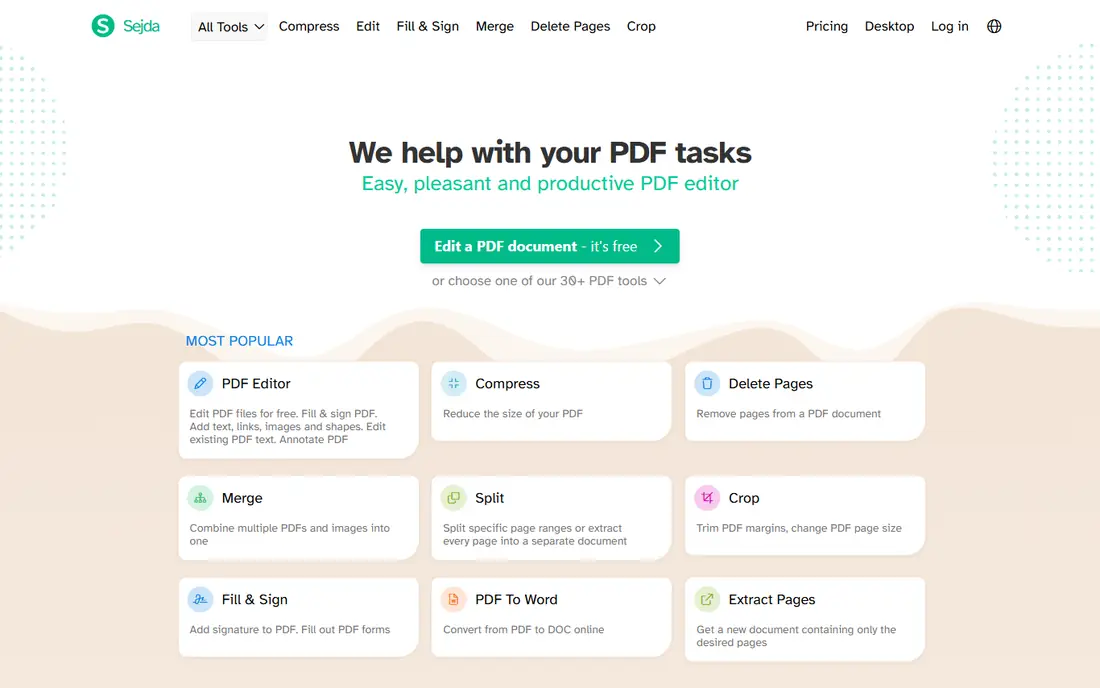
Sejda is a tidy online PDF service with a merge tool that is easy to learn. You upload files, reorder pages, and download a merged PDF without a watermark. The site states that files are deleted after processing, which is reassuring for routine documents, though desktop tools remain safer for highly sensitive files.
The free tier limits you to a few tasks per hour, with a file size cap, so it suits occasional use rather than batch work. If you merge one or two documents at a time and value a clean interface, Sejda is a strong choice. For larger batches, PDF24 or PDFsam will be less frustrating.
- Clean interface
- No watermark on merged files
- Files are deleted after processing
- Free tier allows a limited number of tasks per hour
- File size limits apply
- Some tools need payment
PDFsam Basic is a free desktop app for Windows, Mac, and Linux that merges PDFs on your own machine. That local processing is its main selling point, since files never leave your computer and there is no watermark. It also splits, extracts pages, and rotates PDFs, which covers most everyday PDF jobs.
The interface is functional rather than beautiful, and it lacks the broad online toolset of iLovePDF. For users who merge PDFs regularly and care about privacy, those trade offs are minor. Install PDFsam Basic once, and you have a reliable merger that works offline.
- Free desktop app
- Merges, splits, and rotates PDFs locally
- No watermark and no upload
- Interface is basic
- Online features are limited
- Advanced tools need a paid version
Smallpdf is known for a simple, polished interface, and its merge tool follows that pattern. Upload files, reorder them, merge, and download, with no watermark on the merged result. The mobile experience is also good, which helps when you need to merge files on a phone or tablet.
Free use is limited to a few tasks per hour and smaller files, so it is best for light, occasional merging. If you merge PDFs a few times a month and want the smoothest online flow, Smallpdf is a good pick. For daily work, a desktop app or a paid plan will be less limiting.
- Very simple merge flow
- Clean output with no watermark on merged files
- Good mobile experience
- Free tier limits tasks per hour and file size
- Many features need a paid plan
- Files are uploaded to servers
PDF Candy bundles merge, split, compress, convert, and edit tools into one site, with a desktop version for offline work. The merge tool is straightforward, and the output has no watermark, which is the key test for this list. Having many tools in one place saves time when a merge is part of a larger job, such as combining and then compressing a file.
Free online use has limits, and some tools are simpler than dedicated alternatives. Still, PDF Candy is a useful all rounder for students and office users who need several PDF jobs done in one session. Check the current free limits before a large batch.
- Wide range of PDF tools
- No watermark on merged files
- Desktop version available
- Free online use has limits
- Some tools are simpler than specialist apps
- File size limits apply
EasePDF keeps its merge tool simple, with upload, reorder, and download steps that need no learning. The merged file has no watermark, and the site also handles splitting, compression, and conversion for everyday needs. That simplicity suits users who merge PDFs rarely and do not want to learn a complex app.
Task limits on the free tier and a narrower feature set than iLovePDF or PDF24 are the main drawbacks. For a quick merge of a few small files, EasePDF does the job well. For sensitive or large files, prefer a desktop tool such as PDFsam or PDF24 Creator.
- Simple interface
- No watermark on merged files
- Covers common PDF tasks
- Free tier has task limits
- Fewer advanced features
- Files are uploaded to servers
PDF2Go is a broad online PDF service that lets you merge files, edit pages, and convert formats without installing software. It connects to Google Drive and Dropbox, which helps when your files already live in the cloud. Merged output has no watermark, which keeps it on this list.
The interface has many options, so first time users may need a minute to find the merge tool. Free limits on file size and tasks also apply. PDF2Go suits users who already store files in Drive or Dropbox and want to merge and edit in the same browser session.
- Merge, edit, and convert in one site
- No watermark on merged files
- Works from Google Drive and Dropbox
- Free tier has file size and task limits
- Interface can feel busy
- Files are uploaded to servers
Soda PDF offers both online tools and a desktop app, so you can merge in a browser for a quick job or install the app for regular work. The merge tool produces a clean file with no watermark, and the wider feature set covers editing, conversion, signing, and form filling.
Free online use has limits, and the most complete desktop features sit behind paid plans. Soda PDF is a good all rounder if you want one brand for online and desktop PDF work, and you are willing to pay when your volume grows. For purely free merging, PDF24 remains the stronger pick.
- Online and desktop options
- Merge tool with no watermark
- Broad PDF feature set
- Free online limits apply
- Full desktop features need payment
- Some tools are simpler than rivals
How we picked these
We compared official feature pages, free plan terms, and public reviews for services that merge PDFs without adding a watermark on a usable free tier. We checked whether tools work online, on desktop, or both, and we noted file size limits, task limits, and file handling for privacy. We favoured services that are actively maintained and that produce clean, correctly ordered output.
How to merge PDFs without a watermark
Check the free limits first
Before a large merge, check the free tier limits for tasks per hour, file size, and number of files. A service that looks free can still block your third merge of the hour. Desktop tools avoid most of those limits.
Order pages before you merge
Upload files in the order you want them, then use the preview to drag pages into place. Check the first and last pages of the merged file before sharing it, since a single out of order page is easy to miss in a long document.
Protect sensitive files
For contracts, medical records, and financial documents, use a desktop app such as PDF24 Creator or PDFsam Basic, where files stay on your computer. If you must use an online tool, delete the file from the service where possible, and avoid uploading documents with passwords or account numbers.
Compress only if you need to
Merging does not need to change quality, but some tools also compress files. If your merged PDF looks blurry, check whether compression was applied, and remerge without it. Keep the original files until you have checked the merged result.
FAQ
Do free PDF mergers add a watermark?
Many do not, including the services on this list, but some free tools add a watermark to certain features such as editing or conversion. Merging is often watermark free even when other tools are not, so check the specific tool, not just the brand. Always preview the merged file before sharing it.
What is the best free PDF merge service with no watermark?
PDF24 is our pick for most people, because it is free, has generous limits, and offers a desktop app for Windows that keeps files local. iLovePDF and Sejda are strong online alternatives for occasional merges, and PDFsam Basic is the best free desktop option across Windows, Mac, and Linux.
Can I merge PDFs on my phone?
Yes, most online services on this list work in a mobile browser, and some have mobile apps. Uploading large files on a phone can be slow, so for large merges, a desktop browser or app is usually faster and more reliable.
Is it safe to merge PDFs online?
For routine documents, reputable online tools that encrypt uploads and delete files after processing are generally safe. For sensitive documents, use a desktop app that processes files locally. Avoid uploading files that contain passwords, account numbers, or highly personal information to any online service.
Why did my merged PDF change order?
Page order follows the order you set in the merge preview, not always the upload order. Use the drag and drop preview to check the sequence, especially when merging scans, since scan filenames do not always sort in reading order. Download and check the merged file before sending it.
Can I merge password protected PDFs?
Some tools can merge password protected PDFs if you enter the password, while others cannot. Desktop apps often handle this better than online tools. If a tool refuses a protected file, remove protection only if you own the document and have the right to do so, then merge and reapply protection if needed.