Best PDF Compression Services in 2026: 8 Tools Compared
Compare the best PDF compression services for smaller files without losing readable quality, with free tiers, prices, and privacy notes. Updated for 2026.
- Editor's choice
 PDF24 Tools
Unlimited free online compression
Starts atFreeVisit tools.pdf24.orgFull review - Great alternative
 Smallpdf
Quick polished online compression
Starts at$10 per monthVisit smallpdf.comFull review - Also consider
 iLovePDF
Beginner-friendly online tools
Starts at$4 per monthVisit ilovepdf.comFull review
TL;DR:
- PDF24 is the best free starting point, since it offers unlimited online compression with no account in many cases.
- Smallpdf, iLovePDF, and Sejda suit occasional online use, but free tiers cap daily tasks or file size.
- Adobe Acrobat and Foxit suit teams that need compression inside a full PDF editor, not just a one-off web tool.
- For sensitive files, prefer a desktop or self-hosted tool, since online tools upload your file to a server.
Quick comparison
| Tool | Best for | Starts at | Free plan? | |
|---|---|---|---|---|
| PDF24 Tools | Unlimited free online compression | Free | Yes | Visit |
| Smallpdf | Quick polished online compression | $10 per month | Yes | Visit |
| iLovePDF | Beginner-friendly online tools | $4 per month | Yes | Visit |
 Sejda | Occasional compression with privacy notes | $7.50 per month | Yes | Visit |
 Adobe Acrobat | Compression inside a full editor | $19.99 per month | Free trial | Visit |
 Foxit PDF Editor | Cheaper full editor alternative | $10.99 per month | Free trial | Visit |
 PDFelement | Editing plus compression in one app | $79.99 per year | Free trial | Visit |
 Soda PDF | Online tools plus desktop editor | See website | Free trial | Visit |
The best PDF compression services
We compared official pricing pages and 2026 PDF tool guides to find compression services that still work today, with clear free limits and honest privacy handling.

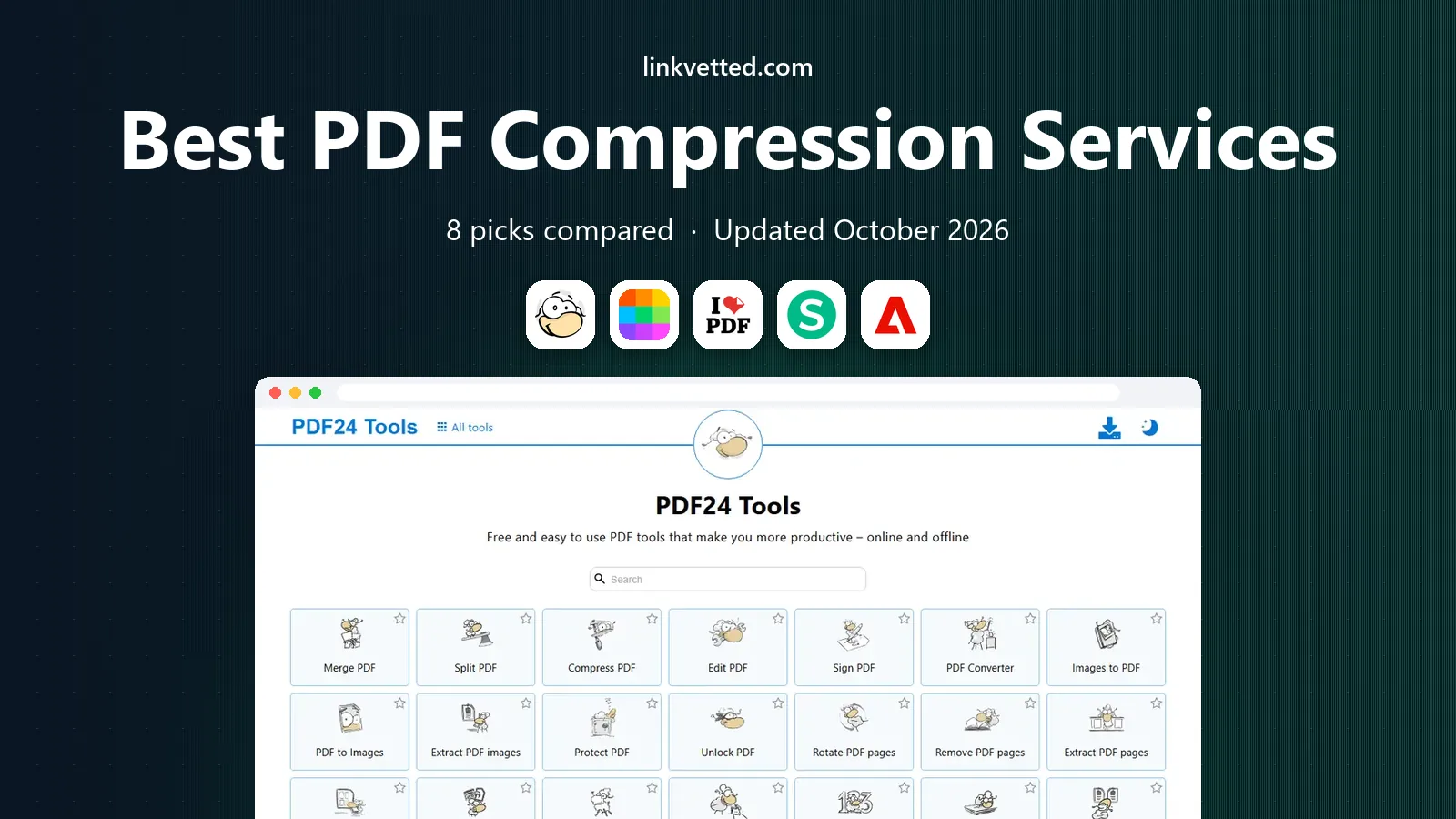
PDF24 Tools is the first tool to try when you just need a smaller file fast. The online compressor works without an account for many tasks, and the free Windows app lets you compress offline if you prefer to keep files on your own computer. The wider PDF24 suite also covers merging, splitting, converting, and signing, so one site can handle most PDF jobs.
The trade-off is polish and privacy. The site carries ads, and online compression uploads your file, so sensitive documents belong in the desktop app instead. For everyday files like resumes, slides, and reports, PDF24 is hard to beat on price, since the price is free and the limits are generous.
- Free online tools with no daily task cap in most cases
- Windows desktop app
- Many PDF tools in one place
- Interface is busy and ad-supported
- Online files are uploaded to PDF24 servers
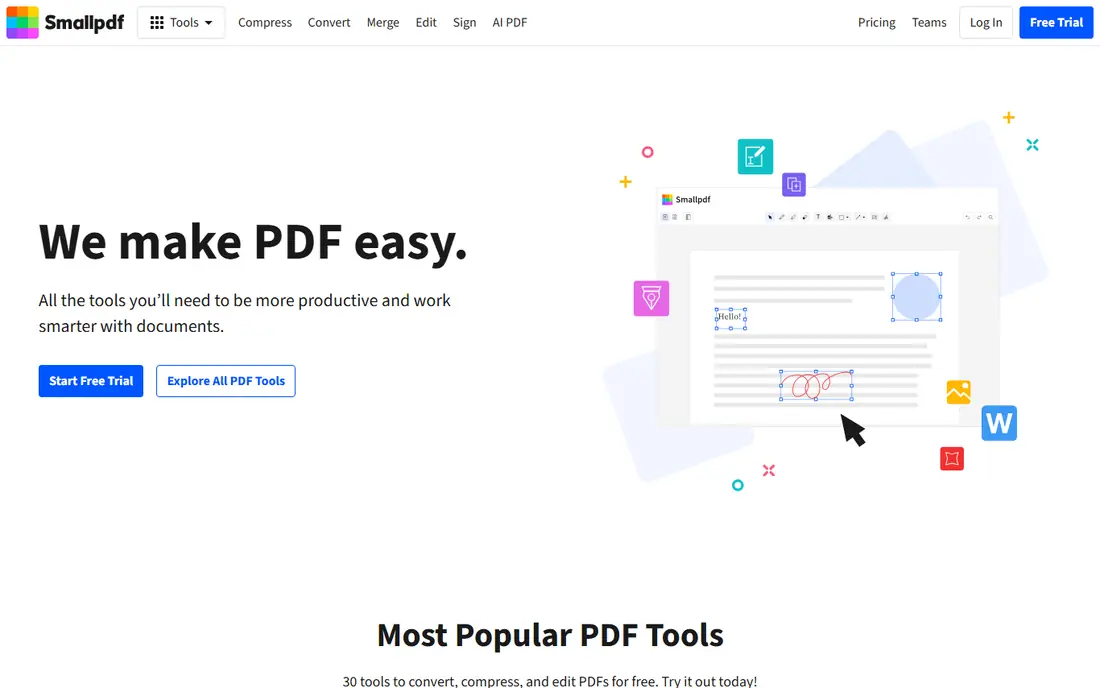
Smallpdf is the polished option for people who compress files a few times a week and want a clean workflow. You drag in a file, choose a compression level, and download the result, with options for basic or strong compression. The wider suite covers editing, signing, merging, and converting, so it can replace several single-purpose sites.
The free tier is the limit. It allows about two tasks per day, which runs out fast if you compress many files at once. Pro costs about $10 per month billed annually or $15 month to month, and it removes the daily cap. For occasional use, the free tier is enough. For daily work, budget for Pro or switch to PDF24.
- Clean interface and fast processing
- Compression quality options
- Full PDF tool suite
- Free tier allows only about two tasks per day
- Pro is needed for unlimited use

iLovePDF is a good pick for students, job seekers, and anyone who compresses files now and then. The interface explains each tool in plain language, and the free tier handles one-off files up to about 100 MB, which covers most resumes and reports. Desktop and mobile apps extend the same tools beyond the browser.
Premium starts from about $4 per month billed annually and adds larger files, batch processing, and faster handling. If you compress files daily or work with large scanned documents, Premium is worth it. If you compress one file a month, the free tier will likely cover you, as long as you accept the size caps.
- Easy interface for new users
- Generous free tier for one-off files
- Desktop and mobile apps
- Free tier has file size caps and queues
- Batch and larger files need Premium
Sejda suits users who want a quick online tool with clear privacy handling. Files are deleted after about two hours, and you can compress without an account for many tasks. The free tier allows about three tasks per hour, with files up to 50 MB or 200 pages, which is enough for most everyday documents.
Paid plans start at $7.50 per month and remove the hourly cap while raising limits. Sejda also offers a desktop version for users who want to keep files local. If you compress sensitive files online, the stated deletion time is a plus, but a desktop tool is still safer for contracts or medical records.
- No account needed for many tasks
- Files deleted after about two hours
- Clear task limits
- Free tier allows about three tasks per hour
- File caps at 50 MB or 200 pages
Adobe Acrobat is the pick when compression is one part of daily PDF work, not the whole job. Acrobat Pro offers compression controls alongside editing, OCR, signing, and form tools, so a team can standardize on one editor. The online tools also offer limited free use per tool, which suits a one-off file.
Pricing starts near $19.99 per month for Pro on an annual plan billed monthly, with Standard cheaper in some regions. That is too much if you only compress files now and then, since PDF24 does that free. For offices that already use Acrobat for editing and signing, using its compressor keeps everything in one trusted app.
- Full PDF editing, signing, and OCR in one suite
- Strong compression controls
- Trusted file handling
- High price if you only need compression
- Online free use is limited per tool
Foxit PDF Editor offers a full editing suite at a lower subscription price than Acrobat, starting near $10.99 per user per month billed annually, with a perpetual license near $209.99 in some listings. Compression sits alongside editing, annotation, form filling, and signing, so it suits teams that work with PDFs all day.
The interface is capable but busier than Smallpdf, and new users need a short learning period. A 14-day trial lets you test compression quality on your own files before paying. If Acrobat feels too costly and online tools feel too limited, Foxit is a sensible middle ground for regular PDF work.
- Lower price than Acrobat for a full editor
- Good compression and editing
- Perpetual license option
- Interface takes time to learn
- Some advanced features need higher tiers
PDFelement, from Wondershare, is a desktop editor that covers compression alongside editing, OCR, form creation, and batch processing. Annual pricing starts near $79.99 per year, with a perpetual license near $129.99 in some listings, which appeals to users who dislike monthly fees. Batch compression is useful when a folder of scans needs shrinking at once.
The trial watermarks output, so judge compression quality on file size and readability rather than the trial export alone. The interface packs many tools into one window, which can feel crowded at first. For users who want a desktop app that does more than compress, PDFelement is a solid value pick.
- Editing, OCR, and compression in one desktop app
- One-time purchase option
- Batch tools
- Free trial adds watermarks
- Interface can feel crowded
Soda PDF combines online tools with desktop and web editors, so you can compress a file in the browser and then edit or sign it in the same family of tools. The interface is friendly for new users, and the suite covers most everyday PDF jobs beyond compression, including merging, splitting, and converting.
Pricing varies by plan and region, so check the vendor pricing page for your exact cost rather than relying on a single headline figure. Free online use has limits, and heavier use needs a paid plan. For users who want one account for online and desktop PDF work, Soda PDF is a flexible option, even if PDF24 remains cheaper for compression alone.
- Online compression plus desktop and web editors
- Editing and signing tools
- Easy interface
- Pricing varies by plan and region, so check the vendor site
- Free online use has limits
How we picked these
We compared official pricing pages and 2026 PDF guides, and we favored tools that are still actively sold, offer a clear compression option, and state free limits or deletion times. We included both online services and desktop editors, since the right pick depends on file sensitivity and frequency. Prices are list prices where published, and See website is used where pricing varies.
What to check before you choose
Start with file sensitivity. If a file holds personal, financial, or medical details, use a desktop app or a self-hosted tool, and avoid uploading it to any online service. Next, test compression on a copy of a real file, and check that text stays readable and images stay clear at your chosen level. Finally, count how often you compress, since a free tier with two tasks per day will frustrate daily users.
Balance size and readability
Strong compression shrinks files most, but it can blur images and scanned pages. For email attachments, a medium setting often cuts size enough without harming readability. For archiving, keep an original copy before you compress, so you can return to full quality later. Test the compressed file on the device where it will be read, not just on your desktop.
FAQ
What is the best PDF compression service?
PDF24 is the best free service for most users, since it offers unlimited online compression in many cases. Smallpdf and iLovePDF suit occasional users who want a polished interface, while Adobe Acrobat and Foxit suit teams that need a full editor. For sensitive files, a desktop tool is safer than any online service.
What is the best PDF compression software for large files?
Desktop editors like Adobe Acrobat, Foxit, and PDFelement handle large files better than free online tools, which cap file size. PDF24 desktop also handles larger files offline. Test with your largest file, since limits vary by tool and plan.
Is online PDF compression safe?
Online tools upload your file to a server, process it, and then delete it after a stated time, but the file still leaves your computer. For public or low-risk files, that is usually fine. For contracts, medical records, or financial documents, use a desktop app that keeps the file local.
How much can PDF compression shrink a file?
It depends on the file. Scanned images and high-resolution photos shrink a lot, while text-only PDFs shrink less. Strong compression can cut a large scan by half or more, but it may reduce image clarity. Always check readability after compression.
Do free PDF compressors add watermarks?
Most free online compressors on this list do not add watermarks to compressed files, though free trials of desktop editors may watermark edited output. Check the output before you share it, and avoid any tool that watermarks a file you need to send professionally.