Best PDF Annotation App in 2026: 9 Apps Compared
Looking for the best pdf annotation app? We compare 9 PDF annotation tools on markup, handwriting, editing, sync, and price for work and study in 2026.

- Editor's choice
 Adobe Acrobat
Most complete PDF tool
Starts at$12.99 per monthVisit adobe.comFull review - Great alternative
 PDF Expert
Mac and iPad annotation
Starts at$49.99 per yearVisit pdfexpert.comFull review - Also consider
 Goodnotes
Handwritten notes on PDFs
Starts atFreeVisit goodnotes.comFull review
TL;DR:
- Adobe Acrobat is the most complete PDF tool overall, with strong markup, editing, OCR, and collaboration features.
- PDF Expert is our pick for Mac and iPad users who want a fast, clean annotation experience with good Apple Pencil support.
- PDFgear and Xodo cover basic annotation well for free, which is enough for many students and occasional reviewers.
- Handwriting quality, OCR, and cross-device sync differ more than basic highlighting, so test those features before you pay.
- If you annotate on a tablet with a stylus, choose an app built for pen input rather than a desktop tool squeezed onto a small screen.
Quick comparison
| Tool | Best for | Starts at | Free plan? | |
|---|---|---|---|---|
| Adobe Acrobat | Most complete PDF tool | $12.99 per month | Free trial | Visit |
| PDF Expert | Mac and iPad annotation | $49.99 per year | Free trial | Visit |
| Goodnotes | Handwritten notes on PDFs | Free | Yes | Visit |
 Xodo | Free cross-platform annotation | Free | Yes | Visit |
 PDFgear | Free desktop annotation | Free | Yes | Visit |
 Foxit PDF Editor | Professional editing at lower cost | See website | Free trial | Visit |
 Drawboard PDF | Windows pen annotation | Free | Yes | Visit |
 Lumin | Cloud and classroom annotation | Free | Yes | Visit |
 Notability | iPad notes and PDF markup | Free | Yes | Visit |
The best PDF annotation apps
The best PDF annotation app is not just the one with the most highlight colors. It is the one that opens your files fast, keeps your notes attached to the right page, and lets you find them again later. These nine tools cover desktop, tablet, and browser work, with free options that genuinely work and paid tools for heavier editing.
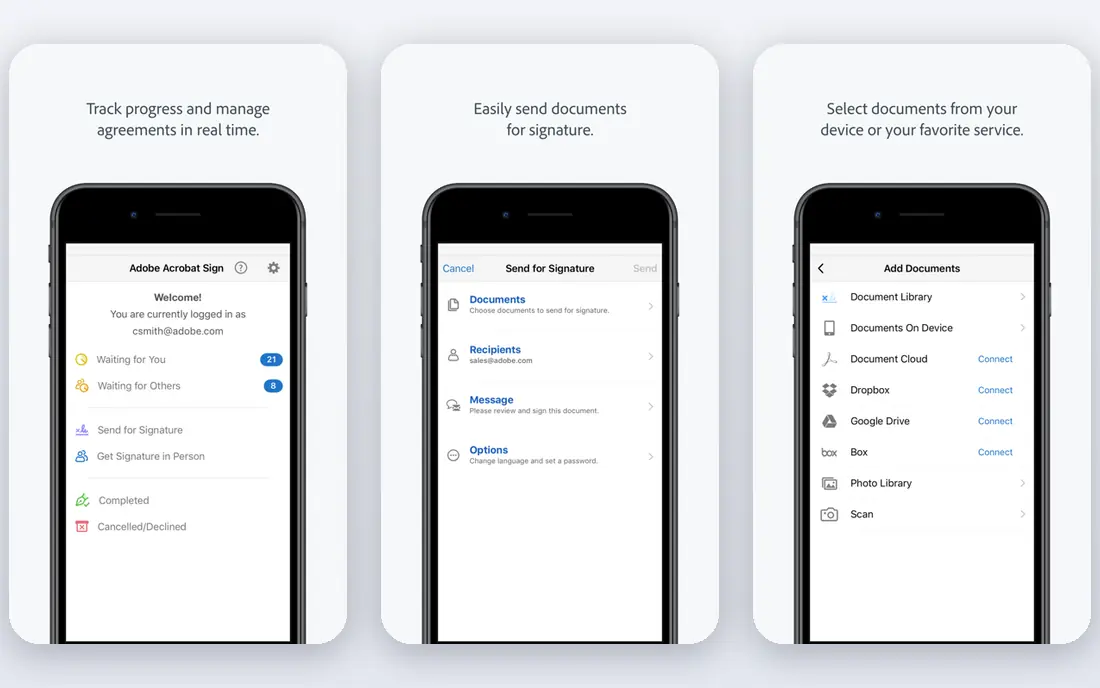
Adobe Acrobat remains the reference point for PDF work, and for good reason. It covers highlights, comments, stamps, and drawing tools, plus text editing, page management, form filling, signatures, OCR for scanned pages, and redaction for sensitive documents. If you review contracts, research papers, or reports with other people, its commenting and sharing tools make that workflow smoother than a basic reader, and its integration with cloud storage helps teams stay on the same version of a file.
The catch is cost and weight. Standard is listed from $12.99 per month and Pro from $19.99 per month in vendor listings we reviewed, which is a lot if you only highlight a few pages a week. Acrobat can also feel heavy on older machines compared with PDFgear or Xodo. If PDFs are central to your work and you need editing, OCR, and compliance tools in one place, Acrobat is worth it. If you only annotate, a cheaper or free tool will do.
- Full markup and editing tools
- OCR and redaction
- Strong collaboration and cloud storage
- Higher price than rivals
- Heavier app than simpler annotators
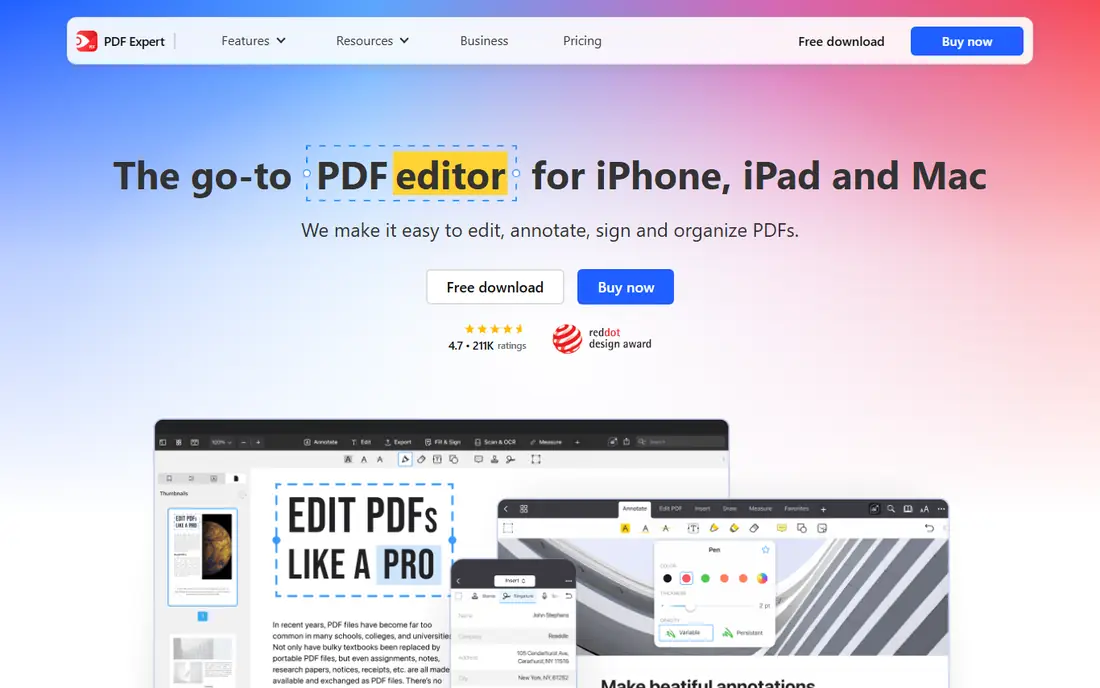
PDF Expert is our pick for Apple users, because it feels built for Mac and iPad rather than adapted to them. Annotation is quick, with highlights, notes, shapes, and freehand drawing, and on iPad the Apple Pencil experience is smooth enough for margin notes and handwritten comments. It also handles text editing, page rearrangement, form filling, and signatures, so one app covers most everyday PDF jobs without switching to a heavier editor.
Pricing is listed from $49.99 per year in vendor comparisons we reviewed, which is cheaper than Acrobat Pro for similar everyday work. The main limit is platform. If your team works across Windows and Android as well, PDF Expert alone will not cover everyone, and you may need a cross-platform tool such as Xodo or Acrobat alongside it. For a solo Apple user or an Apple-heavy team, though, PDF Expert is the cleanest daily annotator on this list.
- Fast and clean on Apple devices
- Good Apple Pencil support
- Page, text, and signature tools
- Apple focused, so Windows and Android users need another tool
- OCR is limited on some platforms
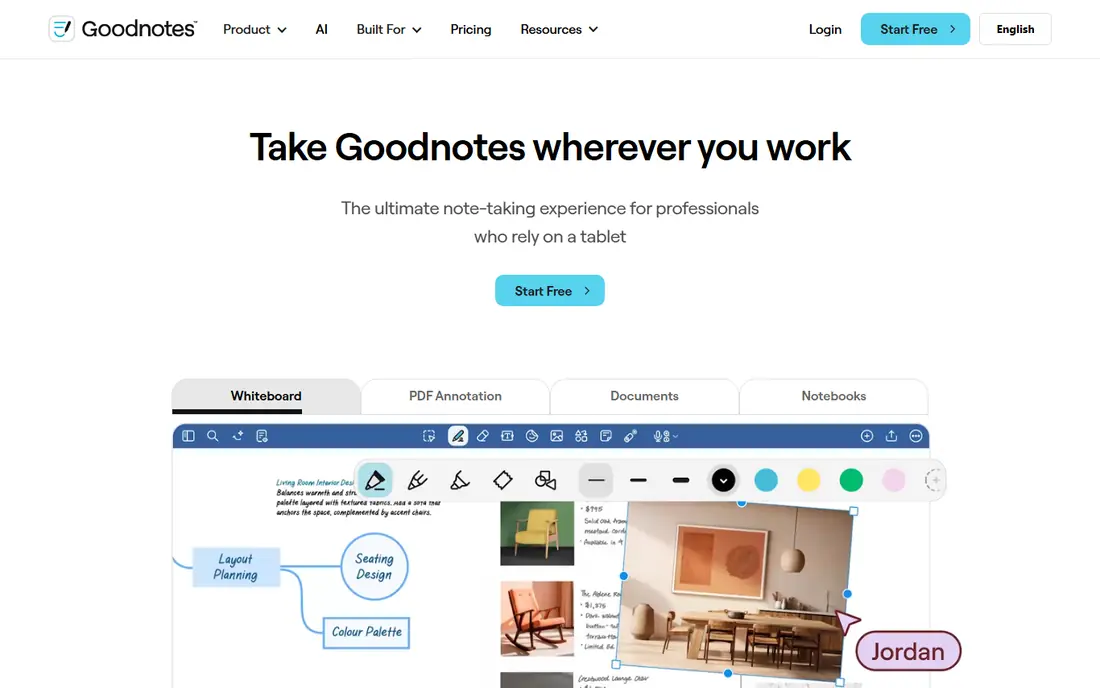
Goodnotes started as a note-taking app, and that shows in how pleasant it is to write on a PDF. If you study from lecture slides, mark up textbooks, or review drafts by hand, its pen tools, page templates, and notebook organization make annotation feel natural rather than fiddly. You can import a PDF, write in the margins, highlight key passages, and keep related notes together, and audio recording can sync with your written notes for lectures.
The trade-off is that Goodnotes is not a full PDF editor. Text editing, advanced form work, and heavy document processing are better handled by Acrobat or PDF Expert, and the experience is strongest on Apple devices. Paid plans start from $11.99 per year in listings we reviewed, with a free plan for basic use. If handwriting is your main way of annotating, Goodnotes is a strong pick. If you need to edit PDF text all day, choose a dedicated editor instead.
- Excellent handwriting experience
- Notebooks plus PDF annotation
- Audio recording linked to notes
- Best on iPad and Apple devices
- PDF editing is lighter than Acrobat or Foxit
Xodo is the best free starting point for most people, because its core annotation tools are genuinely useful without a subscription. You can highlight, add comments and text, draw, sign, and fill forms, and it works across web browsers, iOS, and Android, so you can start a markup on a laptop and finish it on a tablet. Collaboration features let multiple reviewers work on the same document, which helps study groups and small teams.
Paid plans, listed from $10.99 per month in comparisons we reviewed, add more advanced tools, but many users will never need them. The honest limit is editing. Xodo will not replace Acrobat for deep text editing or complex document work, and some power features sit behind the paid tier. If your budget is zero and your main job is marking up PDFs, start with Xodo and only pay if you hit a specific limit.
- Free core annotation
- Works on web, mobile, and desktop
- Good collaboration features
- Text editing is limited
- Paid plans add advanced features
PDFgear stands out because its free version covers more than most free tools, including annotation, editing basics, conversion, and OCR for scanned documents. That makes it a strong choice for students and professionals who need to work with scanned reports or forms without paying a monthly fee. The interface is straightforward, so you can highlight, comment, and sign without learning a complex editor first.
The catch is scale. PDFgear is less suited to large team workflows, shared review cycles, and enterprise admin controls than Acrobat or Foxit, and some newer AI features depend on the version you use. If you work alone or in a small team and want a capable free desktop tool, PDFgear is hard to beat. If you need managed collaboration and compliance controls, a paid platform will serve you better.
- Free core features including OCR
- Desktop apps for major platforms
- Clean, simple interface
- Fewer collaboration tools than Acrobat
- AI features vary by version
Foxit PDF Editor is the professional alternative for people who want Acrobat-style power without Acrobat-style pricing. It covers annotation, text and image editing, OCR, form creation, signatures, and document protection, and it feels lighter to run than Acrobat on many machines. For law, finance, and business users who edit PDFs daily, that combination of depth and speed is appealing, and its paid plans are generally positioned below Adobe in comparisons we reviewed.
The trade-off is ecosystem. Adobe still leads on integrations, cloud services, and third-party plugins, so a team deeply tied to Adobe Document Cloud may find switching awkward. Foxit pricing also varies by edition, so check the vendor site for the plan that matches your needs rather than assuming a single price. If you want a serious editor and a lower bill, Foxit is our pick among paid alternatives.
- Near-Acrobat editing power
- Lighter feel than Acrobat
- Good value for professionals
- Smaller integration ecosystem than Adobe
- Pricing varies by plan and region
Drawboard PDF is built for Windows users who annotate with a pen, especially on tablets and touchscreen laptops. Its ink tools feel natural for circling, underlining, and sketching on plans, lecture notes, and reports, and it handles large documents well. Paid plans start from $4.19 per month in listings we reviewed, with a free tier for basic use, which makes it easy to test with your own files before committing.
The limit is scope. Drawboard is an annotator first, not a full PDF editor, so text editing and advanced document processing are better left to Acrobat or Foxit. It is also Windows focused, so mixed-device teams will need another tool for Mac or mobile. If you mark up PDFs by hand on Windows, Drawboard is a natural fit. If you mostly type comments, a cross-platform tool such as Xodo may be simpler.
- Strong pen and ink tools on Windows
- Good for plans and large documents
- Page management
- Windows focused
- Text editing is limited compared with full editors
Lumin is our pick for people whose PDFs live in Google Drive or Microsoft OneDrive, because it edits and saves back to those clouds without manual re-uploads. That two-way sync removes a common source of version confusion, and it works in a browser, so students and teams can annotate on shared devices without installing software. Paid plans are listed around $9 per month in comparisons we reviewed, with a free tier for basic reading, commenting, drawing, and signing.
The catch is that deeper text editing is paid, and the free tier has limits that heavy users will hit. Lumin is also less powerful than Acrobat for complex documents. If your workflow is cloud-first and collaborative, especially in education, Lumin is a strong choice. If you work offline with large, complex PDFs, a desktop editor will serve you better.
- Native Google Drive and OneDrive sync
- Browser-based annotation
- Classroom-friendly sharing
- Text editing sits behind paid plans
- Free tier has limits
Notability pairs PDF annotation with note-taking in a way that suits students and professionals who attend talks, lectures, and meetings. You can import a PDF, annotate it by hand or with text, and record audio that links back to your notes, which helps when you review a session later. The interface is simple, the pen tools are smooth on iPad, and the free tier covers basic use, with paid plans adding more features.
The limits mirror Goodnotes. Notability is Apple focused, it is not a full PDF editor, and heavy users will likely need a paid plan. If you want one app for lecture notes and PDF markup on iPad, Notability is a strong contender. If you need cross-platform editing or advanced PDF tools, pair it with Xodo, PDFgear, or Acrobat for desktop work.
- Smooth handwriting and audio-linked notes
- Good PDF import and markup
- Popular with students
- Apple focused
- Paid features needed for full use
- Not a full PDF editor
How we picked these
We compared official vendor pages, pricing listings, and feature comparisons for widely used PDF tools, focusing on annotation quality, handwriting support, OCR, editing depth, sync, and price. We favored tools that are actively maintained in 2026 and that work on current devices, and we included free tools only where their core annotation genuinely works without payment. We did not claim hands-on testing, and we note that prices change, so the vendor site is the final check before you buy.
How to choose the right PDF annotation app
Start with your device and your input method. Tablet users with a stylus should prioritize Goodnotes, Notability, PDF Expert on iPad, or Drawboard PDF on Windows, because pen feel matters more than a long feature list. Desktop users who mostly type comments and highlight text will be happy with Xodo, PDFgear, or Lumin, often for free. Professionals who edit text, redact, or run OCR daily should look at Acrobat or Foxit, where those tools are built in rather than bolted on.
Check sync, file size, and export before you pay
Open one of your largest PDFs in the trial version and test how fast it scrolls, how well search works, and whether annotations survive export to another app. Check whether notes stay attached after you save, share, or print, and whether the app syncs across your phone, tablet, and computer without creating duplicate files. A tool that looks good in a demo but slows down on a 500-page report will cost you time every week, so test with real files, not sample documents.
FAQ
What is the best PDF annotation software?
Adobe Acrobat is the most complete choice overall, while PDF Expert is best for Mac and iPad users. For free use, Xodo and PDFgear cover most annotation needs well. The right pick depends on your device, whether you write by hand, and whether you also need to edit PDF text.
What is the best app for annotating PDFs on iPad?
PDF Expert, Goodnotes, and Notability are the strongest iPad options. PDF Expert suits general PDF work, while Goodnotes and Notability suit handwritten notes and lecture annotation. Try each free tier with an Apple Pencil before paying, because pen feel is personal.
What are the best free PDF annotation tools?
Xodo and PDFgear offer the strongest free core annotation, with Lumin as a good browser-based option for cloud users. Free tools cover highlighting, comments, drawing, and signing, but advanced editing, OCR, and collaboration often sit behind paid plans.
Can I annotate a PDF without installing software?
Yes, browser tools such as Xodo and Lumin let you annotate in a web browser, and some editors offer web versions. Browser annotation suits quick reviews and shared devices, but desktop apps usually handle large files and offline work better.
Do PDF annotations work across devices?
They should, if you use the same app and cloud sync, or if you export a flattened copy that other readers can open. Test sync with a real file before you rely on it, and keep an original copy until you confirm your notes, highlights, and comments appear correctly on each device.
Is Acrobat worth paying for if I only highlight PDFs?
Usually not. If highlighting, comments, and signatures are your main jobs, a free tool such as Xodo or PDFgear will cover them. Pay for Acrobat or Foxit only if you also need text editing, OCR, redaction, forms, or team review tools on a regular basis.