Best Online Service for PDF Page Removal in 2026: 8 Tools Compared
We compared the best online service for PDF page removal, covering free limits, privacy, file size caps and how each tool handles large PDFs in 2026 today.

- Editor's choice
 Smallpdf
Quick one-off page deletions
Starts atFreeVisit smallpdf.comFull review - Great alternative
 iLovePDF
Simple page removal plus bulk PDF tools
Starts atFreeVisit ilovepdf.comFull review - Also consider
 Sejda
Flexible free use and privacy-conscious users
Starts atFreeVisit sejda.comFull review
TL;DR:
- Smallpdf and iLovePDF are the easiest starting points for a quick, one-off page deletion.
- Sejda is the most flexible free option for larger files, with clear limits and a short file-retention window.
- PDF24 is a strong pick if you want a free tool with generous limits and a desktop option as well.
- For sensitive files, use a tool with a stated deletion window, or an offline desktop tool instead of uploading.
Quick comparison
| Tool | Best for | Starts at | Free plan? | |
|---|---|---|---|---|
| Smallpdf | Quick one-off page deletions | Free | Yes | Visit |
| iLovePDF | Simple page removal plus bulk PDF tools | Free | Yes | Visit |
| Sejda | Flexible free use and privacy-conscious users | Free | Yes | Visit |
 PDF24 Tools | Free use with generous limits | Free | Yes | Visit |
 Adobe Acrobat Online | Users who trust the original PDF maker | Free | Yes | Visit |
 PDF2Go | Simple online editing with optional extras | Free | Yes | Visit |
 PDFCandy | All-in-one PDF work in one site | Free | Yes | Visit |
 Xodo | Editing PDFs beyond page deletion | Free | Yes | Visit |
The best online services for PDF page removal
We compared online PDF tools that let you delete pages in a browser, with attention to free limits, privacy handling and file size caps.

Smallpdf fits people who need to delete a few pages fast and do not want to install software. Its page-deletion view shows thumbnails clearly, so you can pick the pages to remove without guessing page numbers. The same account also covers compression, merging and conversion, which helps when a PDF needs more than one fix.
The catch is the free limit, since repeated daily use will push you toward a paid plan sooner than a light user expects. Our view is that Smallpdf is the easiest first try for a quick job, provided you only need it now and then.
- Clean thumbnail view
- Fast browser workflow
- Wide range of other PDF tools
- Free use is limited per day
- Some features need a paid plan
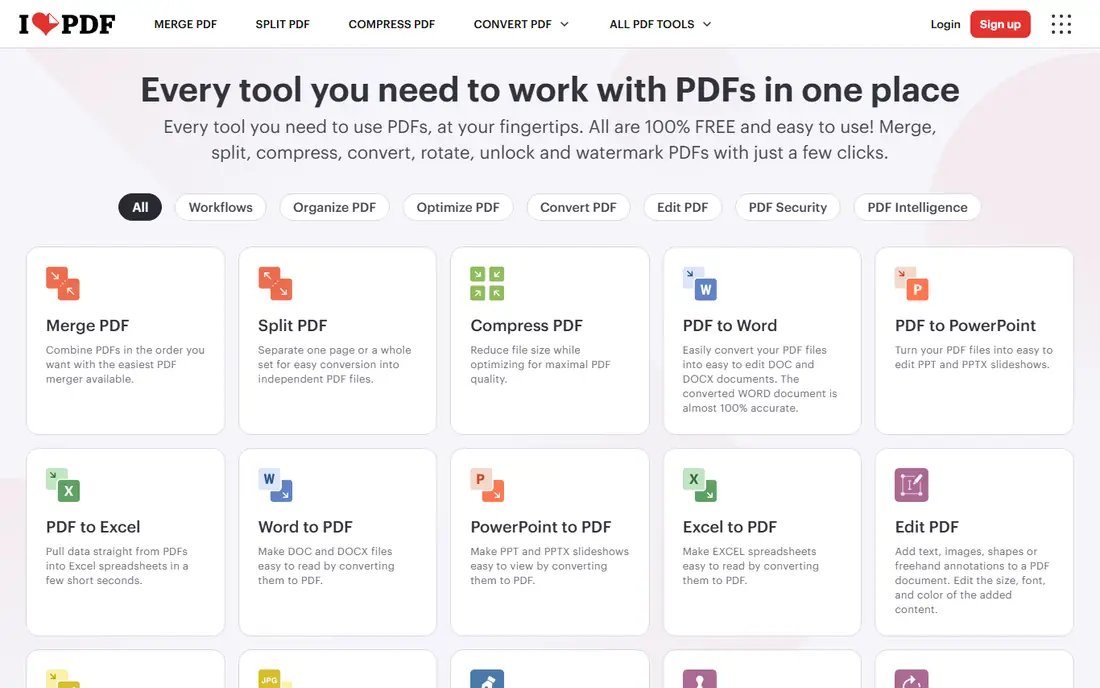
iLovePDF fits users who want the simplest possible page-removal flow and may need other PDF tools later. Its interface keeps the steps short, with upload, page selection and download in a clear sequence. Because it covers merging, splitting, compression and conversion, it can become a general PDF toolkit rather than a one-job site.
The catch is that the free plan limits processing, and ads appear on the free version, which can slow a quick task. Our view is that iLovePDF is a good everyday pick, especially for students and light users who value simplicity.
- Very simple interface
- Many PDF tools in one place
- Student offer for Premium on its site
- Free plan limits processing
- Ads appear on the free version
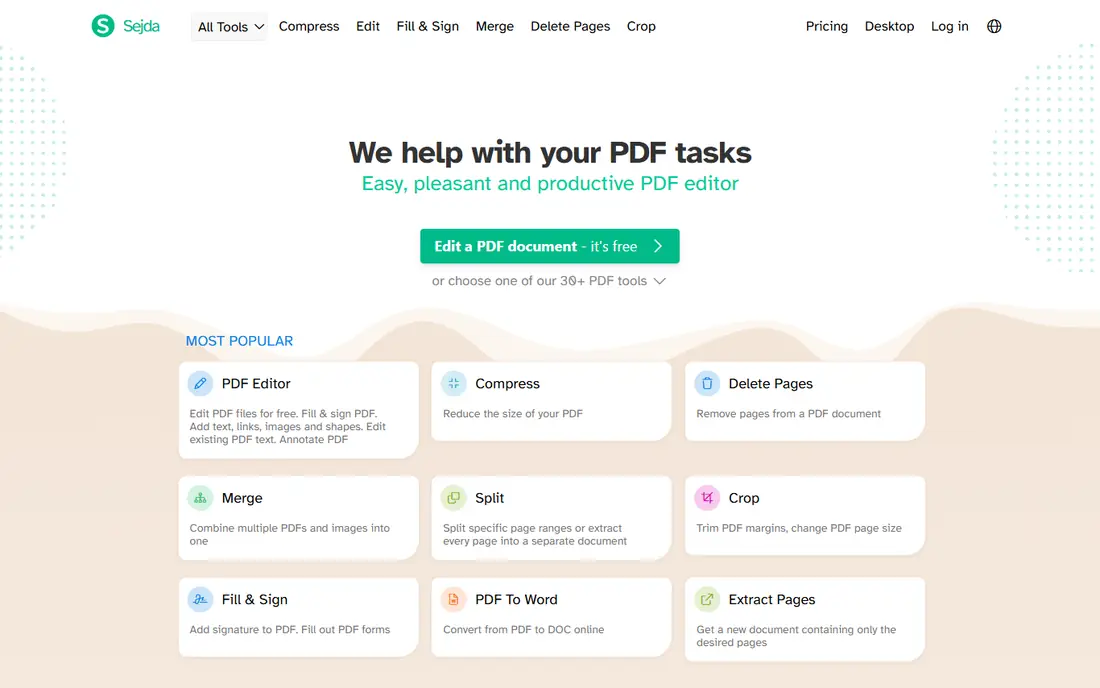
Sejda fits users who need more control over page ranges and care about how long files are kept. Its page tools let you work with ranges and visual selection, which helps with long documents where thumbnail hunting is slow. The stated two-hour deletion window and the desktop option give privacy-conscious users a clearer choice than many rivals.
The catch is the free cap of three tasks per hour, plus page and size limits, which can interrupt a busy editing session. Our view is that Sejda is the best balanced pick for regular free use, as long as you stay within its stated limits.
- Free use up to stated page and size limits
- Files deleted after 2 hours as stated
- Desktop version avoids uploading
- Free plan allows 3 tasks per hour
- Web version still uploads your file
PDF24 Tools fits users who want free PDF editing without signing up or hitting a tight daily cap. Its online page tools cover deletion and related jobs, and the desktop app gives an offline route for sensitive files. That combination is useful for schools, small offices and anyone who edits PDFs often but does not want a subscription.
The catch is polish, since the interface feels less modern than Smallpdf or iLovePDF, and tool depth can vary. Our view is that PDF24 is a strong value pick, especially if you are happy to trade a slick look for free, flexible use.
- Free online tools
- Desktop app available
- No account needed for many tools
- Interface feels less polished
- Some tools vary in depth
Adobe Acrobat Online fits users who already use Adobe tools and want page editing from the company behind the PDF format. Its online tools follow the familiar Acrobat workflow, which reduces learning time for existing Adobe users. File handling and output quality are generally dependable, which matters for documents you will share with clients or colleagues.
The catch is that several useful features need a paid Acrobat plan, so free users may hit a paywall sooner than with rivals. Our view is that Adobe is a safe pick for Acrobat users, but free-only users may prefer Smallpdf or Sejda first.
- Official Adobe PDF tools
- Familiar workflow for Acrobat users
- Strong file handling
- Some features need a paid Acrobat plan
- Free use is more limited than rivals
PDF2Go fits users who want a straightforward browser tool for page deletion and light editing. Its workflow is easy to follow, with upload, page selection and download steps that suit occasional users. Extra editing and conversion tools in the same site mean you can fix a file without opening another service.
The catch is free-plan limits and upsell prompts, which can interrupt a job if your file is large or you edit often. Our view is that PDF2Go is a solid backup pick, and a good choice when your first-choice tool hits its free cap.
- Page deletion and editing in the browser
- Optional desktop-style tools
- No install needed
- Free plan has file and task limits
- Interface includes upsells
PDFCandy fits users who want page deletion alongside merging, splitting and conversion without juggling sites. Its page workflow is simple enough for a first-time user, and the wider tool set covers most everyday PDF jobs. Working fully in the browser means no install and no platform worry, whether you use Windows, Mac or a Chromebook.
The catch is hourly limits on free use, which can slow you down if you process several files in one sitting. Our view is that PDFCandy is a useful all-round pick, best for light to moderate use rather than heavy daily editing.
- Many PDF tools in one place
- Simple page workflow
- Works fully in the browser
- Free use has hourly limits
- Some tools need a paid plan for heavy use
Xodo fits users who need to delete pages and then annotate, fill forms or mark up the same PDF. Its editor goes beyond simple page deletion, with annotation and form tools that help students, reviewers and office workers. Web and mobile access means you can start a fix on a computer and finish it on a tablet if needed.
The catch is that the full feature set needs a paid plan, so page-only users may pay for tools they never use. Our view is that Xodo is the best pick on this list when page deletion is only one part of a larger PDF editing job.
- Online PDF editor with page tools
- Annotation and form tools
- Works on web and mobile
- Full features need a paid plan
- Page tools sit inside a larger editor
How we picked these
We compared official tool pages, free-plan limits, privacy statements and pricing pages for each service. We favoured tools that show page thumbnails, let you select multiple pages at once, and state how long uploaded files are kept. We did not claim hands-on testing, and we treated file-size and task limits as vendor-stated limits to confirm on the tool page before use.
How to remove PDF pages safely and cleanly
Keep a backup before you delete
Save a copy of the original PDF before you remove pages, since a saved change is hard to undo once you download the new file. Name the backup clearly, such as with the word original in the filename, and store it separately. Check the new file page by page before you send it on, since a wrong selection is easy to miss in a long document.
Check privacy before uploading sensitive files
Read how long the service keeps uploaded files and whether files are encrypted in transit. For contracts, medical forms or financial records, a tool with a short deletion window is better, and an offline desktop tool is safer still. Avoid uploading a sensitive file to a tool that does not state its retention policy.
Watch free limits on large or repeated jobs
Free plans often cap file size, page count or tasks per hour, which matters for long reports or repeated edits. If you hit a cap mid-job, you may need to wait, split the file or pay for a short pass. Check the limit before you start, especially for scanned PDFs, which tend to be larger.
FAQ
How do I remove pages from a PDF online for free?
Upload the PDF to a free tool such as Smallpdf, iLovePDF or Sejda, select the page thumbnails you want to delete, apply the change and download the new file. Free plans may limit file size or tasks per hour, so keep a backup of the original first. Check the result page by page before sharing it.
Can I remove multiple pages from a PDF at once?
Yes, most online tools let you select several page thumbnails at once, or type a page range, before applying the deletion. That is faster and more accurate than deleting pages one by one. Preview the remaining pages after the change to confirm you removed only the intended pages.
Is it safe to remove pages from a PDF online?
It can be safe for ordinary files if you use a reputable tool that deletes uploads within a stated window, such as a few hours. For sensitive files, use a desktop tool or a service with clear encryption and deletion terms. Never upload a file you would not want stored on a third-party server, even briefly.
Does removing pages reduce PDF file size?
Removing pages usually reduces file size, since the content on those pages is gone. The saving depends on what was on the removed pages, since image-heavy pages save more than text-only pages. If you need a much smaller file, use a compression step after page removal.
Can I remove pages from a scanned PDF online?
Yes, page removal works for scanned PDFs in the same way as text PDFs, since you are deleting whole pages rather than editing text. The file may be larger, so check free-plan size limits first. Editing text inside a scanned page is a different job and needs OCR, not just page deletion.