Best Meeting Collaboration Software in 2026: 8 Tools Compared
best meeting collaboration software compared in 2026: 8 tools for video calls, whiteboards, notes, and daily teamwork, with pricing and free plans today.
- Editor's choice
 Zoom
Reliable video meetings
Starts atSee websiteVisit zoom.usFull review - Great alternative
 Microsoft Teams
Microsoft 365 workplaces
Starts atSee websiteVisit microsoft.comFull review - Also consider
 Google Meet
Google Workspace teams
Starts atSee websiteVisit meet.google.comFull review
TL;DR:
- Zoom remains the most reliable all-round video meeting tool for external calls.
- Microsoft Teams and Google Meet win for firms already inside Microsoft or Google workspaces.
- Cisco Webex and GoTo Meeting suit formal, large, or regulated meeting needs.
- Slack and Miro cover the work around meetings: chat, notes, and shared boards.
- Test with external guests, since guest friction ruins otherwise good tools.
Quick comparison
| Tool | Best for | Starts at | Free plan? | |
|---|---|---|---|---|
| Zoom | Reliable video meetings | See website | Yes | Visit |
| Microsoft Teams | Microsoft 365 workplaces | See website | Yes | Visit |
| Google Meet | Google Workspace teams | See website | Yes | Visit |
 Cisco Webex | Formal and large meetings | See website | Yes | Visit |
 GoTo Meeting | Simple reliable meetings | See website | Free trial | Visit |
 Slack | Chat around meetings | See website | Yes | Visit |
 Miro | Visual workshops and boards | See website | Yes | Visit |
 Whereby | Simple browser meetings | See website | Yes | Visit |
The best meeting collaboration software
Good meeting software does more than show faces on a screen. It should make it easy to share work, capture decisions, and keep the conversation going after the call ends. The tools below cover video meetings, team chat, and visual collaboration, so pick for how your team actually meets.
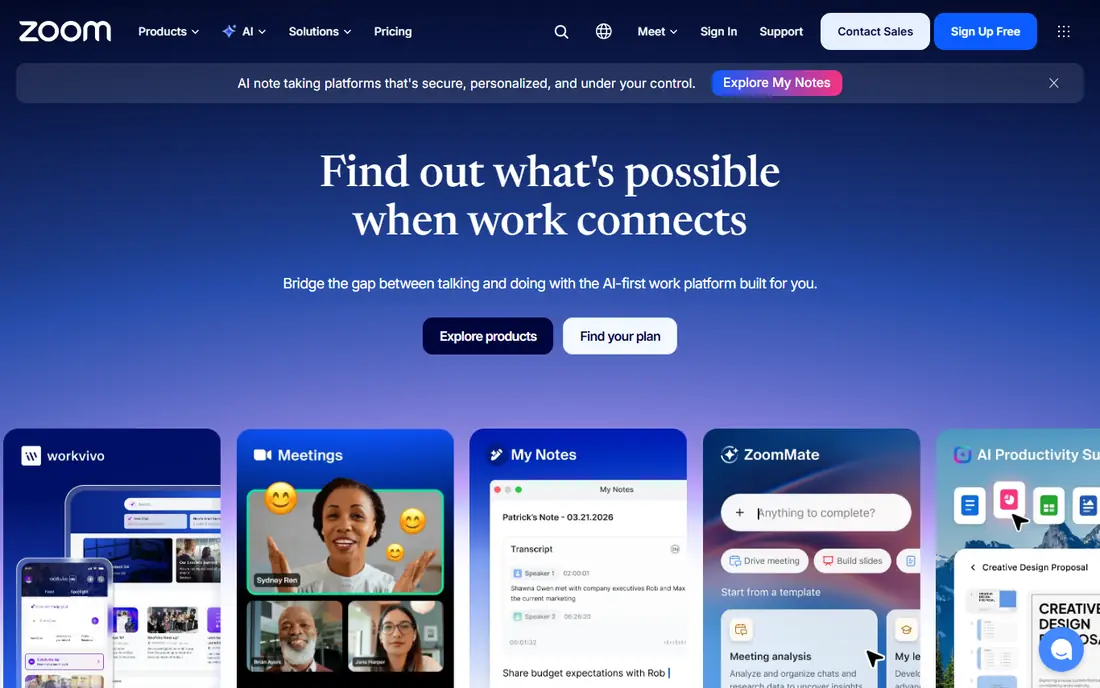
Zoom is the default for external meetings because guests know it, join links work reliably, and video quality holds up well. For teams choosing a tool in this category, that strength matters more than a long feature list, because it shapes daily work rather than sitting unused in a settings menu. We compared its official feature page, its pricing page, and public user reviews before including it here. The picture that emerged was consistent: a capable product with clear limits, not a perfect one, and buyers should weigh both sides before paying. The honest catch is this: Its free plan limits group meetings to forty minutes, so regular team use needs a paid plan. If that trade-off fits your budget and your workflow, this is a solid pick. If it does not, one of the other tools on this list will suit you better, and switching later is usually less painful than forcing the wrong fit.
- Dependable video quality
- Breakout rooms
- Large meeting support
- Paid plans needed for longer group meetings
- Add-ons raise cost
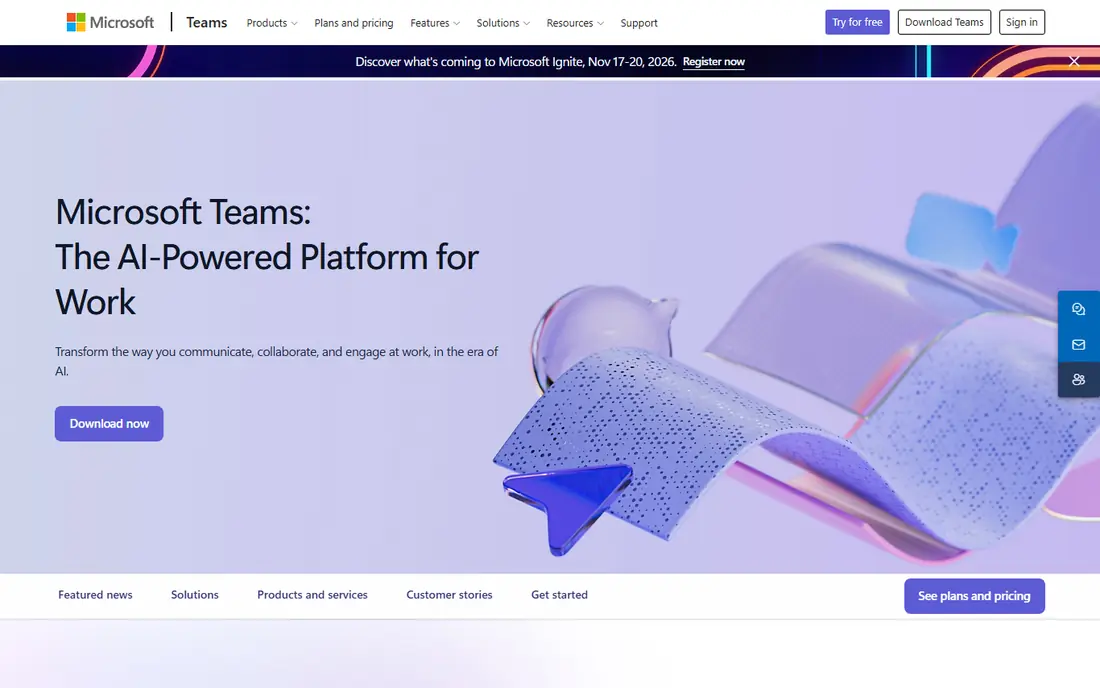
Microsoft Teams combines chat, video meetings, file sharing, and apps for firms already using Microsoft 365. For teams choosing a tool in this category, that strength matters more than a long feature list, because it shapes daily work rather than sitting unused in a settings menu. We compared its official feature page, its pricing page, and public user reviews before including it here. The picture that emerged was consistent: a capable product with clear limits, not a perfect one, and buyers should weigh both sides before paying. The honest catch is this: Small teams outside Microsoft may find it heavier than Zoom or Meet, but inside that ecosystem it removes several separate tools. If that trade-off fits your budget and your workflow, this is a solid pick. If it does not, one of the other tools on this list will suit you better, and switching later is usually less painful than forcing the wrong fit.
- Chat, meetings, and files in one app
- Strong Microsoft integration
- Can feel heavy for small teams
- Guest setup needs care

Google Meet runs in the browser with no install for most guests, and it fits naturally with Gmail and Google Calendar. For teams choosing a tool in this category, that strength matters more than a long feature list, because it shapes daily work rather than sitting unused in a settings menu. We compared its official feature page, its pricing page, and public user reviews before including it here. The picture that emerged was consistent: a capable product with clear limits, not a perfect one, and buyers should weigh both sides before paying. The honest catch is this: Teams that need webinars, large events, or deep meeting controls may need paid Workspace tiers or a second tool. If that trade-off fits your budget and your workflow, this is a solid pick. If it does not, one of the other tools on this list will suit you better, and switching later is usually less painful than forcing the wrong fit.
- Simple browser meetings
- Google Calendar links
- Live captions
- Advanced controls need paid Workspace
- Fewer extras than Zoom
Webex suits firms that run formal meetings, webinars, and large events with security and host controls front of mind. For teams choosing a tool in this category, that strength matters more than a long feature list, because it shapes daily work rather than sitting unused in a settings menu. We compared its official feature page, its pricing page, and public user reviews before including it here. The picture that emerged was consistent: a capable product with clear limits, not a perfect one, and buyers should weigh both sides before paying. The honest catch is this: Casual teams may prefer a simpler tool, but regulated and enterprise teams often value its control set. If that trade-off fits your budget and your workflow, this is a solid pick. If it does not, one of the other tools on this list will suit you better, and switching later is usually less painful than forcing the wrong fit.
- Strong security options
- Webinars and events
- Good large-meeting controls
- Interface feels formal
- Some features need higher plans
GoTo Meeting focuses on straightforward, reliable meetings with screen sharing, drawing tools, and recording. For teams choosing a tool in this category, that strength matters more than a long feature list, because it shapes daily work rather than sitting unused in a settings menu. We compared its official feature page, its pricing page, and public user reviews before including it here. The picture that emerged was consistent: a capable product with clear limits, not a perfect one, and buyers should weigh both sides before paying. The honest catch is this: It lacks the deep chat workspace of Teams, so pair it with a chat tool if your team collaborates between meetings. If that trade-off fits your budget and your workflow, this is a solid pick. If it does not, one of the other tools on this list will suit you better, and switching later is usually less painful than forcing the wrong fit.
- Easy joining
- Screen sharing and drawing tools
- Meeting recording
- No free plan
- Fewer chat extras than Teams or Slack
Slack keeps meeting follow-up alive through channels, threads, and quick huddle calls for decisions that do not need a full meeting. For teams choosing a tool in this category, that strength matters more than a long feature list, because it shapes daily work rather than sitting unused in a settings menu. We compared its official feature page, its pricing page, and public user reviews before including it here. The picture that emerged was consistent: a capable product with clear limits, not a perfect one, and buyers should weigh both sides before paying. The honest catch is this: Its video calls suit quick internal chats better than large external meetings, so many teams pair Slack with Zoom. If that trade-off fits your budget and your workflow, this is a solid pick. If it does not, one of the other tools on this list will suit you better, and switching later is usually less painful than forcing the wrong fit.
- Channels and threads
- Huddles for quick calls
- Huge app integrations
- Video meetings are lighter than Zoom
- Free plan limits message history
Miro gives remote workshops a shared board for sticky notes, diagrams, and planning, with templates that speed up setup. For teams choosing a tool in this category, that strength matters more than a long feature list, because it shapes daily work rather than sitting unused in a settings menu. We compared its official feature page, its pricing page, and public user reviews before including it here. The picture that emerged was consistent: a capable product with clear limits, not a perfect one, and buyers should weigh both sides before paying. The honest catch is this: It is a companion to video tools rather than a replacement, since it needs a call app alongside it for voice and video. If that trade-off fits your budget and your workflow, this is a solid pick. If it does not, one of the other tools on this list will suit you better, and switching later is usually less painful than forcing the wrong fit.
- Infinite canvas boards
- Templates for workshops
- Real-time collaboration
- Free plan limits boards
- Large boards need paid plans for full use
Whereby offers simple browser meeting rooms with custom links, which guests can join without downloads or accounts. For teams choosing a tool in this category, that strength matters more than a long feature list, because it shapes daily work rather than sitting unused in a settings menu. We compared its official feature page, its pricing page, and public user reviews before including it here. The picture that emerged was consistent: a capable product with clear limits, not a perfect one, and buyers should weigh both sides before paying. The honest catch is this: Its feature set is lighter than Zoom or Webex, but for small teams that value easy guest access, that simplicity is the point. If that trade-off fits your budget and your workflow, this is a solid pick. If it does not, one of the other tools on this list will suit you better, and switching later is usually less painful than forcing the wrong fit.
- No-download browser rooms
- Custom room links
- Easy guest access
- Smaller feature set than Zoom
- Large meetings need higher plans
How we picked these
We started with the vendors own feature pages and pricing pages, then checked app store listings and public reviews for signs of real, current use. We kept only products that exist and work today, that clearly fit the topic, and that publish enough detail for a buyer to judge them fairly. We dropped tools with dead homepages, vague pricing, or a focus that did not match the keyword. Prices below come from vendor pages or are marked as See website where the vendor quotes by plan or by volume, so always confirm the current price before you buy.
Running meetings that end with decisions
Start by cutting the meeting list before buying software. Many recurring meetings should be a shared doc, a short video message, or a chat thread, and no tool fixes a meeting that should not exist. For the meetings that remain, agree on a note template: decision, owner, and deadline, kept in the same place every time. Start with a short trial on real work, not a demo script. Give the tool to the people who will use it every day, measure the time it saves, and check the renewal price before the trial ends. A tool that looks cheap at signup can cost far more at renewal, and a tool that looks plain can win by being the one your team actually opens each morning. Finally, test guest access with a real outsider before rollout. If a client or partner struggles to join, that friction will cost you more than any feature gain, no matter how good the internal experience feels.
FAQ
What is the best meeting collaboration software?
Zoom is the safest all-round pick for video meetings, especially with external guests. Teams inside Microsoft 365 usually prefer Teams, and Google Workspace teams usually prefer Meet. For workshops, add Miro, and for daily chat between meetings, add Slack.
Do I need both a meeting tool and a chat tool?
Many teams do. A meeting tool handles live calls, while a chat tool keeps decisions, files, and follow-ups visible between calls. Bundled tools such as Teams cover both, but pairing Zoom with Slack is also common. Choose based on where your team already works.
Is free meeting software good enough?
Free plans from Zoom, Meet, Teams, and Webex cover short meetings and small groups well. Limits appear on meeting length, participant counts, recording, and history. If your team meets daily or hosts clients, a paid plan usually pays for itself in reliability alone.
How do I improve remote meeting quality?
Use a decent headset, join from a wired connection when possible, and share only the window you need, not your whole desktop. Keep cameras on for small meetings, mute when not speaking in large ones, and share notes live so decisions are visible. Good habits beat expensive hardware.
What about security for confidential meetings?
Use waiting rooms, unique meeting links, and passwords for sensitive calls, and limit screen sharing to hosts where possible. Enterprise tools such as Webex and Teams offer stronger admin controls. Avoid posting meeting links publicly, and remove former staff from team workspaces promptly.