Best Laser Cutting Software in 2026: 10 Tools Compared
We compared the best laser cutting software in 2026, covering design, machine control, engraving, and file support, so makers can pick the right tool.

- Editor's choice
 LightBurn
Makers with supported diode and CO2 lasers
Starts atSee websiteVisit lightburnsoftware.comFull review - Great alternative
 LaserGRBL
Budget diode laser owners
Starts atSee websiteVisit lasergrbl.comFull review - Also consider
 xTool Creative Space
xTool machine owners
Starts atSee websiteVisit xtool.comFull review
TL;DR:
- Machine compatibility comes first, since the best design tool is useless if it cannot drive your laser.
- Design and control are often separate jobs, so many makers use one tool to draw and another to cut.
- File support matters for SVG, DXF, and image tracing, especially if you sell or share designs.
- Free tools can be strong, but paid tools often add camera help, nesting, and better support.
Quick comparison
| Tool | Best for | Starts at | Free plan? | |
|---|---|---|---|---|
| LightBurn | Makers with supported diode and CO2 lasers | See website | Free trial | Visit |
| LaserGRBL | Budget diode laser owners | See website | Yes | Visit |
| xTool Creative Space | xTool machine owners | See website | Yes | Visit |
 Glowforge App | Glowforge machine owners | See website | Free trial | Visit |
 Vectric VCarve Pro | CNC and laser shops needing 2D design | See website | Free trial | Visit |
 CorelDRAW | Designers needing vector tools for laser work | See website | Free trial | Visit |
 Inkscape | Makers wanting free vector design | See website | Yes | Visit |
 Adobe Illustrator | Professional designers | See website | Free trial | Visit |
 Snapmaker Luban | Snapmaker machine owners | See website | Yes | Visit |
 LaserPecker App | LaserPecker portable laser owners | See website | Yes | Visit |
The best laser cutting software
We compared current plans, core features, and limits for each option below, and we ordered the list by overall fit for most buyers rather than by brand size alone.

LightBurn fits makers whose laser controller is on the supported list. LightBurn is a favorite among makers because it combines layout, editing, and machine control in one workspace. Camera alignment, nesting, and layer controls help with repeat jobs and small-batch production. That clarity makes it easier to judge whether it matches your volume, your channels, and your staffing.
The honest catch is license limits by device type and a supported-controller list that excludes some machines. Before you commit, check whether your controller and machine are supported before you buy, and run a short trial with real work from your own tasks. If that trial feels calm, LightBurn is a sensible shortlist pick.
- Wide controller support
- Strong layout and camera tools
- Active updates
- License is per device type
- Not for every machine
LaserGRBL fits budget diode laser owners who need simple, free control. LaserGRBL is a free control tool for GRBL-based diode lasers, with engraving and cutting controls that are easy to learn. It suits owners who design elsewhere and need a plain way to send jobs. That clarity makes it easier to judge whether it matches your volume, your channels, and your staffing.
The honest catch is basic design tools, so most users will pair it with a vector editor. Before you commit, check whether your machine uses GRBL and whether you have a Windows setup, and run a short trial with real work from your own tasks. If that trial feels calm, LaserGRBL is a sensible shortlist pick.
- Free for supported GRBL machines
- Simple control and engraving
- Light on system needs
- Windows focus
- Design tools are basic
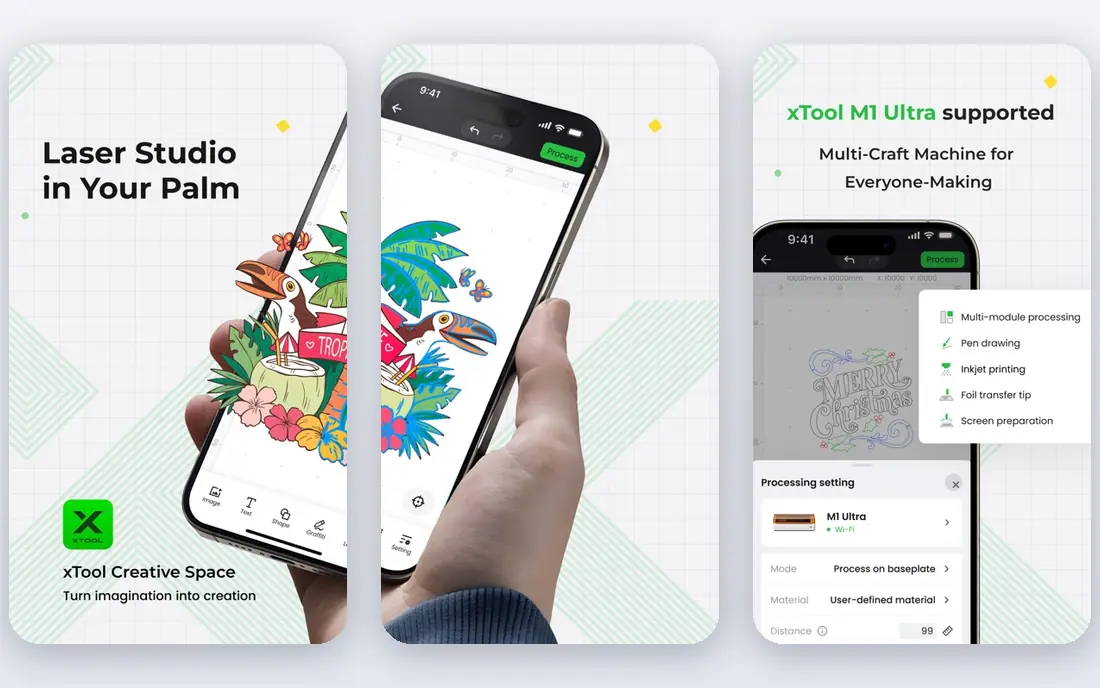
xTool Creative Space fits xTool owners who want a simple app matched to their machine. xTool Creative Space is made for xTool machines, so setup, camera preview, and material settings line up with the hardware. That match makes first jobs easier than a generic tool. That clarity makes it easier to judge whether it matches your volume, your channels, and your staffing.
The honest catch is a hardware tie that limits use with other brands, and design limits for complex work. Before you commit, check whether its design tools cover your project types, and run a short trial with real work from your own tasks. If that trial feels calm, xTool Creative Space is a sensible shortlist pick.
- Built for xTool machines
- Simple layout and camera help
- Free to use
- Tied to xTool hardware
- Advanced design is limited
Glowforge App fits Glowforge owners who want a simple cloud workflow. The Glowforge App runs in a browser and guides owners from design to print with clear steps. That simple flow suits beginners and classrooms that want fast results. That clarity makes it easier to judge whether it matches your volume, your channels, and your staffing.
The honest catch is a hardware tie and paid tiers for some advanced features. Before you commit, check which features are in the free tier and which need a paid plan, and run a short trial with real work from your own tasks. If that trial feels calm, Glowforge App is a sensible shortlist pick.
- Cloud design and print flow for Glowforge
- Simple for beginners
- Catalog access
- Tied to Glowforge
- Some features need a paid plan
Vectric VCarve Pro fits shops that need strong 2D design and toolpath control. VCarve Pro is built for 2D design and toolpaths, with nesting and layout tools that help shops cut panels and signs with less waste. It suits work where clean vectors and repeat jobs matter. That clarity makes it easier to judge whether it matches your volume, your channels, and your staffing.
The honest catch is a higher price and a learning curve that suits serious shops more than casual makers. Before you commit, check whether your workflow needs its toolpath depth or a simpler tool will do, and run a short trial with real work from your own tasks. If that trial feels calm, Vectric VCarve Pro is a sensible shortlist pick.
- Strong 2D design, toolpaths, and nesting
- Good for sign and panel work
- Higher price
- Windows focus
- Learning curve for new users
CorelDRAW fits designers who create laser files and send them to a control tool. CorelDRAW is a mature vector design suite with strong text, layout, and file support for laser files. Many shops design in CorelDRAW, then export to their machine control tool. That clarity makes it easier to judge whether it matches your volume, your channels, and your staffing.
The honest catch is a subscription cost and the need for a separate control step for most machines. Before you commit, check export formats your control tool accepts, and run a short trial with real work from your own tasks. If that trial feels calm, CorelDRAW is a sensible shortlist pick.
- Mature vector design
- Wide file support
- Good text and layout tools
- Subscription cost
- It is a design tool, not a laser controller
Inkscape fits makers who want free, capable vector design for laser files. Inkscape is a free vector editor with strong SVG support, which makes it a good design partner for laser work. Community guides and extensions help with tracing, text, and layout. That clarity makes it easier to judge whether it matches your volume, your channels, and your staffing.
The honest catch is the lack of direct machine control, so you still need a control tool. Before you commit, check whether your control tool accepts SVG or DXF exports cleanly, and run a short trial with real work from your own tasks. If that trial feels calm, Inkscape is a sensible shortlist pick.
- Free and open vector design
- Strong SVG support
- Large community
- Not a laser controller
- Interface takes learning
Adobe Illustrator fits professional designers who need precise vector files. Illustrator is the industry vector standard, with precise path and text tools that suit detailed laser designs. Files export well to common formats used by control tools. That clarity makes it easier to judge whether it matches your volume, your channels, and your staffing.
The honest catch is a subscription cost and no direct laser control, so a second step is needed. Before you commit, check whether your shop already pays for Adobe tools, and run a short trial with real work from your own tasks. If that trial feels calm, Adobe Illustrator is a sensible shortlist pick.
- Industry vector standard
- Precise paths and text
- Wide file support
- Subscription cost
- Not a laser controller
- Learning curve
Snapmaker Luban fits Snapmaker owners who use laser, print, and CNC modes. Luban is the free companion app for Snapmaker machines, covering laser, 3D printing, and CNC in one place. That mix suits owners who use more than one mode on the same machine. That clarity makes it easier to judge whether it matches your volume, your channels, and your staffing.
The honest catch is a hardware tie and basic laser design compared with dedicated vector tools. Before you commit, check whether its laser mode covers your project complexity, and run a short trial with real work from your own tasks. If that trial feels calm, Snapmaker Luban is a sensible shortlist pick.
- Free app for Snapmaker 3-in-1 machines
- Laser, print, and CNC modes
- Tied to Snapmaker hardware
- Laser design is basic
LaserPecker App fits LaserPecker owners who want portable engraving from a phone or computer. The LaserPecker app pairs with portable LaserPecker machines for image engraving on small items. Mobile control makes it easy to engrave gifts and small products away from a desk. That clarity makes it easier to judge whether it matches your volume, your channels, and your staffing.
The honest catch is a hardware tie and a small work area that rules out large panels. Before you commit, check whether your items fit its work area and material list, and run a short trial with real work from your own tasks. If that trial feels calm, LaserPecker App is a sensible shortlist pick.
- Simple app for LaserPecker machines
- Image engraving
- Mobile control
- Tied to LaserPecker hardware
- Small work area limits large jobs
How we picked these
We compared official product pages, documentation, and pricing pages for each tool, and we checked that each product is still sold or maintained in 2026. We favored tools that truly support laser work, including design, engraving, or machine control, and we noted where a tool needs a separate controller. We did not claim hands-on testing. Where a current price could not be confirmed, we wrote See website.
How to match software to your laser machine
Check your machine and controller first
Look up your laser model and controller board before you buy software. Some tools support only certain controllers, while others work as design tools for any machine. A mismatch can leave you with files you cannot cut.
Separate design from machine control
Many makers design in a vector tool, then send the file to a control tool for cutting. That split is normal and can give better results than forcing one tool to do both jobs. Plan your workflow around the split, not against it.
Test materials and safety settings
Cut settings vary by material, thickness, and machine power, so test on scrap before a final job. Keep ventilation, fire safety, and eye protection in mind, and follow your machine maker guidance. Software settings do not replace safe workshop practice.
FAQ
What is the best laser engraving software?
The best choice depends on your machine, since some tools are tied to one brand and others work across machines. LightBurn is a popular pick for supported machines, while brand apps suit owners of that brand. Check your controller list before you buy.
What is the best software for laser engraving for beginners?
Beginners often do well with the app that ships with their machine, since it is set up for that hardware. Once you are comfortable, a vector design tool can add more control. Start simple, then add a stronger design tool when you need it.
Can I use free laser software?
Yes, several free tools handle design and basic control well, including Inkscape for drawing and LaserGRBL for control on supported machines. Paid tools add conveniences such as camera alignment, nesting, and support. Free tools are a sensible way to learn before you pay.
What file types does laser cutting software use?
Most tools use SVG and DXF for vector work, plus common image formats for engraving. Check whether your tool can trace images to vectors, since that matters if you work from photos or hand drawings. Keep original files so you can adjust a design later.
Do I need separate design and control software?
Often yes, and that is normal for laser work. A design tool creates clean vectors, while a control tool sets power, speed, and passes for your machine. Using both can give better cuts than a single tool that does neither job well.