Best Interface Design Tools in 2026: 10 Tools Compared
We compared the best interface design tools for 2026, from Figma and Sketch to Penpot and Framer, covering pricing, free plans and prototyping depth today.
- Editor's choice
 Figma
Product teams designing together
Starts at$16 per monthVisit figma.comFull review - Great alternative
 Sketch
Mac designers wanting a native app
Starts at$12 per monthVisit sketch.comFull review - Also consider
 Framer
Designers publishing live sites
Starts at$10 per monthVisit framer.comFull review
TL;DR:
- Figma remains our pick for teams that design together in real time, while Sketch suits Mac-only designers who want speed.
- Penpot and Lunacy give solo designers and small teams a strong free route, with Penpot adding self-hosting.
- Axure RP and ProtoPie are the better choices when a prototype needs logic, sensors, or multi-screen flows.
- Framer is the pick when the design itself should become a live website with little extra build work.
Quick comparison
| Tool | Best for | Starts at | Free plan? | |
|---|---|---|---|---|
| Figma | Product teams designing together | $16 per month | Yes | Visit |
| Sketch | Mac designers wanting a native app | $12 per month | Free trial (30 days) | Visit |
| Framer | Designers publishing live sites | $10 per month | Yes | Visit |
 Penpot | Open source and self-hosted teams | Free | Yes | Visit |
 Axure RP | Logic-heavy UX prototypes | $29 per month | Free trial (30 days) | Visit |
 UXPin | Code-based design systems | $15 per month | Yes | Visit |
 Lunacy | Free desktop design on any system | Free | Yes | Visit |
 ProtoPie | Realistic interactive prototypes | See website | Yes | Visit |
 Balsamiq | Fast early wireframes | $9 per month | Free trial (30 days) | Visit |
 Uizard | Non-designers needing quick mockups | $12 per month | Yes | Visit |
The best interface design tools
We compared official feature pages, pricing pages, and app store listings for the best software interface design options, then weighed collaboration, prototyping depth, and cost. These are the tools for interface design that held up best for ordinary product teams and solo designers.
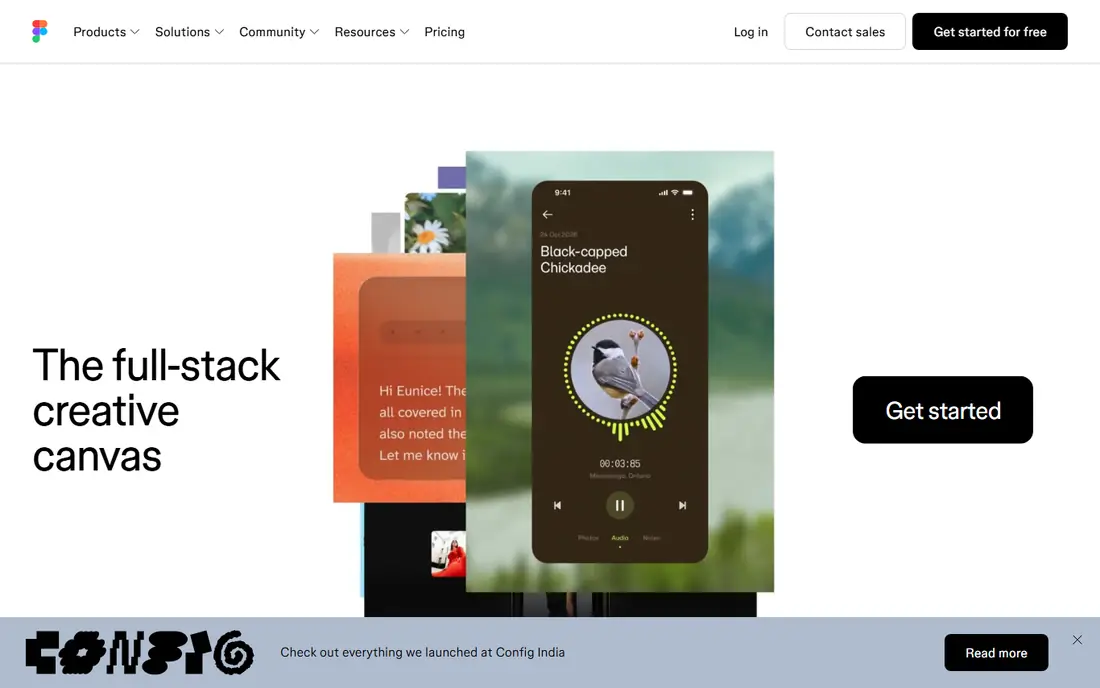
Figma runs in the browser, so Windows and Mac teammates work in the same file without installs or version conflicts. Components, variables, and shared libraries make it easy to keep a growing product consistent, and comments sit right on the design. That shared canvas is the main reason so many teams stay with it. The catch is seat pricing. Viewers can look for free, but anyone who edits needs a paid seat, and larger teams should budget for that before they scale. Figma still earns the top spot for most teams because the collaboration is practical, not just a selling point.
- Real-time collaboration
- Strong component and library system
- Large plugin and community file library
- Costs rise with each editor seat
- Advanced Dev Mode features sit on higher tiers

Sketch feels quick in a way browser tools sometimes do not, especially on large files with many artboards. Its vector tools are precise, its symbols and libraries are mature, and developers can inspect files without a paid seat. For a solo Mac designer, that combination is hard to beat. The obvious limit is the platform. Windows teammates cannot open the native app, so mixed teams need a workaround or a different tool. If your whole design team is on Mac, though, Sketch is a focused and affordable choice.
- Fast native Mac app
- Clean vector editing
- Free viewers and developer handoff
- Mac only
- Browser collaboration is more limited than Figma
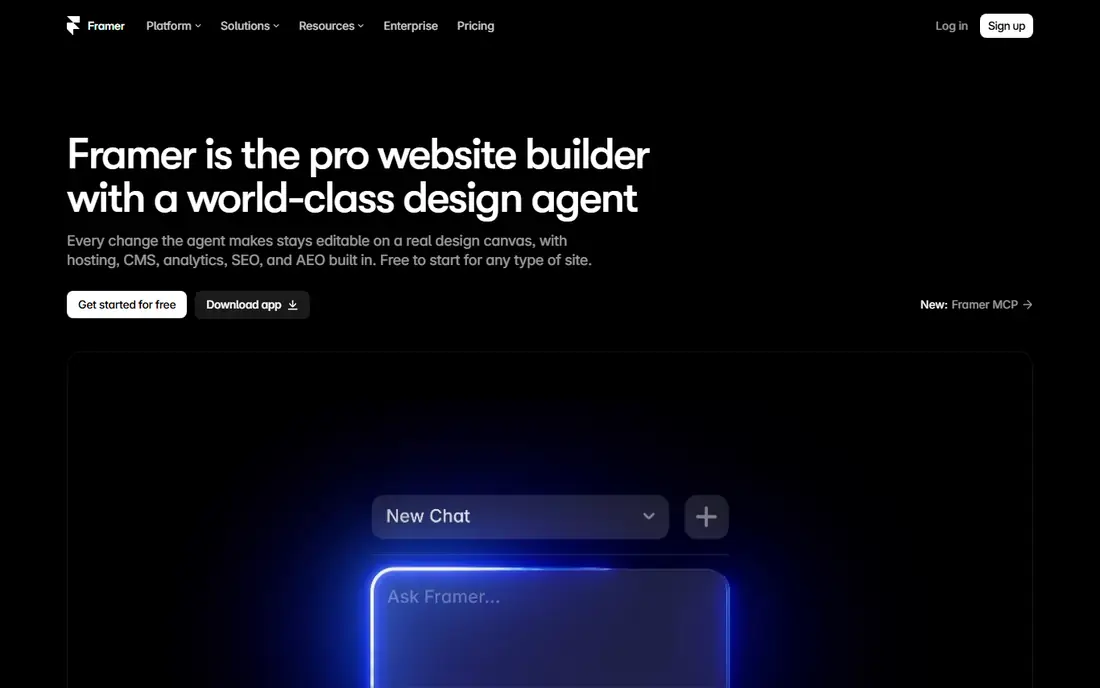
Framer starts where many tools stop. You design a page, add interactions, and publish it as a working site with hosting included. That makes it a strong pick for marketing pages, portfolios, and startup landing pages where speed matters more than deep app prototyping. It is not the best home for a complex product with dozens of screens and a strict design system. Use it when the output is a website, and pair it with Figma or Sketch when the output is an app.
- Designs publish as real websites
- Strong animation and layout controls
- Free tier for design work
- Less suited to large app design systems
- Site pricing adds up with multiple sites
Penpot is the most credible free option in this list, and it is not a stripped-down demo. It covers vector design, components, prototyping, and developer inspection, and teams can host it themselves if they want full control of their files. The hosted free plan is generous for small teams. The trade-off is ecosystem depth. You will find fewer plugins and community templates than in Figma, and some niche features arrive later. For teams that value openness and predictable cost, that trade is easy to accept.
- Open source and self-hostable
- Free hosted plan
- Imports Figma and Sketch files
- Smaller plugin ecosystem
- Some advanced prototyping features lag larger rivals
Axure RP is built for prototypes that behave like software, not just look like it. You can set conditions, store values in variables, and test multi-step flows such as checkout, permissions, and error states. Enterprise UX teams use it to settle questions before engineers write code. That power comes with a learning curve, and casual designers may find it heavy for simple screens. Choose Axure when the prototype must prove a flow works, not when you only need a pretty mockup.
- Conditional logic and variables
- Detailed specifications
- Strong for enterprise software flows
- Steeper learning curve
- Interface feels dated next to newer tools
UXPin takes a different path by letting teams prototype with actual code components instead of drawn approximations. That keeps the prototype honest about spacing, states, and behavior, and it helps design systems stay close to production. Documentation and component libraries sit in the same workspace. New users should read the pricing page closely, since plans and editor limits have changed over time. For teams with engineers involved in design, the code-first approach is worth that extra homework.
- Prototypes built from real code components
- Strong design system support
- Conditional interactions
- Pricing tiers can confuse new buyers
- Smaller community than Figma
Lunacy is a desktop app from Icons8 that gives freelancers and students a capable design tool without a subscription. It handles vector editing, prototyping, and Sketch file compatibility, and it runs offline. If you work alone and want to own your workflow, it is a pleasant surprise. Teams that need live co-editing will feel its limits sooner. Lunacy is best as a personal tool or a second tool for quick work, rather than the hub for a large product team.
- Free for personal and commercial use
- Works on Windows, Mac, and Linux
- Reads Sketch files
- Collaboration features are thinner
- AI and plugin support is limited
ProtoPie shines when a prototype must react to tilt, touch, voice, or another device. You can build those interactions without code, then test on a real phone or connected device. That makes it popular for automotive, appliance, and mobile teams with physical products in mind. For a standard marketing site or simple app flow, ProtoPie is more tool than you need, and its pricing deserves a direct check before budgeting. When realism is the point, though, few tools match it.
- Sensor, voice, and multi-device interactions
- No coding needed
- Strong for hardware-adjacent products
- Pricing is not always clear at a glance
- Overkill for simple screen flows
Balsamiq keeps early design honest by looking like a sketch. Stakeholders focus on layout and flow instead of colors and fonts, which saves teams from polishing the wrong idea. It is quick to learn, and a founder or product manager can wireframe a whole flow in an afternoon. Do not expect it to carry a project to final visual design. Balsamiq is for the first stage, and most teams move to Figma, Sketch, or Penpot once the structure is agreed.
- Deliberately plain wireframe style
- Fast to learn
- Unlimited viewers on cloud plans
- Not suited to polished visual design
- Limited prototyping depth
Uizard is the tool for the best app interface design work when there is no designer in the room yet. Type a description or upload a sketch, and it returns editable screens you can rearrange and test with users. Founders use it to validate an idea before hiring design help. The results are starting points, not finished products. Plan for a designer to refine spacing, type, and components before development. Used that way, Uizard saves weeks of blank-canvas time.
- Turns prompts and sketches into editable mockups
- Very low learning curve
- Useful for validation
- Output needs designer polish for production
- AI generations are limited on lower plans
How we picked these
We compared official pricing pages, feature pages, and app store listings, and we favored tools that are actively sold and supported in October 2026. We left out tools that have shut down or stopped taking new customers, even when they were once popular. Each pick had to fit interface design directly, not general graphic design or website building alone.
We weighed collaboration, prototyping depth, file ownership, and total cost for a small team. A tool earned a place by being strong for a clear audience, whether that is a large product team, a solo freelancer, or a founder validating an idea.
What to check before you pay
Start with the job, not the brand. If you need live collaboration, shortlist Figma or Penpot. If you need a logic-heavy prototype, test Axure RP or ProtoPie with a real flow from your product, not a demo file.
Count the seats, not just the price
A low monthly price can grow fast when every editor, developer, and reviewer needs a seat. Check who can view and inspect for free, and price your actual team before you commit.
Test handoff early
Export a screen, hand it to a developer, and see how clean the specs and assets are. Handoff friction shows up late in projects, so it pays to test it in week one.
Keep an exit path
Prefer tools that export files or code in a form you can keep. Open formats and self-hosting reduce risk if pricing or ownership changes later.
FAQ
What are the best tools for interface design for beginners?
Penpot, Lunacy, and Uizard are friendly starting points because they are free or low cost and do not require deep design training. Figma is also beginner friendly, with a large library of free community files and tutorials. Start with one tool and learn components early, since that skill transfers across tools.
Is Figma still the best software interface design tool?
For most product teams, yes, because real-time collaboration and shared libraries solve daily problems. Sketch is a strong alternative for Mac-only teams, and Penpot is a strong alternative for teams that want open source software. The best choice depends on your team size, platform, and budget.
Do I need a paid plan to design app interfaces?
Not always. Figma, Penpot, Framer, and Lunacy all offer free tiers that cover real design work, though limits apply to files, projects, or publishing. Paid plans matter most when you need unlimited files, shared libraries, or team controls. Try the free tier with a real project before paying.
What is the best interface design tool for prototyping?
Axure RP is best for logic-driven prototypes, and ProtoPie is best for sensor and device interactions. Figma and UXPin cover most standard app prototypes well, with clickable flows and component states. Pick based on whether your prototype must prove logic, hardware behavior, or just screen flow.
Can I use Penpot instead of Figma?
Yes, for most standard design work, and Penpot adds self-hosting and an open file format. You may miss some Figma plugins and community files, so test your most complex file in Penpot first. For small teams and open source projects, it is a practical swap.
Which tool is best for website interface design?
Framer is best when the design should become a live website, since it includes publishing and hosting. Figma and Penpot are better when the site is part of a larger product design system. Choose Framer for marketing sites and Figma for app-like web products.