Best Image Upscaling App in 2026: 8 Tools Compared
Best image upscaling app options for 2026: 8 tools for photos, prints and product images, with pricing, free plans and honest quality limits in detail.
- Editor's choice
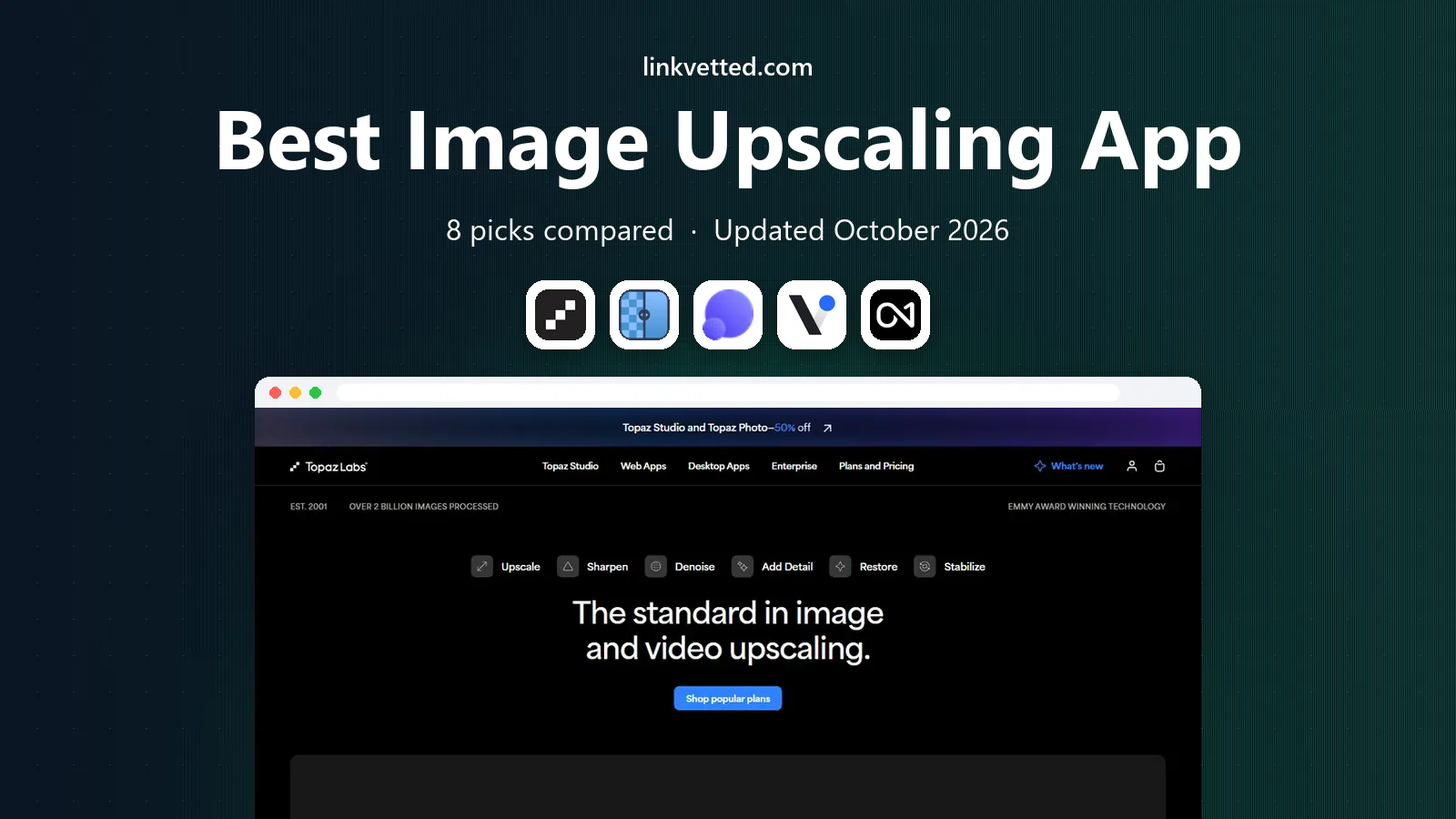
 Topaz Gigapixel
Professional photo enlargement
Starts at$29 per monthVisit topazlabs.comFull review - Great alternative
 Upscayl
Free local upscaling
Starts atFreeVisit upscayl.orgFull review - Also consider
 LetsEnhance
Web batch upscaling
Starts at$9 per monthVisit letsenhance.ioFull review
TL;DR:
- Topaz Gigapixel is the strongest desktop choice for photographers who need control over detail, noise and print size.
- Upscayl is the best free starting point, because it runs locally and costs nothing for basic upscaling.
- Web tools such as LetsEnhance and VanceAI suit quick jobs and batches, but check output detail closely before you publish.
- Upscaling cannot invent true detail that was never in the photo, so start with the best source file you have.
Quick comparison
| Tool | Best for | Starts at | Free plan? | |
|---|---|---|---|---|
| Topaz Gigapixel | Professional photo enlargement | $29 per month | Free trial | Visit |
| Upscayl | Free local upscaling | Free | Yes | Visit |
| LetsEnhance | Web batch upscaling | $9 per month | Yes | Visit |
 VanceAI | Flexible web and desktop upscaling | See website | Yes | Visit |
 ON1 Resize AI | Large format print resizing | See website | Free trial | Visit |
 Magnific | Creative enlargement for art and design | See website | Yes | Visit |
 HitPaw FotorPea | Desktop photo enhancement and upscaling | See website | Free trial | Visit |
 waifu2x | Free upscaling for anime and illustration | Free | Yes | Visit |
The best image upscaling app
These eight tools cover desktop, web and free options, for photos, prints, product images and illustration.

Topaz Gigapixel is the tool most photographers reach for when a print or a client file needs to be larger than the original allows. It offers several AI models for faces, natural detail, low resolution sources and generative recovery, so you can pick the model that fits the photo rather than using one setting for everything. Batch processing helps when a whole shoot needs the same treatment.
The price and hardware needs are the honest limits. Gigapixel runs best on a modern computer with a capable graphics card, and older machines will process slowly. Subscription pricing also means you should compare a year of payments with a one-off tool if you only upscale occasionally. For regular professional work, the control is worth it.
- Many AI models for different photo types
- Up to 6x enlargement in standard work
- Batch processing and local processing
- Needs a capable computer for fast results
- Subscription pricing adds up over time
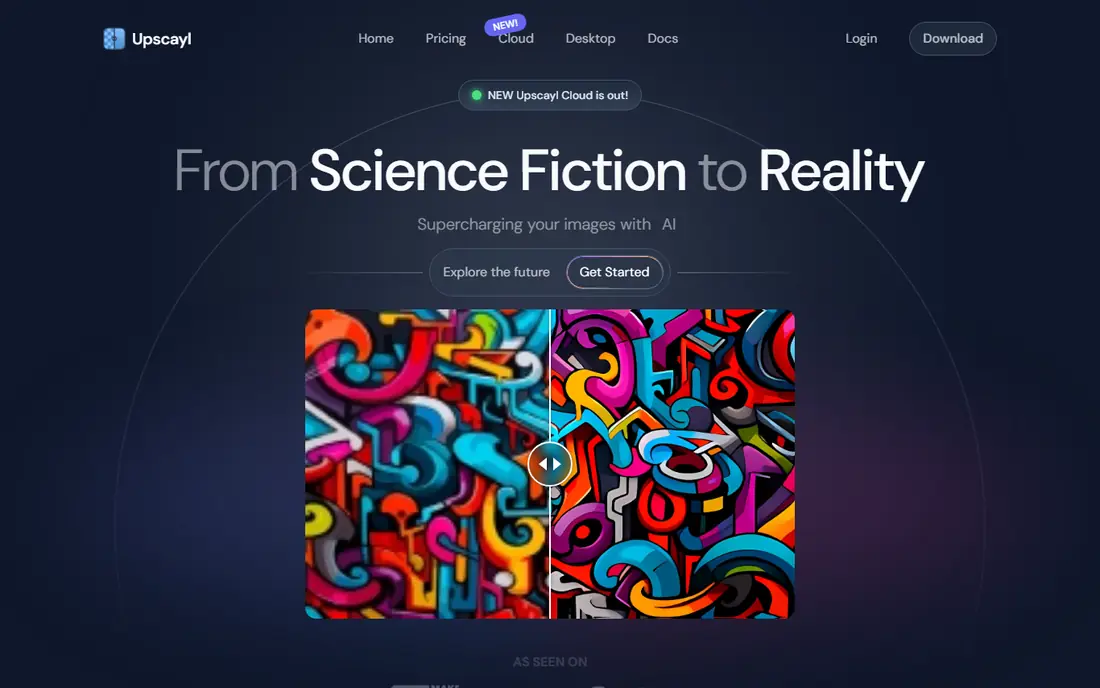
Upscayl is the best free answer for most people who need a larger image now. It runs on your computer, so photos do not need to be uploaded to a cloud service, and it offers several AI models for different image types. Batch work is possible on desktop, and the cost is zero, which makes it easy to test on your own photos.
It does not match Gigapixel for fine control or for difficult faces and textures, and model choice matters a lot to the result. Try two or three models on the same photo and compare at full size before you settle. For personal photos, archives and web use, Upscayl is a strong and private free pick.
- Free and open source desktop app
- Local processing keeps photos private
- Several models to choose from
- Interface is simpler than paid tools
- Results vary by model and source quality
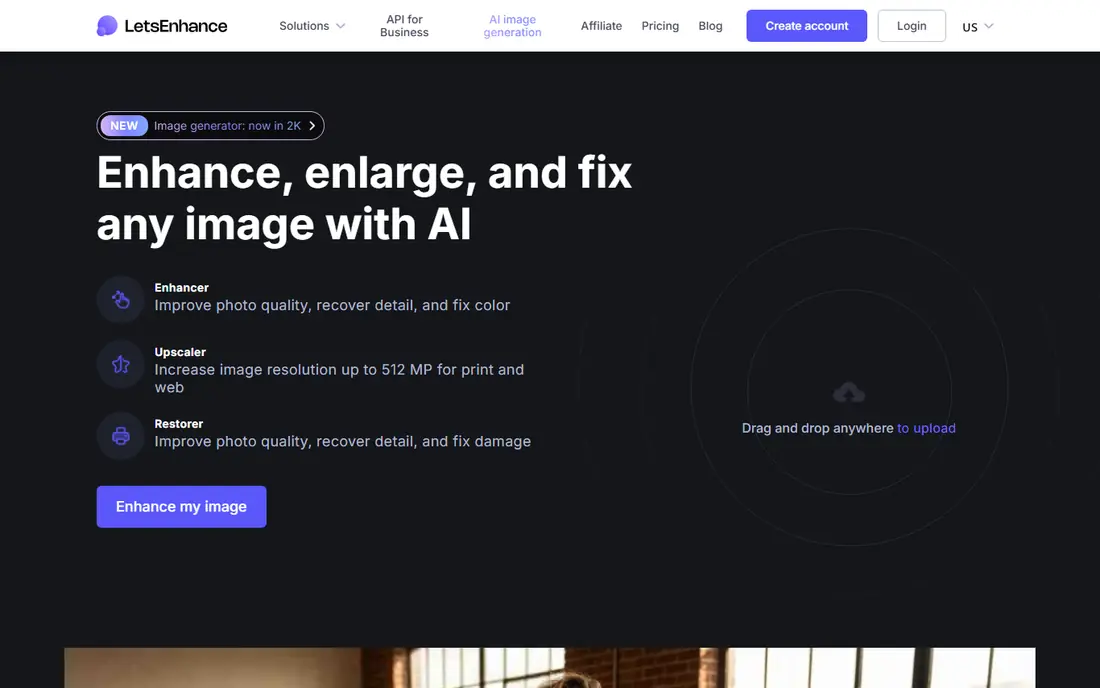
LetsEnhance suits teams that need to process many images through a browser, without installing desktop software. You upload images, choose enhancement settings, and download larger versions, with batch tools for catalogues and product photos. An API option helps stores and publishers automate the same work.
Cloud processing is both a benefit and a limit, since large or sensitive photos must be uploaded. Credit based pricing also needs care, because higher resolution and generative modes use more credits. Test with ten representative images first, and check text and packaging detail closely, since AI enhancement can change small lettering.
- Browser based, no install needed
- Batch processing for many images
- API for automated work
- Cloud processing means uploads leave your device
- Credit costs rise with large batches
VanceAI covers more than upscaling alone, with tools for sharpening, denoising, background removal and portrait work in the same account. That breadth helps when a photo needs several fixes before it is enlarged. Web plans offer 2x, 4x or 8x upscaling, while a desktop plan suits local batch work.
The split between web credits and desktop pricing can confuse a first purchase, so read the plan page for the exact product you want. Free credits are enough for a test, but not for a full catalogue. If you want one account for several photo fixes, VanceAI is a flexible middle option.
- Web and desktop options
- Several enhancement tools in one account
- Up to 8x on web plans
- Pricing is split across web credits and desktop plans
- Free credits are limited
ON1 Resize AI is built around the print question, which is how large can this photo go and still look good on a wall. It gives control over output size, resolution, sharpening and print framing, including tiling for very large prints and gallery wrap edges for canvas. Photographers who sell prints will value those specific controls more than a generic web upscaler.
It is less convenient for a quick social post or a hundred product thumbnails, where a web batch tool is faster. The print workflow also takes a session to learn, since resolution, viewing distance and paper type all affect the result. For large prints, ON1 Resize AI is a focused and practical choice.
- Print focused controls for size and framing
- Tiling and gallery wrap options
- Works as a plugin and standalone app
- Less suited to quick web batches
- Print workflow takes learning
Magnific is different from most tools here, because it can reinterpret an image while enlarging it, adding plausible texture and detail. That suits digital art, illustration and design work where a creative result matters more than strict accuracy. Creativity controls let you dial the effect up or down, and higher plans support very high resolutions.
That same strength is a warning for photos that must stay truthful. Generative enlargement can change faces, text and product details, so it is not the right tool for evidence, product listings or documentary photos without careful review. Use Magnific for creative work, and a conservative tool for factual photos.
- Generative enlargement for art and illustration
- Creativity controls for style
- Very high resolution options on higher plans
- Generative detail can change factual photo content
- Higher plans are costly
HitPaw FotorPea, formerly HitPaw Photo Enhancer, bundles upscaling with general photo enhancement on desktop. It includes tools for faces, old photos, denoising and colour, which helps when a low resolution photo also needs cleaning before enlargement. Batch support makes it useful for a folder of family photos or product shots.
The free tier watermarks output, so serious use needs a paid plan. Results also vary by source, with clean studio photos doing better than heavily compressed phone photos. For a desktop all-in-one enhancer with upscaling included, HitPaw is a convenient option.
- Desktop app with enhancement and upscaling in one place
- Face and old photo tools
- Batch support
- Free tier adds a watermark
- Some features need a paid plan
Waifu2x was built for anime, manga and illustration, and it still does that job better than general photo tools. It enlarges line art while reducing noise, which keeps edges cleaner than a simple resize. The web version needs no install, and open source versions let developers run it locally.
Realistic photos are not its strength, since the models were trained for drawn art. Web processing can also be slow at busy times, and file size limits apply. If your images are anime, comics or flat illustration, waifu2x is a free specialist that is hard to beat.
- Free and specialised for anime and line art
- Reduces noise while enlarging
- Web version needs no install
- Not suited to realistic photos
- Web limits and speed vary
How we picked these
We compared official product pages, pricing pages, documentation and public user reviews for image upscalers that are live and maintained in October 2026. We looked for desktop, web and free options, and we favoured tools with clear scale limits, batch support and honest free tiers. We did not claim hands-on testing, and we checked that each homepage listed here belongs to the product named.
We also separated conservative enlargement from generative enlargement, since they serve different needs. A tool that invents detail is useful for art, but risky for product photos and documents. The list above keeps that distinction clear, so you can choose based on whether accuracy or creativity matters more.
How to get a clean enlargement
Upscaling works best when you treat it as one step in a careful workflow, not as a magic fix for a tiny file.
Start with the best source you have
Use the original camera file, not a screenshot or a social media download, since compression removes detail that upscaling cannot recover. Check the file size, resolution and format before you start, and keep a copy of the original untouched. If you have a RAW file, develop it first, then upscale the developed file. A clean source gives every tool a better chance.
Compare models at full size
Run the same photo through two or three models or settings, and compare at 100 percent zoom, not in a small preview. Look closely at eyes, hair, text, edges and repeating textures, since those areas show invented detail first. Save the setting that looks most natural, not the one that looks sharpest at a glance, since over sharpening can look harsh in print.
Check the final use before you export
A web image, a product listing and a large print need different resolutions and file types. Export at the size your final use needs, with a little margin, rather than always choosing the maximum scale. Check the exported file on the device or paper it will be seen on, and keep the upscaled file separate from the original so you can redo it later with a better tool.
FAQ
What is the best image upscaling app for photos?
Topaz Gigapixel is our pick for serious photo work, because it offers several models, batch processing and local control. Upscayl is the best free alternative for personal photos and quick jobs. Choose Gigapixel when print quality and control matter, and Upscayl when cost and privacy matter more.
Can upscaling really add detail to a photo?
Upscaling can reconstruct plausible detail and sharpen edges, but it cannot recover true detail that was never recorded. AI models guess what detail should look like based on similar images, which works well for textures and less well for faces and text. Treat results as enhanced images, not as original high resolution photos.
Is there a free image upscaling app?
Yes, Upscayl is free and runs locally, and waifu2x is free for anime and illustration. LetsEnhance, VanceAI and Magnific also offer limited free credits or plans. Free options cover personal and small jobs well, while large batches and print work usually need a paid plan.
How large can I upscale an image?
Limits vary by tool, from 2x and 4x on many web tools, to 6x on Topaz Gigapixel in standard work, to higher scales on some generative plans. Larger scales do not always look better, since each step adds more guessed detail. Test 2x and 4x first, and only go higher when the result still looks natural at full size.
Should I upscale product photos with AI?
You can, but check text, logos, colours and small details closely before publishing, since AI tools can change them. Use a conservative tool for product photos, keep the original file, and avoid generative modes that invent detail. For listings, a faithful enlargement is more important than a dramatic one.
Do I need a powerful computer for upscaling?
Desktop tools such as Gigapixel and Upscayl run faster on a modern computer with a capable graphics card, but they still work on slower machines with longer processing times. Web tools avoid that need, since processing happens in the cloud, but they require uploads and an internet connection. Choose desktop for privacy and control, and web for speed on a basic computer.