Best HIPAA Cloud Backup Services in 2026: 8 Services Compared
Compare the best hipaa cloud backup services for clinics and practices, with BAAs, encryption, ransomware protection, retention and restore speed explained.

- Editor's choice
 IDrive Business
Small practices needing many devices
Starts atSee websiteVisit idrive.comFull review - Great alternative
 Backblaze Business Backup
Simple unlimited computer backup
Starts at$9 per computer per monthVisit backblaze.comFull review - Also consider
 Carbonite Safe
Small offices wanting set-and-forget backup
Starts atSee websiteVisit carbonite.comFull review
TL;DR:
- A signed Business Associate Agreement is essential, and encryption alone does not make a service HIPAA compliant.
- Ransomware protection and immutable or versioned copies matter as much as the first backup.
- Test a restore before you rely on a service, and check retention, support hours and egress costs.
- Per-device pricing can grow quickly, so price the full device count, not just one computer.
Quick comparison
| Tool | Best for | Starts at | Free plan? | |
|---|---|---|---|---|
| IDrive Business | Small practices needing many devices | See website | Free trial | Visit |
| Backblaze Business Backup | Simple unlimited computer backup | $9 per computer per month | Free trial | Visit |
| Carbonite Safe | Small offices wanting set-and-forget backup | See website | Free trial | Visit |
 Acronis Cyber Protect Cloud | Clinics needing backup plus malware protection | See website | Free trial | Visit |
 Veeam Data Cloud | Larger practices with virtual and cloud workloads | See website | Free trial | Visit |
 Datto SIRIS | Practices needing fast local and cloud recovery | See website | No | Visit |
 CrashPlan | Small teams needing unlimited endpoint backup | See website | Free trial | Visit |
 Druva | Growing practices with SaaS and endpoint data | See website | Free trial | Visit |
The best HIPAA cloud backup services
We compared backup services that offer a Business Associate Agreement, encryption in transit and at rest, and clear recovery options for healthcare teams. This is general information, not legal or medical advice, and your compliance team should confirm the agreement for your use.
IDrive Business is a strong match for small practices needing many devices. Its main draw is broad coverage across computers, servers and cloud accounts, which matters when a backup has to work without constant attention. We compared its official feature and pricing pages, and the plan structure is clear about what is included at the entry level and what costs extra. For a small team, that clarity helps when you are budgeting for the year ahead.
The honest catch is in the details. Check storage limits, retention periods and support hours before you commit, because those three items decide how useful a backup is during a real incident. Also test a restore early, while the stakes are low, so you learn the steps before you need them under pressure. A service that restores cleanly in a test is far more valuable than one with a longer feature list.
- BAA available
- Broad device coverage
- Version history
- Pricing varies by plan
- Setup takes care with large data sets

For teams that need simple unlimited computer backup, Backblaze Business Backup deserves a close look. The standout point is unlimited backup for each licensed computer, and it pairs with a setup flow that most administrators can complete without a specialist. We checked its public documentation and pricing page to confirm the current offer. The result is a service that suits steady, day-to-day protection rather than a one-off archive.
The trade-off to weigh is fit against cost. A cheaper plan can look attractive until you add the storage, seats or retention you actually need, so price the full setup, not just the headline rate. Also confirm who can access backups and how access is logged. Those controls matter for audits, and they are easy to overlook when you are focused on speed alone.
- Simple setup
- Unlimited backup for one computer
- BAA on business plans
- Per-computer pricing adds up
- Server backup is a separate product
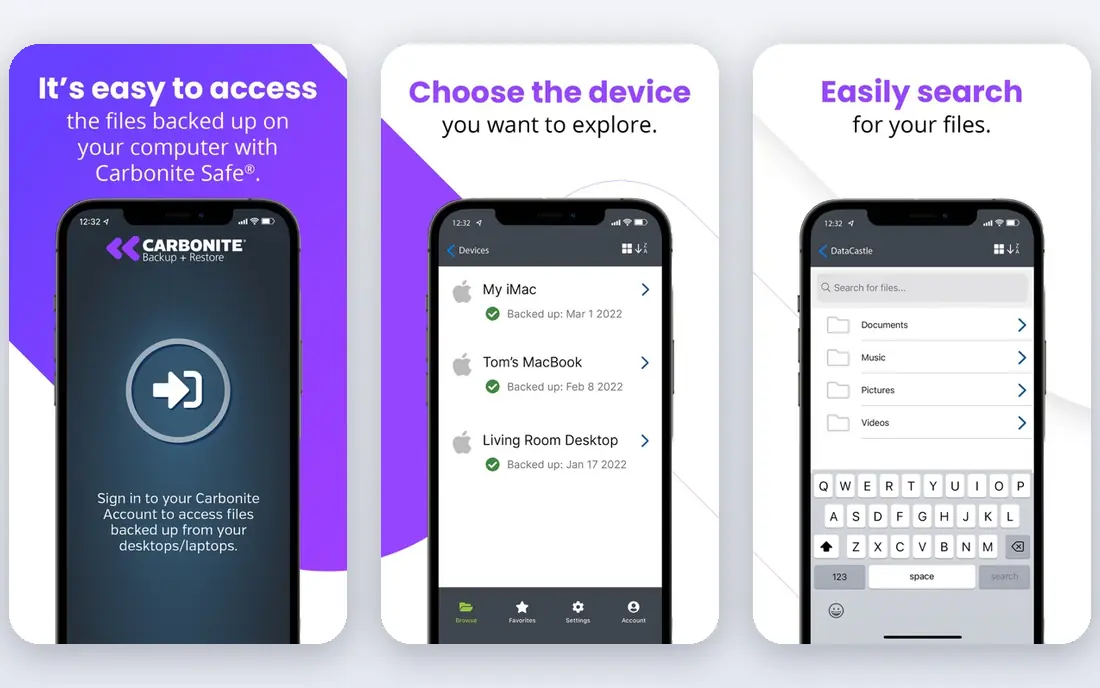
Teams focused on small offices wanting set-and-forget backup will find Carbonite Safe practical rather than flashy. The key point is automatic, continuous backup for office computers, which covers the everyday risks that cause most restore requests. Its documentation explains retention, recovery and account controls in plain terms. That makes it easier to explain the choice to colleagues who do not manage backups every day.
Before you buy, run a small trial on one machine or one data set. Watch how long the first backup takes, how it handles a changed file, and how clear the restore screen is. That short test reveals more than a sales page can. It also shows whether support answers quickly when a question comes up during setup.
- Automatic backup
- Clear recovery options
- Business plans with BAA support
- Advanced controls are limited
- Large restores need planning
Acronis Cyber Protect Cloud
Best for: Clinics needing backup plus malware protection
If clinics needing backup plus malware protection is your main need, Acronis Cyber Protect Cloud is worth shortlisting. It leads with combined backup and cyber protection for endpoints and servers, and the surrounding features support that core job instead of distracting from it. We reviewed its official pages for current pricing and plan limits. The service feels built for regular use, with controls that a busy administrator can actually keep up with.
The main weakness is usually scope, not quality. No single backup covers every system perfectly, so list your must-protect items first, then match them against the plan. If a key system needs a separate add-on, factor that into the total cost. A clear match on your top three systems beats a broad promise that fits none of them well.
- Backup plus anti-malware in one console
- Flexible recovery
- BAA available
- Pricing is quote based for many partners
- Console has a learning curve
Veeam Data Cloud is a strong match for larger practices with virtual and cloud workloads. Its main draw is fast recovery for virtual machines and cloud workloads, which matters when a backup has to work without constant attention. We compared its official feature and pricing pages, and the plan structure is clear about what is included at the entry level and what costs extra. For a small team, that clarity helps when you are budgeting for the year ahead.
The honest catch is in the details. Check storage limits, retention periods and support hours before you commit, because those three items decide how useful a backup is during a real incident. Also test a restore early, while the stakes are low, so you learn the steps before you need them under pressure. A service that restores cleanly in a test is far more valuable than one with a longer feature list.
- Strong recovery for virtual machines
- Broad platform support
- Detailed retention controls
- Best suited to teams with IT support
- Pricing needs a quote
For teams that need practices needing fast local and cloud recovery, Datto SIRIS deserves a close look. The standout point is local and cloud copies that allow fast restores after an incident, and it pairs with a setup flow that most administrators can complete without a specialist. We checked its public documentation and pricing page to confirm the current offer. The result is a service that suits steady, day-to-day protection rather than a one-off archive.
The trade-off to weigh is fit against cost. A cheaper plan can look attractive until you add the storage, seats or retention you actually need, so price the full setup, not just the headline rate. Also confirm who can access backups and how access is logged. Those controls matter for audits, and they are easy to overlook when you are focused on speed alone.
- Local plus cloud copies
- Rapid restore options
- Managed through partners
- Sold mainly through IT providers
- Pricing is not published
Teams focused on small teams needing unlimited endpoint backup will find CrashPlan practical rather than flashy. The key point is unlimited backup for laptops and desktops across a team, which covers the everyday risks that cause most restore requests. Its documentation explains retention, recovery and account controls in plain terms. That makes it easier to explain the choice to colleagues who do not manage backups every day.
Before you buy, run a small trial on one machine or one data set. Watch how long the first backup takes, how it handles a changed file, and how clear the restore screen is. That short test reveals more than a sales page can. It also shows whether support answers quickly when a question comes up during setup.
- Unlimited backup for covered devices
- Simple admin console
- BAA available
- Server coverage is limited compared with enterprise tools
- Restore speed varies
If growing practices with saas and endpoint data is your main need, Druva is worth shortlisting. It leads with cloud-native backup that covers endpoints and common SaaS apps, and the surrounding features support that core job instead of distracting from it. We reviewed its official pages for current pricing and plan limits. The service feels built for regular use, with controls that a busy administrator can actually keep up with.
The main weakness is usually scope, not quality. No single backup covers every system perfectly, so list your must-protect items first, then match them against the plan. If a key system needs a separate add-on, factor that into the total cost. A clear match on your top three systems beats a broad promise that fits none of them well.
- Cloud-native backup for endpoints and SaaS apps
- Central management
- Compliance controls
- Pricing is quote based
- Smaller teams may need help at setup
How we picked these
We started with services that clearly fit HIPAA cloud backup and are still offered today. We compared official feature pages, pricing pages and support documentation, and we set aside services with unclear pricing, missing security details or a poor fit for the topic. For healthcare use, we gave extra weight to a signed BAA, access controls, audit logs and retention options. We also checked for honest limits, because a backup, security tool or service that hides its limits creates risk later. The final list mixes widely used names with smaller options that do a specific job well.
Choosing a HIPAA backup that survives a real incident
Get the BAA in writing first
Ask for the Business Associate Agreement before you pay, and confirm which products and data types it covers. A general privacy page is not a substitute. Also confirm encryption, access controls and audit logs, and keep a copy of the agreement with your compliance records.
Plan the restore, not just the backup
Decide how quickly you must recover, which systems come first, and who can start a restore. A service with version history helps after ransomware or accidental deletion. Test a file restore and a larger folder restore, and write down the steps so a second person can follow them.
Watch total cost and retention
Check per-device or per-user pricing, storage limits, retention length and any charges for large downloads. A longer retention period can help with audits, but it also increases storage. Match retention to your policy, then check the renewal price, not only the first-year offer.
FAQ
What makes a cloud backup HIPAA compliant?
A service needs a signed Business Associate Agreement, safeguards for electronic protected health information, encryption, access controls and audit records. The customer also has duties, such as managing user access and keeping devices secure. Compliance depends on both sides, not on the vendor alone.
Do I need a BAA for every backup tool I use?
Yes, you need a BAA from any vendor that stores, processes or can access protected health information on your behalf. If a tool touches patient data, even as a backup copy, it should be covered. Check the agreement scope before you upload data.
How often should backups run?
Continuous or daily backups suit most clinics, because patient records change every working day. Continuous backup reduces the gap after an incident. Also keep version history, so a corrupted or encrypted file does not replace your only good copy.
What is the difference between backup and storage?
Storage holds current files you work with, while backup keeps separate copies you can restore after loss, damage or attack. A sync folder alone is not a backup, because a deleted or encrypted file can sync to every device. Use a dedicated backup with version history.
How do I test a backup?
Pick a few files and a folder, restore them to a test location, and check that they open correctly. Record how long it took and any steps that were unclear. Repeat the test after major changes, and keep the results with your incident plan.