Best Green Screen App in 2026: 9 Apps Compared
Compare the best green screen app and chroma key software, from OBS Studio and DaVinci Resolve to Filmora, Kapwing and PowerDirector for creators today.
- Editor's choice
 OBS Studio
Free live green screen
Starts atFreeVisit obsproject.comFull review - Great alternative
 DaVinci Resolve
Professional free editing
Starts atFreeVisit blackmagicdesign.comFull review - Also consider
 Filmora
Easy creator editing
Starts at$9.99 per monthVisit filmora.wondershare.comFull review
TL;DR:
- OBS Studio is the best free green screen app for live streaming and recording, with no watermark and no cost.
- DaVinci Resolve gives professional chroma key quality for free, with a paid Studio version for advanced work.
- Filmora and PowerDirector suit creators who want easy chroma key plus templates and effects.
- Premiere Pro and Camtasia suit teams that need green screen inside a wider editing or training workflow.
- Kapwing and XSplit VCam suit quick browser or webcam work without installing a full editor.
Quick comparison
| Tool | Best for | Starts at | Free plan? | |
|---|---|---|---|---|
| OBS Studio | Free live green screen | Free | Yes | Visit |
| DaVinci Resolve | Professional free editing | Free | Yes | Visit |
| Filmora | Easy creator editing | $9.99 per month | Free trial | Visit |
 Adobe Premiere Pro | Professional team editing | See website | Free trial | Visit |
 PowerDirector | Fast Windows editing | $59.99 per year | Yes | Visit |
 Camtasia | Training videos | $179.88 per year | Free trial | Visit |
 Kapwing | Quick browser editing | Free | Yes | Visit |
 XSplit VCam | Webcam background removal | See website | Free trial | Visit |
 Shotcut | Free open source editing | Free | Yes | Visit |
The best green screen app
Green screen, or chroma key, removes a solid colour background so you can replace it with another scene. The best tool depends on whether you stream live, edit recorded video or just need a clean webcam background for calls.
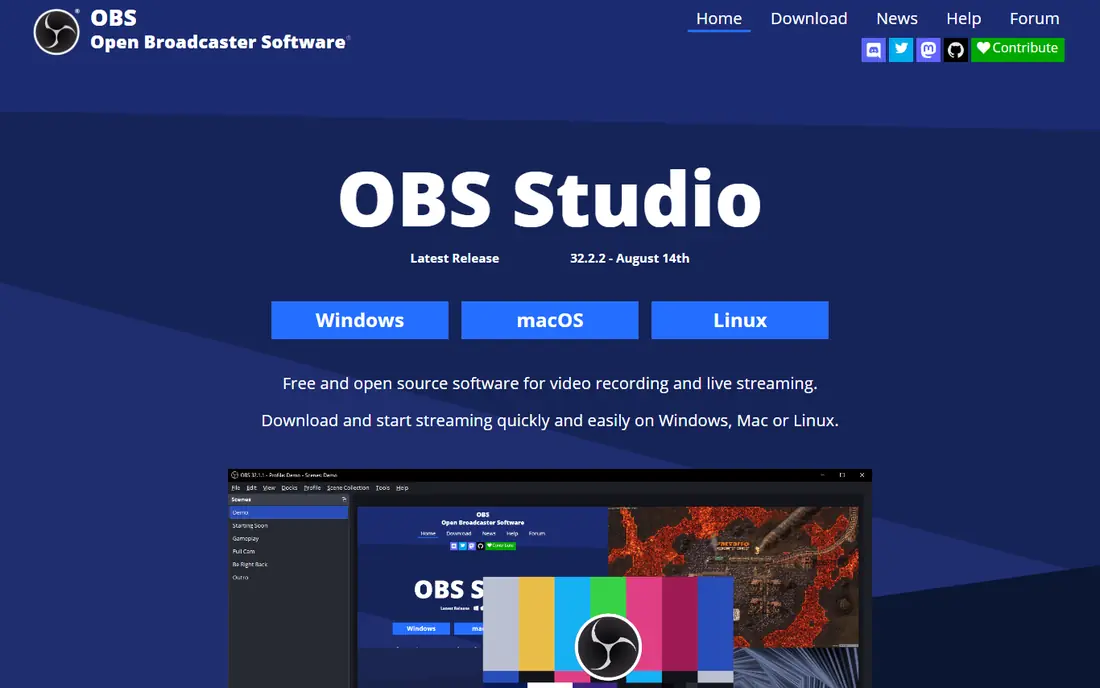
OBS Studio is our pick for live green screen work at zero cost. Add a video source, apply the chroma key filter, adjust similarity and smoothness, and your background disappears in real time for Twitch, YouTube or recorded video. It also handles multiple cameras, scenes and overlays.
OBS does not edit video after recording, so pair it with an editor such as DaVinci Resolve or Shotcut for polished clips. The learning curve is real, but tutorials are plentiful. For streamers and creators on a budget, OBS is the clear starting point.
- Completely free and open source
- Live chroma key filters
- No watermark
- No built-in video editor
- Setup takes more learning than template apps
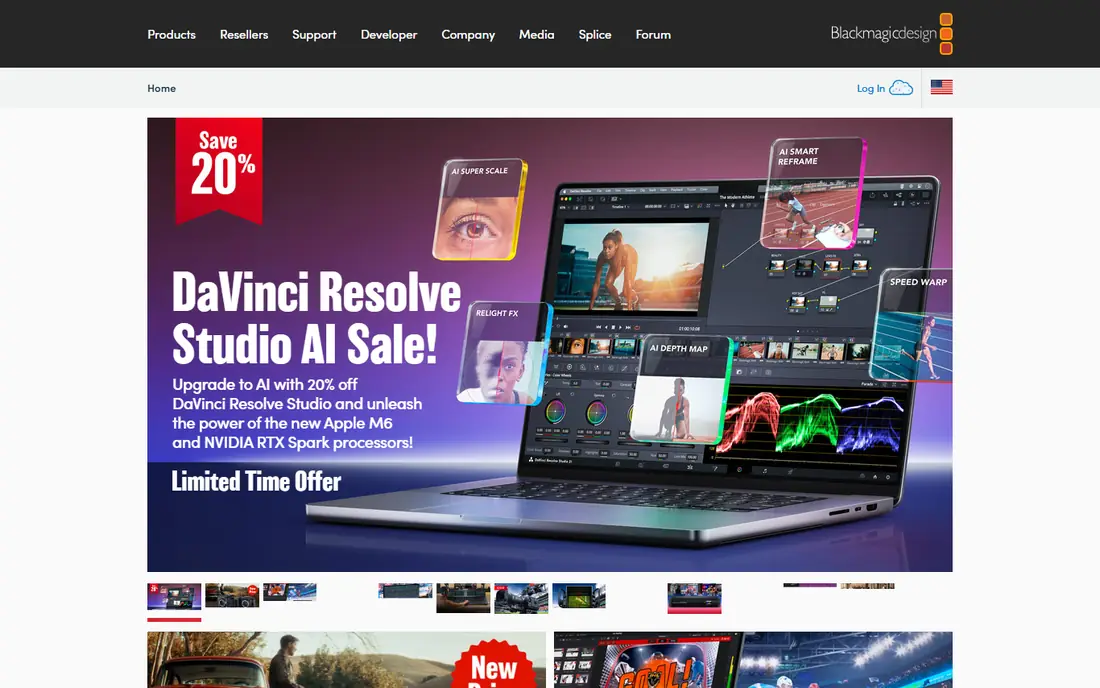
DaVinci Resolve offers professional-grade chroma key in its free version. Its 3D keyer, spill suppression and edge controls help with uneven lighting, which is where cheap green screen tools fail. Colour grading and Fusion compositing let you match the subject to a new background convincingly.
The free version covers most creator needs, while Studio at $295 one-time adds advanced effects and collaboration. DaVinci needs a decent computer, especially for 4K work. If you want the best free edited green screen result and are willing to learn, start here.
- Strong free chroma key tools
- Professional colour and Fusion effects
- Studio version is $295 one-time
- Needs a capable computer
- Interface can overwhelm beginners
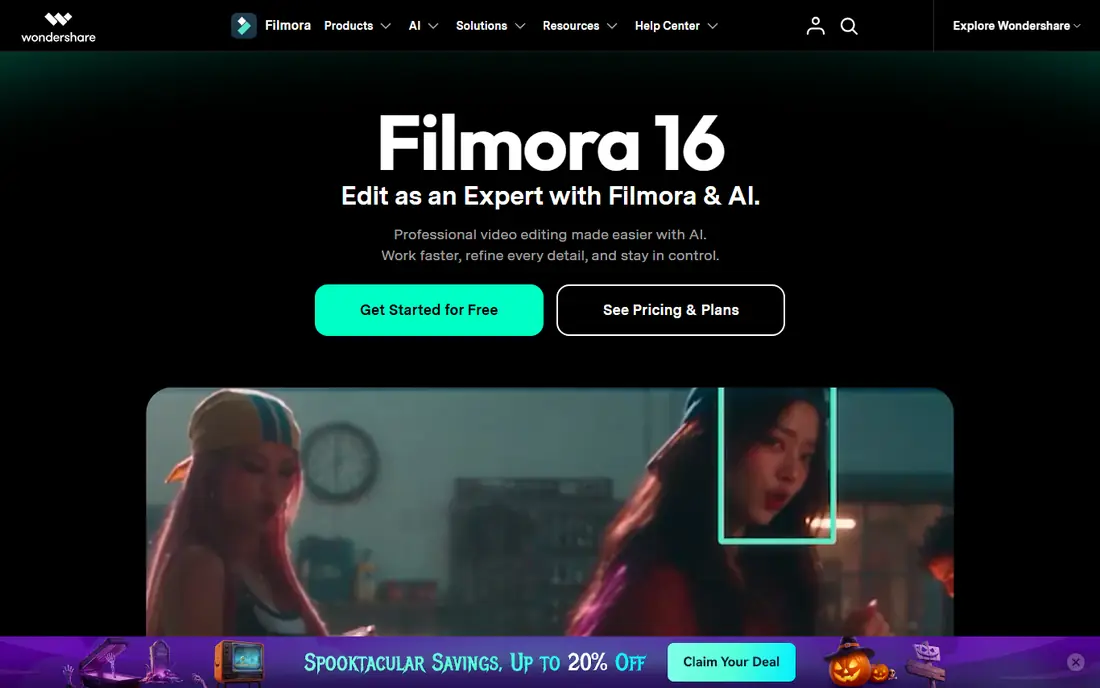
Filmora makes green screen editing approachable. Drag a clip onto the timeline, turn on chroma key, pick the green colour and adjust tolerance until the background clears. AI masking helps when lighting is imperfect, and templates speed up social videos.
Pricing starts at $9.99 per month in recent comparisons, with annual and perpetual options also available. Free trial exports carry a watermark, so budget for a paid plan if you publish regularly. For creators who want speed over deep compositing control, Filmora is a friendly pick.
- Simple chroma key controls
- AI masking and effects
- Large template and asset library
- Free exports carry a watermark
- Some AI features need credits or higher plans
Premiere Pro uses Ultra Key, a well-regarded chroma key effect with spill suppression, matte cleanup and edge controls. It fits teams that already use Creative Cloud, since projects can move to After Effects for complex composites and to Audition for audio work. Client compatibility is another plus, since many editors know Premiere.
Pricing is subscription-based and shown as See website here, with a 7-day free trial. Beginners may find DaVinci Resolve or Filmora easier, but professionals who need team workflows and After Effects integration will find Premiere hard to replace.
- Ultra Key for refined chroma key
- Strong integration with After Effects
- Widely used by professionals
- Subscription pricing
- Needs a capable computer and some learning
PowerDirector suits Windows creators who want fast, feature-packed editing. Its chroma key designer lets you pick a colour, adjust tolerance and clean edges, while templates and effects help with social and marketing videos. Rendering speed is a real strength on mid-range computers.
PowerDirector 365 costs $59.99 per year in recent comparisons, with a perpetual version also available. A limited free version lets you test the workflow. If you edit on Windows and want a balance of speed and features, PowerDirector is a solid mid-priced choice.
- Fast rendering
- Easy chroma key designer
- Good template and effect library
- Some features are Windows-focused
- Free version is limited
Camtasia is built for training, tutorials and software demos. Record your screen and webcam together, remove a green screen background, and place yourself over slides or software. Annotations, callouts and quizzes help for education and onboarding videos.
Essentials pricing is $179.88 per year billed yearly in recent comparisons, with a free trial available. That cost is high if you only need occasional green screen work, but it makes sense for teams that produce training videos regularly. For polished tutorials, Camtasia saves time over a general editor.
- All-in-one recording and editing
- Easy green screen removal for presenters
- Good annotation tools
- Annual subscription cost
- Not a full professional film editor
Kapwing lets you remove a green screen background in a browser, which helps on shared or low-storage computers. Upload a clip, use the background removal tool, add a new background and export a short video for social platforms. Collaboration features help small teams review edits.
Free exports may carry a watermark, and longer or high-resolution projects usually need a paid plan. Kapwing is best for quick clips, not for long professional films. If you need a fast browser tool for a single green screen clip, it is a practical choice.
- Works in a browser with no install
- Simple background remover
- Good for short social clips
- Free exports may carry a watermark
- Processing depends on internet speed
XSplit VCam uses AI to remove or replace your webcam background, even without a physical green screen. It works with Zoom, Teams, OBS and streaming apps, so presenters can look clean on calls and streams. Setup takes minutes, and background images or blur options are easy to switch.
VCam is not a video editor, so use it for live calls and streams, then edit recorded footage elsewhere if needed. Pricing is shown as See website, with a free trial available. For remote workers and streamers who want a clean webcam without buying fabric and lights, VCam is a neat solution.
- Removes webcam background without a physical green screen
- Works with calls and streams
- Easy setup
- Best for webcam use, not full video editing
- Some features need a paid plan
Shotcut is a free, open source editor with chroma key filters for recorded video. It handles common formats, offers timeline editing and exports without a watermark. For creators who want a free editor with no subscription, Shotcut is a dependable option.
Its interface feels more technical than Filmora, and it lacks the template library of paid editors. Green screen results depend on good lighting, as with any tool, so light your screen evenly and keep distance between subject and background. If budget is zero and you edit recorded video, Shotcut pairs well with OBS for capture.
- Completely free and open source
- Chroma key filters included
- No watermark
- Interface feels less polished
- Fewer templates than Filmora or PowerDirector
How we picked these
We compared official product pages, pricing pages and chroma key documentation for green screen software in 2026. We favoured tools with a working chroma key or background removal feature, a current free plan or trial, and outputs suitable for streaming or edited video. We excluded apps that only offer photo background removal and tools with no current support. We did not claim hands-on testing; this comparison rests on vendor pages, help docs and public reviews.
How to get a clean green screen result
Lighting matters more than software. Light the green screen evenly, keep the subject at least a metre from the screen, and avoid shadows and wrinkles. Use a separate light for the subject so their edges stay clean. A well-lit cheap screen often beats a poorly lit expensive one.
Settings and background choice
In your editor, pick the exact green shade, then adjust tolerance slowly until the background clears without eating into hair or clothing. Use spill suppression to remove green reflections on skin and clothes, and soften edges only slightly to avoid a fuzzy outline. Choose a background that matches the lighting and camera angle of your subject, or the composite will look pasted on even with a perfect key.
FAQ
What is the best green screen app?
OBS Studio is the best free app for live green screen work, while DaVinci Resolve is the best free app for edited video. Filmora suits creators who want easy editing, and Premiere Pro suits professional teams. The best green screen app depends on whether you stream live or edit recorded video.
What is the best green screen software for beginners?
Filmora and Kapwing are easy starting points for beginners, with simple chroma key controls. OBS Studio is free for live use but needs more setup. Start with even lighting and a simple background, then move to DaVinci Resolve when you want more control.
Do I need a physical green screen?
For recorded video editing, a physical green screen gives the cleanest key. For webcam calls, tools such as XSplit VCam can remove backgrounds with AI and no fabric. A physical screen still gives better edge quality for professional video, especially with hair and movement.
Can I use green screen on my phone?
Yes, many mobile editors include chroma key or background removal, including Filmora mobile and CapCut. Phone results work best for short social clips with good lighting. For longer or higher-quality work, desktop editors such as DaVinci Resolve give more control.
Why does my green screen look bad?
Uneven lighting, shadows, wrinkles and a subject standing too close to the screen are common causes. Green spill on skin, low resolution and fast movement can also harm the key. Fix lighting first, increase distance from the screen, then adjust tolerance and spill settings in your editor.
Is OBS Studio really free for green screen?
Yes. OBS Studio is free and open source, with chroma key filters included and no watermark. It is designed for live streaming and recording, not for timeline editing, so pair it with a free editor such as DaVinci Resolve or Shotcut for edited videos.