Best Graphic Design Tools for Beginners in 2026: 8 Tools Compared
Find the best graphic design tools for beginners, from free editors to template platforms, with pricing, strengths and honest limits in one guide in 2026.
- Editor's choice
 Canva
All-round beginner design
Starts atSee websiteVisit canva.comFull review - Great alternative
 Adobe Express
Quick branded content
Starts at$9.99 per monthVisit adobe.comFull review - Also consider
 Figma
Learning interface design
Starts atSee websiteVisit figma.comFull review
TL;DR:
- Canva is our pick for most beginners thanks to its template library and gentle learning curve.
- Adobe Express suits people already in the Adobe world who want strong fonts and AI images.
- GIMP and Inkscape are fully free, but they take longer to learn than template tools.
- Pixlr and Snappa are good low-cost options for quick photo edits and social graphics.
- Start free, then pay only when you need brand kits, background removal or premium stock.
Quick comparison
| Tool | Best for | Starts at | Free plan? | |
|---|---|---|---|---|
| Canva | All-round beginner design | See website | Yes | Visit |
| Adobe Express | Quick branded content | $9.99 per month | Yes | Visit |
| Figma | Learning interface design | See website | Yes | Visit |
 VistaCreate | Affordable template design | See website | Yes | Visit |
 Snappa | Fast social graphics | See website | Yes | Visit |
 Pixlr | Browser photo editing | See website | Yes | Visit |
 GIMP | Free photo editing | Free | Yes | Visit |
 Inkscape | Free vector illustration | Free | Yes | Visit |
The best graphic design tools for beginners
We compared official pricing pages, template libraries, editing features and ease of use. Our pick for most people is Canva, while Adobe Express is the best alternative for Adobe users.
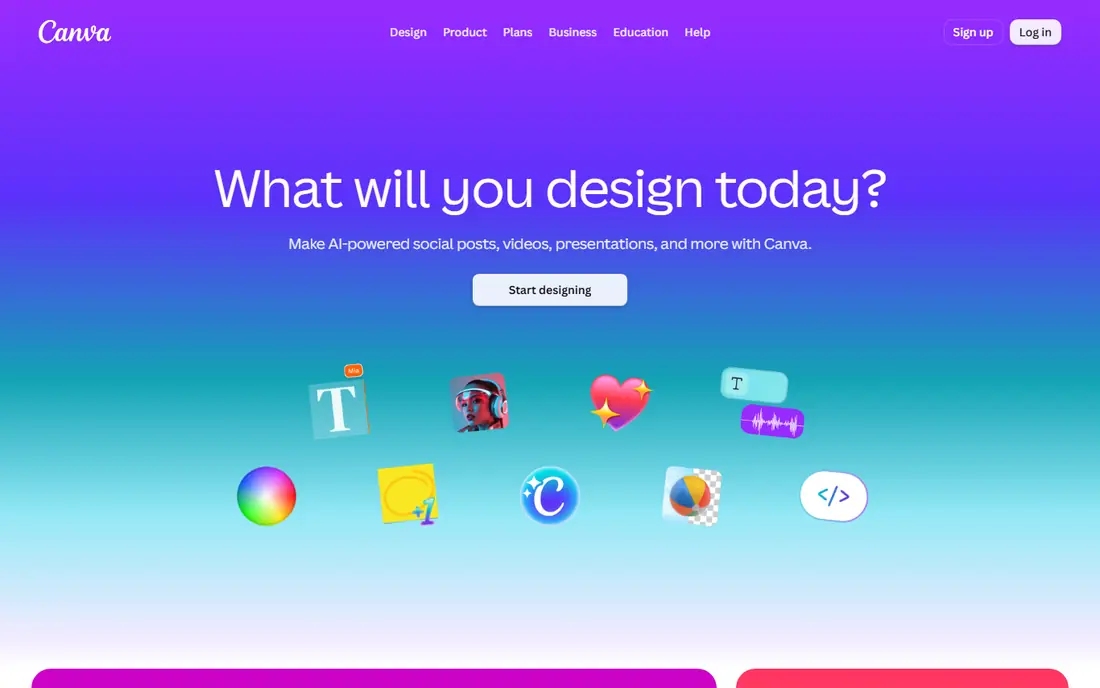
Canva is the easiest place to start. You pick a template, change the text and images, and export a design that looks polished. It covers social posts, presentations, posters, resumes and short videos, so one account can handle most everyday design jobs.
The free plan includes the editor, many templates and basic storage, which is enough for real work. Paid plans add background remover, resize tools, brand kits and a larger stock library. The main limit is control: if you later need precise print layout or detailed type settings, a professional tool will feel more capable.
- Huge template library
- Drag-and-drop editor
- Presentations, social posts and print in one place
- Best AI and brand features need a paid plan
- Fine typographic control is limited
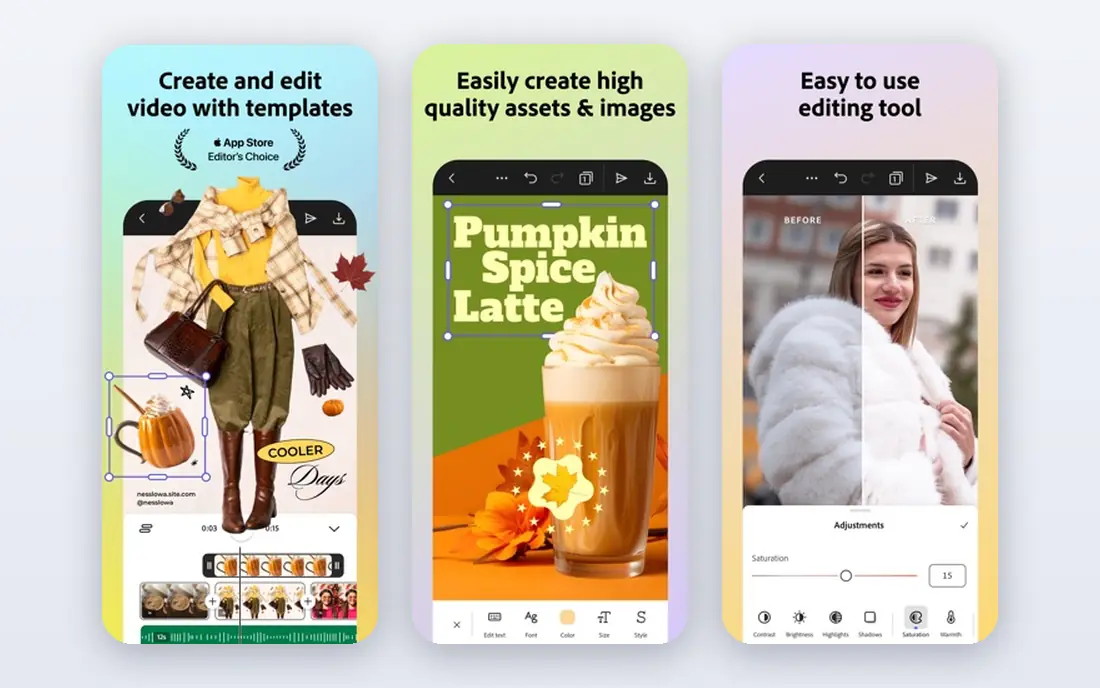
Adobe Express is a strong choice for quick, on-brand content. It offers templates for social posts, flyers and videos, plus tools for resizing designs for different channels. The Firefly AI image tool is a highlight, since it is trained on licensed content and produces clean, usable images.
The free plan is genuinely useful, with templates and background removal included. Paid plans add premium templates, Adobe Stock assets and fuller brand controls. People who already use Photoshop or Illustrator will appreciate the shared fonts and assets, while absolute beginners may find Canva a little friendlier at first.
- Adobe Fonts and Firefly AI images
- Free background removal on the free plan
- Brand kits on paid plans
- Template library is smaller than Canva
- Interface has more panels for pure beginners
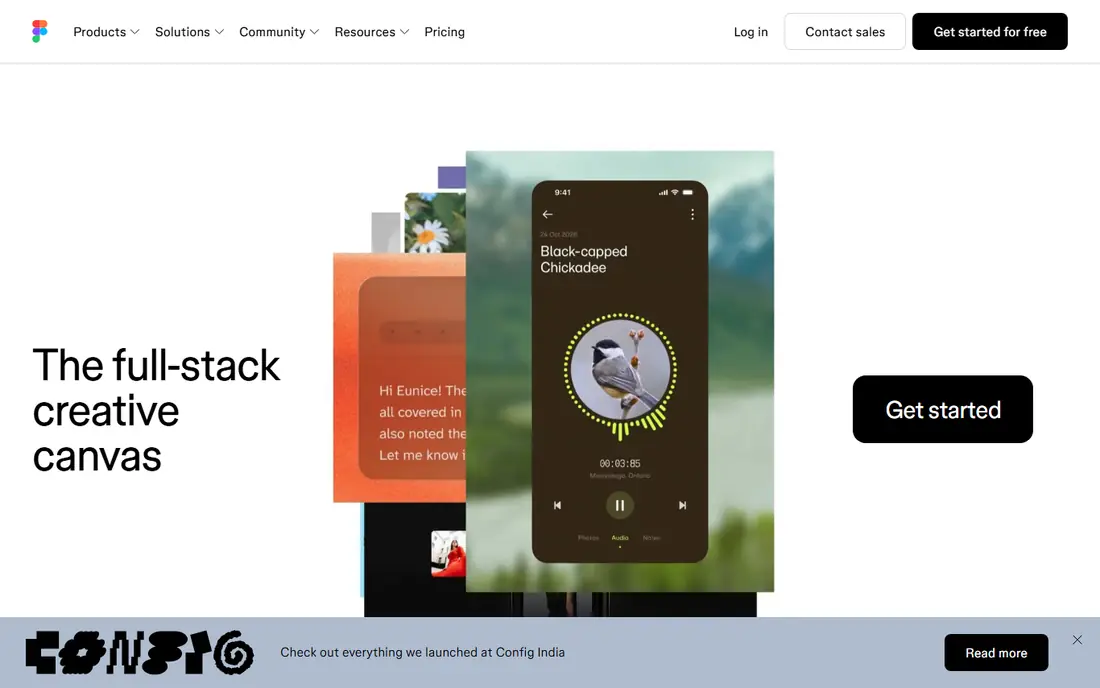
Figma is best known for app and website design, but it is also a good learning tool for beginners who want design skills that transfer to jobs. You can build screens, wireframes and prototypes, then share a link for feedback. Real-time collaboration means a teacher, client or teammate can comment directly on the design.
The free plan supports personal projects and small teams, which is enough to learn the basics. Community files offer ready-made layouts, icons and UI kits to study and adapt. Figma is less suited to posters or print work, so pair it with Canva or Adobe Express if you need both.
- Free starter plan for personal projects
- Strong collaboration in real time
- Large community template library
- Focused on screens, not print
- Paid plans are priced per editor
VistaCreate works much like Canva, with templates for social posts, ads and print. The editor is simple, with drag-and-drop text, photos and shapes, and the learning curve is short. For a small business that mainly needs social graphics, it covers the core job well.
Pricing is one reason to consider it, since paid plans are often cheaper than larger rivals. The trade-off is breadth: fewer integrations, fewer advanced video tools and a smaller community. If you want the lowest-cost template tool that still feels polished, VistaCreate deserves a trial.
- Large template library at a lower price point
- Brand kit and background remover on paid plans
- Simple editor
- Smaller app ecosystem than Canva
- Fewer video and presentation features
Snappa is built for speed. You choose a size for a blog header or social post, pick a template or stock photo, add text, and export. There are fewer choices than in Canva, and that is the point: you finish a graphic in minutes instead of browsing for an hour.
The free plan is useful for occasional use, though it limits monthly downloads. Paid plans remove that limit and add team sharing and more templates. Snappa suits bloggers, small teams and anyone who makes a few graphics a week and values a short workflow over a huge library.
- Very fast for blog and social images
- Built-in stock photos
- Simple sizing for each channel
- Free plan limits downloads per month
- Fewer templates than Canva or VistaCreate
Pixlr is a browser-based photo editor with two modes: a quick editor for fast fixes and a more advanced editor with layers. You can crop, adjust color, remove backgrounds and add text without installing software. That makes it handy on shared computers or Chromebooks.
Beginners should start with the quick editor, then move to layers only when a project needs them. The free plan covers many tasks, though ads and some AI tools sit behind paid plans. For photo-first work, Pixlr is a better fit than a template-only tool.
- Runs fully in the browser
- Photo editing plus simple design tools
- Low starting price on paid plans
- Ads on the free plan
- Interface can feel crowded for new users
GIMP is the classic free alternative to Photoshop. It offers layers, masks, brushes, color tools and photo retouching, all without a subscription. For a beginner on a tight budget who wants real editing power, there is no better free option for photos.
The catch is time. Menus are dense, and basic tasks take longer to learn than in Canva or Pixlr. Plenty of free tutorials cover the essentials, and once you learn layers and masks, GIMP can handle serious photo work. Choose it when you want skill growth and zero cost, not when you need a poster in ten minutes.
- Completely free and open source
- Powerful layers, masks and retouching
- Large plugin community
- Steeper learning curve
- Interface feels dated next to modern editors
Inkscape is the free choice for vector work, which means logos, icons and illustrations that stay sharp at any size. You draw with shapes and paths, adjust nodes, and export SVG files that work on the web or in print. For a beginner who wants to design a logo, it is a far better fit than a photo editor.
Vector drawing takes practice, especially the pen tool and path editing. Tutorials help, and the community offers templates and extensions. Inkscape pairs well with GIMP: use Inkscape for logos and illustrations, and GIMP for photos, and you have a complete free design setup.
- Completely free and open source
- True vector drawing for logos and icons
- Exports clean SVG files
- Learning curve for Bezier curves and paths
- Not a photo editor
How we picked these
We compared official pricing pages, template counts, editing features and beginner guides for tools that are still actively developed in October 2026. We favored tools with a free plan or free version, a clear beginner path, and exports that work for social, web or print. We left out professional-only tools with no beginner pricing or learning support.
Choosing your first design tool
Match the tool to the job you do most. For social posts and presentations, start with Canva or Adobe Express. For logos and illustrations, start with Inkscape. For photo edits, start with Pixlr or GIMP. Trying two tools for a week each will tell you more than any feature list, since ease of use is personal.
Watch the paid upgrade triggers. Brand kits, background removal, premium stock and team sharing are the usual reasons to pay. Before you upgrade, check whether the free plan already covers your weekly work. Many beginners pay for features they use once a month, when the free plan would have been enough.
A simple learning path
Start with templates to build confidence, then learn one new skill at a time, such as layers, color or type pairing. Save brand colors and fonts in one place once you pick them, so later designs stay consistent. Export at the right size for each channel, and keep original files so you can edit a design later instead of starting over.
FAQ
What is the easiest graphic design tool for beginners?
Canva is the easiest for most beginners, thanks to its templates and drag-and-drop editor. Adobe Express is close behind, especially for people who already use Adobe products. If you only need a few social graphics a week, Snappa can be even faster.
Can I design for free as a beginner?
Yes. Canva, Adobe Express, Pixlr, GIMP and Inkscape all offer free plans or free versions. Free plans limit premium templates, stock assets and some AI tools, but they cover most starter projects. Upgrade only when a paid feature becomes part of your regular workflow.
Do I need Photoshop to learn graphic design?
No, you do not need Photoshop to start. Template tools and free editors teach layout, color and type, which are the core skills. Photoshop becomes useful later for advanced photo work or print jobs, and the skills you learn in free tools will transfer.
What is the difference between raster and vector design?
Raster images are made of pixels, so they lose sharpness when enlarged, which is how photos work. Vector images are made of paths, so they stay sharp at any size, which is how logos and icons work. Use GIMP or Pixlr for photos, and Inkscape for logos.
Which tool is best for social media graphics?
Canva is our pick for social media, with sizes for each channel and a large template library. Adobe Express and VistaCreate are strong alternatives, while Snappa is best when you want the fastest path to a finished post.