Best Free Video Editing Software With AI Features in 2026: 8 Editors Compared
Compare the best free video editing software with ai features for captions, cuts, and effects, with free plans and limits in this 2026 guide for creators.
- Editor's choice
 DaVinci Resolve
Professional editing for free
Starts atFreeVisit blackmagicdesign.comFull review - Great alternative
 CapCut
Fast short social videos
Starts atFreeVisit capcut.comFull review - Also consider
 Clipchamp
Simple Windows and web editing
Starts atFreeVisit clipchamp.comFull review
TL;DR:
- DaVinci Resolve gives the most professional power for free, while CapCut is fastest for short social videos.
- Check what the free tier really includes: watermarks, export resolution, and AI credits often decide whether free is usable.
- Descript suits talking head and podcast video, because it lets you edit video by editing text.
- For a first project, pick the editor that matches your video type, not the one with the longest AI feature list.
Quick comparison
| Tool | Best for | Starts at | Free plan? | |
|---|---|---|---|---|
| DaVinci Resolve | Professional editing for free | Free | Yes | Visit |
| CapCut | Fast short social videos | Free | Yes | Visit |
| Clipchamp | Simple Windows and web editing | Free | Yes | Visit |
 Descript | Editing video by editing text | Free | Yes | Visit |
 VEED | Browser editing with AI captions | Free | Yes | Visit |
 Canva Video | Branded social video from templates | Free | Yes | Visit |
 Kdenlive | Free open source editing | Free | Yes | Visit |
 OpenShot | Simple free editing for beginners | Free | Yes | Visit |
The best free video editing software with AI features
Free video editors with AI features can now handle captions, cuts, background removal, and voice cleanup without a paid subscription. The catch is always in the limits: some AI tools are free, some need credits, and some sit behind a paid tier. The editors below all offer a real free plan, with honest notes on where free stops.
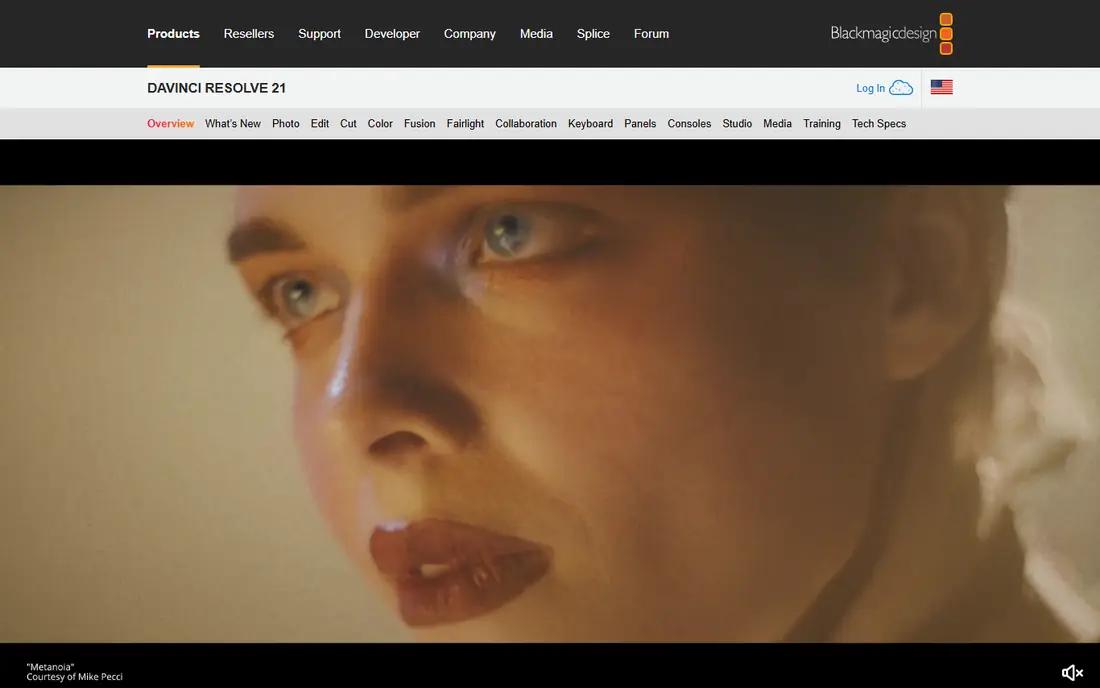
DaVinci Resolve is the most capable free editor by a wide margin. It combines editing, color grading, Fairlight audio, and Fusion effects in one application, and the free version exports without a watermark. That makes it a serious choice for YouTube, short films, and client work, not just a trial.
AI features in the free version include smart reframing, object tracking, and other Neural Engine tools, while Studio adds voice isolation, Magic Mask, and more. The main cost is time and hardware: Resolve rewards a capable computer and a willingness to learn its pages. If you plan to edit regularly, that investment pays off.
- Full editing, color, audio, and effects in one app
- No watermark on free exports
- Strong Neural Engine tools
- Steep learning curve
- Some AI tools such as voice isolation need the paid Studio version
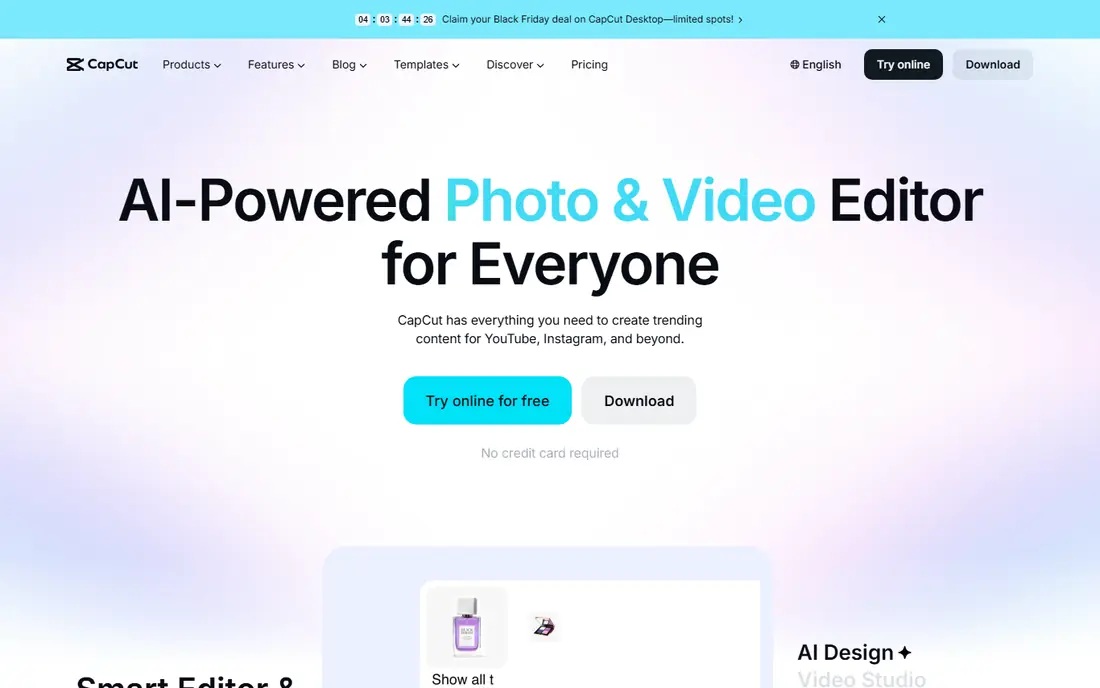
CapCut is the fastest route from phone footage to a finished short video. Auto captions, templates, effects, and smart reframing are built for vertical social formats, and the free tier covers trimming, splitting, and basic effects. For TikTok, Reels, and Shorts, few editors match its speed.
The limit is depth. CapCut does not offer professional color grading, multi track audio mixing, or visual effects compositing at the level of Resolve. Check current Pro pricing and free export terms before relying on it for client work, since terms vary by platform and region.
- Fast templates and auto captions
- AI script and voice tools
- Mobile, desktop, and web versions
- Some AI features and 4K exports need Pro
- Free exports may carry branding in some cases
Clipchamp is Microsoft video editor for Windows and the web, and it is a good fit for beginners who want a clean timeline without a steep learning curve. Templates, stock media, auto captions, and text to speech help a first video look polished quickly, and the free tier exports at 1080p.
It is not a professional suite, and heavy projects will feel its limits. For school projects, internal videos, and simple social clips, though, Clipchamp is an easy free start, especially on a Windows computer where it is already installed.
- Template driven and easy to learn
- Auto captions and text to speech
- Built into Windows 11
- 4K export needs a paid plan
- Browser performance depends on your computer
Descript changes how editing feels: you edit a transcript, and the video follows. Delete a sentence from the text and it is gone from the video. That makes it ideal for podcasts, tutorials, interviews, and talking head YouTube videos, where cutting filler words is most of the work.
AI features include transcription, filler word removal, studio sound, and overdub style voice tools, with limits on the free plan. If your videos are mostly people talking to camera, Descript can save hours. If your videos are mostly action, travel, or effects, a timeline editor will fit better.
- Text based editing is fast for talking head video
- Studio sound cleanup
- Automatic transcription
- Free plan has limited AI credits
- Less suited to cinematic or effects heavy projects
VEED runs in the browser, so it works on computers where installing software is not possible or practical. Auto subtitles, translations, background removal, and templates make it a strong choice for marketing teams and educators who need captioned video fast.
The free plan is useful for testing and short clips, but the watermark and limits mean regular users will likely need a paid plan. Try a real project on the free tier first, and check whether subtitle accuracy and export quality meet your standard before upgrading.
- No install needed
- Strong auto subtitles
- Templates for social and marketing video
- Free exports carry a watermark
- Free video length and storage are limited
Canva Video suits teams that need branded social video without learning a timeline editor. Templates, text animations, stock media, and simple AI tools let a marketer or teacher produce a clean video in minutes, and the free plan covers many basic projects.
The trade off is control. Precise cuts, advanced audio mixing, and complex effects are outside Canva strength. For short, template driven video, it is excellent. For a long form edit with detailed sound and color work, choose a timeline editor instead.
- Huge template library
- Brand kits for consistent style
- Easy for non editors
- Timeline control is limited
- Advanced AI video tools need Pro
Kdenlive is a free, open source editor for Windows, Mac, and Linux, with a multi track timeline, effects, transitions, and wide format support. There is no watermark, no export limit, and no subscription, which makes it a strong choice for users who want full control at no cost.
AI features are more limited than in CapCut or Descript, and the interface is less polished. Still, for a user comfortable with open source tools, Kdenlive offers a capable free editor that respects privacy and works offline. Pair it with a separate caption tool if auto captions are essential.
- Free with no watermark or limits
- Multi track timeline
- Wide format support
- Interface feels utilitarian
- AI features are limited compared with commercial editors
OpenShot is one of the simplest free editors, with a clean timeline, unlimited tracks, animated titles, and keyframe animation. Beginners can trim, split, add text, and export without a tutorial, which is why it remains popular for school and family projects.
Performance is the main weakness: large projects can export slowly, and AI features are basic compared with CapCut, Descript, or Resolve. For a first editor or a simple project, OpenShot is a friendly free start. For regular, longer projects, Resolve or Kdenlive will scale better.
- Very easy to learn
- Unlimited tracks
- Free with no watermark
- Slower exports on large projects
- Fewer AI tools than commercial editors
How we picked these
We compared official feature pages, pricing pages, and public reviews for editors with a real free plan and AI features in 2026. We excluded editors with only a short trial and no usable free tier, and we favored editors that cover different needs: professional, social, talking head, browser, and open source. We did not claim hands-on testing. Where paid upgrades exist, we noted the main limit rather than guessing exact credit counts.
How to choose a free AI editor
Start with the video you actually make. Short social clips need captions, templates, and vertical formats. Talking head video needs transcription and text editing. Long form YouTube video needs a strong timeline, color, and audio tools. Matching the editor to the video type matters more than collecting AI features you will never use.
Free limits that matter most
Check four limits before you commit: watermark on free exports, maximum export resolution, AI credit or usage limits, and storage or length caps. Also check whether your footage stays private: browser editors upload video to a server, while desktop editors such as Resolve, Kdenlive, and OpenShot can work offline. For sensitive footage, a desktop editor is usually the safer choice.
Hardware and learning time
Professional editors need a capable computer, especially for 4K footage, color work, and effects. Check minimum requirements and test with your own footage before a deadline project. Learning time matters too: CapCut and Clipchamp can be learned in an afternoon, while Resolve takes weeks to use well. Choose the editor you will actually finish projects in.
FAQ
What is the best truly free video editor with AI features?
DaVinci Resolve is the strongest truly free editor, with no watermark and professional tools, including some Neural Engine AI features. CapCut is the fastest free choice for short social video, while Kdenlive and OpenShot are fully free open source options with fewer AI tools.
Do free AI video editors add a watermark?
Some do and some do not. DaVinci Resolve, Kdenlive, and OpenShot export without a watermark on their free plans, while VEED free exports carry a watermark. Always test a free export with your own footage before promising a client a clean file.
Can AI really edit a video for me?
AI can help with captions, transcription, cuts, reframing, and cleanup, but it does not replace judgment about story, pacing, and sound. Use AI to speed up routine work, then review the result and adjust cuts, audio levels, and titles by hand for a polished finish.
Is CapCut free for commercial use?
CapCut offers a free tier, but commercial use terms, export branding, and Pro features vary by platform and region. Check the current terms on the official CapCut site before using free exports for client or paid advertising work.
How much computer power do I need for free AI editing?
It depends on footage and editor. Simple 1080p social edits run on most modern laptops, while 4K editing in Resolve benefits from a dedicated graphics card and at least 16 GB of memory. Test with a real project file, since AI effects such as background removal and upscaling raise hardware demands.