Best Free AI Tools to Add Person to Photo in 2026: 8 Tools Compared
We compared the best free ai tools to add person to photo through legit editing and compositing, with consent guidance, free plans and honest limits today.

- Editor's choice
 Adobe Photoshop
Full compositing control
Starts at$23 per monthVisit adobe.comFull review - Great alternative
 Photopea
Free browser compositing
Starts atFreeVisit photopea.comFull review - Also consider
 Canva
Quick collages and edits
Starts atFreeVisit canva.comFull review
TL;DR:
- Adobe Photoshop and Photopea give the most control for adding a person to a photo, through layers, masking and compositing.
- Canva, Fotor and PhotoRoom suit quick group-photo fixes and collages, with simpler tools and free tiers.
- Mobile editors such as Photoleap and Picsart work well for on-the-go compositing, but fine edge control is weaker than on desktop.
- Only edit photos you own or have permission to use, and only add people with their consent. Do not use these tools to create misleading or non-consensual imagery.
Quick comparison
| Tool | Best for | Starts at | Free plan? | |
|---|---|---|---|---|
| Adobe Photoshop | Full compositing control | $23 per month | Free trial | Visit |
| Photopea | Free browser compositing | Free | Yes | Visit |
| Canva | Quick collages and edits | Free | Yes | Visit |
 Fotor | Simple AI photo editing | Free | Yes | Visit |
 PhotoRoom | Cutouts and composites | Free | Yes | Visit |
 Photoleap | Mobile AI compositing | Free | Yes | Visit |
 Picsart | Mobile collage and layers | Free | Yes | Visit |
 GIMP | Free desktop compositing | Free | Yes | Visit |
The best free AI tools to add person to photo
Adding a person to a photo is a compositing job: cut a person from one image, place them in another, match light and scale, and blend the edges. The tools below are legitimate photo editors, not tools for creating fake or non-consensual imagery. We compared official feature pages, pricing pages and app listings, favouring tools with real layer, cutout or compositing features and a usable free tier.
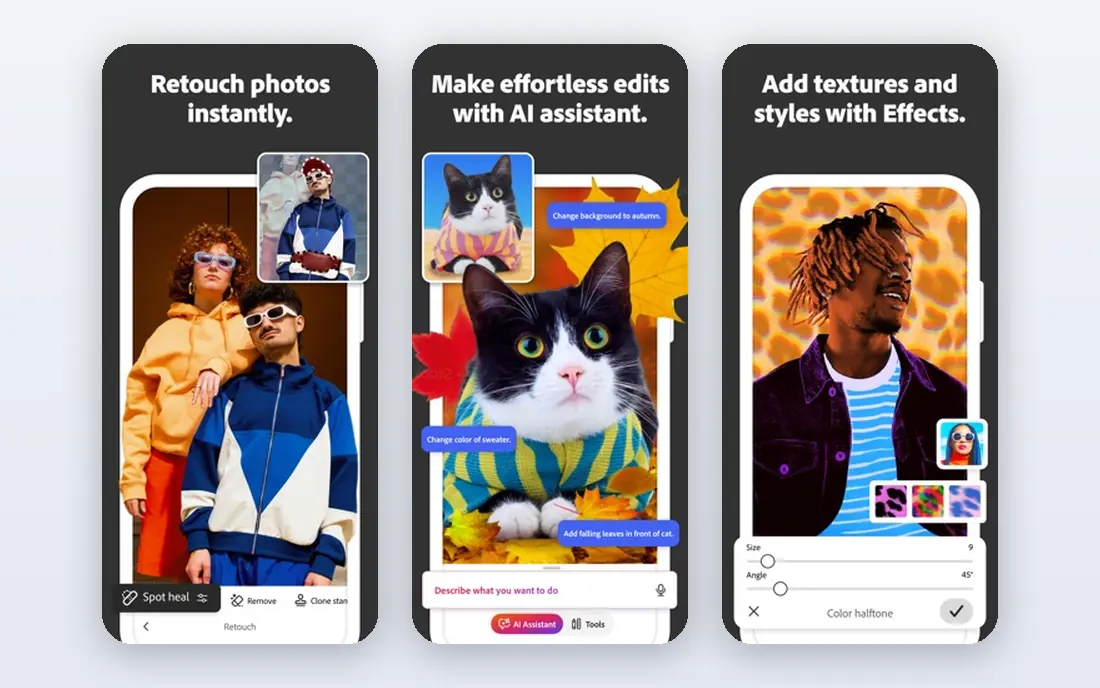
Photoshop remains the standard for realistic compositing. Selection tools, layers, masks and adjustment layers let you match a person to a new scene in light, colour and perspective, rather than just pasting a cutout on top. AI selection and generative fill speed up edge work and background completion, but the final result still depends on careful manual refinement.
The cost and learning curve are real barriers. There is no permanent free plan, and beginners may need tutorials before a composite looks natural. For family photos, marketing images or client work where realism matters, Photoshop is still the tool most professionals reach for first.
- Best masking, lighting and blending control
- AI selection and generative fill
- Huge tutorial range
- No permanent free plan
- Learning curve for beginners
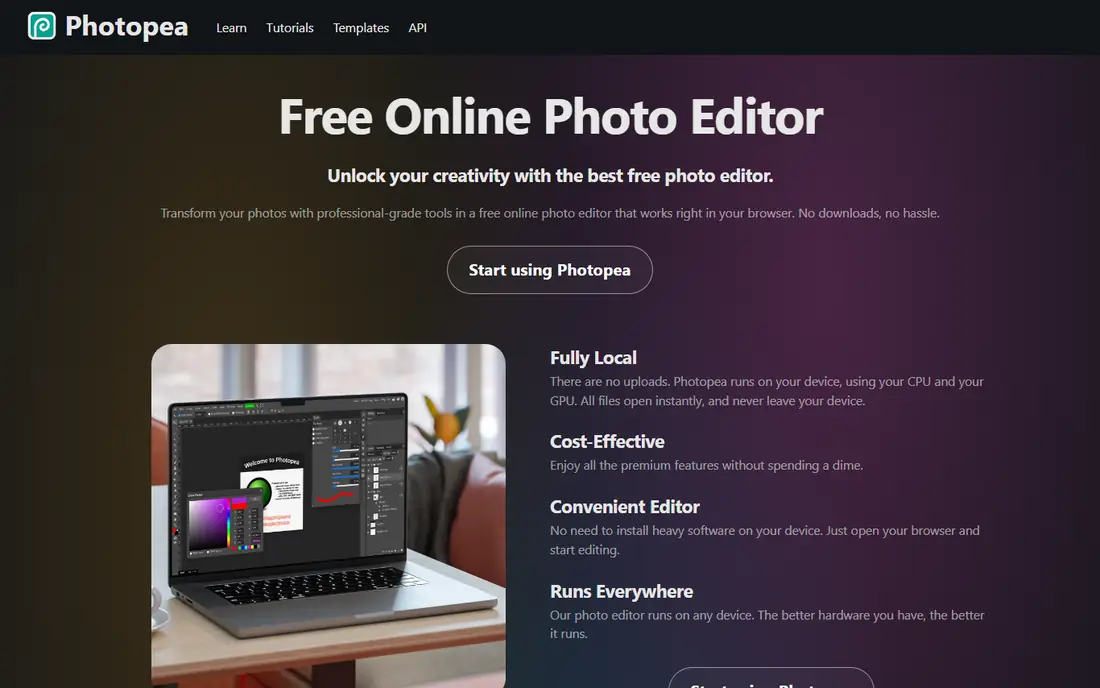
Photopea is the best free route to serious compositing. It runs in a browser with layers, masks, selection tools and adjustment layers that mirror Photoshop closely enough for most group-photo fixes. You can cut a person from one photo, place them in another, and refine edges without installing software or paying.
Free use includes ads, and AI-assisted selection is less advanced than in Photoshop or Canva. It also needs a reasonably capable browser for large files. For anyone who wants desktop-grade compositing at no cost, Photopea is the first tool to try.
- Free in a browser
- Photoshop-style layers and masks
- Opens common photo formats
- Ads on the free tier
- AI features are lighter than paid editors

Canva suits quick composites for social posts, invitations and marketing graphics. You can remove a background, place a person on a new backdrop, adjust size and add text or frames in minutes, without learning layers in depth. Templates help when the goal is a polished post rather than a photorealistic edit.
Precision is the limit. Background removal is a Pro feature, and edge refinement is simpler than in Photoshop or Photopea. For a realistic family photo where hair and lighting must match, a desktop editor will do better. For fast, attractive composites, Canva is hard to beat.
- Free tier with background remover on Pro
- Easy drag-and-drop layers
- Large template range
- Background remover needs Pro
- Less precise edge control than Photoshop
Fotor offers a middle path between a simple phone app and a full desktop editor. Its AI background remover helps isolate a person, and collage and layer tools let you place that person into a new image with basic adjustments for size, light and colour. The web editor works well for occasional projects.
Free use has limits on resolution and advanced features, and Pro is needed for the full toolset. Edge quality on complex hair or busy backgrounds can also fall short of Photoshop. For straightforward composites and social images, Fotor is a practical free starting point.
- Free tier for basic editing
- AI background remover
- Simple layer and collage tools
- Advanced features need Pro
- Output limits on free tier
PhotoRoom is known for fast, clean cutouts. Its automatic background removal isolates a person well in many photos, and you can then place that cutout on a new background, resize it and export for web or print. Batch editing helps when you need to prepare several people for one composite or catalogue.
Realism still needs manual care. Matching light, shadow and perspective between two photos taken in different places is a manual job, and PhotoRoom offers less fine control than Photoshop for that step. Use it to get a clean cutout fast, then refine in Photopea or Photoshop if the result must look natural.
- Strong automatic cutouts
- Easy background replacement
- Batch editing
- Best for product-style cutouts
- Realistic scene matching needs manual work
Photoleap brings compositing to a phone with AI cutouts, layers and background tools that suit quick edits on the go. You can isolate a person, place them into another photo, and adjust blending without a computer. That speed suits social posts, invitations and casual family edits.
The free tier covers basic tools, while advanced AI features need a Pro subscription, and a small screen makes precise hair and edge work harder than on desktop. It is also important to use only its legitimate editing features for photos you own or have permission to use, with consent from anyone you add. For polished, large-print composites, finish the work on desktop.
- Free download with basic tools
- AI cutout and layer tools
- Quick mobile workflow
- Full AI tools need Pro
- Mobile screen limits fine edge work
Picsart is a broad mobile editor with layers, cutout tools and collage layouts that make adding a person to a photo straightforward. You can cut a subject, layer it over a new background, adjust opacity and colour, and add text or effects for a finished post. Its template range helps when the goal is a creative collage rather than a realistic photo.
The free tier includes ads and locks some tools behind a Gold subscription, and fine edge control is weaker than on desktop editors. For fun, social and quick creative composites, Picsart is a strong free option. For a composite that must pass as an original photo, use it for the draft and refine elsewhere.
- Free tier with layers and cutout tools
- Large sticker and template range
- Active mobile community
- Many features behind Gold
- Ads and prompts on free tier
GIMP is a free, open-source desktop editor with the core tools compositing needs: layers, masks, selection tools and colour adjustment. It handles large files well, works offline, and has a long history of tutorials for cutouts and photo blending. For users who want a free desktop tool without browser ads or subscriptions, it is the strongest choice.
The interface is less polished than Photoshop or Photopea, and AI-assisted selection is less guided, so beginners may need more patience. Results can still match paid editors with care, especially for group photos where light and scale are already similar. If you edit often and want a free permanent tool, GIMP is worth learning.
- Completely free desktop editor
- Layers, masks and selection tools
- Large plugin range
- Interface feels dated
- AI selection tools are less guided than paid editors
How we picked these
We compared official feature pages, pricing pages and app listings for legitimate photo compositing and editing tools that are actively available in October 2026. We required real cutout, layer or masking features that can add a person to a photo, plus a free tier or free trial. We excluded tools marketed for undressing, face swapping without consent or creating non-consensual imagery, and we focused on editors where the user controls the source photos.
What to check before you choose
Use photos you have rights to use
Only edit photos you own or have permission to use, and only add people with their consent. That rule matters for family photos, client work and social posts alike. If a person has not agreed to appear in an edited image, do not add them, and do not present an edited photo as an unedited original when it could mislead viewers.
Match light, scale and perspective
A composite fails when the added person is too large, too sharp or lit from the wrong side. Compare the original photos for light direction, shadows, camera height and distance before you cut anything. Small adjustments to brightness, colour and blur often matter more than a perfect cutout edge.
Start with the cutout, then refine edges
A clean cutout saves time later. Use AI selection or background removal for the first pass, then zoom in and refine hair, hands and clothing edges by hand. Feathering an edge slightly and adding a soft shadow under the person helps the composite sit in the scene instead of floating on top.
Choose desktop for realism, mobile for speed
Desktop editors such as Photoshop, Photopea and GIMP give the control needed for realistic results. Mobile editors such as Photoleap and Picsart are faster for social posts and drafts. A common workflow is to cut and draft on mobile, then refine light and edges on desktop before sharing.
FAQ
What is the best free ai tool to add person to photo?
Photopea is the best free option for realistic results, because it offers desktop-style layers and masks in a browser at no cost. GIMP is the best free desktop alternative, while Canva and Fotor suit quicker, simpler composites. For a result that must look natural, desktop control matters more than AI speed alone.
Can I add a missing person to a group photo for free?
Yes, if you have a suitable photo of that person and permission to use it. Cut the person from their photo, place them in the group photo, then match scale, light and shadows. Photopea and GIMP do this for free, while Canva and PhotoRoom offer faster cutouts with some Pro limits.
Do I need consent to add someone to a photo?
Yes, in practical and ethical terms. Only add people with their consent, and only edit photos you own or have permission to use. Do not create images that mislead others about where someone was or what they did, and do not use compositing tools to create non-consensual or deceptive imagery.
Why does my composite look fake?
Common causes are mismatched light direction, wrong scale, sharp edges and missing shadows. Check that the added person matches the group photo in camera height, distance and lighting, then soften edges and add a ground shadow. Small colour and blur adjustments usually help more than a sharper cutout.
Is Photoshop the only tool that gives realistic results?
No, though it is the most complete. Photopea and GIMP can produce realistic composites with careful masking and colour work, and PhotoRoom gives excellent cutouts to start from. Photoshop wins on AI selection and refinement speed, not on results that are impossible elsewhere.