Best Free AI Photo to Video Animation Tools in 2026: 8 Tools Compared
Compare the best free AI photo to video animation tools in 2026, with free credits, clip length, watermarks and honest motion quality trade-offs noted.
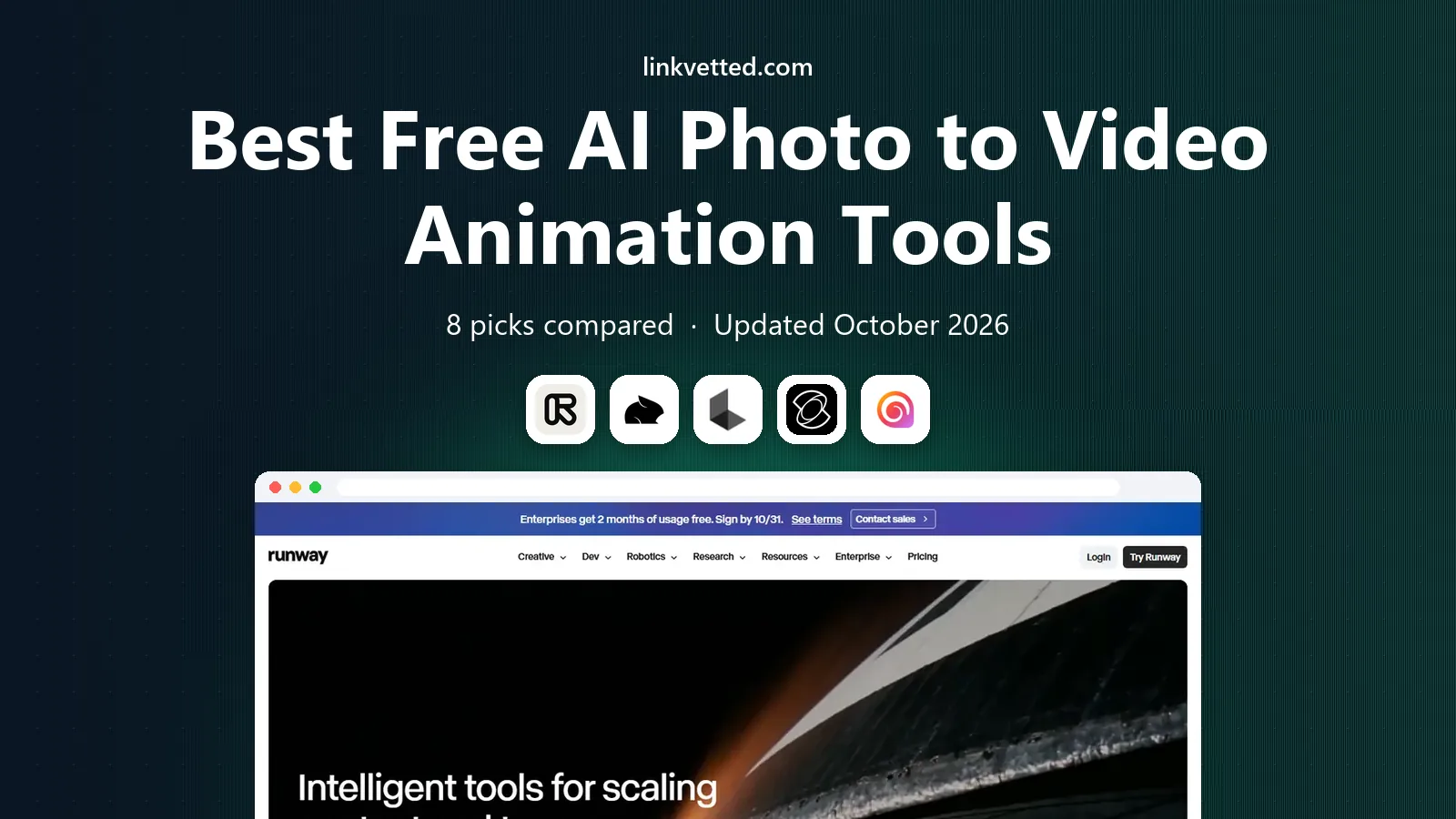
- Editor's choice
 Runway
Directed shots and editing
Starts atFreeVisit runwayml.comFull review - Great alternative
 Pika
Short social clips and effects
Starts atFreeVisit pika.artFull review - Also consider
 Luma Dream Machine
Natural motion from a still
Starts atFreeVisit lumalabs.aiFull review
TL;DR:
- Runway, Pika and Luma Dream Machine are the most reliable starting points for animating a still photo.
- Kling and Hailuo offer strong motion value, with daily or trial credits that suit frequent testing.
- Free tiers usually mean short clips, watermarks, queues or no commercial use, so check those terms before client work.
- A good prompt plus a clean, high-contrast photo matters more than a longer clip, because AI motion invents movement.
- For faces, use only photos you own or have permission to animate, and label AI video clearly when you share it.
Quick comparison
| Tool | Best for | Starts at | Free plan? | |
|---|---|---|---|---|
| Runway | Directed shots and editing | Free | Yes | Visit |
| Pika | Short social clips and effects | Free | Yes | Visit |
| Luma Dream Machine | Natural motion from a still | Free | Yes | Visit |
 Kling | Value and fast iteration | Free | Yes | Visit |
 Hailuo | Expressive character motion | Free | Yes | Visit |
 Kaiber | Stylised music and art videos | Free | Yes | Visit |
 LeiaPix Converter | Simple 3D depth animation | Free | Yes | Visit |
 PixVerse | Quick effects and templates | Free | Yes | Visit |
The best free AI photo to video animation tools
A still photo can become a short moving clip with AI, but free tools differ sharply on clip length, motion quality and rights. These eight tools all offer a free way to animate a photo, with different strengths for different kinds of clips.

Runway is the most complete pick for a creator who wants to direct a shot, not just press a button. Upload a photo as the first frame, describe the camera move or subject motion, and generate a short clip, then extend, restyle or clean it in the editor. That workflow suits storyboards, product shots and social clips that need a second pass.
The free plan is a test, not a long-term supply. Listings report 125 one-time credits, with Standard at $15 per month or $12 billed annually for 625 credits. A five-second clip can cost a large share of that allowance, depending on model and resolution. Spend free credits on a representative photo and prompt before paying, and check watermark and commercial terms for the tier you use.
- Gen-4 models with first-frame control
- Editing tools around generation
- Hosts other models on higher tiers
- Free plan gives 125 one-time credits in many listings
- Paid Standard starts at $15 per month
- Credit math varies by model
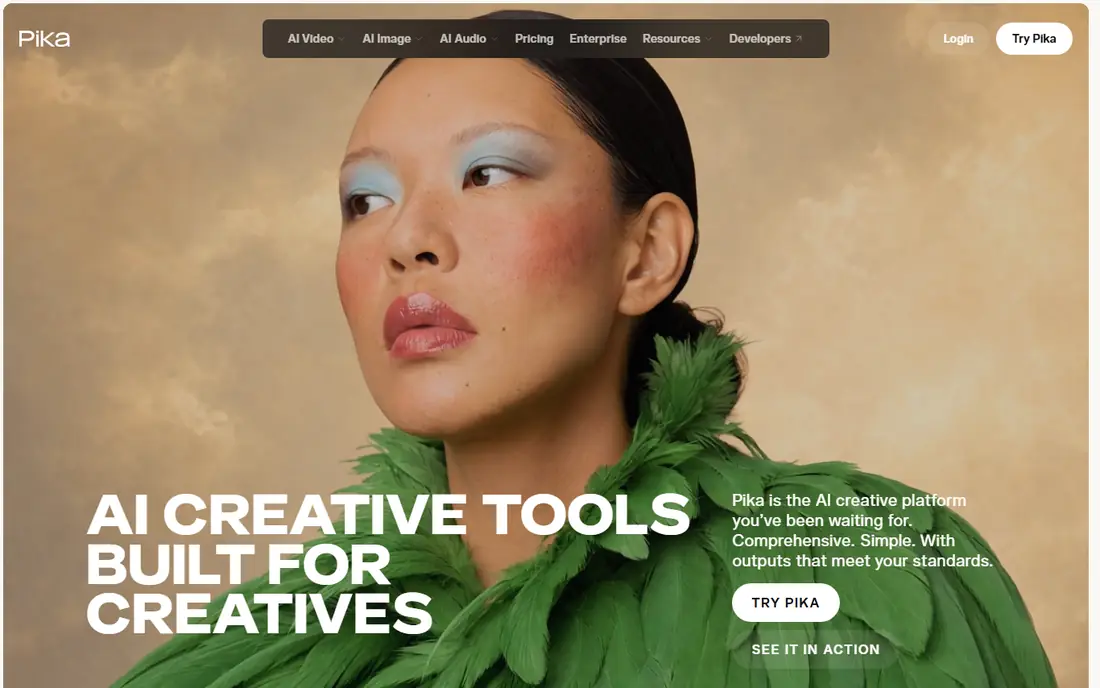
Pika suits short, effect-driven clips for social feeds. Upload a photo, pick a motion style or effect, and generate a five- or ten-second clip that is easy to post. Its interface is lighter than Runway, which helps when you want many quick variations of one image.
The catch is rights and credits. Free use is for testing, with credit packs or paid plans for regular work, and commercial use starts on Creator plans listed around $35 per month in some comparisons, with lower Starter plans around $10 per month in others. Confirm the current plan, watermark and licence in your account before using a free clip for a brand or a client.
- Fast short clips for social use
- Effects and style controls
- Free plan for testing
- Free credits are limited and vary by offer
- Commercial use needs a paid plan
- Longer clips need paid credits

Luma Dream Machine is known for natural motion. A portrait, a pet or a street scene can gain smooth, believable movement without the jitter that weaker models produce. That makes it a good pick for family photos, travel shots and product scenes where motion should feel calm, not cartoonish.
Free access has changed over time, with recent listings reporting a renewing daily allowance on the web tier and a paid Agents tier from $30 per month. Other listings show older free and Lite plans, so check the current pricing page before planning a project. Free clips may carry watermarks and non-commercial terms, and queues can be long at busy times.
- Natural movement from a still image
- Daily free allowance reported on the web tier
- Keyframe controls on higher tiers
- Paid Agents tier starts at $30 per month in recent listings
- Credits expire each cycle
- Queues on free use
Kling is a strong value pick for creators who iterate a lot. Daily credits let you test prompts, camera moves and styles without paying for every idea, and start and end frame controls help when you need a clip to land on a specific final image. That control suits product demos and short stories that need a clear beginning and end.
The free tier is still limited, with watermarks and no commercial use in many listings, and paid plans start around $10 per month. Motion quality is good for the price, but complex hands, faces and fast action can still break. Use short, simple motions first, such as a slow pan, a head turn or a walking step, before trying a complex scene.
- Daily credits for testing
- Start and end frame controls
- Good motion for the price
- Free clips are watermarked in many listings
- Paid Standard starts around $10 per month
- Quality varies by prompt
Hailuo, from MiniMax, is known for expressive character motion. A portrait can smile, turn, speak with lip movement in some modes, or react in a way that feels more alive than a simple zoom. That makes it popular for character clips, memes and short social videos where expression carries the clip.
Free use is trial-based, with one-time or limited credits for new users, and paid plans reported from around $9.99 per month, depending on promotion. As with other tools, check watermark, resolution and commercial terms before sharing widely. For a single character photo, Hailuo is worth a test alongside Luma and Kling, because expression quality differs by model and photo.
- Expressive character and face motion
- Trial credits for new users
- Simple photo-to-video flow
- Free access is behind sign-in and limited
- Paid plans vary by promotion
- Longer clips need credits
Kaiber takes a different path from realistic motion tools. It turns a photo into a stylised, art-directed video, with controls for style, camera and mood that suit music videos, album art and brand mood clips. If you want a photo to feel like a painting in motion, Kaiber is a better fit than a realism-first model.
The trade is realism. A family portrait animated in Kaiber may look artistic rather than lifelike, which is a strength for creative work and a weakness for a documentary-style clip. Free use is limited, so test one photo in Kaiber and one in Luma or Runway, then pick the style that matches the project, not just the tool with the most credits.
- Strong style and art direction controls
- Good for music videos and mood clips
- Template-driven workflow
- Free tier is limited
- Stylised output may not suit realistic photos
- Paid plans needed for longer work
LeiaPix Converter does one job well: it adds depth to a still photo and animates a gentle 3D parallax move. Upload a photo, let it estimate depth, and export a short clip where the foreground and background shift as if the camera moved. That effect suits travel photos, product shots and social posts where a subtle move is enough.
The limit is clear. LeiaPix does not make a person walk, talk or perform an action. It moves the camera through depth, not the subject through a scene. For that reason, it pairs well with a true video model: use LeiaPix for a clean, safe parallax clip, and use Runway, Pika or Kling when you need subject motion. Free use covers basic exports, with paid options for higher resolution.
- Simple depth-based animation from a photo
- No prompt writing needed
- Quick export for social use
- Motion is limited to depth and parallax, not true action
- Resolution and format limits on free use
- Niche use case
PixVerse suits quick social clips built from templates and effects. Upload a photo, pick an effect or a motion template, and generate a short clip without writing a detailed prompt. That speed helps when you want to test a trend, a product teaser or a birthday clip in minutes.
The catch is originality. Templates can make many clips look similar, and free credits run out fast during heavy testing. For a personal project, that trade is fine. For brand work, a directed tool such as Runway or Luma gives more control over camera, timing and style. Check the current free allowance and licence before using PixVerse clips in paid content.
- Fast templates and effects
- Simple photo-to-video flow
- Good for social trends
- Free credits are limited
- Template style can look generic
- Commercial terms need checking
How we picked these
We compared official pricing pages, product documentation and 2026 image-to-video comparisons, and we kept only tools that are actively available today and offer a free tier, trial credits or a free plan for photo-to-video work. We weighed motion quality, clip length, controls, watermark and commercial terms, and ease of use for a first-time creator. Where free credit counts differed across sources, we described the range rather than presenting one disputed figure as certain.
We did not claim hands-on trials. The trade-offs here reflect documented pricing, model features and consistent reviewer feedback about queues, watermarks and motion errors.
How to get a good free photo-to-video clip
Start with a clean photo. A sharp, high-contrast image with a clear subject and an uncluttered background gives the model less to guess. Crop out distracting edges, fix exposure first, and avoid photos with many faces or busy hands, because those break most often.
Next, write a short, specific prompt. Name the subject, the motion and the camera move in one or two sentences, such as a slow push-in while the subject smiles gently. Avoid asking for many actions at once. One clear motion beats a paragraph of directions, and it uses fewer credits on retries.
Finally, check the result at full size before sharing. Look for warped hands, shifting faces, flickering backgrounds and invented objects. If a clip fails, change one thing at a time: the prompt, the photo crop or the model. That method saves credits and teaches you which tool fits which kind of photo.
Rights and safety notes
Use only photos you own or have permission to animate. Do not animate photos of children, private individuals or sensitive images without clear consent, and do not use AI video to mislead viewers about a real event. Label AI-generated video when you share it, especially for news, history or family records, so viewers know motion was created, not captured.
FAQ
What are the best free AI photo to video animation tools?
Runway, Pika and Luma Dream Machine are the strongest starting points, with Kling and Hailuo close behind for value and expression. LeiaPix is best for simple depth animation, while Kaiber and PixVerse suit stylised and template-driven clips. Test the same photo in two tools before paying.
How long are free AI photo-to-video clips?
Most free clips run from three to ten seconds, depending on the tool and model. Longer clips need paid credits, and some tools allow extension in steps. Short, simple motions usually look better than long, complex scenes on a free tier.
Are free AI video clips watermarked?
Many free tiers add a watermark, limit resolution or block commercial use. Rules change by tool and plan, so check the watermark and licence in your account before using a clip for a brand, a client or paid content. Paid plans usually remove watermarks.
Can I animate an old family photo with AI video?
Yes, if you own the photo or have permission to use it. A clean scan works best, and a gentle motion such as a slow pan or a subtle smile usually looks more natural than a complex action. Label the clip as AI-animated when you share it, so family members know motion was created.
Why does AI video distort faces and hands?
AI video predicts movement frame by frame, and it can invent detail when the original photo lacks it. Faces, hands and fast action are the hardest parts to predict, so they break most often. A simpler prompt, a cleaner photo and a shorter clip usually reduce those errors.
Do I need a paid plan to use AI video commercially?
In most cases, yes. Free tiers are usually for personal testing, with no commercial licence. Paid plans add commercial rights, higher resolution and no watermark, but terms still vary by tool. Read the licence for your plan before using a clip in an ad or a client project.