Best Encryption Software for Cloud Storage in 2026: 9 Tools Compared
We compare the best encryption software for cloud storage, from free open source vaults to zero-knowledge providers, with current pricing and honest limits.
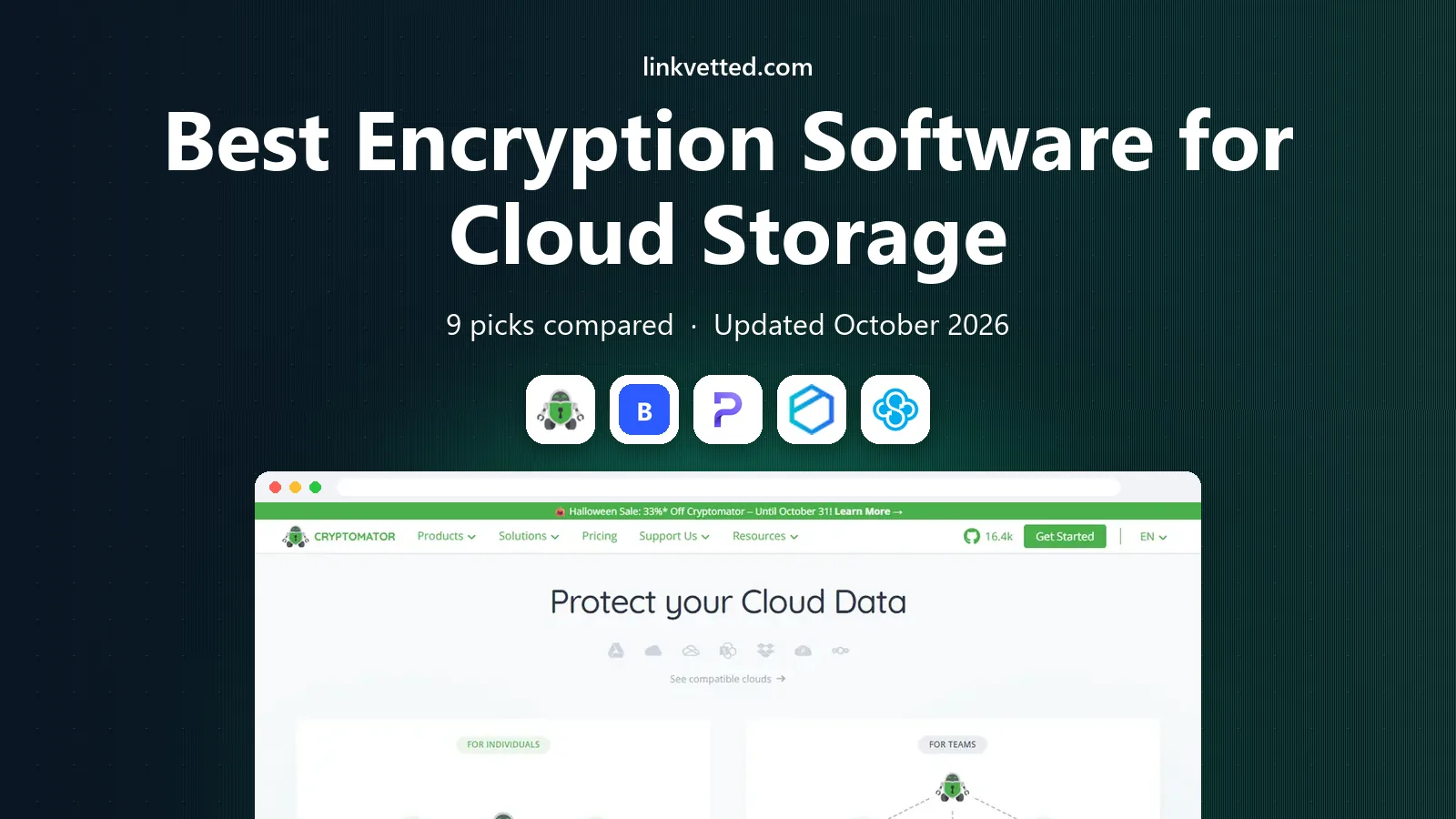
- Editor's choice
 Cryptomator
Free encryption layer
Starts atFreeVisit cryptomator.orgFull review - Great alternative
 Boxcryptor
Multi-cloud team encryption
Starts at$48 per yearVisit boxcryptor.comFull review - Also consider
 Proton Drive
Built-in encrypted storage
Starts atSee websiteVisit proton.meFull review
TL;DR:
- Cryptomator is the best free way to add client-side encryption to Dropbox, Google Drive, or OneDrive you already use.
- Proton Drive, Tresorit, and Sync.com build encryption in from the start, so you do not need a separate layer at all.
- Boxcryptor suits teams that need encrypted access to several cloud providers under one account and admin controls.
- Filename encryption and mobile access vary a lot, so check both before you move sensitive files into any vault.
Quick comparison
| Tool | Best for | Starts at | Free plan? | |
|---|---|---|---|---|
| Cryptomator | Free encryption layer | Free | Yes | Visit |
| Boxcryptor | Multi-cloud team encryption | $48 per year | Yes | Visit |
| Proton Drive | Built-in encrypted storage | See website | Yes | Visit |
 Tresorit | Business-grade encrypted storage | See website | Free trial | Visit |
 Sync.com | Good value encrypted storage | $8 per month | Yes | Visit |
 pCloud | Lifetime encrypted storage option | $49.99 per year | Yes | Visit |
 VeraCrypt | Local encrypted containers | Free | Yes | Visit |
 AxCrypt | Simple file encryption | See website | Free trial | Visit |
 NordLocker | Easy encrypted vaults | See website | Yes | Visit |
The best encryption software for cloud storage
Cloud providers encrypt files on their servers, but most of them hold the keys, which means they can read your data. Client-side encryption changes that: files are scrambled on your device before upload, and only you hold the key. The tools below take two paths to that goal, either as a layer over your existing storage or as a storage service with encryption built in.
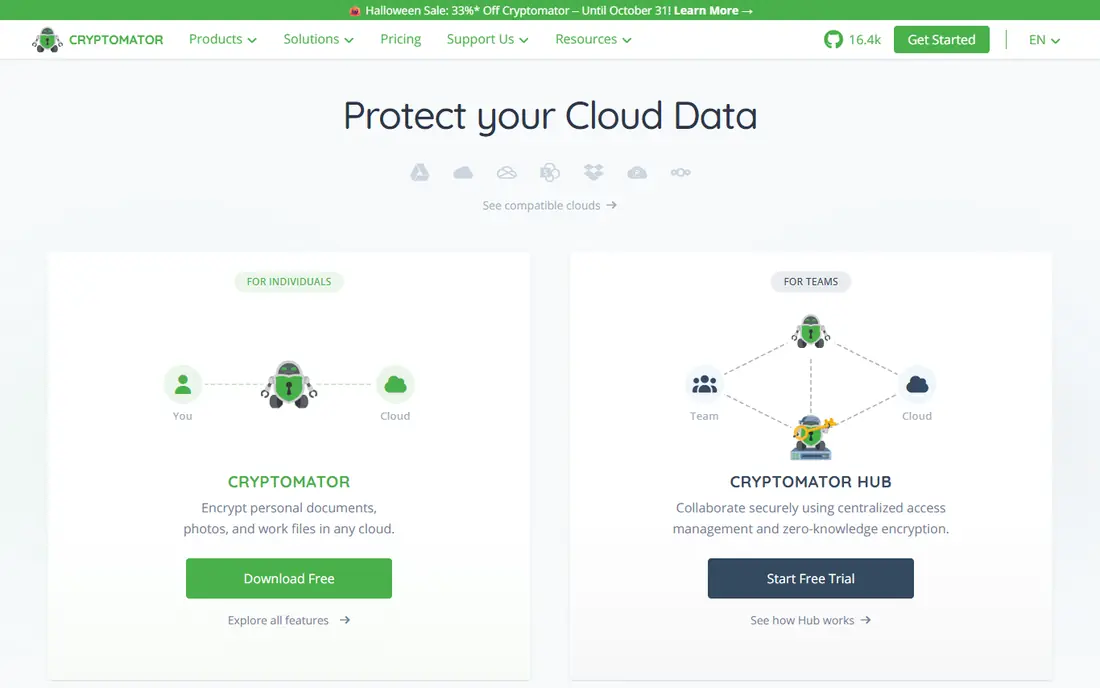
Cryptomator creates an encrypted vault inside a folder that your cloud service already syncs. You open the vault, work with files normally, and everything stored in the cloud stays scrambled. Because it is open source, its code can be inspected, and the desktop apps are free, with no account required to start. That combination makes it our default recommendation for individuals protecting documents, photos, or work files in Dropbox, Google Drive, or OneDrive.
The main limits are sharing and mobile cost. You cannot easily share a single encrypted file with someone who does not use Cryptomator, and the mobile apps cost a one-time fee. Vaults also need care with passwords: lose the password and the files cannot be recovered by anyone, including the developers. For personal protection on a desktop, though, few tools match this value.
- Open source and auditable
- Works with major cloud providers
- No account needed on desktop
- No built-in file sharing
- Mobile apps are paid
Boxcryptor is the more business-ready layer. It encrypts files and filenames before they reach Dropbox, Google Drive, OneDrive, Box, and other providers, and paid plans add team management, single sign-on options, and sharing between Boxcryptor users. The personal plan at $48 per year covers unlimited devices and providers for one user, while business plans add admin features.
The free plan is genuinely useful but narrow, limited to one cloud provider and two devices. Teams should also confirm current plan details after its acquisition history, since pricing and ownership have shifted in past years. If you need one encrypted workspace across several clouds with admin oversight, Boxcryptor is the strongest layer option here.
- Works across many cloud providers
- Filename encryption
- Team and admin controls
- Free plan limited to one provider and two devices
- Needs an account
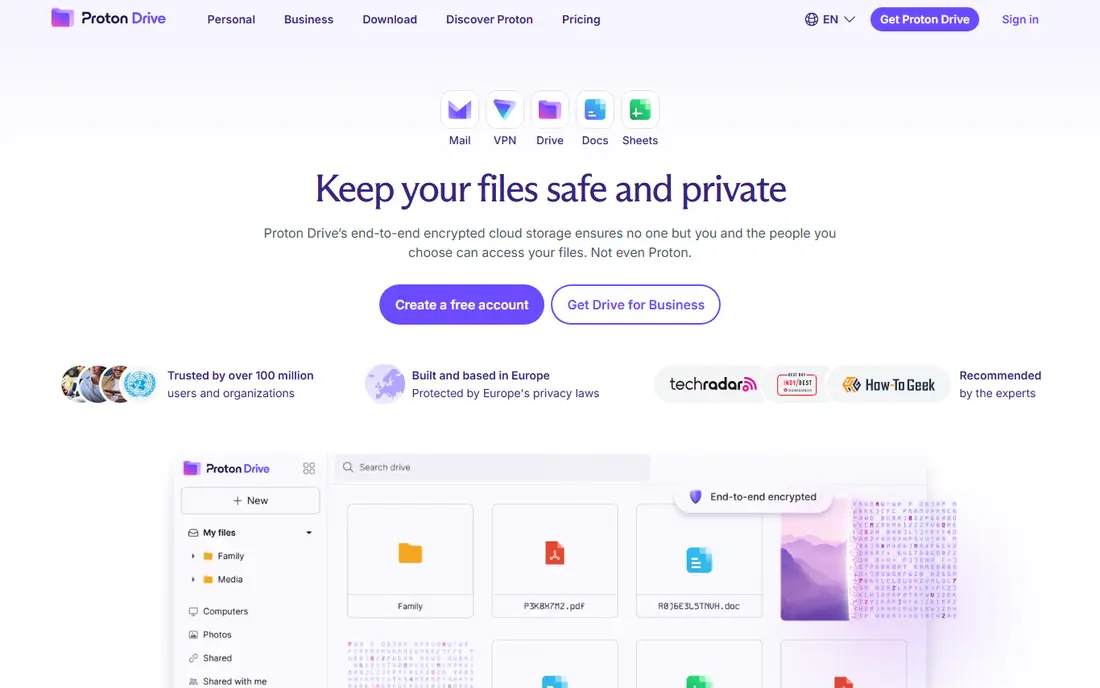
Proton Drive is a full cloud drive where encryption is built in, not added on. Files are encrypted on your device before upload, and Proton states it cannot read them. That simplicity is the appeal: you get a drive, apps, and sharing in one product, plus the wider Proton ecosystem for mail and calendar if you want it. A free tier lets you test the workflow before paying.
The trade-off is scale and ecosystem. Storage tiers cost more per gigabyte than Google Drive or OneDrive, and some advanced sharing and collaboration features lag behind mainstream drives. Choose Proton Drive when privacy is the priority and you are willing to pay a bit more per gigabyte for a provider that cannot read your files.
- End-to-end encryption by default
- No separate vault setup
- Strong privacy record
- Smaller storage tiers than mainstream rivals
- Sharing features still maturing
Tresorit targets businesses that handle sensitive client data, legal files, or health-related documents. It offers end-to-end encrypted rooms with detailed permissions, activity tracking, and controls that suit regulated work. For a firm that must show clients how files are protected, those controls matter more than raw storage size.
The cost reflects that focus, and pricing is quote-based on some business tiers, so check the vendor site for current plans. Casual users will find it expensive for photo backup. Tresorit earns its place for teams where access control, audit trails, and client-facing security are part of the job, not extras.
- Zero-knowledge encryption
- Granular access controls
- Compliance-friendly features
- Higher price than consumer drives
- Less suited to casual personal use
Sync.com pairs zero-knowledge encryption with prices that compete with mainstream drives. Plans start around $8 per month for 2 TB on some tiers, and the free plan gives a usable amount of space to test. Sharing works through password-protected links with expiry dates, which is a practical middle ground between open links and a separate vault tool.
Sync speeds can lag behind Dropbox or Google Drive on large uploads, and its integration list is shorter. For most households and small teams that want encrypted storage without managing vault software, Sync.com is the best balance of price, space, and simplicity in this list.
- Zero-knowledge encryption included
- Generous storage for the price
- Easy sharing links
- Slower sync than some rivals
- Fewer third-party integrations
pCloud is a mainstream drive with an optional encrypted Crypto folder. Files outside that folder use standard server-side protection, while files inside Crypto are encrypted on your device with a key only you hold. That split lets you pay for encryption only on the files that need it, and lifetime storage plans appeal to buyers who dislike subscriptions.
Read the pricing carefully, because Crypto is an add-on cost on most plans, and losing your Crypto password means losing access to those files. pCloud suits people who want a normal, media-friendly drive plus a locked folder for tax records, contracts, or personal documents, rather than full-drive encryption for everything.
- Optional Crypto folder with client-side encryption
- Lifetime plans available
- Good media playback
- Encryption is a paid add-on, not default
- Crypto costs extra on top of storage
VeraCrypt is the heavy-duty option. It creates encrypted containers or encrypts whole drives, and it has a long history in security work. You can place a VeraCrypt container inside a cloud-synced folder, but the whole container may re-upload after small changes, which makes sync slower than file-by-file vault tools. It is free, open source, and runs on Windows, Mac, and Linux.
We include it because some readers need drive-level protection, not just cloud folders, and VeraCrypt remains the standard free answer. Beginners should expect a learning curve around volumes, passwords, and backups. Use it when you want maximum control and are comfortable managing containers yourself.
- Free and open source
- Encrypts whole drives or containers
- Strong, audited design
- Not a cloud sync tool by itself
- Steeper setup than vault apps
AxCrypt takes a simpler approach: right-click a file, encrypt it, and share the key with a collaborator if needed. That file-by-file model suits people who email sensitive attachments or store a handful of private documents in a shared drive, rather than encrypting a whole folder tree. Its interface is far less technical than VeraCrypt.
The downside is scope. AxCrypt is not a full vault system for syncing large folders across providers, and its best features sit on paid plans, so check current pricing. Pick it when you need to protect individual files quickly and share them with specific people, not when you need an always-on encrypted drive.
- Encrypts individual files with one click
- Key sharing for collaborators
- Simple interface
- Cloud integration is thinner than Cryptomator or Boxcryptor
- Paid features needed for full use
NordLocker, from the team behind NordVPN, offers drag-and-drop encrypted lockers on desktop and mobile. You create a locker, drop files in, and they are encrypted locally, with optional cloud storage for syncing between devices. For a non-technical user who wants a private folder without learning vault settings, it is one of the friendliest options here.
Free storage is limited, and paid plans are needed for serious space, so check current pricing before relying on it for large archives. NordLocker is best for everyday private files and for households already comfortable with the Nord brand, rather than for regulated business archives that need detailed audit controls.
- Very easy vault setup
- Cross-platform apps
- Optional cloud storage
- Free tier storage is small
- Encryption details matter less than ease of use
How we picked these
We compared official feature pages, pricing pages, and documentation for each product, plus public reviews, and kept only tools that exist and work today with real client-side or zero-knowledge encryption. We favored products with clear statements about who holds the keys, since that is the whole point of this category. We did not claim hands-on testing, and we list "See website" where pricing was quote-based or changed across sources. Always keep a backup of your password and recovery details, because encrypted files cannot be recovered without them.
What to check before you choose
First, decide whether you want a layer or a built-in drive. A layer like Cryptomator or Boxcryptor keeps your current Dropbox or Drive account and adds encryption on top, which is cheaper if you already pay for storage. A built-in drive like Proton Drive or Sync.com is simpler, but you move your files and pay that provider instead. Neither choice is wrong, but switching later takes time, so pick the model first.
Second, check filename encryption, mobile access, and sharing. Some tools encrypt file contents but leave filenames readable, which can leak information on its own. Mobile apps may cost extra, and sharing encrypted files with outsiders is often clumsy, so test the exact sharing flow you need. Finally, store your password somewhere safe outside the vault, and test restoring a file before you trust the vault with originals.
FAQ
What does client-side encryption mean for cloud storage?
It means files are scrambled on your device before upload, using a key that the cloud provider does not hold. Even if the provider's servers are breached or inspected, the stored files remain unreadable without your key. The trade-off is that losing your password usually means losing the files, since no provider can reset it for you.
Is Cryptomator really free?
Yes, the desktop apps for Windows, Mac, and Linux are free and open source. Mobile apps for iOS and Android cost a one-time fee, and donations support development. You still need your own cloud storage account, since Cryptomator adds encryption to storage you already have.
Do I still need encryption if my provider says files are encrypted?
Mainstream providers encrypt files in transit and at rest, but they hold the keys, so they can access your data. Client-side encryption adds a layer only you control. It matters most for tax records, legal files, health documents, and business contracts, and less for public photos or casual files.
Can I share encrypted files with someone else?
It depends on the tool. Built-in drives like Sync.com and Proton Drive offer password-protected sharing links, while layer tools often require the other person to use the same software. Test sharing before you commit, especially if clients or family members need regular access.
What happens if I forget my encryption password?
In most zero-knowledge systems, nothing can recover the files, and that is by design. Keep your password in a password manager and store recovery details separately from the vault. Never rely on a single encrypted copy of irreplaceable files; keep a second backup in a safe place.