Best Document Accessibility Platform in 2026: 8 Platforms Compared
Searching for the best document accessibility platform? We compare 8 tools for PDF tagging, checks, and WCAG and Section 508 compliance support for teams.
- Editor's choice
 CommonLook PDF
Strict compliance teams
Starts atSee websiteVisit commonlook.comFull review - Great alternative
 axesPDF
Specialist remediators
Starts atSee websiteVisit axes4.comFull review - Also consider
 Equidox
Large backlogs
Starts atSee websiteVisit equidox.coFull review
TL;DR:
- CommonLook PDF is our pick for teams with strict compliance duties, thanks to detailed checks and reporting for WCAG, PDF/UA, and Section 508.
- Equidox suits teams that need faster remediation of large backlogs, with AI-assisted tagging and batch workflows.
- Adobe Acrobat Pro remains the practical starting point for small teams, since many staff already know it.
- A checker alone does not fix a document, so pair any free validator with a remediation tool or service.
- Always test with a screen reader before you publish, since automated checks miss reading order and alt text problems.
Quick comparison
| Tool | Best for | Starts at | Free plan? | |
|---|---|---|---|---|
| CommonLook PDF | Strict compliance teams | See website | No | Visit |
| axesPDF | Specialist remediators | See website | No | Visit |
| Equidox | Large backlogs | See website | Free trial | Visit |
 Adobe Acrobat Pro | Small teams | $19.99 per month | Free trial | Visit |
 GrackleDocs | Google Workspace teams | $12 per user per month | Free trial | Visit |
 Continual Engine PREP | High-volume automation | See website | No | Visit |
 DocAccess | Accessible HTML views | See website | No | Visit |
 PAC | Free validation checks | Free | Yes | Visit |
The best document accessibility platforms
A document accessibility platform checks files against standards such as WCAG and PDF/UA, fixes tags and reading order, and produces evidence of compliance. We compared official product pages, standards support, and pricing to pick these eight.
CommonLook PDF, now part of Allyant, is built for organizations where compliance evidence matters as much as the fix itself. It verifies documents against WCAG, PDF/UA, and Section 508, and it produces detailed reports that teams can keep for audits and procurement reviews. A free validator from the same maker covers quick checks, while the full product handles tagging, reading order, tables, and forms.
The tradeoff is effort and cost. Pricing is quote-based and typically enterprise level, and new users need training to get the most from the detailed controls. For a government agency, university, or bank with recurring document production, that depth is the point. For a one-off brochure, a simpler tool will do.
- Detailed verification against WCAG, PDF/UA, and Section 508
- Strong reporting
- Desktop and server options
- Price is quote-based
- Needs training to use well
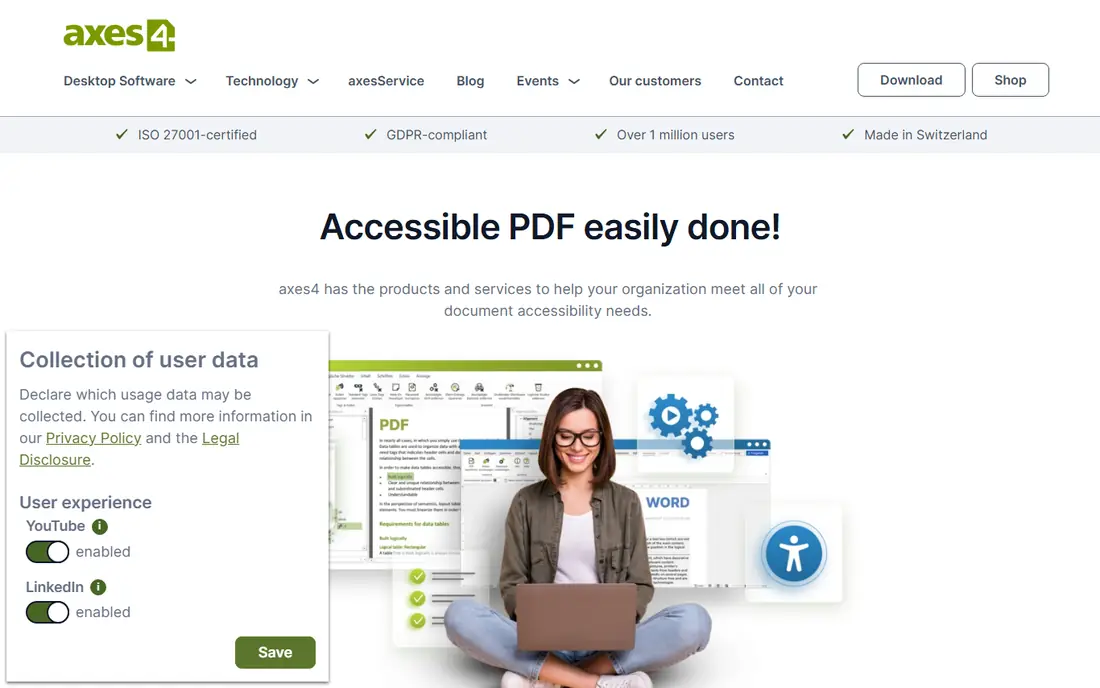
axesPDF, from axes4, is a favorite of professional remediators who need fine control. Its QuickFix tool finds issues and repairs many of them with a single action, while the full product lets specialists adjust tags, structure, tables, and reading order by hand. Support for PDF/UA is central, which matters for teams that must prove a file meets the standard rather than just passing a loose check.
That control comes with a learning curve. A casual author may find the interface dense, and pricing is set by quote. If your team remediates complex reports, forms, or publications every week, axesPDF rewards the investment. If you fix a few PDFs a year, start with Acrobat Pro or a service instead.
- Granular control over tags and reading order
- Strong PDF/UA focus
- Quick fixes for common issues
- Best in trained hands
- Pricing is quote-based
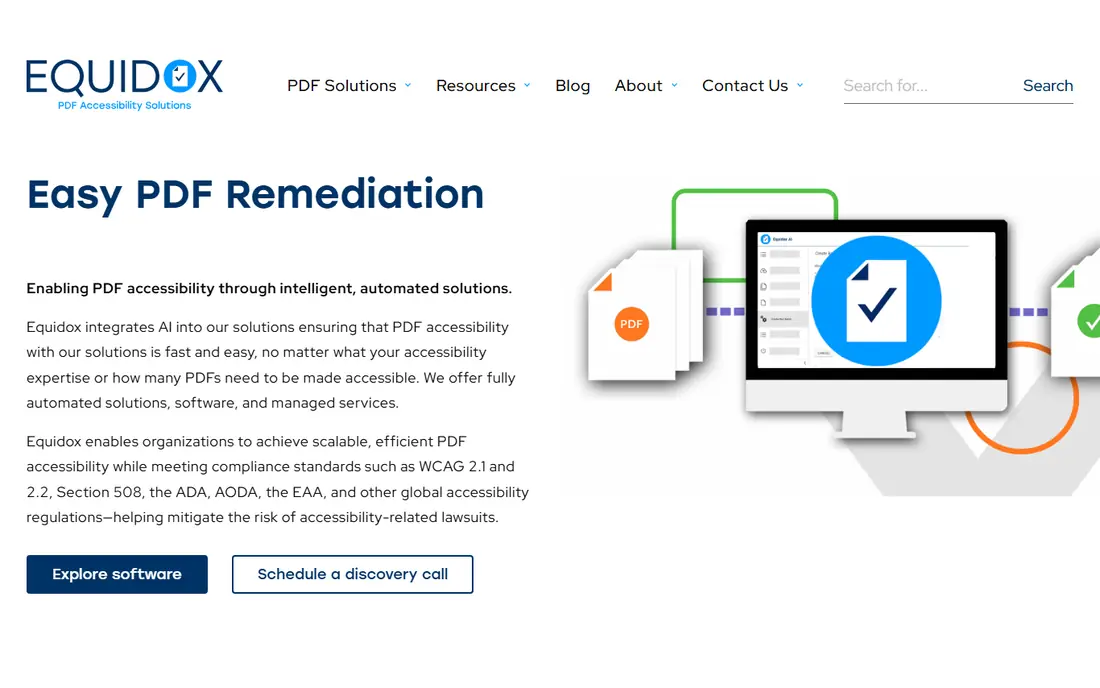
Equidox is designed around one painful job: turning a large pile of legacy PDFs into accessible files without rebuilding each one by hand. Its smart zone detection and AI-assisted tagging handle common layouts, tables, and lists, and batch workflows let a small team work through statements, directories, and reports in volume. A free trial lets you test it on your own files before committing.
No automated tool is perfect, and Equidox is no exception. Scanned pages, unusual layouts, and complex tables still need a person to check the result. The strength here is speed on routine documents, paired with optional remediation services for the hard cases. Teams with a backlog will feel the difference quickly.
- AI-assisted tagging speeds up large jobs
- Cloud and on-prem options
- Free trial to test
- Human review still needed for complex files
- Pricing is quote-based
Adobe Acrobat Pro is the tool many teams already have, and that familiarity counts. It can add tags, set reading order, write alt text, check a document, and fix common issues, all inside the editor most office staff already know. The subscription starts at $19.99 a month on an annual plan, with a free trial available.
The limit is scale. Acrobat Pro leans on manual work, so remediating hundreds of files this way is slow and tiring. It is the right choice for a small team that produces a modest number of PDFs and wants to build accessibility into its normal workflow. For bulk work, pair it with a batch tool or an outside service.
- Widely known interface
- Built-in accessibility checker
- Handles tagging, alt text, and reading order
- Remediation is mostly manual
- Large jobs take a long time
GrackleDocs is built for schools, universities, and teams that live in Google Workspace. Its add-ons check Google Docs, Sheets, and Slides for accessibility issues and guide authors to fix them before export, so the resulting PDF starts out in better shape. Pricing starts at about $12 per user a month, with domain licenses available.
The scope is narrow by design. GrackleDocs does not remediate a backlog of old PDFs from other sources, and it cannot batch-process files the way Equidox or CommonLook can. If your documents start in Google Workspace, though, catching issues at the source saves far more time than fixing PDFs after the fact.
- Native Google Docs, Sheets, and Slides add-ons
- Easy exports to accessible PDFs
- Simple pricing
- Limited to Google Workspace documents
- No true batch remediation
Continual Engine PREP is a cloud platform aimed at large organizations with steady document volume, including higher education and government. It auto-tags files, generates alt text, and offers a screen reader preview so reviewers can hear how a document will sound. Support for WCAG 2.2, Section 508, and PDF/UA covers the standards most public bodies must meet.
Pricing is custom and enterprise level, and the vendor itself notes that manual verification remains wise for final sign-off. That honesty is useful: automation cuts the bulk of the work, but a person should still review the result for anything that affects meaning. For a large publisher or agency, PREP can clear a backlog that manual tools never would.
- High automation for bulk files
- Screen reader preview
- Supports WCAG 2.2, Section 508, and PDF/UA
- Enterprise pricing by quote
- Manual verification still advised
DocAccess takes a different approach. Instead of rewriting each PDF, it converts documents into accessible, screen reader friendly HTML that visitors can read through an embed or viewer. That approach helps libraries, archives, and sites with large collections, since the original file stays untouched and the accessible version updates automatically. Support for many languages is a plus for diverse audiences.
The catch is that the PDF itself is not fixed. If a user downloads the original file, it remains inaccessible, so DocAccess works best as part of a plan that also remediates high-use files over time. For a site with thousands of legacy documents, it is a fast way to improve access while that longer work continues.
- Converts PDFs to accessible HTML on the fly
- Works without changing the original file
- Supports many languages
- Presents a view rather than a remediated PDF
- Usage-based pricing can grow
PAC, the PDF Accessibility Checker, is a free tool from the PDF/UA Foundation community that checks whether a PDF meets PDF/UA and related WCAG requirements. It reports errors in detail, which makes it useful as a second opinion after remediation in another tool, or as evidence in a procurement or audit file. There is no cost, which makes it easy to add to any workflow.
PAC does not fix anything, so it cannot stand alone as a remediation platform. Think of it as a quality gate: run your files through PAC before publication, fix what it flags in your editing tool, and keep the report. Every team on this list should have PAC installed, whatever else they buy.
- Free to use
- Checks against PDF/UA and WCAG
- Useful evidence for reviews
- Validation only, no remediation
- Desktop tool needs some learning
How we picked these
We compared official product pages, standards support, deployment options, and pricing for tools that check or remediate documents in 2026. We favored products with clear WCAG, PDF/UA, or Section 508 support, that are actively maintained, and that cover distinct needs, from free validation to bulk automation. We did not run hands-on remediation tests, so test each finalist on your own files, including scanned pages and complex tables, before signing.
What to check before you buy
Start with your source files, not the sales page. A tool that handles clean Word exports well may struggle with scanned forms or heavily designed publications, and the gap only shows up on your own documents. Run the same set of ten difficult files through each finalist, count the fixes a person still has to make, and compare that effort with the license price. That test is worth more than any feature list.
Standards, evidence, and skills
Ask which standards each tool verifies, and what report it produces. A team facing a legal or procurement duty needs a report it can file, not just a green checkmark. Also ask who will use the tool day to day. Specialist tools reward training, while simpler tools suit authors who fix documents as one part of a wider job. Budget for training and for a screen reader test, since automated checks miss problems with reading order and meaning.
Build accessibility into authoring
The cheapest fix is the one you never need. Train authors to use heading styles, alt text, and real tables in Word or Google Docs before export, and check documents at the source. Remediation tools then handle exceptions and legacy files, rather than carrying the whole load. Over a year, that habit saves more time than any single purchase.
FAQ
What is the best document accessibility platform for a small business?
Adobe Acrobat Pro is usually the best start, since it covers checking and basic remediation at $19.99 a month and many staff already know it. Add the free PAC checker as a second opinion before publication. If your volume grows past a few dozen files a month, look at Equidox or a remediation service.
What standards should an accessible PDF meet?
Most organizations aim for WCAG 2.1 or 2.2 AA and PDF/UA, plus Section 508 for US federal work. PDF/UA is the technical standard for accessible PDF files, while WCAG sets the broader web content rules. Ask your legal or compliance team which standards apply to you, since duties differ by sector and country.
Can software alone make a PDF fully accessible?
No, not reliably. Automated tools handle tags, structure, and many common fixes, but alt text, reading order, and table headers often need a person who understands the content. Use automation to cut the bulk of the work, then review with a screen reader and keep a human check for anything public or legally important.
How much does PDF remediation cost?
Costs vary widely, from a $19.99 a month Acrobat Pro subscription for do-it-yourself work to enterprise licenses quoted by vendors, and from a few dollars a page for outsourced services on simple files to more for complex ones. Get quotes based on your own file types and volumes, and include review time in the total.
Does a checker prove a document is accessible?
A checker proves a document passes the tests it runs, which is useful evidence but not the whole story. Some problems, such as misleading alt text or a confusing reading order, pass automated checks while still blocking a screen reader user. Pair checks with manual review and, when possible, testing by people who use assistive technology.
Should we fix old PDFs or replace them with HTML?
Both approaches have a place. High-use and legally important PDFs should be remediated, while large archives can be made readable faster through an HTML view such as DocAccess. For new content, publish accessible HTML as the main version and offer a remediated PDF as a second format where readers expect it.