Best Company for Image to AI Video Conversion in 2026: 9 Tools Compared
Compare the best company for image to AI video conversion in 2026, with pricing, free plans, motion quality and honest limits for 9 tools for creators.
- Editor's choice
 Runway
Directed, professional shots
Starts at$15 per monthVisit runwayml.comFull review - Great alternative
 Kling AI
Good value image animation
Starts at$10 per monthVisit klingai.comFull review - Also consider
 Pika
Fun, stylized social clips
Starts at$10 per monthVisit pika.artFull review
TL;DR:
- Runway is our pick for controlled, professional shots, while Kling gives strong value for everyday image animation.
- Most tools sell credits, so the monthly price alone does not tell you how many finished clips you will get.
- Free plans are useful for testing motion on your own photos, but paid plans are usually needed for clean exports without watermarks.
- Short clips of 5 to 10 seconds are the norm, so plan longer videos as a series of scenes rather than one long generation.
Quick comparison
| Tool | Best for | Starts at | Free plan? | |
|---|---|---|---|---|
| Runway | Directed, professional shots | $15 per month | Free trial | Visit |
| Kling AI | Good value image animation | $10 per month | Yes | Visit |
| Pika | Fun, stylized social clips | $10 per month | Yes | Visit |
 Luma Dream Machine | Cinematic camera movement | $30 per month | No | Visit |
 Adobe Firefly | Brand-safe work in Adobe apps | $10 per month | Yes | Visit |
 Google Veo | Realistic clips with sound | $20 per month | Yes | Visit |
 Hailuo AI | Expressive character motion | $15 per month | Yes | Visit |
 PixVerse | Daily free credits | $8 per month | Yes | Visit |
 Magic Hour | All-round creator production | $10 per month | Yes | Visit |
The best image to AI video conversion tools
Turning a still photo into a moving clip sounds simple, but the results vary a lot. Some tools keep faces steady and move the camera smoothly. Others warp hands, drift backgrounds, or run out of credits after a few tries. We compared official feature pages, pricing pages, and public reviews to find tools that work for real projects, not just demo reels.
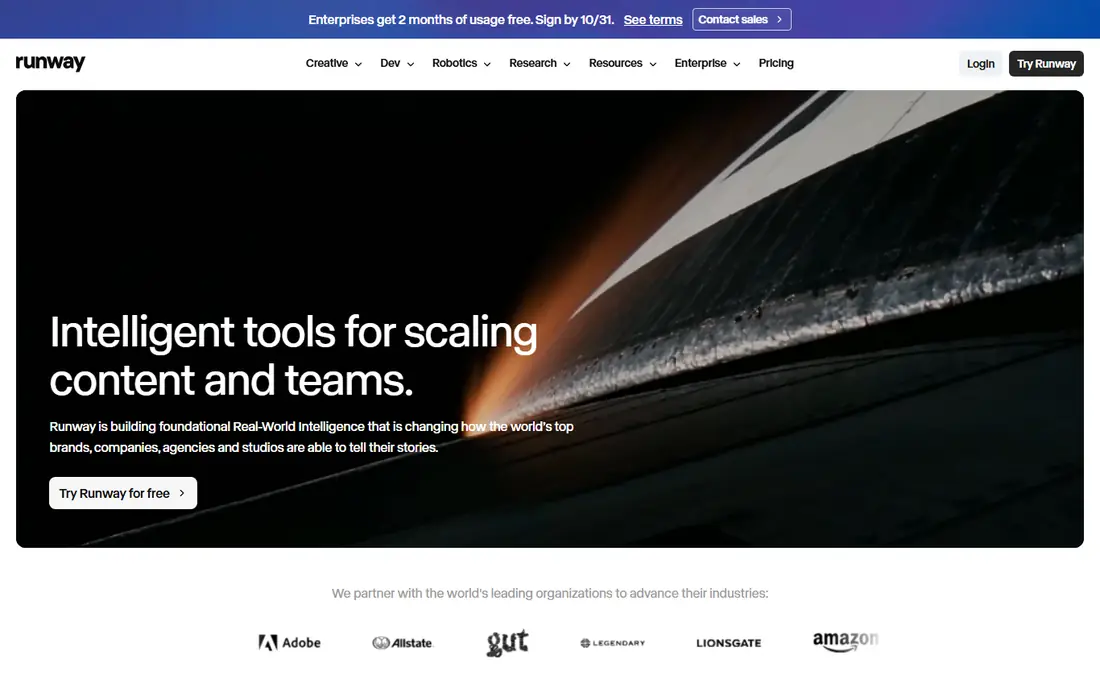
Runway suits creators who want to direct a shot rather than accept whatever the model gives them. You can start from a photo, guide camera movement, and then extend or restyle the result without switching apps. That matters when a client clip needs a specific look, because rework inside one workspace saves time. The Gen-4 family is built for this kind of controlled work, and the editing tools around it are a real advantage over single-purpose generators.
The catch is cost control. The entry paid plan is $15 per month, or $12 per month when billed annually, and the free plan gives a small one-time credit allowance rather than a monthly refill. Longer clips and higher resolutions use more credits, so a project with many retries can burn through a plan quickly. Test with your hardest photos first, and count usable clips, not total generations, before you commit to a higher tier.
- Strong camera control
- Editing tools in the same workspace
- High quality motion on detailed images
- Credit costs can add up fast
- The free allowance is small and does not refill monthly
Kling is the value pick in this list for most people. It turns photos into believable motion at a lower entry price than Runway or Luma, and the free plan gives daily credits that let you test ideas over time instead of in one rush. For product shots, portraits, and short social clips, the motion often looks natural enough to post with light editing. Multi-shot and keyframe options also help when one image needs more than a simple pan or zoom.
The trade-off is that pricing pages and first-month offers shift, so the price you see at sign-up may not be the renewal price. Check the credit allowance and the per-clip cost for the model you actually plan to use, because the cheapest plan does not always include the newest model. Still, for volume work on a budget, Kling is hard to beat, and it is a good first tool to learn image-to-video basics on.
- Daily free credits on the free plan
- Realistic motion for the price
- Lip sync options
- Paid pricing and promos change often
- Top models may sit on higher tiers
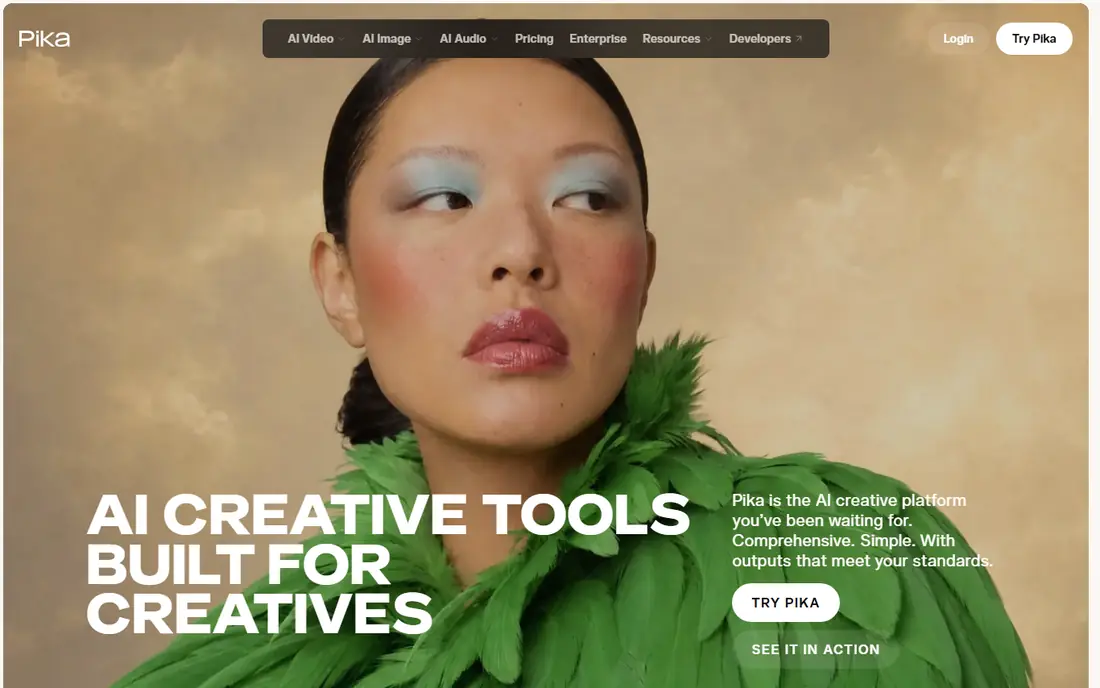
Pika is built for speed and play. If your goal is a short, eye-catching clip for TikTok, Reels, or Shorts, it gets you there with less fiddling than a film-oriented tool. Effects, lip sync, and stylized looks are its strengths, and the interface stays simple even for first-time users. That makes it a good choice for creators who post often and need a steady stream of short clips.
It is less suited to long, realistic scenes or strict brand work. The free plan is limited, and the licensing terms matter: check whether your plan covers commercial use before posting client work. Paid plans start around $10 per month, with annual billing bringing the monthly figure down. For social-first creators, that is a fair price for a tool that prizes quick, shareable output over deep control.
- Fast, playful effects
- Easy social formats
- No watermark on paid output
- Free plan gives packs rather than a monthly credit refill
- Commercial use needs a higher tier
Luma Dream Machine stands out for camera work. When you want a slow push-in, a circling shot, or a smooth reveal from a still image, its motion often looks more film-like than tools aimed at quick social clips. That makes it a strong pick for product films, travel content, and scenes where the camera move carries the story. Recent plans also give access to outside models, which adds flexibility if one model struggles with a particular image.
The price is the main barrier. Paid plans start at $30 per month, and there is no free individual plan listed on the current pricing page. A single 5-second clip at 1080p can use several hundred credits, so the monthly allowance goes faster than the plan name suggests. If you only need a few clips a month, a cheaper tool may serve you better. If camera quality is the priority, Luma earns its higher price.
- Smooth, film-like camera moves
- Strong detail on scenery and objects
- Multi-model access on some plans
- No free individual plan on the current pricing page
- A 5-second 1080p clip uses a large credit chunk
Adobe Firefly is the sensible pick for teams already inside Adobe apps. You can generate a clip from an image, then move it into Premiere Pro or Express without exporting through a string of converters. For brand and client work, Adobe's approach to training data and commercial use is also easier to explain to a cautious client than a vague license from a newer startup. The free tier gives daily generations, which is enough to test the style before paying.
The limits are clip length and depth. Firefly video clips are short, so it works best for intros, product moments, and social cuts rather than full scenes. Paid plans start around $10 per month for Firefly Standard, with a Pro tier above it. If you already pay for Creative Cloud, check what video generation is included in your plan before buying a separate tool, because the answer may change the math.
- Fits Adobe Creative Cloud workflows
- Daily free generations
- Clear commercial-use terms for generated content
- Clips are short, around 5 seconds
- Video is one part of a broader plan, not a standalone studio
Google Veo, reached through Flow and the Google AI plans, is our pick when realism and sound matter most. Starting from an image, it can produce motion that holds together well, and generated audio can make a clip feel finished without a separate sound step. For ads, explainers, and product demos, that combination saves editing time. The Google AI Pro plan, at $20 per month, is the common entry point for regular use.
Free access inside the Gemini app is limited, and peak-time limits can slow heavy users. Each generation is also capped in length, so longer stories still need scene-by-scene assembly. Check how many Flow credits your plan includes, and how they reset, before planning a campaign around Veo. For creators who already use Google tools, though, it is a strong, well-supported option.
- Strong realism and synced audio
- Works through Flow and Gemini
- Good prompt understanding
- Clip length is capped per generation
- Higher tiers are needed for heavy use
Hailuo AI, from MiniMax, is worth a look when people and characters carry the clip. It handles expressive motion well, and multi-reference features help when a scene needs more than one image as input. For creators making character-led social content or short animated stories, that focus can matter more than raw realism. The standard plan is listed around $15 per month, with promo pricing sometimes lower.
The free access is a one-time trial, so you cannot rely on it for ongoing work. Plan your test carefully, using images that match your real projects, and read the current credit table before paying. Hailuo is not the cheapest tool at list price, and it is not the best all-round studio, but for character motion it earns a place on this list.
- Lively character and face motion
- Low-cost entry on promo pricing
- Multi-reference options
- Trial credits are one-time only
- List pricing is higher than promo pricing
PixVerse is a good low-cost way to keep image-to-video work going every day. The free plan gives daily credits, and the Standard plan is around $8 per month when billed annually. That makes it an easy second tool to keep alongside a main generator, or a first tool for a creator who is still learning what prompts and images work. Social formats and quick effects are its natural home.
The limits show up in resolution and credit math. Some Standard output is capped at 720p, so check whether that meets your posting needs before you rely on it for client work. Higher tiers raise the cap and the credit allowance. If you post mainly to phones and social feeds, 720p may be fine. If you need full HD delivery, budget for a higher tier or a different tool.
- Daily free credits for regular testing
- Low annual entry price
- Quick social formats
- Standard plan caps some output at 720p
- Credit costs vary by model and length
Magic Hour takes a different approach from single-model tools: it bundles image-to-video with talking photos, lip sync, face swap, and upscaling. For a creator or small team producing a lot of varied content, that bundle can replace several subscriptions. The free plan is generous enough for real testing, and paid plans start around $10 per month on annual billing. An API also makes it usable inside a larger production workflow.
The trade-off is that a bundle is rarely best at everything. Some features will match specialist tools, and others will fall short, so test the exact feature you need rather than judging the whole suite on one good clip. For teams that need breadth over a single perfect model, Magic Hour is a practical, cost-aware choice, and it is our pick for creators who want one account to cover many video jobs.
- Image-to-video plus face swap, lip sync, and upscaling in one place
- Generous free plan for testing
- API for teams
- Quality varies by feature, so not every tool inside it is best in class
- Paid tiers are needed for heavy volume
How we picked these
We compared official feature pages, pricing pages, and app store listings, plus public reviews that tested the same kinds of images across tools. A tool made this list only if it accepts a still image as input, produces a moving video clip, and is available to buy or try in October 2026. We favored tools with clear pricing, a usable free or trial option, and honest limits on clip length and credits, and we left out tools that only do text-to-video or avatar-only talking heads.
What to check before you pay
Count credits, not just the monthly price
A $10 plan with 200 credits can cost more per finished clip than a $30 plan with a large allowance. Find the credit cost for your usual clip length and resolution, then divide the monthly allowance by that number. That gives you usable clips per month, which is the figure that matters.
Test your hardest images first
Faces, hands, text in the image, and busy backgrounds are where models fail. Run the same five difficult photos through two or three tools before you pay for a year. A tool that handles your real images well is worth more than one with a prettier demo reel.
Check the license for client work
Some free and low tiers limit commercial use, and some add watermarks. If you sell the video or post it for a brand, confirm that your plan covers commercial use and that exports are clean. Keep a screenshot of the license terms for client files.
Plan for short scenes
Most tools cap a single generation at 5 to 10 seconds. Build longer videos as a series of scenes with matching style prompts, then join them in an editor. This also makes retries cheaper, because you only regenerate the scene that failed.
FAQ
What is the best company for image to AI video conversion for most people?
For most people, Kling offers the best balance of price, quality, and daily free credits, while Runway is better when you need precise camera control and editing tools. Start with the free plans, test your own photos, and pick the tool whose motion holds up on faces and backgrounds in your work.
How much does image to AI video conversion cost per month?
Entry paid plans in this list run from about $8 to $30 per month, but credits decide the real cost. A plan can look cheap and still run out after a handful of long, high-resolution clips, so check the credit cost per clip and the monthly allowance before you pay.
Can I use these tools for free?
Yes, most tools here offer a free plan or trial credits, including Kling, Pika, Firefly, Veo, Hailuo, PixVerse, and Magic Hour. Free output may carry a watermark, cap resolution, or limit commercial use, so read the plan terms if you plan to post the clip for a business.
How long can an AI video clip from a photo be?
Most single generations run 5 to 10 seconds, with some tools reaching longer lengths on higher tiers or through extension features. For a 30-second video, plan five or six scenes, generate each one, and join them in a video editor with matching music and cuts.
Do I own the videos I generate from my photos?
Ownership depends on the tool and the plan, and some plans limit commercial use on free tiers. In general, paid plans give broader rights, but you should still read the terms for the plan you buy, especially if you use a photo you do not own or a recognizable person in the image.
Which tool is best for realistic motion?
Google Veo and Kling are strong for realistic motion, while Luma is strong for cinematic camera movement and Runway is strong for directed shots. Realism also depends on the input photo, so a clean, well-lit image with a simple background will animate better on any tool than a crowded, low-light photo.