Best CD Ripping Software in 2026: 9 Tools Compared
Compare the best CD ripping software for accurate, lossless rips in 2026. We cover free and paid CD ripper tools for Windows, Mac, and Linux users today.
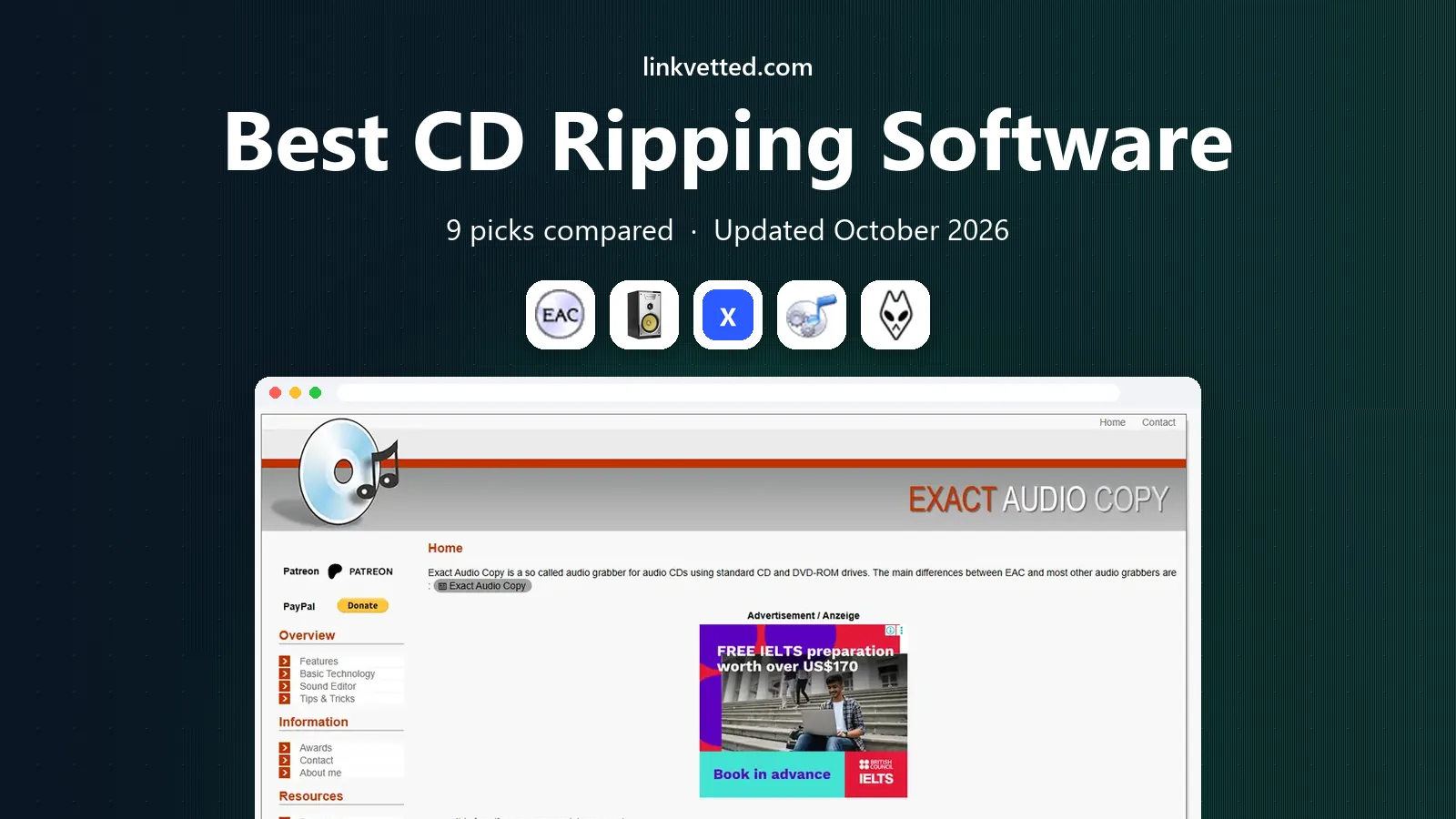
- Editor's choice
 Exact Audio Copy
Accurate Windows rips
Starts atFreeVisit exactaudiocopy.deFull review - Great alternative
 dBpoweramp CD Ripper
Fast, polished ripping
Starts at$38Visit dbpoweramp.comFull review - Also consider
 XLD
Lossless Mac ripping
Starts atFreeVisit tmkk.undo.jpFull review
TL;DR:
- Exact Audio Copy remains our pick for most Windows users who want verified, accurate rips at no cost.
- dBpoweramp is the paid upgrade worth buying when you want fast rips, strong metadata, and good handling of damaged discs.
- Mac users should start with XLD, while Linux users get the most from fre:ac or a command-line ripper.
- FLAC is the best archive format for most collections, with MP3 or AAC as a second copy for phones and cars.
- Always check a rip log and keep a backup, because a disc can degrade and a drive can fail.
Quick comparison
| Tool | Best for | Starts at | Free plan? | |
|---|---|---|---|---|
| Exact Audio Copy | Accurate Windows rips | Free | Yes | Visit |
| dBpoweramp CD Ripper | Fast, polished ripping | $38 | Free trial | Visit |
| XLD | Lossless Mac ripping | Free | Yes | Visit |
 fre:ac | Cross-platform simplicity | Free | Yes | Visit |
 foobar2000 | Ripping plus library playback | Free | Yes | Visit |
 EZ CD Audio Converter | All-in-one conversion | $39.95 | Free trial | Visit |
 MusicBee | Ripping inside a music library | Free | Yes | Visit |
 Apple Music | Simple rips for Apple users | Free | Yes | Visit |
 CUERipper | Single-file rips with cue sheets | Free | Yes | Visit |
The best CD ripping software
These are the CD ripper tools we would trust with a collection we care about, from free accuracy-first options to paid tools that save time.
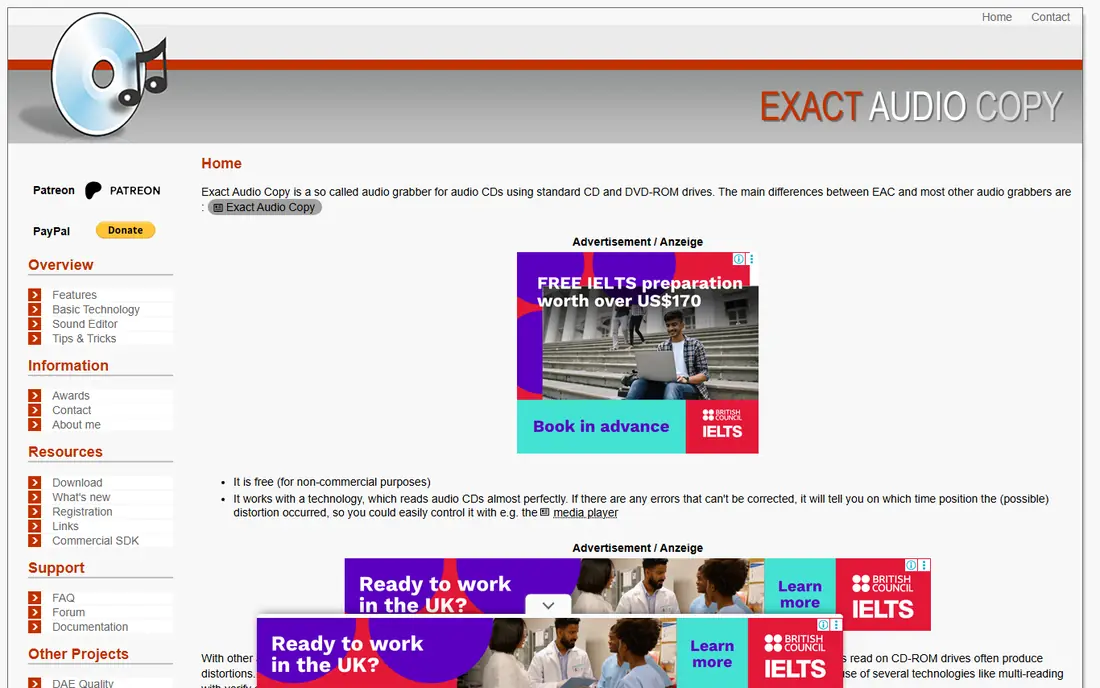
Exact Audio Copy, usually called EAC, has earned its place through accuracy rather than looks. It reads a disc in secure mode, re-reads problem sections, and checks results against the AccurateRip database when a match exists. That process gives you a log you can read and keep, which matters when you want proof that a rip is clean rather than just hoping it sounds fine.
The trade-off is the learning curve. First-time setup asks about drive features, offsets, and compression settings, and the interface looks old. Once it is set up, though, routine ripping is steady and repeatable. Our pick for most people on Windows is EAC, because it costs nothing and treats accuracy as the main job, not an afterthought.
- AccurateRip verification
- Detailed rip logs
- Strong error correction
- Dated interface
- Windows only
- Setup takes patience
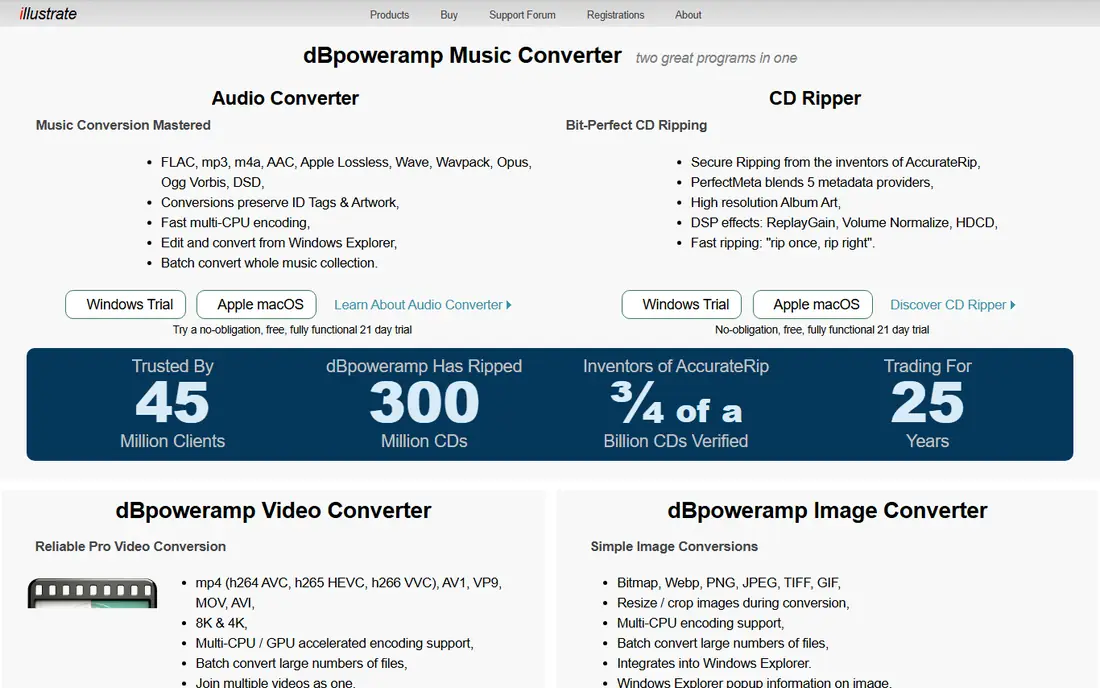
dBpoweramp takes the accuracy ideas behind EAC and wraps them in a faster, friendlier program. It pulls metadata from several sources, fetches album art, and uses multiple cores to rip and encode at the same time. For a large collection, that speed difference adds up over hundreds of discs, and the cleaner workflow means fewer clicks per album.
It also handles scratched discs with care, re-reading difficult sections rather than silently passing errors through. The price is the main catch, and the top Reference edition costs more than the base edition. If you have a big collection or little patience for setup, dBpoweramp is the paid option we would buy first.
- Fast multi-core ripping
- Strong metadata sources
- Good damaged-disc handling
- Paid after trial
- No Linux version
- Full converter costs more

XLD is the Mac answer to EAC. It supports accurate rips, log files, and lossless formats, and it can split or keep a single image with a cue sheet. That makes it a strong choice for listeners who archive in FLAC or Apple Lossless and want a record of how each rip went.
It is not a full music library, so you will still need a player for day-to-day listening. The interface is functional rather than pretty, and settings reward a careful first pass. For Mac owners who care about bit-perfect archives, XLD is the free tool to learn first.
- AccurateRip support on Mac
- FLAC and Apple Lossless output
- Cue sheet support
- Mac only
- Interface is plain
- No built-in player library
fre:ac is a free audio converter with a built-in CD ripper, and its strength is that it runs almost anywhere. It converts between MP3, FLAC, AAC, Opus, and other formats, keeps folder structure, and can run from a USB stick in its portable form. That flexibility suits households with mixed computers or a single machine that gets replaced often.
It does not chase accuracy as hard as EAC or XLD, so it is a better fit for casual collections than for rare or fragile discs. Metadata comes from online databases, and results are usually fine for mainstream albums. If you want one free tool for every computer in the house, fre:ac is a practical pick.
- Works on Windows, Mac, and Linux
- Many formats
- Portable version available
- Accuracy checks are less strict
- Interface feels basic
- Metadata is adequate, not great
foobar2000 is best known as a lightweight music player, but its converter can rip CDs when the right components are in place. That makes it appealing if you want ripping and playback in one program, with deep control over file naming, tags, and output formats. It stays fast even with large libraries, which helps when a collection grows past a few thousand tracks.
The catch is that foobar2000 expects you to know what you want. Menus and components take time to learn, and the Mac and mobile versions are more limited than the Windows version. For tinkerers who already use foobar2000 as a player, adding ripping to the same workflow makes sense.
- Lightweight player
- Flexible conversion
- Strong format support
- Windows focused
- Setup can feel technical
- Ripping needs a converter add-on
EZ CD Audio Converter covers ripping, conversion, and disc burning in a single, tidy program. It fetches metadata and art, supports lossless and lossy formats, and presents options in plain language. That breadth suits someone who also converts downloaded files or makes audio CDs for a car, rather than someone who only rips.
It is Windows only, and the price buys convenience rather than a unique accuracy advantage over free tools. The trial lets you test it on your own discs before paying. If you want one paid program for all disc and file jobs, EZ CD is a solid candidate.
- Rips, converts, and burns in one app
- Clear interface
- Good metadata
- Windows only
- Paid after trial
- More than a simple ripper needs
MusicBee is a full music manager that also rips CDs, so it fits listeners who want to rip, tag, organize, and play from one place. It handles large libraries well, supports many formats, and offers strong tagging and artwork tools. Once a disc is ripped, the tracks land straight in your library with playlists and views ready to use.
Ripping is not its headline feature, and accuracy tools are less detailed than in EAC. For everyday collections where convenience matters more than forensic logs, that trade is fine. If you already use MusicBee or want a free Windows library, its ripper is a welcome bonus.
- Full library management
- Good tagging
- Free
- Windows only
- Ripping is secondary
- Can feel busy at first
Apple Music, the app that replaced iTunes on modern systems, still imports CDs with little fuss. Put in a disc, choose import settings, and tracks join your library. For someone with a small collection and an iPhone or Mac, that simplicity is hard to beat, and there is nothing extra to install.
The limits matter for archivists. There is no AccurateRip verification or detailed rip log, and import settings favor convenience over strict accuracy. Scratched discs may rip with errors you never see. Use Apple Music for casual listening copies, and use a dedicated ripper for discs you want to preserve long term.
- Built into Mac and Windows app
- Simple import
- Works with Apple library
- No AccurateRip checks
- Limited lossless rip options
- Tied to Apple ecosystem
CUERipper is a compact, open-source ripper focused on accurate single-file rips with cue sheets. It checks against AccurateRip, writes logs, and suits collectors who keep an album as one file plus a cue sheet for track breaks. That format works well for archival storage and for players that understand cue sheets.
It is a smaller project than EAC or dBpoweramp, so documentation and support are thinner, and development can be slow. The interface is plain, and you should test it on a few discs before committing a whole collection. For the specific job of cue-based archiving, CUERipper is a neat free option.
- AccurateRip support
- Single-file plus cue output
- Free and open source
- Windows only
- Small project
- Limited support and updates
How we picked these
We compared official feature pages, pricing pages, format support, and accuracy features, plus public documentation on AccurateRip, cue sheets, and error correction. We favored tools that still work on current Windows, Mac, or Linux systems, that clearly state their price or free status, and that truly rip CDs rather than only converting files. Tools that are abandoned, tied to a single store, or unable to produce a usable log were left out.
We also weighed the whole workflow, not just the rip button. Metadata, album art, file naming, and output formats decide how much cleanup you face after ripping. That is why a simple importer and a strict archivist tool can both appear here, for different readers.
What to decide before you rip
A few choices made at the start will save hours of rework later.
Pick your archive format first
FLAC gives lossless sound at about half the size of a WAV file, with tags for artist, album, and art. Apple Lossless is the equivalent for Apple households. MP3 at a high bit rate is fine for a portable copy, but it should not be your only copy, because lossy files cannot regain detail later.
Check accuracy, not just sound
A rip can sound fine on a quick listen and still contain small errors. Use AccurateRip where available, keep the log file next to the music, and re-rip any disc that reports errors. For rare discs, rip twice and compare, or keep the log as evidence of the best result you could get.
Plan storage and backups
Lossless collections grow fast, so budget drive space and keep at least one backup away from the ripping computer. A simple rule is to keep the original FLAC files in one place, a portable MP3 or AAC copy for daily use, and a backup copy on a second drive or cloud storage.
Mind copyright and care for discs
Rip discs you own for personal use, and check local rules if you plan to share files. Clean discs gently before ripping, handle them by the edges, and store them upright after the job. A clean disc rips faster and with fewer errors than a dusty one.
FAQ
What is the best software for ripping CDs?
For most Windows users, Exact Audio Copy gives the best mix of accuracy and price, since it is free and checks rips. dBpoweramp is the best paid choice when speed and metadata matter. Mac users should try XLD first, and cross-platform households can use fre:ac.
Is CD ripping software free?
Several good rippers are free, including Exact Audio Copy, XLD, fre:ac, foobar2000, MusicBee, and CUERipper. Paid tools like dBpoweramp and EZ CD Audio Converter charge for speed, metadata, and a smoother interface. Free does not mean low quality here, since the best accuracy tools are free.
What format should I rip CDs to?
Rip to FLAC for a long-term archive, or Apple Lossless if you live in the Apple ecosystem. Make MP3 or AAC copies from those masters for phones, cars, and portable players. Avoid ripping only to a low bit rate MP3, because you cannot restore lost detail later.
Does ripping damage a CD?
Normal ripping does not damage a disc, since reading is a non-contact optical process. Repeated ripping of a badly scratched disc can take longer and may still fail, so clean the disc and try a careful ripper first. Store discs after ripping rather than leaving them in the drive.
Can I rip CDs on a Mac without a built-in drive?
Yes, with an external USB CD or DVD drive and a tool like XLD or Apple Music. Check that the drive is recognized before buying software, and prefer a drive that supports accurate ripping. External drives vary, so test a few discs and read the log.
How long does it take to rip a CD?
A clean disc usually takes a few minutes in a fast ripper, and longer in secure mode or with error correction. Scratched discs can take much longer as the drive re-reads problem areas. For a large collection, plan in batches and let the computer work while you do other tasks.