Best AI YouTube Thumbnail Generator Tools in 2026: 8 Tools Compared
We compared the best ai youtube thumbnail generator tools for creators, covering templates, text styles, exports, pricing, and free plans for 2026 today.

- Editor's choice
 Canva
Templates and easy editing
Starts at$15 per monthVisit canva.comFull review - Great alternative
 Adobe Express
Brand controls and fonts
Starts at$9.99 per monthVisit adobe.comFull review - Also consider
 Pikzels
AI-generated concepts
Starts atSee websiteVisit pikzels.comFull review
TL;DR:
- Canva is our pick for most creators because it pairs a huge template library with simple editing and direct YouTube sizing.
- Pikzels is the strongest AI-first choice, since it generates thumbnail concepts from a video title and topic without a blank canvas.
- Adobe Express suits creators who want strong brand controls and Adobe fonts, with a free plan that covers basic thumbnail work.
- Predis.ai fits creators who also need captions and post ideas, because it links thumbnails to wider social content planning.
- Fotor and VistaCreate are good budget options when a creator needs fast photo edits and ready templates rather than deep AI generation.
Quick comparison
| Tool | Best for | Starts at | Free plan? | |
|---|---|---|---|---|
| Canva | Templates and easy editing | $15 per month | Yes | Visit |
| Adobe Express | Brand controls and fonts | $9.99 per month | Yes | Visit |
| Pikzels | AI-generated concepts | See website | Yes | Visit |
 Predis.ai | Thumbnails plus social content | $29 per month | Yes | Visit |
 Fotor | Photo editing and templates | $8.99 per month | Yes | Visit |
 VistaCreate | Ready templates on a budget | $13 per month | Yes | Visit |
 Snappa | Fast simple graphics | $15 per month | Yes | Visit |
 PicMonkey | Photo touch-ups and text | $7.99 per month | Free trial | Visit |
The best ai youtube thumbnail generator tools
A good thumbnail needs a clear face or subject, short readable text, and strong contrast at small sizes. We compared tools on templates, AI generation, text controls, exports, and price, and we kept only tools that still work for YouTube creators in 2026.
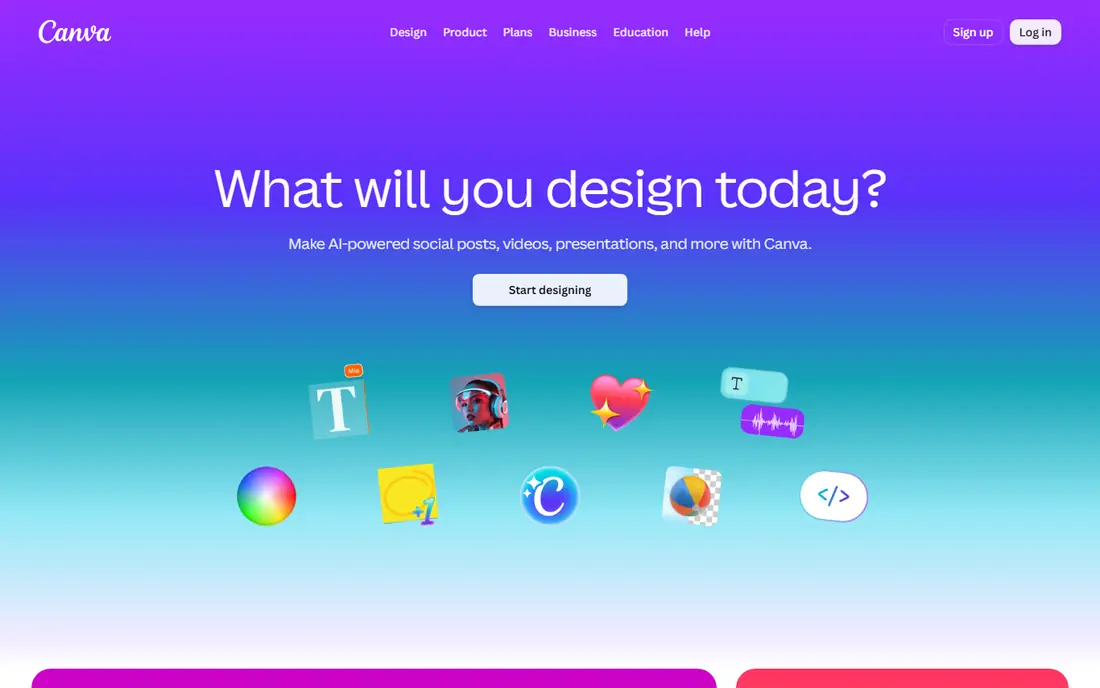
Canva is the safest starting point for most YouTube creators, and that is not just because it is well known. Search for YouTube thumbnail templates and you get thousands of sized layouts, with text, shapes, and photo placements already set up. A creator can swap in a screenshot, change the headline to three or four words, and export at the right size without learning design software.
The editing tools also cover the details that make a thumbnail readable. Background removal, text effects, and contrast controls help a subject stand out from a busy background. Paid Pro adds a brand kit, more AI features, and a larger stock library, at about $15 per month for one person when billed monthly, with a lower annual rate.
The catch is familiarity. Because so many creators use the same templates, a Canva thumbnail can blend in unless the creator changes the colors, photo, and text enough to make it their own. Free users also hit limits on premium photos and some AI tools, so a busy channel may need Pro sooner than expected.
- Huge YouTube thumbnail template library
- Drag-and-drop editing
- Background remover and brand kit on paid plans
- Free plan limits premium elements and some AI features
- Popular templates can look familiar
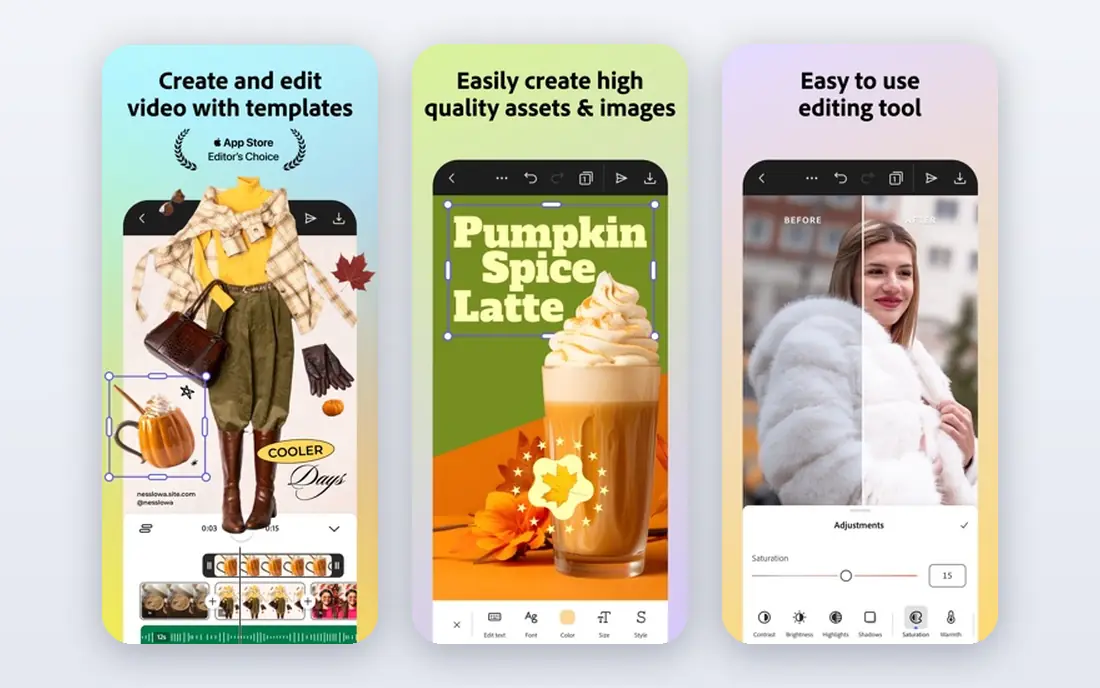
Adobe Express brings Adobe design quality into a browser tool that a non-designer can use. Creators get access to Adobe fonts, stock photos, and quick actions for removing backgrounds and resizing images. That matters for a channel that wants a consistent look across thumbnails, channel art, and social posts.
The brand controls are a practical strength. A creator can save colors, fonts, and logos, then apply them to each new thumbnail without rebuilding the style from scratch. That consistency helps viewers spot a channel in a crowded feed, even before they read the title.
The trade-off is template depth. Adobe Express has YouTube templates, but the library is not as large as Canva for this exact job. Some advanced features also sit behind the Premium plan, listed at $9.99 per month. Creators who already use Adobe tools will get the most from it, while others may prefer Canva for sheer template choice.
- Strong Adobe fonts and stock assets
- Brand kit and quick actions
- Free plan for basic work
- Template range for YouTube is smaller than Canva
- Some best features need a paid plan

Pikzels is built for one job, and it shows. A creator enters a video title or topic, picks a style, and gets several thumbnail concepts to review. That is useful when a creator knows the video but has no visual idea yet, which is a common block for small channels.
The style range helps too. A creator can try a bold gaming look, a clean tech look, or a face-focused vlog look, then keep the direction that fits the channel. Editing tools let the creator adjust text and layout after generation, so the final image is not stuck as the AI first made it.
The honest catch applies to all AI image tools. Faces can look odd, hands can look wrong, and text can misspell words, so every thumbnail needs a close look before upload. Credit limits also shape how many ideas a creator can test each month, so check the current plan details before relying on it for daily uploads.
- Generates thumbnail ideas from titles and topics
- Multiple style options per prompt
- Built for YouTube creators
- Pricing and credit limits vary by plan
- AI faces and text still need a human check
Predis.ai fits creators who treat YouTube as part of a wider social plan. It generates content ideas, captions, and visuals from a short brief, and it can help plan posts across platforms. A creator who also runs Instagram, TikTok, or X will get more from it than a creator who only needs one thumbnail a week.
The thumbnail help works best as an idea engine. Predis.ai can suggest concepts and copy angles tied to the video topic, which a creator can then refine in Canva or Adobe Express if the design needs more polish. That two-step flow suits teams that plan content in batches.
The limit is editing depth. Predis.ai is not a full design editor, so fine control over layers, masks, and text effects is weaker than in Canva or Adobe Express. Paid plans start at $29 per month, so a creator who only needs thumbnails should compare that cost with a cheaper dedicated editor first.
- AI post and thumbnail ideas from a short brief
- Caption and hashtag help
- Content calendar features
- Thumbnail editing is lighter than a dedicated design tool
- Paid plans start higher than simple editors
Fotor started as a photo editor, and that background still shapes it. Creators can clean up a screenshot, adjust light and color, remove a background, and then add bold thumbnail text. For channels that rely on real photos rather than illustrated concepts, that editing strength matters more than a large AI prompt box.
The template library covers YouTube sizes and common niches, from gaming and beauty to tech and cooking. A creator can start from a template, drop in an edited photo, and finish in a few minutes. Paid Pro starts at $8.99 per month, which is lower than several rivals on this list.
The weakness is AI depth. Fotor does offer AI tools, but it is not as focused on YouTube thumbnail generation as Pikzels or Canva Magic tools. Free users also face limits on premium assets, so check export quality before publishing a free-plan thumbnail.
- Strong photo editing and filters
- YouTube thumbnail templates
- Affordable paid plans
- AI generation is less focused than Pikzels
- Free plan includes limits and watermarked exports on some assets
VistaCreate is a solid choice for creators who want a template first and AI second. Its library includes YouTube thumbnail layouts across many niches, and the editor stays simple enough for a beginner to use without a tutorial. A creator can change text, colors, and photos, then export the result at YouTube size.
The brand kit on paid plans helps small teams keep a consistent style. Save the channel colors and fonts once, and each new thumbnail starts closer to finished. The Pro plan is listed at $13 per month, with a free plan for basic use.
The trade-off is AI power. VistaCreate does include AI-assisted features, but it does not match the concept generation of Pikzels or the AI depth of Canva Pro. Creators who need many fresh ideas each week may want an AI-first tool alongside it, while creators who need fast template work will be fine with VistaCreate alone.
- Large template library
- Simple editor
- Brand kit on paid plans
- AI features are lighter than Canva
- Fewer advanced photo tools than Fotor
Snappa appeals to creators who value speed over endless options. The editor opens with preset sizes, including YouTube thumbnails, and the stock library makes it easy to find a background without leaving the tool. A creator can build a clean thumbnail with a photo, a shape, and short text in a few minutes.
That speed is the point. Small channels and solo creators often need a thumbnail done, not a design project, and Snappa keeps the choices narrow enough to finish quickly. The Pro plan costs $15 per month and lifts the download limits that apply on the free plan.
The limit is choice. Snappa has fewer templates and fewer AI features than Canva, so creators who want many fresh concepts may feel boxed in. It works best for creators with a clear style who need to produce that style fast, week after week.
- Very fast editor
- Preset YouTube sizes
- Good stock photo library
- Free plan limits downloads per month
- Fewer templates than Canva
PicMonkey sits between a photo editor and a design tool, which fits thumbnail work well. Creators can retouch a face or product photo, add layered text with effects, and adjust colors until the subject pops at small sizes. That control helps when a thumbnail depends on one strong photo.
The layered editor gives more freedom than a rigid template, so creators with a clear visual idea can build it exactly. Brand kit features on higher plans help teams keep colors and logos consistent across a channel.
The catch is the free offer. PicMonkey offers a free trial rather than a permanent free plan, so creators need a paid plan for ongoing use, starting at $7.99 per month. The template library is also smaller than Canva, so beginners who need many starting layouts may prefer a template-first tool.
- Good photo retouching and text effects
- Layered editing
- Brand kit on higher plans
- No permanent free plan, only a trial
- Template range is smaller than Canva
How we picked these
We compared official feature pages, pricing pages, and template libraries, and we checked that each tool still supports YouTube thumbnail sizes and exports in 2026. We favored tools with a clear YouTube workflow, readable text controls, and a free plan or trial, plus a mix of AI-first generators and classic editors. We did not claim hands-on testing, and we based the comparison on published features, pricing, and public documentation.
We also checked for tools that had shut down or shifted focus, and we left those out. A thumbnail tool that no longer loads, or that no longer supports the right export size, would waste a creator's time no matter how good its old reviews were.
How to make a thumbnail that gets clicks
A tool can only help if the design follows a few basic rules. Start with one clear subject, then add text only when it adds meaning the image alone cannot carry.
Keep text short and large
Three or four words beat a full sentence on a thumbnail, because most viewers see it at phone size first. Use a bold font, high contrast, and a short phrase that creates curiosity without misleading the viewer. Check the thumbnail at small size before upload, since fine detail disappears fast.
Make the subject stand out
A face with a clear expression, or a product shot with a clean background, works better than a busy scene. Use background removal, blur, or a color shape behind the subject to separate it from the rest of the image. Avoid clutter, since each extra element fights for attention.
Stay honest and consistent
Clickbait that misleads viewers hurts watch time and trust, even if it wins a click. Keep the thumbnail true to the video, and keep colors and fonts close to the channel style so returning viewers can spot new uploads. Test two versions when you can, and keep the one that earns longer watch time, not just more clicks.
Check exports before you publish
Export at 1280 by 720 pixels, in JPG or PNG, and under the YouTube file size limit. Look at the file on a phone and on a desktop feed, and check that text is still readable and faces are not cut off. A thumbnail that looks fine in an editor can still fail at feed size.
FAQ
What is the best ai youtube thumbnail generator tool for beginners?
Canva is the best starting point for beginners, because its templates, preset sizes, and simple editor remove most design guesswork. Pikzels is a good second choice for beginners who want AI to suggest concepts first. Either way, keep text short and check the result at phone size before upload.
Do AI thumbnail tools make good thumbnails on their own?
AI tools can suggest strong concepts and layouts, but the output still needs a human check. Faces, hands, and text can contain errors, and a generated image may not match the video. Treat AI output as a first draft, fix the text and subject, and confirm the thumbnail is honest about the video.
What size should a YouTube thumbnail be?
YouTube recommends 1280 by 720 pixels, with a 16:9 ratio, in JPG or PNG format. All the tools on this list support that size, either through a preset or a custom canvas. Export at that size rather than scaling up a small image, since scaling up can soften text and detail.
Can I use these tools for free?
Several tools offer free plans, including Canva, Adobe Express, Pikzels, Predis.ai, Fotor, VistaCreate, and Snappa, with limits on premium assets or monthly use. PicMonkey offers a free trial instead of a permanent free plan. For a busy channel, a paid plan usually pays for itself in saved time and better assets.
How many words should thumbnail text have?
Three or four words is a good target, since longer text becomes hard to read at small sizes. Let the video title carry the detail, and let the thumbnail carry the hook, the emotion, or the key visual. If the text needs more words to make sense, the image idea may need rework.