Best AI Video Editing Software for Beginners in 2026: 8 Tools Compared
Best AI video editing software for beginners in 2026: compare 8 AI editors for social clips, captions, talking-head videos, and simple films. before you buy.
- Editor's choice
 CapCut
Short-form social video on phone and desktop
Starts atFree, Pro from $19.99 per monthVisit capcut.comFull review - Great alternative
 Descript
Talking-head and podcast video edited by transcript
Starts atFree, Hobbyist from $16 per month billed annuallyVisit descript.comFull review - Also consider
 Wondershare Filmora
Desktop beginners wanting templates and AI tools
Starts atFree, from $9.99 per month in some listings, $49.99 per year for Basic in othersVisit filmora.wondershare.comFull review
TL;DR:
- CapCut suits social video beginners who want templates, auto-captions, and direct posting to short-form platforms.
- Descript suits beginners who edit talking-head videos, because editing the transcript edits the video.
- Filmora suits beginners who want a desktop timeline with AI tools and many templates in one app.
- Clipchamp suits Windows beginners who want a free, watermark-free 1080p editor with simple AI help.
- Start on a free plan with a real project, since export limits and watermarks matter more than a feature list.
Quick comparison
| Tool | Best for | Starts at | Free plan? | |
|---|---|---|---|---|
| CapCut | Short-form social video on phone and desktop | Free, Pro from $19.99 per month | Yes | Visit |
| Descript | Talking-head and podcast video edited by transcript | Free, Hobbyist from $16 per month billed annually | Yes | Visit |
| Wondershare Filmora | Desktop beginners wanting templates and AI tools | Free, from $9.99 per month in some listings, $49.99 per year for Basic in others | Yes | Visit |
 Clipchamp | Windows beginners wanting free 1080p editing | Free, Premium via Microsoft 365 Personal from $9.99 per month | Yes | Visit |
 InVideo | Marketing videos made from a text prompt | Free plan in some listings, paid from $9 per month in others, see website | Yes, limited free plan in some listings | Visit |
 Pictory | Videos made from articles, scripts, and long recordings | See website | No, free trial in some listings | Visit |
 Runway | AI generation and enhancement for creative beginners | Free, Standard from $15 per month in some listings | Yes, limited credits | Visit |
 Opus Clip | Short clips cut from long videos with AI | Free, Pro from $16 per member per month billed annually in some listings | Yes, limited free plan | Visit |
The best AI video editing software for beginners
We compared beginner video editors on AI help, templates, free plans, and export limits, and the eight below cover social clips, talking-head videos, and text-to-video work.
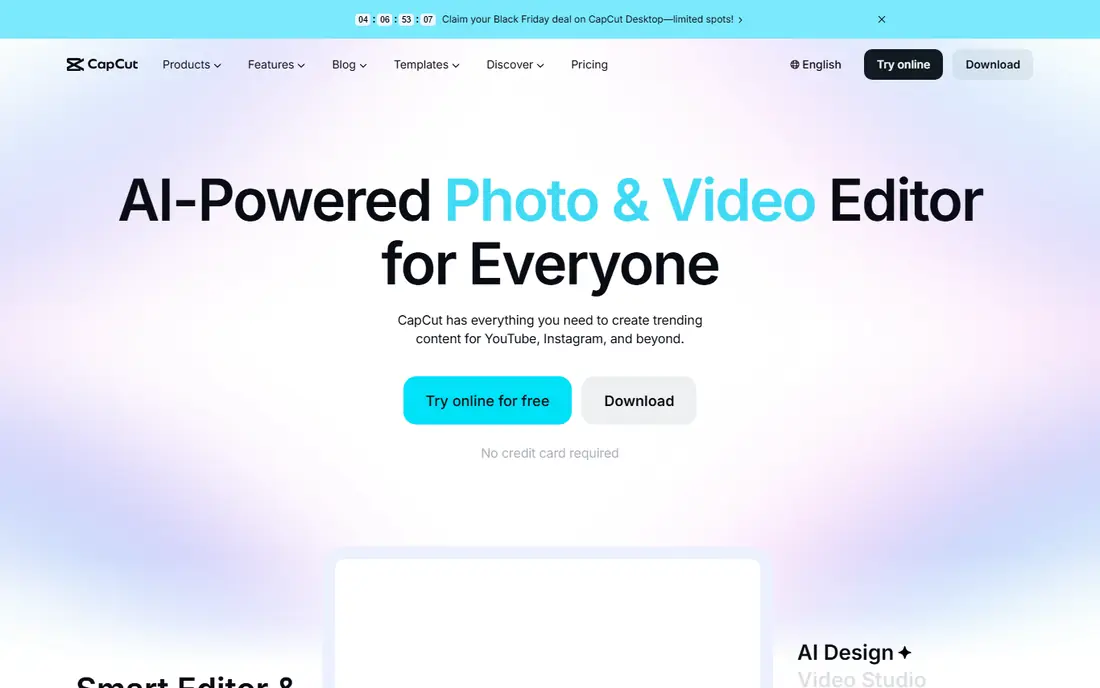
CapCut is where many beginners start, because the mobile, desktop, and web editors share templates, transitions, and auto-captions that turn raw clips into a finished short quickly. Direct export to TikTok also removes a separate upload step for social creators. We value the caption and beat tools, since auto-captions and music sync are the two tasks that slow beginners most. Background removal and trending templates also help a first video look polished without learning a complex timeline. The weakness is the 2026 Pro price, which rose to $19.99 a month from about $7.99, with 4K export and advanced AI tools behind the subscription. Free exports cap at 1080p in many cases, so check whether that limit matters before paying.
- Templates, auto-captions, background removal, direct TikTok export
- Pro price rose in 2026, some exports carry watermarks with Pro assets on free plan
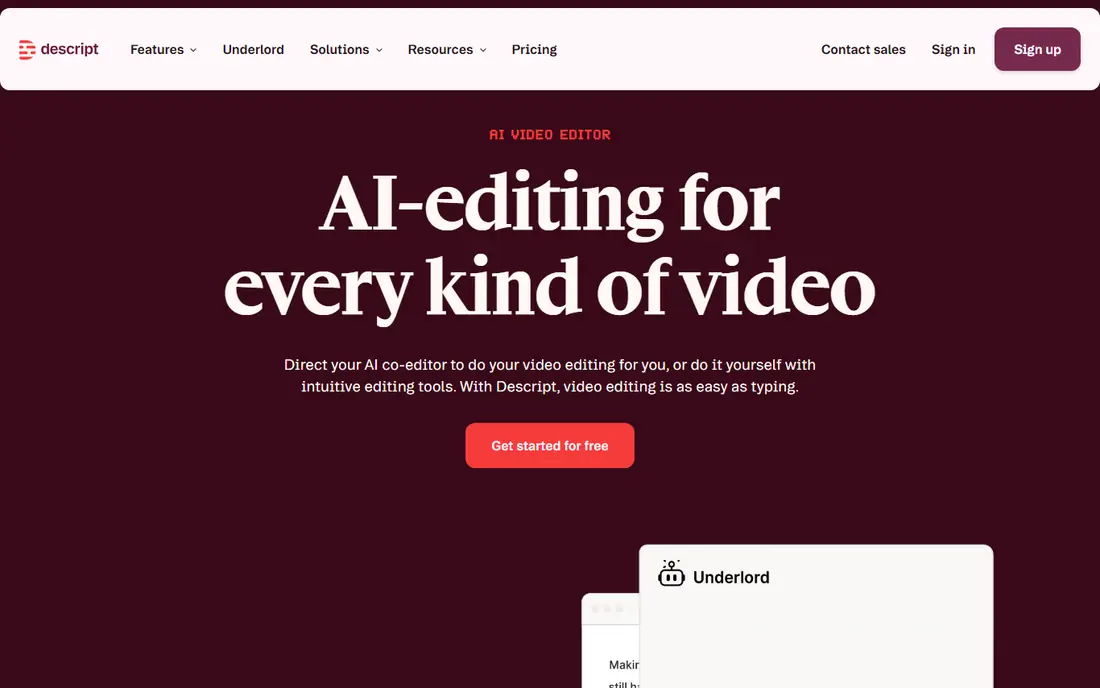
Descript changes editing for beginners by letting them edit video through a transcript, so deleting a sentence in text removes that part of the video. That model suits interviews, tutorials, and podcast clips far better than a traditional timeline alone. The strength is speed for spoken video, since filler word removal, Studio Sound, and captions clean up a recording without manual audio work. A beginner can produce a watchable talking-head video after one short tutorial. The trade-off is scope, because Descript is less suited to complex multi-track cinematic edits or heavy effects work. Free exports are watermarked and limited to 720p, so a creator who needs clean 1080p should budget for Hobbyist.
- Transcript editing, Studio Sound, filler word removal, captions
- Free tier limits media hours and export resolution, watermark on free exports
Wondershare Filmora
Best for: Desktop beginners wanting templates and AI tools

Filmora gives beginners a traditional desktop timeline plus AI helpers, including captions, background tools, and text-based helpers that speed up a first edit. The template and effect library also means a beginner does not start from a blank timeline. We like the balance, since Filmora feels like a real editor rather than a template-only app, yet the learning curve stays gentle. A student or small business owner can learn cuts, titles, and audio in a weekend and still grow into more advanced tools later. The weakness is the free watermark, because free exports carry a Filmora watermark that makes them unsuitable for client or public work. Paid plans remove it, but check whether the plan you choose includes the AI credits you need.
- AI captions, text-to-video helpers, many templates and effects
- Free exports carry a watermark, AI credits vary by plan
Clipchamp is the easiest free starting point for Windows users, because the free plan offers 1080p exports with no watermark, plus templates and auto-captions in the browser or Windows app. That free export quality is rare among beginner editors. We value the low barrier, since a beginner can finish a school, work, or social video without paying and without a watermark that marks the work as a trial. Microsoft 365 integration also helps users who already store files in OneDrive. The trade-off is AI depth, because Clipchamp offers fewer advanced AI generation tools than CapCut, Runway, or InVideo. Premium stock, brand kit, and 4K export sit behind Microsoft 365, so heavy creators may need a second tool for those features.
- Free 1080p exports with no watermark, templates, auto-captions
- Premium stock and 4K need Microsoft 365, fewer advanced AI tools than rivals
InVideo suits beginners who want a marketing video without filming, because a text prompt can generate a script, scenes, stock clips, and voiceover in one workflow. That prompt-first path helps a small business that needs a promo video quickly. The strength is speed from idea to draft, since templates and stock footage remove the need to shoot or source every clip. A beginner can review the draft, swap scenes, and adjust text without learning timeline editing first. The weakness is control, because AI-generated scenes can miss brand details, and the output needs human review before publishing. Use InVideo for a draft or a simple promo, and move to CapCut or Filmora when precise cuts matter.
- AI text-to-video, templates, stock library, voiceover options
- Less timeline control than a full editor, output needs review and editing
Pictory turns a script, an article, or a long recording into a short video with scenes, captions, and stock footage, which suits bloggers, coaches, and small teams repurposing written content. A beginner can paste text and get a structured video draft in minutes. We value the repurposing workflow, since a blog post that took hours to write can become a social video without reshooting. Auto-captions and scene matching also keep the video readable with sound off, which matters for social feeds. The trade-off is editing control and free access, because Pictory has no permanent free plan in many listings and timeline control is lighter than a full editor. Try the trial with a real article, and check export limits before paying.
- Script-to-video, article-to-video, auto-captions, stock footage
- No permanent free plan in many listings, less fine timeline control
Runway gives beginners access to AI video generation and enhancement tools that go beyond templates, including text-to-video clips and tools that clean up or extend footage. That creative range appeals to artists and creators who want original visuals. The strength is generation quality, since Runway models can create short clips from a prompt that would be hard to film without a crew. Enhancement tools also help old or low-quality footage look cleaner for a new project. The weakness is credits and complexity, because free credits run out quickly and advanced tools need time to learn. Beginners should start with one short generation task, measure credit use, and only pay when a paid plan fits a regular project.
- Text-to-video generation, video enhancement, background tools
- Credits limit generation, learning curve for advanced tools
Opus Clip is built for one job that beginners often need, which is turning a long video or podcast into short social clips with captions and a virality score. The AI picks moments, adds captions, and formats the clip for vertical platforms. We value the time saving, since manually scanning an hour of footage for clips can take longer than the edit itself. Opus Clip gives a ranked shortlist of moments, so a creator can review, adjust, and publish the best clips quickly. The trade-off is scope, because Opus Clip is a clipping tool, not a full film editor, and free plans limit clips and resolution. Use it beside CapCut or Descript, with Opus Clip for selection and a full editor for final polish.
- AI clip selection, auto-captions, virality scoring, social formats
- Best for clipping, not for full film editing, free plan limits apply
How we picked these
We favored editors with live beginner products in 2026, a free plan or trial, and AI features that a new editor can use without training. We excluded professional-only editors with no beginner path, since the keyword asks for beginners. Prices vary by billing period, so check the vendor page for monthly and yearly figures.
How to choose an AI video editor
Start with the video type, not the tool
Social clips suit CapCut or Opus Clip, talking-head videos suit Descript, and text-to-video promos suit InVideo or Pictory. A tool that is excellent for one type can be awkward for another, so match the tool to the video you make most.
Test export limits on a real project
Free plans differ on watermark, resolution, and length, and those limits decide whether a free export is usable. Edit one real video end to end, export it, and check the result on a phone before committing to a paid plan.
Keep AI output under human review
AI captions, clips, and generated scenes can contain errors, wrong names, or off-brand visuals. Review every AI draft before publishing, especially for client work, and keep the original files for re-edits.
FAQ
Which AI video editing tool is best for beginners? CapCut is best for social video beginners, Descript is best for talking-head videos edited by transcript, and Clipchamp is best for free Windows editing. Filmora suits beginners who want a desktop timeline with templates and AI help.
Can beginners use AI video editing software for free? Yes, CapCut, Clipchamp, Descript, Filmora, Runway, and Opus Clip offer free plans or trials, though free exports may carry watermarks or resolution limits. Clipchamp free 1080p exports with no watermark are a notable exception for basic edits.
What is the easiest AI video editor for a first video? CapCut is often easiest for a first social video, because templates and auto-captions do much of the work. Descript is easiest for a first talking-head video, because editing text feels more natural than scrubbing a timeline for many beginners.
Do AI video editors need a powerful computer? Browser tools such as Clipchamp, InVideo, and Pictory run well on modest computers, since much work happens online. Desktop editors such as Filmora and CapCut benefit from a newer machine for 4K work, but 1080p edits run on most recent laptops.
Can AI video editing replace a human editor? AI tools speed up captions, clip selection, and first drafts, but they do not replace judgment on story, pacing, and brand fit. Review AI output, adjust cuts and captions, and keep a human in charge of the final publish decision.
Sources
https://www.capcut.com https://www.descript.com https://filmora.wondershare.com https://clipchamp.com https://invideo.io https://pictory.ai https://runwayml.com https://www.opus.pro