Best AI Video Editing Software Comparison in 2026: 9 Tools Compared
Our best ai video editing software comparison covers Runway, Descript, CapCut, and more, with pricing, free plans, and who each tool suits best for creators.
- Editor's choice
 Descript
Transcript-based editing
Starts at$24 per monthVisit descript.comFull review - Great alternative
 Runway
Generated footage
Starts at$15 per monthVisit runwayml.comFull review - Also consider
 CapCut
Everyday social editing
Starts atFreeVisit capcut.comFull review
TL;DR:
- Descript is our pick for most creators who edit spoken video, because editing the transcript edits the video.
- Runway leads for generating new footage, while Opus Clip leads for turning long videos into short clips.
- CapCut and VEED are the most accessible browser and mobile editors for everyday social video.
- Pricing units differ wildly, so compare credits, minutes, and seats against your actual output, not the headline price.
Quick comparison
| Tool | Best for | Starts at | Free plan? | |
|---|---|---|---|---|
| Descript | Transcript-based editing | $24 per month | Yes | Visit |
| Runway | Generated footage | $15 per month | Yes | Visit |
| CapCut | Everyday social editing | Free | Yes | Visit |
 Opus Clip | Long video to short clips | $15 per month | Yes | Visit |
 Pictory | Script and article to video | $29 per month | Free trial | Visit |
 VEED | Browser editing and subtitles | $18 per month | Yes | Visit |
 Synthesia | Avatar and training video | $29 per month | Free trial | Visit |
 Filmora | Desktop editing with AI tools | $59.99 per year | Free trial | Visit |
 Kapwing | Collaborative online editing | $24 per month | Yes | Visit |
The best ai video editing software comparison
AI video editing is not one job. Some tools generate footage from text, some cut long recordings into clips, some edit by transcript, and some simply add captions, cleanup, and effects faster. This best ai video editing tools comparison groups tools by the job they actually do, so you can match the tool to your workflow instead of buying a famous name that does the wrong thing.
Descript changes how spoken video feels to edit. You record or upload a video, get a transcript, and cut words from the transcript to cut the video. Removing filler words, fixing a sentence, or rearranging a section becomes a text edit, which is far faster than scrubbing a timeline for most podcast and talking-head work.
The free tier includes a limited amount of media and transcription, and Hobbyist starts at $24 per month, or $16 per month billed annually in published comparisons. The catch is scope: Descript is not the best choice for complex multi-track projects with heavy effects. For podcasts, tutorials, and interviews, though, it saves more time than any other tool here.
- Edit video by editing text
- Strong filler-word removal
- Studio sound cleanup
- Not a full timeline editor for complex projects
- AI features use credits on some plans
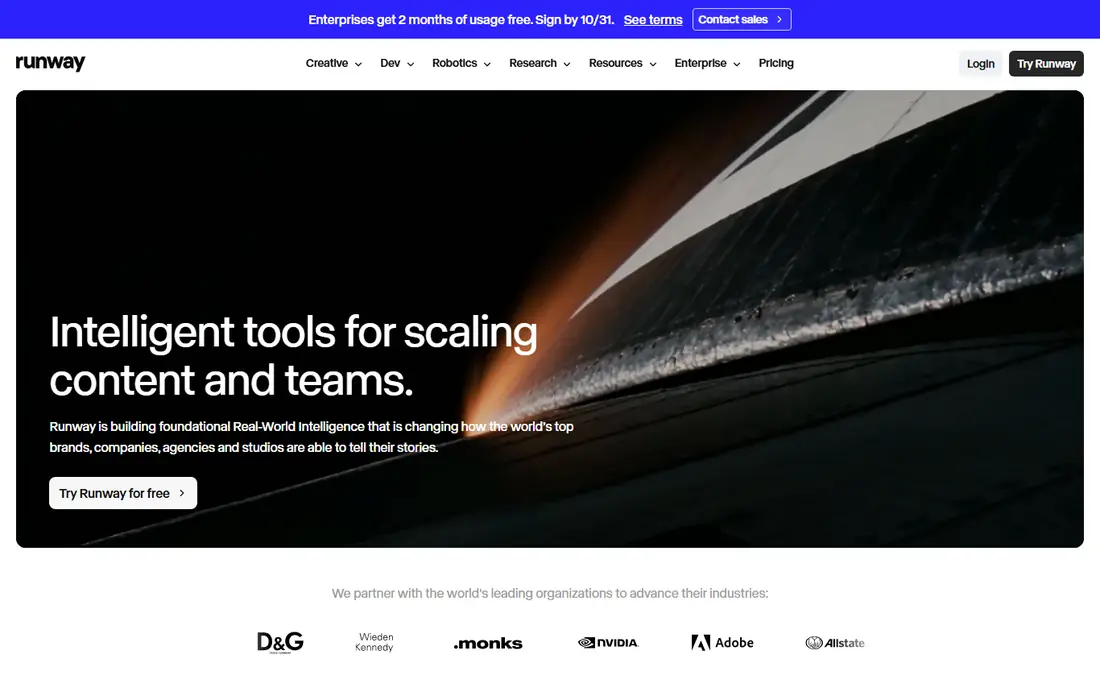
Runway is the tool to pick when you need footage that does not exist. Its generative models create video from text or images, extend shots, and offer controls that filmmakers value, such as camera movement and style references. The free tier includes a limited set of one-time credits, and Standard starts at $15 per month, or $12 per month billed annually.
Credits are the catch. A few generations can use a month's allowance quickly, and longer or higher-quality outputs cost more. Runway works best as a source of hero shots and B-roll inside a larger edit, not as a replacement for shooting or for a full-length video. Pair it with Descript or a timeline editor for the final cut.
- Strong text-to-video and image-to-video generation
- Filmmaker-oriented controls
- Adobe bridge
- Credits burn fast at scale
- Generated clips are short and need curation

CapCut is the everyday editor for social video. It runs on mobile and desktop, offers templates, captions, effects, and transitions, and adds AI tools for background removal, auto-captions, and script-to-video. The free tier covers a lot of casual work, and Pro is priced at $19.99 per month in published comparisons, with annual billing lower.
The trade-off is depth. CapCut is excellent for short-form content, but it is not a replacement for a professional desktop editor on long or complex projects. For creators who publish daily on TikTok, Reels, or Shorts, the speed and template library matter more than deep color or audio tools, and CapCut delivers that speed.
- Free to start
- Huge template and effect library
- Strong mobile and desktop apps
- Pro features need a paid plan
- AI features vary by region and plan
Opus Clip solves a specific and valuable problem: turning a long podcast or webinar into short vertical clips. Paste a link or upload a file, and it finds candidate moments, scores them, adds animated captions, and reframes the video for vertical screens. The free plan is watermarked and limited, and paid plans start at $15 per month in published comparisons.
Review matters. The AI sometimes picks a moment that looks strong out of context but needs a better start or end point, so plan time to check clips before posting. For creators with a back catalog of long videos, Opus Clip can produce weeks of short-form content from work already done, which is a strong return for the price.
- Automatic clip selection with scores
- Captions and reframing built in
- Posting and scheduling on paid plans
- Needs source footage
- Clip quality varies and needs review
Pictory is built for people who have words and need video. Paste a script or an article, and it builds a video with stock footage, voiceover options, and captions, which you can then edit scene by scene. That makes it useful for marketers, bloggers, and small teams that need video content without filming.
The output can feel generic if you rely only on stock footage, so add your own clips, brand colors, and voice where you can. Paid plans start at $29 per month in published comparisons, with a free trial rather than a free tier. For content repurposing at scale, Pictory is faster than editing from scratch, but it is not a substitute for original footage.
- Turns scripts and articles into video with stock footage
- Automatic captions
- Easy for non-editors
- No permanent free plan, only a trial
- Stock-based output can feel generic
VEED is a browser-based editor that covers the middle ground well: timeline editing, subtitles, translation, screen recording, and simple AI tools, all without installing software. Teams like it because anyone with a link can open a project, and the subtitle workflow is fast and accurate for most spoken content.
The free plan exports with a watermark at lower resolution, and paid plans start at $18 per month per editor in published comparisons. Per-editor pricing means team costs scale with headcount, so count editors before you commit. For remote teams and quick social edits, VEED is one of the easiest tools to adopt.
- Full browser editor
- Strong subtitles and translation
- No install needed
- Free exports are watermarked and limited to lower resolution
- Per-editor pricing
Synthesia creates videos with AI avatars that speak your script in many languages, which makes it useful for training, onboarding, and product explainers. You type a script, pick an avatar, and generate a polished video without cameras, studios, or scheduling presenters. Starter plans start at $29 per month in published comparisons, with a free demo rather than a full free tier.
Avatar video has limits. It works well for instructional content, but it can feel impersonal for brand stories or emotional messages, where a real presenter matters. Minutes are also capped on lower plans, so estimate your total video length before choosing a tier. For teams that update training often, Synthesia saves real production time.
- AI avatars in many languages
- Fast training and explainer videos
- No filming needed
- Avatar videos can feel impersonal
- Minutes are limited on lower plans
Wondershare Filmora is a traditional desktop editor with AI features layered in, including auto-captions, audio denoise, and smart cutout tools. That combination suits creators who want a real timeline, effects, and color tools, but still want AI to handle the repetitive parts. Published pricing puts an annual plan at $59.99 per year, with a free trial.
Filmora is less collaborative than VEED or Kapwing, since projects live on a desktop rather than in a browser. Some AI features also draw on credits or higher tiers, so check what is included in the plan you buy. For solo creators who edit longer videos on a computer, Filmora offers strong value for the annual price.
- Full desktop timeline
- AI tools for captions, denoise, and object removal
- One-time annual price
- AI credits and some features need higher plans
- Less cloud collaboration than browser tools
Kapwing is a browser editor built for teams that create together. Multiple people can work on projects, share assets, and use templates for social formats, while AI tools handle captions, background removal, and repurposing. The free tier lets you try the workflow, and Pro starts at $24 per month, or $16 per month billed annually in published comparisons.
Free exports carry a watermark, and heavy projects depend on your browser and internet connection. For a marketing team that needs quick, collaborative edits without installing software, Kapwing is a practical choice. Solo creators who want a desktop timeline may prefer Filmora, while transcript editors will prefer Descript.
- Browser editor with team collaboration
- Good subtitle and repurposing tools
- Templates
- Free exports are watermarked
- Performance depends on browser and connection
How we picked these
We compared vendor pricing pages, feature lists, and independent pricing comparisons, keeping tools that use AI for a real editing job, such as generation, transcription, clipping, captions, or cleanup. We checked starting prices where vendors publish them and used published comparisons where pricing varies by billing period. We did not claim hands-on testing; our comparison rests on vendor documentation and public comparisons.
How to choose by your starting material
Your input decides the tool. If you have a script and no footage, start with Runway, Pictory, or Synthesia, depending on whether you want generated scenes, stock video, or an avatar. If you have a long recording, start with Descript for a full edit or Opus Clip for short clips. If you have short clips to polish, CapCut, VEED, Kapwing, or Filmora will finish the job faster.
Comparing credits, minutes, and seats
Do not compare headline prices directly. Runway charges by credits, Synthesia by minutes, and VEED by editor seats, so the cheapest plan for one creator can be the most expensive for a team. Estimate your monthly output in clips, minutes, or projects, then price that output on each tool. A trial on a real project will reveal whether the allowance fits.
FAQ
What is the best ai video editing software comparison for beginners?
For beginners, CapCut is the easiest starting point because it is free, template-rich, and works on mobile and desktop. VEED is a close second for browser editing with strong subtitles. If you edit spoken content, Descript's transcript editing is also easy to learn, even though it works differently from a timeline.
What is the top ai video editing software comparison for creators who film podcasts?
Descript leads for full podcast edits, since you edit by transcript and clean up audio in the same project. Opus Clip is the best companion for turning that podcast into short clips for social platforms. Many creators use both: Descript for the episode, Opus Clip for the clips that promote it.
How does the best ai video editing tools comparison change for training videos?
For training videos, Synthesia leads when you need fast, multilingual avatar videos without filming. Pictory suits script-based explainers with stock footage. If training includes real presenters or screen recordings, Descript or VEED will handle the edit better, since avatar tools cannot replace a live demo.
Are AI video editors good enough for professional work?
They are good enough for much professional social, training, and marketing work, but they still need human review. Generated footage, auto-clips, and auto-captions all contain errors, from odd hands in generated shots to misheard words in captions. Treat AI as a fast first draft, then review, correct, and polish before publishing.
Do free plans produce usable video?
Free plans are usable for learning and for casual posts, but most add watermarks, limit resolution, or cap minutes and credits. That makes them a poor fit for client work or brand channels. If you publish regularly, budget for a paid plan and use the free tier only to test the workflow.