Best AI UX Design Tools in 2026: 8 Tools Compared
Searching for the best ai ux design tools? We compared 8 AI tools for UX design, from prompt-to-screen builders to Figma AI and research tools in 2026.
- Editor's choice
 Figma AI
Teams already using Figma
Starts atFreeVisit figma.comFull review - Great alternative
 Uizard
Quick mockups for non-designers
Starts atFreeVisit uizard.ioFull review - Also consider
 UX Pilot
Prompt-to-screen UX flows
Starts atFreeVisit uxpilot.aiFull review
TL;DR:
- Figma AI is our pick for teams already in Figma, since its AI features sit inside the tool designers already use.
- Uizard and UX Pilot suit non-designers and product managers who need a credible screen fast, not a full design system.
- Framer AI and Relume help when the goal is a live website, not just a mockup.
- Always check export quality and credit limits, since AI output that cannot move cleanly into your main tool will slow a project down.
Quick comparison
| Tool | Best for | Starts at | Free plan? | |
|---|---|---|---|---|
| Figma AI | Teams already using Figma | Free | Yes | Visit |
| Uizard | Quick mockups for non-designers | Free | Yes | Visit |
| UX Pilot | Prompt-to-screen UX flows | Free | Yes | Visit |
 Framer AI | AI websites that go live | Free | Yes | Visit |
 Relume | Sitemaps and wireframes | See website | Yes | Visit |
 Visily | Screenshot to editable design | Free | Yes | Visit |
 Galileo AI | High-fidelity UI from text | See website | Free trial | Visit |
 Maze AI | AI-assisted user research | See website | Free trial | Visit |
The best ai ux design tools
AI UX tools fall into three groups: prompt-to-screen generators, AI inside a full design tool, and AI for research and testing. The best tool depends on whether you need a first draft, a finished design system or evidence about how users will react. The eight below cover all three, and each is judged on what it does after the first prompt, not just the demo screen.

Figma AI adds AI features to the design tool most product teams already use, including text-to-design starting points, AI-assisted renaming, content generation and visual search. Because the output stays in Figma, designers can edit layers, build components and hand off to developers without exporting through a second tool. Figma free Starter plan covers basic use, while paid seats, listed around 15 dollars per editor per month in recent comparisons, open the fuller feature set.
The catch is that Figma AI is an accelerator, not a replacement for design judgment. It can produce a plausible screen quickly, but flows, states and accessibility still need a designer to review them. For a team already in Figma, that trade is worth it, since no new workflow is required.
- AI inside the main design tool
- Strong collaboration
- Large plugin and component ecosystem
- AI features need a paid seat for full use
- Learning curve for new designers
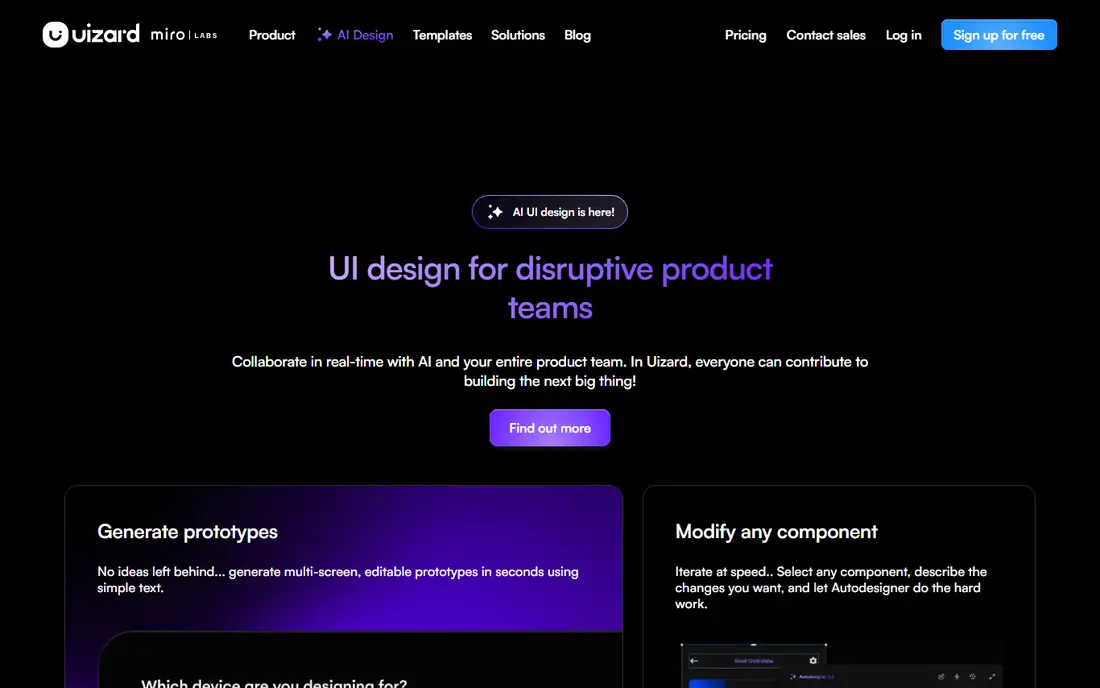
Uizard is built for founders, product managers and marketers who need to show an idea, not ship a design system. Its Autodesigner generates multi-screen app layouts from a prompt, while its scanners turn hand-drawn sketches or screenshots into editable mockups. Pricing in recent comparisons lists a free plan, with Pro around 12 dollars per month billed annually, or 19 dollars billed monthly, and Business higher.
Uizard output is best treated as a discussion draft. It lacks the fine control and component depth of Figma, and moving a design into Figma can need cleanup. For early concept work, stakeholder reviews and pitch decks, that speed is exactly the point, and Uizard is one of the easiest tools here to learn.
- Very easy to use
- Sketch and screenshot scanning
- Fast multi-screen mockups
- Less precise control than Figma
- Export to Figma needs workarounds
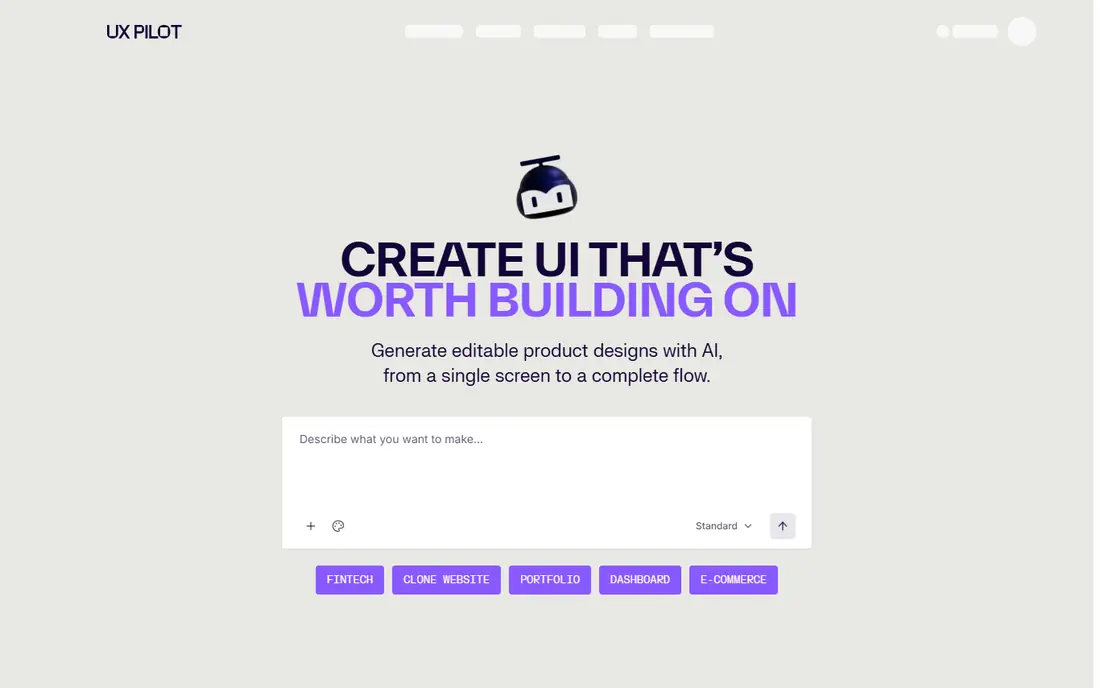
UX Pilot generates wireframes, UI designs and interactive prototypes from text prompts, and it adds design reviews and predictive heatmaps that estimate where users are likely to look. That last feature is useful for a first-pass check before user testing, though it does not replace real testing. Pricing in recent comparisons lists a free plan, with Standard around 12 dollars per month and Pro around 22 dollars per month, based on credit allowances.
UX Pilot suits product teams that need a coherent flow fast, with branding kept consistent across screens. Its Figma integration helps, since output can move into a main design file with layers preserved. The main limit is control, since changing a layout often means prompting again rather than dragging elements freely.
- Prompt-based wireframes and UI
- Predictive heatmaps
- Two-way Figma sync
- Iteration is prompt-led, so manual tweaks are limited
- Credit limits apply
Framer AI turns a prompt into a website design that can be edited visually and published, which makes it different from a mockup-only tool. Designers can adjust layout, type, animation and responsive behavior in the same tool, and the result is a real site, not a static image. Framer free plan covers basic use, with paid plans listed from around 5 dollars per month in older comparisons, though current site plans vary, so check the pricing page for the plan you need.
Framer is less useful for native mobile app flows or complex product design systems, where Figma still leads. For marketing sites, landing pages and product sites that need to go live quickly, Framer AI shortens the path from idea to published page.
- Prompt-to-website generation
- Publishes to a live site
- Strong animation and layout tools
- Less suited to native app flows
- Paid plans needed for custom domains and scale
Relume helps at the start of a website project, when structure matters more than visual polish. You describe the site, Relume generates a sitemap, then editable wireframes and a style guide, and you can export components to Figma, Webflow or React. That workflow suits agencies and product teams that need to agree on structure before spending time on visual design.
Relume is website-focused, so it will not cover native app flows in the same way. It is also most useful when the team actually uses the exported wireframes, rather than treating Relume output as a final design. For site planning and early client approval, it is one of the most practical AI tools here.
- Sitemap to wireframe workflow
- Exports to Figma, Webflow and React
- Shared style guides
- Focused on websites, not apps
- Best value comes with a paid plan
Visily lets you start from a screenshot, a sketch or a prompt and get an editable wireframe or UI design, which is useful when a stakeholder says, in effect, make it like this, but for our product. Its templates and AI generation help non-designers produce a credible first draft, and the editor is simpler than a full professional design tool.
Visily will not replace Figma for a large design system, and complex interactions still need manual design work. For fast iteration on a single screen, a landing page concept or a competitor-inspired layout, Visily is a low-friction starting point with a free tier worth testing.
- Turns screenshots into editable designs
- AI wireframe generation
- Easy for non-designers
- Depth is lower than Figma
- Complex flows need manual work
Galileo AI generates high-fidelity interface designs from text descriptions, with output that can be edited in Figma. It is useful for exploring visual directions quickly, since a short prompt can produce several distinct looks for the same screen. That makes it a good concept tool for designers who want options before committing to a direction.
Galileo is not a full UX platform on its own. Flows, edge cases, accessibility and developer handoff still need work in Figma or a similar tool, and pricing is best confirmed on its site, since plans and credits have changed over time. Use Galileo for inspiration and first drafts, then refine the chosen direction by hand.
- High-fidelity UI from a short prompt
- Editable in Figma
- Fast concept generation
- Pricing and limits vary
- Output still needs design review for real products
Maze is the research tool on this list, and it answers a different question from the generators above: will users understand this design. You can run unmoderated prototype tests, surveys and card sorts, then use AI summaries to spot patterns in responses, quotes and task success. That evidence helps teams avoid shipping a polished screen that confuses real users.
Maze does not generate designs, so pair it with Figma, Uizard or UX Pilot rather than comparing it directly with them. For teams that already make screens but rarely test them, Maze is the tool most likely to improve the final product, since it adds user evidence to AI speed.
- Prototype testing and surveys
- AI summaries of findings
- Fast unmoderated tests
- Not a design generator
- Pricing depends on tests and seats
How we picked these
We compared vendor feature pages, pricing pages and recent tool comparisons, and we favored tools that are actively maintained, offer a free tier or trial, and produce editable output rather than static images alone. We included generators, a full design tool with AI, a website builder and a research tool, since UX work covers all four stages. We left out general image generators, since they do not produce usable UX flows.
How to use AI UX tools well
Treat AI output as a first draft, not a finished product. Start with a clear brief, including audience, main task, key screens and constraints, then generate two or three directions and pick one to refine. Check every flow for empty states, errors, long content and small screens, since AI demos often show only the happy path.
Check accessibility, handoff and credit costs
Test contrast, text size, keyboard order and screen reader labels before you call a design done, since AI tools do not guarantee accessibility. Confirm that exported layers, components and tokens survive the move into your main tool, and track credit use across a real project, not just a single screen. A tool that is cheap for one screen can become expensive when a team iterates daily.
Test with real users before you ship
AI heatmaps and summaries are useful, but they are predictions, not user evidence. Run a short Maze test, or even five moderated sessions, on the main flow before launch, and watch where users hesitate. That step catches problems that no prompt or model can see, and it gives the team a reason to keep or cut a design choice.
FAQ
Which AI UX design tool is best?
Figma AI is best for teams already using Figma, Uizard and UX Pilot are best for fast concept screens, and Framer AI is best when the output needs to become a live website. The best tool depends on whether you need a draft, a design system or a published site. Start with the tool that fits your current workflow, not the one with the flashiest demo.
What is the best AI tool for UX design for beginners?
Uizard is the easiest starting point for beginners, thanks to its simple editor and sketch scanning, while UX Pilot is a good next step for prompt-based flows. Both offer free plans, so you can test them without a subscription. Beginners should still learn basic UX principles, since AI output needs human review for usability.
Can AI replace UX designers?
No, AI tools speed up first drafts, variations and routine tasks, but they do not replace research, judgment, accessibility work or stakeholder decisions. A designer still needs to define the problem, test with users and refine flows for edge cases. Teams that treat AI as a drafting partner get better results than teams that publish raw output.
Does Figma AI cost extra?
Figma offers a free Starter plan, while AI features and full professional use generally require a paid seat, with editor pricing listed around 15 dollars per month in recent comparisons. Check the current Figma pricing page, since seat types and AI availability have changed over time. Teams should confirm which AI features are included in their plan before budgeting.
How do I choose between Uizard, UX Pilot and Figma AI?
Choose Uizard for the fastest simple mockup, UX Pilot for prompt-led UX flows with heatmap checks, and Figma AI for work that must live in a professional design system. If you need all three stages, start in Uizard or UX Pilot for concepts, then move the chosen direction into Figma for refinement. That split keeps speed without sacrificing quality at handoff.