Best AI Upscale Video Software in 2026: 8 Tools Compared
We compared the best ai upscale video software on quality, speed, and price, so creators can lift old clips to 4K without buying the wrong tool first.
- Editor's choice
 Topaz Video
Maximum upscale quality on a strong PC
Starts at$299 per yearVisit topazlabs.comFull review - Great alternative
 HitPaw VikPea
One-click desktop enhancement
Starts at$43.19 per monthVisit hitpaw.comFull review - Also consider
 AVCLabs Video Enhancer AI
Guided desktop restoration
Starts at$39.95 per monthVisit avclabs.comFull review
TL;DR:
- Topaz Video is our pick for maximum quality on a strong PC, thanks to its large model library and local processing.
- HitPaw VikPea and AVCLabs suit creators who want simpler presets and faster setup than Topaz.
- VideoProc Converter AI and UniFab suit buyers who want upscaling bundled with conversion and editing tools.
- Cloud tools suit weak computers, but check per-minute or per-credit costs before you upscale a long archive.
- AI upscaling creates plausible detail, it does not recover detail the camera never recorded, so judge results at full size.
Quick comparison
| Tool | Best for | Starts at | Free plan? | |
|---|---|---|---|---|
| Topaz Video | Maximum upscale quality on a strong PC | $299 per year | Free trial | Visit |
| HitPaw VikPea | One-click desktop enhancement | $43.19 per month | Free trial | Visit |
| AVCLabs Video Enhancer AI | Guided desktop restoration | $39.95 per month | Free trial | Visit |
 UniFab Video Upscaler AI | Upscaling plus conversion tools | $99.99 per year | Free trial | Visit |
 VideoProc Converter AI | Budget desktop upscaling | See website | Free trial | Visit |
 Nero AI Video Upscaler | Quick upscales with little setup | See website | Free trial | Visit |
 Pixop | Broadcast and media pipelines | See website | Free trial | Visit |
 TensorPix | Cloud upscaling on weak hardware | See website | Yes | Visit |
The best ai upscale video software
AI video upscaling takes a low-resolution clip and rebuilds it at a higher resolution, while also cleaning noise, sharpening edges, and sometimes fixing faces or motion. Results vary a lot by source footage and by hardware, so the best tool is the one that fits your clips, your computer, and your budget.
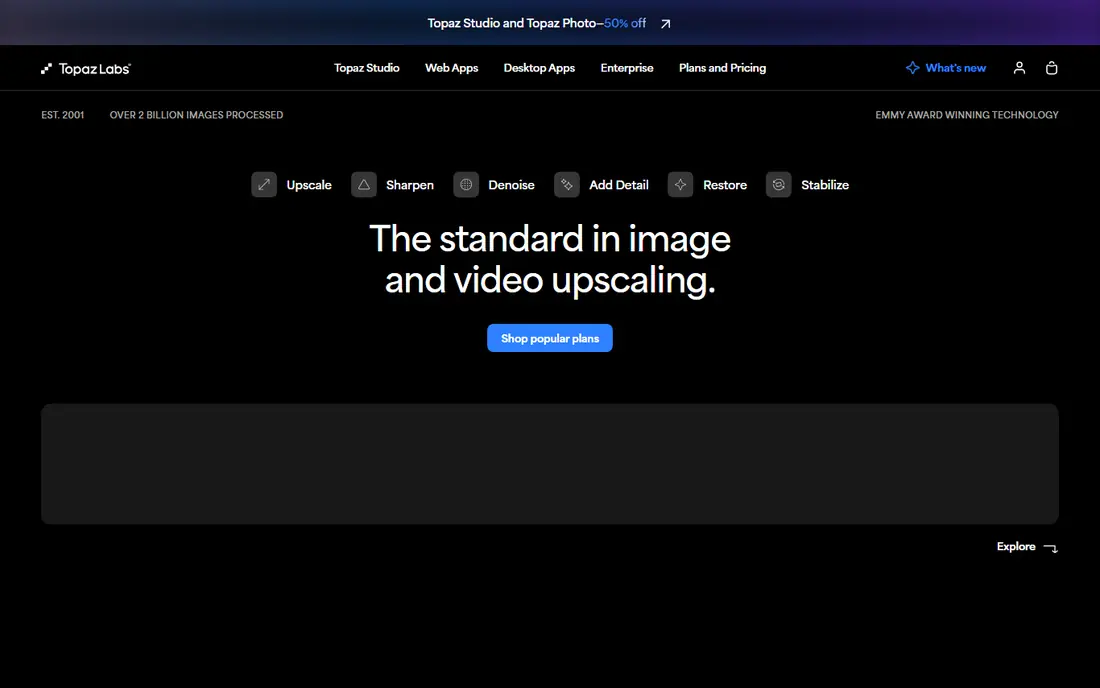
Topaz Video is the quality benchmark in this category, and it earns that place through its model library. Models such as Proteus, Iris, Rhea, and Starlight are tuned for different problems, from general enhancement to face recovery and heavy restoration, and editors can tune sharpening, denoise, and dehalo settings per clip. It upscales to 4K and 8K, interpolates frame rates for smoother slow motion, and processes locally on Windows and Mac, which matters for private or client footage.
The costs are real. Topaz moved new users to subscriptions in October 2025, with the standalone desktop app at $299 a year and the Studio bundle, which adds photo tools, at $399 a year. Rendering is also GPU-heavy, so a mid-range laptop will take a long time on 4K output. If quality is the priority and your hardware can handle it, Topaz is still the tool to beat.
- Large library of specialist models
- Local processing keeps footage private
- Frame interpolation included
- Annual subscription replaced perpetual licenses
- Needs a strong GPU for 4K work

HitPaw VikPea suits creators who want good results without learning model settings. It offers one-click enhancement with models for general denoise, faces, animation, and colorizing black-and-white footage, and it runs on Windows and Mac with local and cloud-accelerated options. Pricing starts at $43.19 a month, with $99.99 a year and a $349.99 lifetime license also listed in recent comparisons, so the annual or lifetime route is far cheaper than paying monthly.
The catch is cloud credits for accelerated rendering, which can add up on long videos. Local processing avoids that cost but takes longer on weaker hardware. VikPea is a good middle ground between ease and quality, and it is especially handy for family archives and social clips where speed matters more than frame-perfect restoration.
- Simple presets for beginners
- Upscales to 4K and 8K
- Face and colorize models
- Cloud credits add cost on long projects
- Monthly price is high over a year

AVCLabs Video Enhancer AI is a desktop all-rounder that guides users through restoration with presets for old footage, faces, animation, denoising, colorization, and frame interpolation. It upscales to 4K and 8K, supports batch processing for archives, and offers an SDR to HDR conversion that some rivals lack. Monthly pricing starts at $39.95, with annual and lifetime options also sold.
The main limits are platform and hardware. Some multi-frame models are Windows-only, so Mac users should check which models they will actually get, and recommended specs call for 16 GB of RAM and 8 GB of video memory on Windows. For a Windows user who wants guided presets and batch work, AVCLabs is a solid alternative to Topaz at a lower entry price.
- Clear presets for faces, animation, and denoise
- Batch processing
- SDR to HDR option
- Some multi-frame models are Windows-only
- Needs strong hardware for best results
UniFab bundles its Video Upscaler AI with a wider toolkit for conversion, denoising, HDR, and editing, which suits creators who want one app for several jobs. Its AI Autopilot mode picks settings for you, while manual mode lets you choose a specific upscaler, denoiser, or HDR tool. Pricing for the upscaler starts at $99.99 a year in recent comparisons, with an all-in-one bundle at a higher lifetime price.
UniFab is friendlier than Topaz for beginners, but its broad module list can feel busy, and results still depend on picking the right model for your footage. A cloud option helps if your PC lacks a strong GPU. For a creator who wants upscaling plus everyday video tools in one purchase, UniFab is good value.
- Upscaling bundled with conversion and editing
- AI autopilot mode
- Cloud option for weak PCs
- Interface packs in many modules
- Quality varies by model and source
VideoProc Converter AI pairs AI upscaling with a full converter and editor, so you can upscale, stabilize, interpolate, compress, and change codecs without leaving the app. It runs on Windows and Mac with GPU acceleration through several backends, and it is often cited as the best value desktop option for everyday enhancement. A free trial with a time limit lets you test it on your own clips.
Pricing is the part to verify on the day, since VideoProc runs frequent promotions and annual and lifetime offers shift. Recent comparisons list annual pricing around $59.95, but we mark it as See website here because the live price can differ. On hard restoration, such as heavily damaged archival film, Topaz still leads, but for general clips and for users on modest hardware, VideoProc is a sensible buy.
- Affordable desktop upscaling
- Conversion and editing in one app
- Works on modest hardware
- Promotional pricing changes often
- AI quality trails Topaz on hard restoration
Nero AI Video Upscaler is built for speed and simplicity. It upscales video with a straightforward workflow, handles batch jobs, and suits users who want a cleaner, larger clip without studying model names. Pricing starts at $84.95 a year in recent comparisons, with a trial available, though we mark it as See website because Nero pricing and bundles change.
The trade-off is control. Nero does not offer the specialist model library of Topaz or the preset depth of AVCLabs, so difficult footage with mixed noise, blur, and compression may not clean up as well. For social clips, product videos, and quick archive passes where time matters, Nero is a practical pick.
- Fast, simple workflow
- Batch upscaling
- No deep settings to learn
- Fewer specialist models than Topaz
- Quality is good rather than best in class
Pixop is not a desktop app for one creator, it is a cloud pipeline for media companies, broadcasters, and archives that need to process large volumes to a consistent standard. It offers super-resolution, denoise, deinterlace, and frame rate conversion through a web platform and an API, with pricing based on usage such as gigapixels processed. That model suits a team with a pipeline to automate.
For a single creator, Pixop is usually too much system and too much cost, since usage fees on long 4K jobs add up quickly. For a company that needs repeatable, automated enhancement across hundreds of hours, Pixop is the professional pick on this list. Ask for a usage estimate on your own footage before you commit, since the headline rate alone does not predict the bill.
- Managed cloud pipeline
- API for automation
- Broadcast-grade filters and standards
- Usage-based pricing can grow fast
- Overkill for single creators
TensorPix runs entirely in the cloud, so it suits anyone whose computer cannot handle desktop upscaling. You upload a clip, pick an enhancement, preview the result, and download the upscale, with free previews and credits for full exports. That simplicity is valuable for a laptop user, a phone-first creator, or a team that only upscales occasionally.
Cloud tools have their own costs. Uploading long or 4K source files takes time, and paying per video or per subscription can exceed a desktop license if you process a large archive. Privacy also matters, since footage leaves your machine, so avoid cloud tools for sensitive client work unless you have checked the privacy terms. For occasional, hardware-free upscaling, TensorPix is a handy option.
- No install and no GPU needed
- Free previews
- Simple cloud workflow
- Per-video or subscription costs add up
- Upload time for large files
How we picked these
We compared official feature pages, pricing pages, and recent independent comparisons for AI upscalers that are live in October 2026, and we kept only tools that upscale real video rather than generate new clips. We favored tools with clear model choices, honest trial options, and published or verifiable pricing, and we marked changing prices as See website rather than repeating a promotion as a list price. We also weighed hardware needs, since a tool that needs a high-end GPU is a poor pick for a laptop user no matter how good its demos look.
What to check before you buy an AI upscaler
Start with your own footage, not a demo reel. Upscale a short clip that matches your real work, whether that is phone video, old home movies, anime, or drone footage, and judge it at 100 percent zoom on a large screen. Check faces, text, and fine textures closely, since AI can invent plausible detail that looks fine small but fails large.
Next, check hardware and cost together. Desktop tools need a strong GPU and time, while cloud tools need upload bandwidth and a credit budget. Work out the cost for a typical project, not just for a 30-second test, and check output limits such as maximum resolution, frame rate, and watermark rules on trials. Finally, confirm format support and whether the tool handles audio, subtitles, and HDR the way your delivery needs.
FAQ
Does AI upscaling really restore lost detail?
No, AI upscaling creates plausible detail based on patterns it learned, it does not recover detail the camera never recorded. That is why results look best on viewing and presentation work, and why upscaled footage should not be treated as evidence of what was originally in a scene. Judge the output on whether it looks clean and natural, not on whether it claims to recover the past.
Is Topaz Video still worth $299 a year?
For professional restoration and for editors who use it weekly, Topaz remains the quality leader and the subscription can pay for itself in saved rework. For occasional use, a cheaper desktop tool or a cloud tool may be better value, since you pay only when you need it. Test Topaz on your own hardest clip during the trial period before you commit to a year.
Can I upscale video on a weak laptop?
Yes, through cloud tools such as TensorPix, which process footage on remote servers and need no strong GPU. Desktop tools will still run on a weak laptop, but slowly, especially at 4K. If you upscale often, a desktop tool plus a GPU upgrade may be cheaper over time than cloud credits.
What resolution should I upscale to?
Upscale to the resolution you will deliver, usually 1080p or 4K, rather than to the highest number a tool offers. Upscaling a poor 480p clip to 8K rarely looks better than a careful 4K upscale, and it costs far more time and storage. Test 1080p and 4K versions of the same clip and pick the one that looks clean at your viewing size.
Do free trials watermark exports?
It depends on the tool. Topaz offers a demo with watermarked exports, AVCLabs limits trial exports, and VideoProc limits trial length, so read the trial terms before you plan client work around a trial. Free previews on cloud tools let you judge quality, but a full unwatermarked export usually needs a paid plan or credits.
Is AI upscaling safe for client footage?
Desktop tools that process locally, such as Topaz, keep footage on your machine, which suits private or client work. Cloud tools send footage to remote servers, so check privacy, retention, and security terms before uploading sensitive material. When in doubt, use a local tool for client footage and a cloud tool only for your own clips.