Best AI Tools to Deblur Images in 2026: 8 Tools Compared
We compared the best ai tools to deblur images for 2026, covering prices, sharpening quality, and ease of use, so photographers can rescue soft photos.

- Editor's choice
 Topaz Photo
Serious blur correction
Starts at$25 per monthVisit topazlabs.comFull review - Great alternative
 Adobe Lightroom
RAW editing with deblur
Starts atSee websiteVisit adobe.comFull review - Also consider
 Adobe Photoshop
Full editing with sharpening
Starts atSee websiteVisit adobe.comFull review
TL;DR:
- Topaz Photo is our pick for serious sharpening and blur correction, especially for photos that cannot be retaken.
- Adobe Lightroom and Photoshop suit photographers who already pay for Adobe and want deblur inside a full editor.
- DxO PhotoLab suits RAW shooters who want strong lens correction and noise handling in one workflow.
- Online tools like VanceAI, PicWish, and Fotor suit quick single image fixes without installing software.
- Deblur works best on mild to moderate blur, and it cannot fully restore a badly missed focus shot.
Quick comparison
| Tool | Best for | Starts at | Free plan? | |
|---|---|---|---|---|
| Topaz Photo | Serious blur correction | $25 per month | Free trial | Visit |
| Adobe Lightroom | RAW editing with deblur | See website | Free trial | Visit |
| Adobe Photoshop | Full editing with sharpening | See website | Free trial | Visit |
 DxO PhotoLab | RAW and lens correction | See website | Free trial | Visit |
 VanceAI Image Sharpener | Quick online sharpening | See website | Yes | Visit |
 PicWish | Simple online photo fix | See website | Yes | Visit |
 Fotor AI Image Sharpener | Fast browser edits | See website | Yes | Visit |
 HitPaw Photo Enhancer | Batch photo enhancement | See website | Free trial | Visit |
The best AI tools to deblur images
Blur has many causes, from camera shake to missed focus to low light motion, and no tool fixes them all equally. The tools below cover desktop power, full editors, and quick online fixes.
Topaz Photo is built for rescue work. Its AI models target motion blur, lens blur, and soft focus, and they often recover detail that a simple sharpening slider cannot. Photographers use it for unrepeatable shots, such as events, travel, and family photos, where a second take is not possible. It also works as a plugin for Lightroom and Photoshop, so it fits an existing workflow.
The cost is the main drawback. Topaz moved to subscription pricing, with an annual billed monthly rate around $25 per month and a higher monthly rate, so check the current pricing page before buying. If you only need one or two fixes a month, a cheaper online tool may be enough, but for frequent rescue work Topaz remains our first pick.
- Strong AI sharpening and refocus models
- Works standalone or as a plugin
- Batch processing
- Subscription pricing is costly over time
- Previews can be slow on older computers

Lightroom suits photographers who already edit RAW files in Adobe. Its Enhance tools and sharpening controls can improve soft images, and the non destructive workflow means you can test a fix without harming the original file. For a catalog of travel or portrait work, that integration matters more than a single specialist feature.
Lightroom will not always match Topaz on a badly blurred shot, since it is a general editor first. If your main need is occasional softness in otherwise good photos, Lightroom is often enough, and it avoids adding another subscription. Check the Adobe Photography Plan pricing page for the current bundle price.
- Enhance and sharpening inside a full RAW editor
- Non destructive edits
- Strong catalog tools
- Subscription only
- Deblur is one feature among many, not a specialist rescue tool
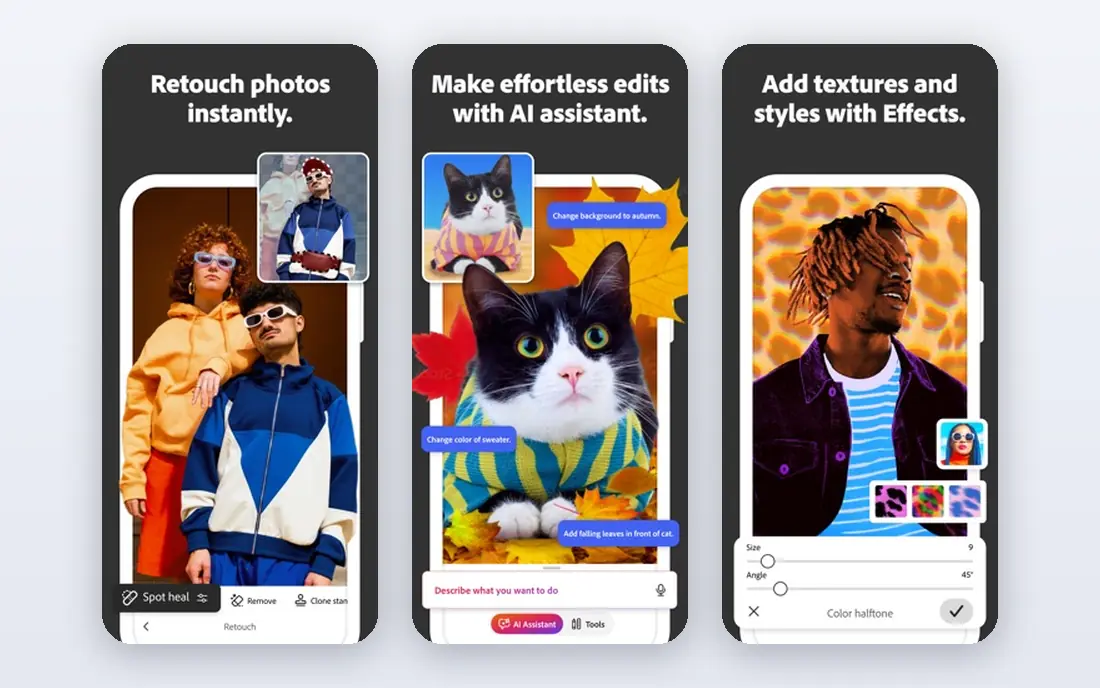
Photoshop gives the most control of any tool here. You can apply sharpening to a masked area, use the Shake Reduction filter for camera shake, and combine sharpening with retouching in layers. That control suits professionals who need to fix one part of an image, such as eyes in a portrait, without sharpening noise in the background.
The learning curve is real, and Photoshop is overkill if you just want a quick fix for a phone photo. For photographers who already use Photoshop, though, its sharpening tools are a strong reason to try deblur there before paying for a specialist app.
- Precise sharpening and masking
- Shake Reduction filter
- Full retouching tools
- Steeper learning curve
- Subscription only
- Overkill for quick fixes
DxO PhotoLab is a RAW editor known for lens corrections based on lab tested lens profiles. That approach helps with softness caused by a lens, not just camera shake, and it pairs well with its noise reduction for low light shots. Photographers who shoot RAW and care about optical quality often keep PhotoLab in their workflow for that reason.
It is less focused on extreme blur rescue than Topaz, and its editions and upgrade pricing need a check on the DxO site. For RAW shooters who want better sharpness across a whole shoot, rather than rescue for one image, PhotoLab is a strong and practical choice.
- Strong lens sharpness correction
- Good noise handling
- RAW workflow with presets
- Pricing varies by edition
- Interface takes time to learn
VanceAI Image Sharpener is a web tool for fast deblur without installing software. Upload a photo, let the AI sharpen it, and download the result. That suits occasional users, small business owners fixing a product photo, and anyone on a computer without a full editor installed.
The free tier has limits, and you should avoid uploading sensitive or private photos to any online tool without checking its privacy policy. For everyday product, social, and web photos, though, VanceAI is a quick and low friction fix.
- Browser based, no install
- Simple upload and sharpen workflow
- Useful for single images
- Free tier limits image count and size
- Online upload means trusting a third party with your photo
PicWish offers a set of online photo tools, including sharpening and enhancement, in a simple web interface. It suits users who want one site for background removal, enhancement, and sharpening, without learning a desktop editor. The free credits let you test it on a real photo before paying.
As with other online tools, results vary. Mild blur and low resolution shots tend to improve most, while heavy motion blur may stay soft. Use it for quick web and social fixes, and keep expectations realistic for badly blurred originals.
- Simple interface
- Several photo tools in one site
- Free credits for testing
- Free credits run out fast
- Quality varies by image type
Fotor is a browser editor that includes an AI image sharpener among its photo tools. It suits users who already edit in Fotor for social posts, marketing, and web images, since sharpening sits alongside cropping, color, and text tools. The free tier is enough to test the sharpener on a few photos.
Full resolution exports and higher limits sit behind a paid plan, so check the pricing page if you need print quality output. For web use, Fotor is a practical, low learning curve option, especially for teams that edit many small images.
- Browser based editor with AI tools
- Easy for non technical users
- Free tier available
- Paid plan needed for full resolution exports
- AI quality varies by photo
HitPaw Photo Enhancer targets users with many photos to fix at once. It offers several AI models for faces, animals, and general photos, and it can process batches rather than one image at a time. That suits real estate, event, and e-commerce work where a whole set needs a consistent lift.
The trial limits exports, so test a small batch before buying. Choose the model that matches your photo type, since the wrong model can over sharpen skin or add texture where none belongs. For batch work on a budget, HitPaw is worth testing against Topaz on the same set.
- Batch processing for many photos
- Several AI models for different photo types
- Simple interface
- Paid plan needed for full exports
- Results vary by model and photo
How we picked these
We compared official feature pages, pricing pages, and app listings for tools with a clear deblur or sharpening feature, not just general filters. We favored tools with a current product, a free tier or trial where possible, and a lawful, ordinary photo use case, and we left out tools marketed for face swapping, undressing, or creating misleading images of real people. We checked that each homepage belongs to the named product.
How to get a cleaner deblur result
Start with the original file, not a compressed copy from social media, since compression removes detail that AI cannot recover. Apply deblur before heavy cropping or color edits, and view the result at full size, not just as a small preview. Over sharpening creates halos and crunchy texture, so stop when edges look natural.
Match the tool to the blur type
Camera shake responds best to shake specific tools in Photoshop and Topaz, while lens softness responds well to DxO lens profiles. Motion blur from a moving subject is hardest to fix, and a mild improvement may be the best honest result. If the subject face is badly blurred, accept a softer photo rather than pushing the tool until it invents detail.
Keep your photos private
Only upload photos you own to online tools, and avoid sensitive personal photos on free web services unless you have checked the privacy policy. For client or private work, a desktop tool like Topaz, Lightroom, or DxO keeps files on your own computer, which is safer for sensitive shoots.
FAQ
What is the best ai tool to deblur image?
The best ai tool to deblur image depends on use. Topaz Photo suits serious rescue work, Lightroom and Photoshop suit photographers already in Adobe, DxO suits RAW shooters, and VanceAI or PicWish suit quick online fixes. Test the same photo in two tools before paying.
Can AI fully fix a blurry photo?
No, not in every case. AI can improve mild to moderate blur and recover some detail, but it cannot fully restore a badly missed focus shot or heavy motion blur. It can also invent texture that was not in the original, so check faces and text closely before publishing.
Is deblur better on desktop or online?
Desktop tools usually give more control, higher resolution output, and privacy, since files stay local. Online tools are faster for one off fixes and need no install, but they have limits on size, count, and export quality. Choose desktop for client work and online for quick web fixes.
Will deblur help an old scanned photo?
It can help with mild softness in scans, especially when paired with noise reduction and careful sharpening. Scans with heavy damage, tears, or very low resolution will still show limits, and restoration work may need manual retouching in Photoshop as well.
Should I deblur before or after editing?
Deblur early in the edit, using the original file, then apply color, cropping, and export settings after. That order gives the AI the most detail to work with and avoids sharpening compression artifacts added by earlier exports.