8 Best AI Tools to Create Video From Photo in 2026
Compare the best AI tools to create video from photo, with free plans, clip lengths, and honest limits for photos, portraits, and product shots today.

- Editor's choice
 Kling AI
Realistic motion from a still photo
Starts atFreeVisit klingai.comFull review - Great alternative
 Runway
Creative control and editing
Starts atFreeVisit runwayml.comFull review - Also consider
 Luma Dream Machine
Cinematic camera movement
Starts atFreeVisit lumalabs.aiFull review
TL;DR:
- Kling and Runway lead for realistic motion, while Pika and PixVerse suit fast social clips on a budget.
- Free plans usually mean short clips, watermarks, and limited monthly credits, so test with your own photos first.
- Tools that hold a face or product shape well matter more than raw resolution for most photo-to-video work.
- Only animate photos you own or have permission to use, and get consent before animating photos of identifiable people.
- Paid plans differ mainly in credits, resolution, and commercial rights, so read the license before using clips for clients.
Quick comparison
| Tool | Best for | Starts at | Free plan? | |
|---|---|---|---|---|
| Kling AI | Realistic motion from a still photo | Free | Yes | Visit |
| Runway | Creative control and editing | Free | Yes | Visit |
| Luma Dream Machine | Cinematic camera movement | Free | Yes | Visit |
 Pika | Playful social clips | Free | Yes | Visit |
 Hailuo AI | Expressive character animation | Free | Yes | Visit |
 Adobe Firefly | Commercially safe client work | Free | Yes | Visit |
 PixVerse AI | Fast daily social content | Free | Yes | Visit |
 Canva AI | Marketers already using Canva | Free | Yes | Visit |
The best AI tools to create video from photo
Turning a still photo into a short video is now a routine task, not a studio project. Upload a photo, describe the motion you want, and the tool generates a clip of a few seconds. The tools below all offer image-to-video generation today, and we compared official feature pages, pricing pages, and app store listings to judge motion quality, ease of use, and free plan limits.
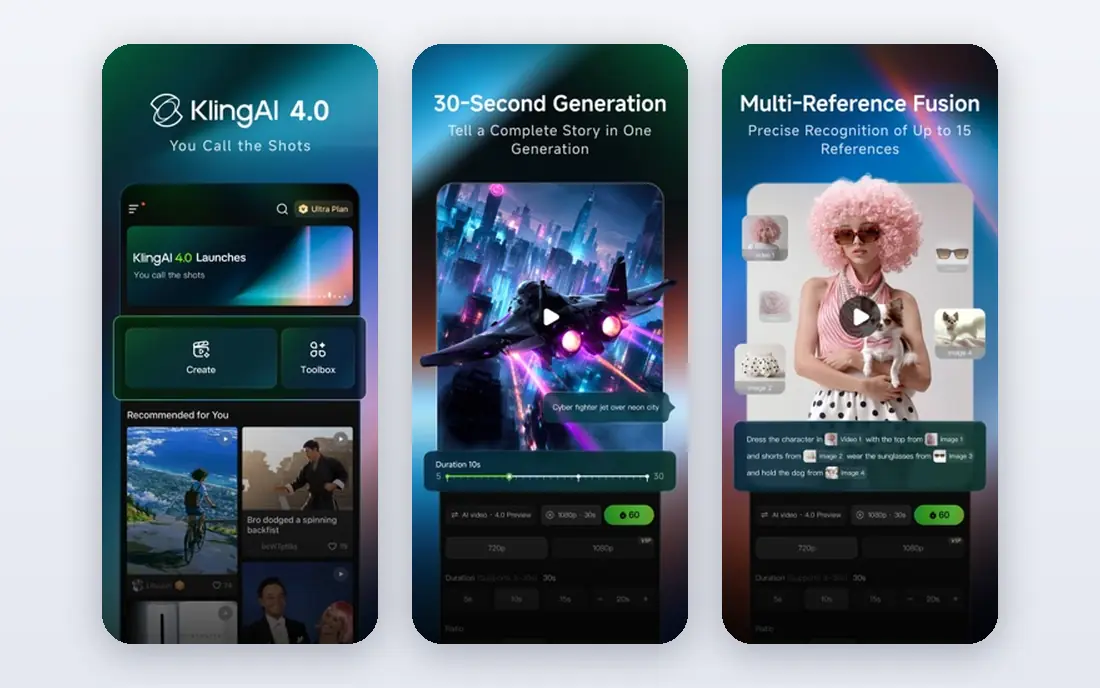
Kling has become a default pick for photo-to-video work because its clips tend to move in a believable way. Hair, fabric, and background elements shift without the melting effect that weaker tools produce, and faces usually stay recognizable across a short clip. That matters most for portraits, product shots, and travel photos where the viewer knows what the subject should look like. The free plan is useful for testing, but daily credits limit how many tries you get, and free exports often carry a watermark. Paid plans raise credit limits and resolution, so budget for several generations per finished clip. If you need one hero shot, Kling is worth the extra tries. If you need dozens of throwaway clips, a cheaper tool may fit better.
- Strong motion coherence
- Holds photo detail well
- Flexible clip controls
- Free credits run out quickly
- Higher resolutions need paid plans

Runway suits creators who want to direct motion, not just press generate. Its motion brush lets you paint which parts of a photo should move, and camera controls add pans, zooms, and gentle tracking shots. That control helps product videos, music visuals, and short ads where a generic drift would look flat. The editing workspace also helps you trim and finish clips without switching apps. The learning curve is real. Good Runway clips come from careful prompts, reference images, and a few failed generations, and the free credit allowance does not refresh monthly. Treat the free plan as a trial of the workflow, then move to a paid plan if the control earns its keep. For casual one-off clips, simpler tools will feel faster.
- Motion brush and camera controls
- Strong editing tools
- Broad model options
- Free credits are one-time, not monthly
- Best results need practice with prompts
Luma Dream Machine is known for camera moves that feel like a real operator, not a slideshow pan. A wide outdoor photo gains depth as the camera drifts forward, and a portrait gains life from subtle head and eye movement. That cinematic feel makes it a strong pick for photographers, travel creators, and small brands that want polished social video from existing photos. Free access is limited, and terms for commercial use vary by plan, so read the current license before using clips in paid ads. Generation can also be slower at peak times. When the shot matters and you want it to look filmed rather than animated, Luma earns a place on the shortlist.
- Natural camera motion
- Clean, film-like output
- Fast generation
- Free plan limits and personal-use terms need checking
- Longer clips need paid credits
Pika is the friendly option in this list. Upload a photo, pick an effect or write a short prompt, and you get a short clip that works well on TikTok, Reels, and Shorts. Its playful effects, such as inflating, melting, or transforming objects, give social creators ideas that plain motion prompts do not. Beginners usually get a usable clip on the first or second try. Realism is the trade. Faces and hands can warp on longer or more complex prompts, and free exports are limited in resolution. That is fine for casual social content, where speed and charm matter more than perfect physics. For client work that needs faithful faces, pair Pika with a more realistic tool for hero shots.
- Easy to learn
- Fun effects and transformations
- Good for short social posts
- Free clips are capped at lower resolution
- Realism lags behind Kling and Runway
Hailuo, from MiniMax, shines on portraits and illustrated characters. A headshot can turn, smile, or speak with more expression than many rivals at the same price, and stylized art holds its look across a clip. That makes it popular with creators who animate avatars, storybook art, and social portraits. The interface stays simple, so you spend time on the photo and prompt, not on settings. The free trial is limited to a one-time credit allowance, so test wisely and save your best photos for paid credits if you plan regular use. Results also vary by prompt, and complex scenes with many moving parts can lose coherence. For character-led clips on a budget, Hailuo offers strong value.
- Lively character and portrait motion
- Affordable paid plans
- Simple upload flow
- Trial credits do not refresh monthly
- Some prompts need several retries
Adobe Firefly is the cautious choice for agencies and brands. Its video generation is built with commercial safety in mind, and it fits naturally into Photoshop, Express, and Premiere workflows. That matters when a client asks where a clip came from, what rights apply, and whether it can run in a paid campaign. Daily free generations let small teams test ideas without a new subscription. The trade is scope. Firefly clips are short, and its motion options are less wild than Pika or Runway. If you want experimental effects, look elsewhere. If you want a dependable, licensable clip from a product photo for a website or ad, Firefly is a sensible pick, and its Adobe integration saves export time.
- Designed for commercial use
- Integrates with Adobe apps
- Daily free generations
- Clips are short, around five seconds
- Creative range is narrower than specialist video tools
PixVerse suits creators who post every day and need a steady supply of short clips. Daily credits refresh, generation is quick, and templates help turn a photo into a trending-style clip without writing long prompts. That rhythm fits social managers, small shops, and creators who test many ideas and keep only the best. Quality is uneven. Simple scenes with one subject usually look good, while busy scenes can warp or stutter. Free clips also carry watermarks and resolution limits, so paid plans are needed for polished posts. Use PixVerse for volume and testing, then finish hero clips in a higher-fidelity tool when needed.
- Daily free credits
- Quick generation
- Good template and effect options
- Free exports are lower resolution and watermarked
- Realism varies by scene
Canva AI will not beat specialist video tools on motion realism, but it wins on workflow for many small businesses. If your team already designs posts, flyers, and presentations in Canva, generating a short clip from a photo and dropping it into a branded template takes minutes. Text overlays, music, and resizing for each social platform happen in the same project. The limits are clear. Basic generated clips are short, and you will not get the camera control of Runway or the realism of Kling. For a product announcement, a sale post, or a simple animated photo, that is often enough. For a hero video, export the photo and use a specialist tool, then bring the finished clip back into Canva.
- Video sits inside a familiar design workflow
- Easy text, music, and branding
- No new app to learn
- Clips are short and silent in the basic flow
- Advanced video control is limited
How we picked these
We compared official feature pages, pricing pages, and app store listings for tools that accept a photo upload and return a video clip today. We favored tools with a working free tier or trial, clear commercial terms, and consistent photo-to-video results in public reviews, and we left out tools that only do text-to-video or that require a desktop install with no web option. We did not claim hands-on testing. Note on lawful use: only animate photos you own or have permission to use, get consent for photos of identifiable people, and do not use these tools to create misleading, non-consensual, or deceptive imagery of real people.
What to check before you pick one
Start with the photo, not the tool. A sharp, well-lit photo with one clear subject animates far better than a busy, low-resolution image. Crop tightly, remove distracting background clutter where you can, and test the same photo in two tools before you commit to a paid plan. The difference in face handling alone often decides the winner for portrait work.
Clip length, credits, and licenses
Most free plans give short clips and limited credits, so count generations, not just clips. You may need three or four tries to get one keeper, and that multiplies credit use. Also check whether free clips can be used commercially, whether watermarks apply, and whether paid plans change those rights. A cheap plan with no commercial license is a poor deal for client work.
Prompting for better motion
Write prompts that describe one motion, not five. Say what moves, how fast, and what the camera does, and leave the rest still. For example, ask for a slow push-in while the subject smiles slightly, rather than asking for dancing, spinning, and a scene change at once. Short, specific prompts reduce warping and give you a clip you can actually use.
When to use a specialist instead
If you need long scenes, dialogue, or precise lip sync, a photo-to-video tool alone will frustrate you. Use it for short establishing shots, product motion, and social teasers, then edit those clips into a longer video in a standard editor. That split keeps quality high and avoids asking a five-second generator to do a sixty-second job.
FAQ
What are the best AI tools to create video from photos for free?
Kling, Pika, Hailuo, PixVerse, and Canva all offer free access, but each limits credits, length, or resolution and may add a watermark. Try the same photo in two or three tools to see which handles your subject best. For regular use, expect to move to a paid plan once you know your monthly clip count.
What are the best AI tools to create videos from photos for portraits?
Kling and Hailuo handle portraits well, with Kling stronger on realism and Hailuo stronger on expressive character motion. Luma also works well for gentle, cinematic portrait movement. Avoid animating photos of people without their consent, and check each tool's policy on real faces before you publish.
How long are AI photo-to-video clips?
Most clips run about five to ten seconds on free and entry plans, with longer clips available on higher tiers or by extending a clip. That length suits social posts, ads, and website heroes. Plan your edit around short shots rather than expecting a full scene from one generation.
Can I use AI photo videos for commercial work?
It depends on the plan. Adobe Firefly is built with commercial use in mind, while other tools vary by tier and license. Read the current terms for the plan you buy, and keep a record of the license for client projects. When in doubt, choose a paid plan that clearly allows commercial use.
Why does my photo video look warped?
Warping usually comes from a low-resolution photo, a busy scene, or a prompt asking for too much motion at once. Use a sharp photo, crop to one subject, and ask for one simple motion. If faces still warp, try a different tool, since face handling varies a lot between models.
Do I need video editing skills to use these tools?
No. Uploading a photo and writing a short prompt is enough for a basic clip. Editing skills help when you want to combine clips, add text or music, and trim to a final length, and tools such as Canva or a standard editor make that step simple for beginners.