Best AI Tools to Create Video From Image in 2026: 8 Tools Compared
Compare the best ai tools to create video from image, with current prices, credit costs, motion quality and commercial use rights for creators today in 2026
- Editor's choice
 Runway
Controlled image-to-video editing
Starts at$15 per monthVisit runwayml.comFull review - Great alternative
 Pika
Low-cost social clips
Starts atFreeVisit pika.artFull review - Also consider
 Luma Dream Machine
Natural motion from images
Starts at$30 per monthVisit lumalabs.aiFull review
TL;DR:
- Runway and Luma are the most complete image-to-video tools for creators who need control, editing and reliable exports.
- Pika is the best low-cost entry point for short social clips, with a free Basic plan and clear credit costs per clip.
- Kling AI and Hailuo AI offer strong motion and longer clips, and both are worth testing on your own product or portrait images.
- Kaiber, Genmo and PixVerse suit stylized, music-driven or experimental video, rather than realistic product footage.
- Credit math decides the real cost: count retries, resolution and duration before you choose a plan, because a cheap plan with small credits can cost more per finished clip.
Quick comparison
| Tool | Best for | Starts at | Free plan? | |
|---|---|---|---|---|
| Runway | Controlled image-to-video editing | $15 per month | Yes | Visit |
| Pika | Low-cost social clips | Free | Yes | Visit |
| Luma Dream Machine | Natural motion from images | $30 per month | Yes | Visit |
 Kling AI | Realistic longer clips | See website | Yes | Visit |
 Hailuo AI | Creative image animation | See website | Yes | Visit |
 Kaiber | Stylized music video | See website | Free trial | Visit |
 Genmo | Experimental AI video | See website | Yes | Visit |
 PixVerse | Fast social video | See website | Yes | Visit |
The best AI tools to create video from image
We compared official pricing pages, feature pages and public documentation for image-to-video tools that work today. The eight below turn a still image into moving video, with different strengths in realism, style, length and control.
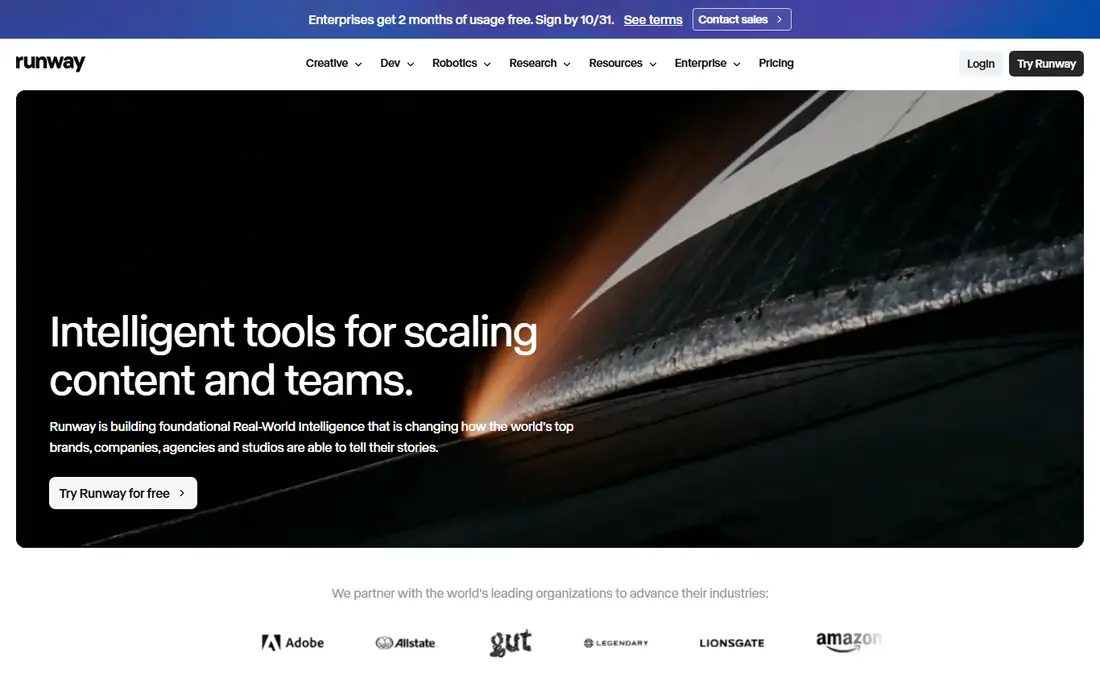
Runway is our pick for creators who want more than a single animation button. Upload an image, describe motion and camera movement, then edit, inpaint, lip-sync or upscale the result in the same workspace. That control helps product and portrait shots stay coherent, rather than drifting into a different scene halfway through a clip.
Pricing is credit-based: Free gives 125 one-time credits, Standard is $15 per month, or $12 on annual billing, for 625 credits, Pro $35, or $28 annual, for 2,250, and Max $95, or $76 annual, for 9,500. Gen-4.5 costs about 60 credits per five seconds, so Standard buys roughly ten five-second flagship clips before retries. Budget for retries, because the first take rarely survives.
- Gen-4 family with camera and motion controls
- Editing, inpainting and upscaling in one workspace
- Access to third-party models on paid plans
- Credits burn fast on flagship models
- Standard allowance covers only about a minute of Gen-4.5
- Free credits are one-time

Pika is the easiest tool to try, because Basic is free with 80 monthly credits and Pika 2.5 at 480p. A five-second 480p clip costs 12 credits, so Basic covers several test clips, while Standard at $10 per month, or $8 annual, gives 700 credits and all resolutions. Pro at $35 per month, or $28 annual, adds 2,300 credits and clearer commercial use terms.
Pika shines for short social clips, product teasers and playful effects, where a five to ten second animation is enough. It is less suited to long, realistic scenes, where Runway, Kling or Luma usually hold coherence better. Check the current commercial use and watermark terms for your plan before using a clip for a client or a paid channel, because those terms differ by tier.
- Free Basic plan with 80 monthly credits
- Effects such as Pikaffects for image-to-video
- Clear per-clip credit costs
- Free and Standard limits on resolution and commercial use need checking
- Credits are not finished videos
- Effects can look gimmicky for serious work

Luma Dream Machine, now part of the wider Luma platform, is known for smooth, natural motion from a single image. Upload a photo, describe the movement, and Luma produces a clip that often looks less jittery than rivals at the same price. Its Agents plans also bundle third-party models such as Veo, Kling and Seedance, which helps a creator compare styles without several subscriptions.
Agents Plus is $30 per month, or $25 on annual billing, for 10,000 credits, Pro $90, or $75 annual, for 40,000, and Ultra $300, or $250 annual, for 150,000. A ten-second 1080p clip on Ray can cost around 800 credits, so Plus covers roughly a dozen such clips before retries. Use draft mode for tests and reserve full-quality renders for shots that survive, or credits will vanish on experiments.
- Smooth natural motion
- Access to Luma Ray plus third-party models on Agents plans
- Failed generation credits returned in some cases
- Credits burn fast at 1080p
- Monthly credits do not roll over
- Product naming and plans have changed
Kling AI, from Kuaishou, has become a favorite for realistic image-to-video because its motion holds up over longer clips and its handling of people, animals and physical movement often looks more natural than lighter tools. It also supports native audio on some models, which helps a clip feel finished without a separate sound step.
We list pricing as See website because Kling plans, credits and availability vary by region and by whether you use the web app or another platform. A free tier lets you test it on your own images, which is the right first step: run the same product photo through Kling, Runway and Luma, and judge coherence, hands, text and brand details yourself. For realistic footage, Kling frequently wins that test.
- Strong realism and motion coherence
- Longer clips with native audio options
- Good for people and product shots
- Pricing and credits vary by plan and model
- Queue times on free tier
- Some features are region or app dependent
Hailuo AI, from MiniMax, turns images into animated video with a creative, sometimes cinematic feel. It works well for illustrated scenes, fantasy art and stylized product shots, where a bit of artistic movement adds interest. The interface is straightforward: upload an image, add a prompt for motion, and generate a short clip.
Pricing is listed as See website because plans and credit packs have changed and vary by region. Use the free tier to test how Hailuo handles your image type, especially faces, hands and text, which are common failure points for all image-to-video tools. For stylized work, Hailuo is a strong contender; for strict product accuracy, compare it with Runway or Kling first.
- Strong creative animation from images
- Good for fantasy, illustration and stylized scenes
- Free tier for testing
- Pricing and credits change often
- Realism can vary by subject
- Commercial terms need checking
Kaiber made its name with stylized, music-driven video, and its image-to-video tools follow that style. Upload an image, choose a style, and Kaiber animates it with a painterly or dreamlike quality that suits music videos, artist promos and social content. If your goal is a distinctive look rather than photorealism, Kaiber's style range is a real advantage.
Pricing is listed as See website with a free trial, because plans should be checked on the current page. Kaiber is not the tool for a product demo that must preserve exact packaging, colors and text, because stylization can change details. Use it where style is the point, and keep a realistic tool for footage that must stay faithful to the source image.
- Distinctive stylized animation
- Music-reactive video options
- Good for artists and social content
- Less suited to realistic product video
- Pricing is subscription-based
- Output can be unpredictable
Genmo offers image-to-video alongside text-to-video in a platform built for experimentation. It suits creators who want to test ideas quickly, try different styles, and learn what image-to-video can do before committing to a paid plan. Templates and community examples help a beginner get a first clip without writing a complex prompt.
We list pricing as See website because Genmo plans and credit systems have changed. The free tier is enough to learn the workflow and test a few images, but serious production will need a paid plan or a more controlled tool such as Runway. Treat Genmo as a creative sandbox and a backup option, not as the sole tool for client work that must match a brief exactly.
- Free tier for experimentation
- Image-to-video plus text-to-video
- Creative community and templates
- Output quality varies
- Less control than Runway
- Commercial and resolution limits need checking
PixVerse focuses on fast, social-ready video from images, with effects, templates and short-form formats that suit TikTok, Reels and Shorts. It is easy to use: upload an image, pick a style or effect, and generate a clip in a short time. For a creator posting daily, that speed matters more than the fine control Runway offers.
Pricing is listed as See website because PixVerse credits and plans vary. Use the free tier to test how it handles your images, especially faces and product details, and check commercial use terms before publishing paid content. PixVerse is a good secondary tool for volume social content, paired with a realistic tool for hero footage that must stay accurate.
- Fast generation for social clips
- Image-to-video with effects and templates
- Free tier for testing
- Realism and coherence vary
- Credit and plan details change
- Commercial terms need checking
How we picked these
We compared official pricing pages, feature pages and public documentation for image-to-video tools that are live today. We favored tools with a working image-to-video mode, a free tier or trial, and a clear use case, rather than text-only video generators. We did not claim hands-on testing; our comparison rests on vendor documentation and reported user experience.
Where pricing was credit-based, we reported the plan price and the credit cost for a typical clip, because the plan price alone does not tell you how many finished videos you get. Where pricing varied by region or changed often, we wrote See website.
How to get a good video from a single image
Start with a clean, high-resolution image. A sharp subject, clear lighting and an uncluttered background give the model more to work with, while a blurry or crowded photo often produces drifting details. Crop to the aspect ratio you need before generating, rather than cropping a finished clip and losing quality.
Next, prompt for one movement, not five. A prompt such as slow camera push toward the product, with steam rising, is easier for a model to follow than a list of camera moves, character actions and scene changes. If the first clip drifts, change one element at a time: the motion, the duration or the model, and keep the version that holds the subject best.
Finally, check every frame before publishing. Look at hands, faces, text, logos and product details, because AI video can change them subtly. Finish in a normal editor: trim, add captions, sound and branding, and disclose synthetic media where context requires it, especially for advertising or news-adjacent content. Do not use a real person's image to create misleading video without consent, and respect the rights in any image you animate.
FAQ
What is the best AI tool to create video from an image?
Runway is the best all-round pick for control and editing, Luma is strong for natural motion, and Pika is the best low-cost entry point. Kling AI often wins on realism for longer clips, while Kaiber and PixVerse suit stylized or social content. Test the same image on two or three tools, because the winner depends on your subject, style and budget.
Are image-to-video tools free?
Several offer free tiers: Pika Basic is free, Runway Free gives one-time credits, Luma offers a free plan, and Kling, Hailuo, Genmo and PixVerse offer free testing. Free tiers limit resolution, credits, commercial use or watermarks, so a free clip may not be suitable for client or paid work. Check commercial terms on your plan before publishing.
How long can an AI video from an image be?
Most image-to-video clips run five to ten seconds per generation, with some tools supporting longer outputs or extensions. Longer scenes are usually built by generating several clips and editing them together, rather than asking for a minute in one generation. Coherence drops as length rises, so short, well-chosen shots edited together usually look better than one long AI clip.
How much does image-to-video cost per finished clip?
Cost depends on credits, resolution and retries, not just the monthly plan. A five-second Runway Gen-4.5 clip costs about 60 credits, a five-second Pika 480p clip costs 12 credits, and a ten-second Luma 1080p clip can cost around 800 credits. Budget two to three times the single-clip cost for retries, and compare plans by finished clips per month, not by headline credit totals.
Can I use AI video from an image for commercial work?
Yes, on plans that include commercial use, but terms differ by tool and tier. Pika Pro and above, Luma Plus and above, and Runway paid plans generally include commercial use, while free tiers often do not. Read the current terms for your plan, keep records of source images and rights, and do not animate images you do not have rights to use.
Why does my image-to-video clip change faces or product details?
AI video models predict motion frame by frame, and they can drift on fine details such as hands, faces, text and logos, especially over longer clips or complex movement. Use a clear source image, a single simple motion, and a shorter duration to reduce drift. If accuracy matters, generate several takes, pick the best, and fix small issues in an editor rather than accepting the first output.