Best AI Tools to Convert Photo to Video in 2026: 8 Tools Compared
Best ai tools to convert photo to video, with 8 legitimate tools compared on motion quality, editing, pricing, and lawful use of your own photos today.
- Editor's choice
 Runway
Film style motion and editing
Starts at$15 per monthVisit runwayml.comFull review - Great alternative
 Pika
Short social clips
Starts atSee websiteVisit pika.artFull review - Also consider
 Luma Dream Machine
Natural camera motion
Starts atSee websiteVisit lumalabs.aiFull review
TL;DR:
- The best photo to video tools animate a still image with clear motion controls, not just a slow zoom, and they keep faces and objects steady across frames.
- Use only photos you own or have clear permission to use, and get consent from any identifiable person before animating or publishing their image.
- Credit based pricing means the real cost depends on clip length and retries, so test with one photo before buying a large plan.
- Consumer Sora is not in this list, because consumer access ended in April 2026, and we list only tools with current consumer or creator access.
- No undressing tools are listed here, and any tool that claims to alter a person in that way should be avoided.
Quick comparison
| Tool | Best for | Starts at | Free plan? | |
|---|---|---|---|---|
| Runway | Film style motion and editing | $15 per month | Yes | Visit |
| Pika | Short social clips | See website | Yes | Visit |
| Luma Dream Machine | Natural camera motion | See website | Yes | Visit |
 Kling | Detailed motion prompts | See website | Yes | Visit |
 Hailuo | Expressive character motion | See website | Yes | Visit |
 HeyGen | Talking photo avatars | $29 per month | Free trial | Visit |
 Kapwing | Simple browser editing | Free | Yes | Visit |
 InVideo | Marketing videos from photos | $28 per month | Yes | Visit |
The best AI tools to convert photo to video
These tools turn a photo into a moving clip, with controls for motion, camera moves, and length, and they are suited to lawful creative work with your own images.
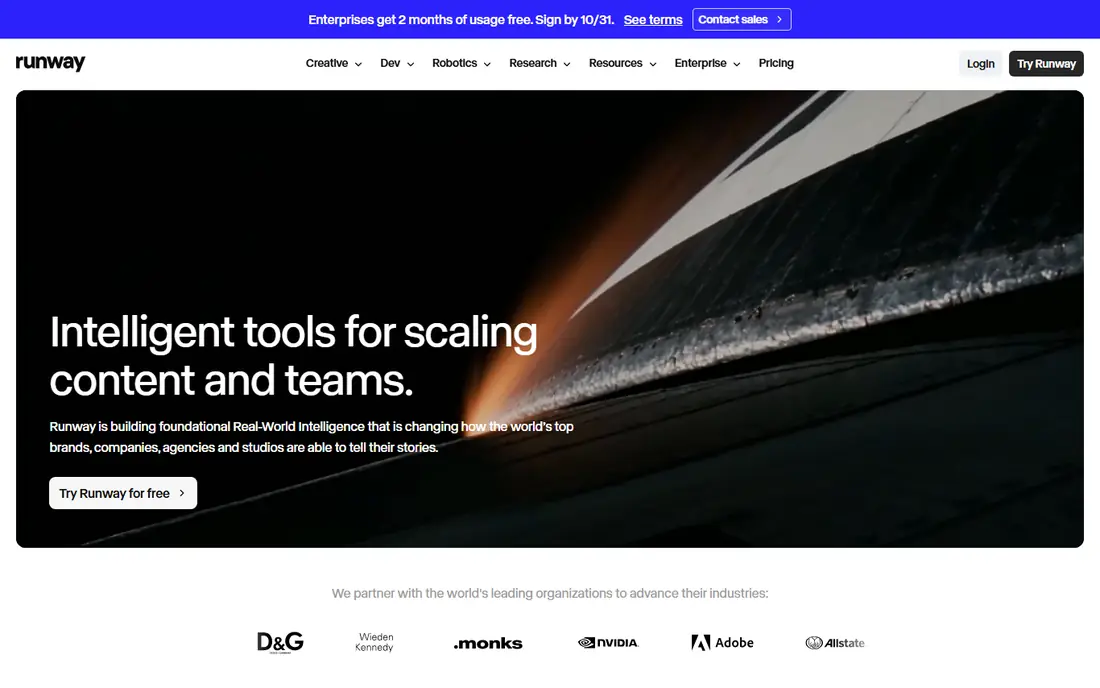
Runway is our pick for creators who want more than a single clip, since it pairs image to video generation with editing, upscaling, and timeline tools in one workspace. A photo can become a short scene with camera movement, and that scene can then be trimmed, captioned, or combined with other clips. The result tends to look steadier than tools that only add a zoom.
The cost model needs care. Plans use credits, and longer clips or higher resolution use more credits, so a month of daily clips can exceed the entry plan. Start with the free credits, test your usual clip length, and count retries before committing to a paid tier.
- Strong image to video models
- Built-in editing tools
- High resolution export options
- Credits run out fast on long clips
- Learning curve for new editors
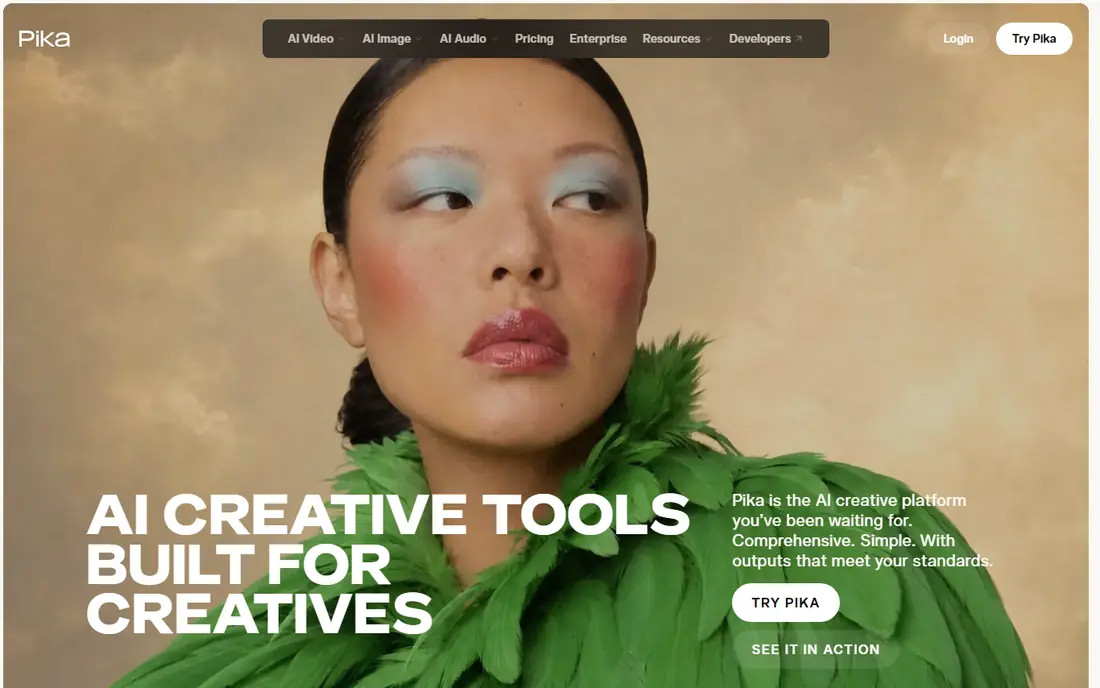
Pika suits quick social content, where a product photo or portrait needs a few seconds of motion for a feed or story. The interface stays simple, so you can upload a photo, describe the motion, and get a clip without learning a full editor. That speed matters when you need several variants for a campaign.
The limit is length and consistency. Pika is best for short, punchy clips, and a complex scene with many moving parts can drift from the original photo. Keep prompts short and specific, and use the best, sharpest photo you have for cleaner motion.
- Fast short clip generation
- Simple prompt controls
- Good for social formats
- Short clips suit social more than long scenes
- Quality varies by photo
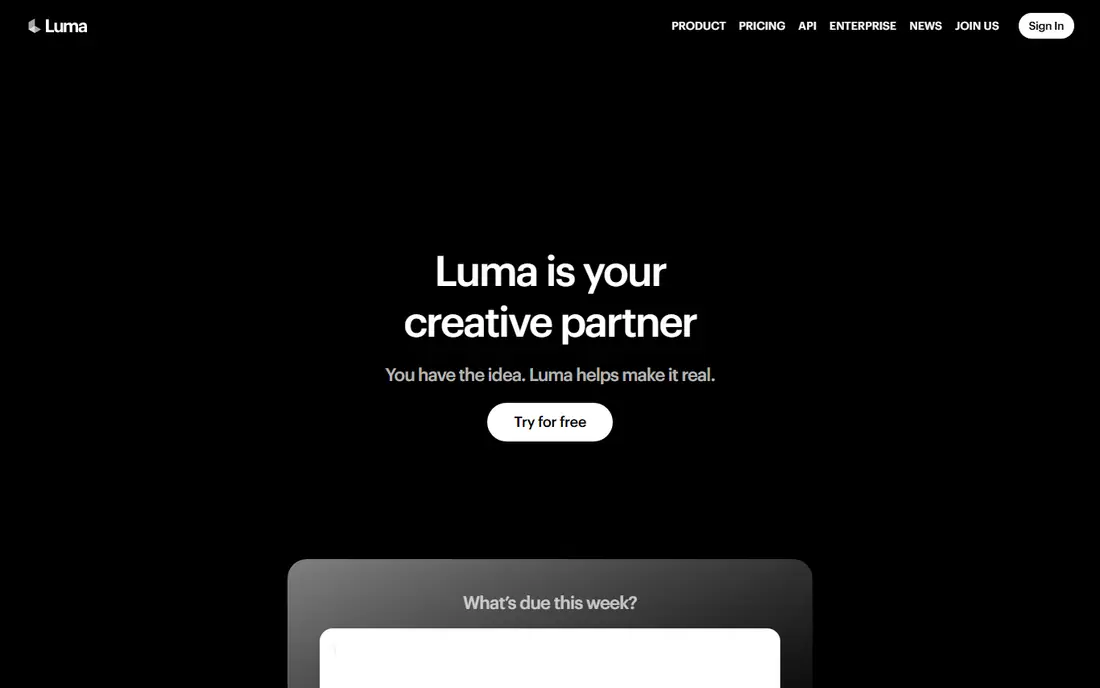
Luma Dream Machine stands out for camera motion that feels natural, such as a slow push in, a gentle orbit, or a pan across a scene. It keeps the structure of the photo intact while adding movement, which helps product shots and travel photos look like short video rather than a slideshow effect. The web workflow is simple enough for a first time user.
Flat or low detail photos can produce subtle results, so pick images with depth, a clear subject, and good light. For heavy daily use, check the paid plan limits, since free access is meant for testing, not for a full content schedule.
- Smooth camera moves
- Strong scene coherence
- Easy web workflow
- Paid tiers needed for heavy use
- Motion can be subtle on flat photos
Kling gives creators a lot of control over motion, which helps when you want a specific action rather than a generic drift. A portrait can turn its head, a product can rotate, or a scene can shift in a planned way, if the prompt describes one clear action at a time. That control rewards users who test prompts in small steps.
New users may find the settings and model choices busy at first, and early results can miss the mark. Keep a short note of prompts that worked, reuse them as a base, and change only one element at a time. That habit saves credits and improves consistency.
- Detailed prompt control
- Strong character motion
- Good for creative scenes
- Interface can feel busy
- Results need prompt practice
Hailuo, from MiniMax, is a good fit for expressive character clips, where a face or figure needs clear movement and emotion. It can turn a character photo into a short animated moment that works for storytelling, ads, or social posts. The upload flow is direct, so you spend more time on the idea and less on settings.
The style can lean stylized, which is a strength for illustration and a weakness for a strict product photo that must stay exact. Test with your real image, check hands and faces in the output, and only publish a clip that keeps the subject true to the photo.
- Lively character animation
- Simple upload flow
- Useful for short stories
- Style can feel stylized
- Long clips need careful planning
HeyGen is different from the other tools here, because its strength is a talking avatar made from a photo, with a script read in a chosen voice. That suits training clips, product explainers, and short ads where a presenter is needed but a shoot is not practical. You can test a script quickly and revise the words without re-recording.
Consent is central here. Only create a talking avatar of yourself, or of a person who has given clear permission for that use, and label AI generated presenters where your audience could be misled. HeyGen is not a tool for animating strangers or public figures without permission.
- Talking avatars from a photo
- Voice and script options
- Good for training and ads
- Higher starting price
- Avatar use needs clear consent
Kapwing suits creators who want to turn photos into a finished video in a browser, with music, captions, and trimming in the same place. Its AI features help with simple motion and editing, but the main value is the full edit after the clip is made. A team can share a project link and revise without passing files back and forth.
If your priority is advanced AI motion alone, a specialist generator will do more. Kapwing is the better pick when the final video needs captions, cuts, and a clean export for several platforms, and you want one workspace for the whole job.
- Browser based editor
- Easy captions and trimming
- Good team sharing
- AI motion is simpler than specialist tools
- Exports can carry a watermark on free tier
InVideo works well for marketing teams that need many videos from photos, headlines, and product shots. Templates, text prompts, and a stock library speed up the first draft, and the editor lets you adjust timing, text, and music before export. That structure helps a small team keep a steady posting schedule.
The trade-off is originality. A template can make different brands look similar, so change colors, fonts, and pacing to fit your brand, and use your own photos as the main visual. Check export limits on your plan before promising a client a large batch.
- Many templates for marketing
- Text to video workflow
- Stock media library
- Template look can feel generic
- Higher tiers needed for full features
How we picked these
We compared official feature pages, pricing pages, and public reviews for tools that accept a photo as input and return a moving video clip. We required current consumer or creator access in October 2026, a lawful use policy, and a clear way to use only your own images. We excluded consumer Sora, since consumer access ended in April 2026, and we excluded any tool aimed at undressing or altering a person without consent.
How to use photo to video tools lawfully
Use photos you took, photos you licensed, or photos where you have written permission for video use. For any identifiable person, get consent before animating, voicing, or publishing their image, and keep that consent on file. Avoid photos of children, private individuals, or public figures used in a misleading way, even if a tool allows the upload.
Prompts that give cleaner results
Describe one main action, one camera move, and the mood in short, plain words. A prompt such as a slow push in while a dog looks toward the camera gives the model a clear job, while a long list of adjectives gives it conflicting cues. Test at short length first, then extend the winning prompt.
Cost, length, and quality checks
Count credits by clip length, not by number of ideas. A ten second clip costs more than a five second clip, and retries add up fast, so save the prompt and settings for clips that work. Before publishing, watch the full clip for warped faces, extra limbs, or drifting objects, and re-render or trim rather than publishing a flawed result.
Publishing and disclosure
Label AI generated video where viewers could think it is real footage, especially for news, testimonials, or product claims. Keep the original photo, note the tool and date, and do not present an animated photo as a real event. Clear labeling protects your audience and your brand.
FAQ
What is the best free AI tool to convert photo to video?
Runway, Pika, Luma, Kling, and Hailuo all offer free access for testing, but free credits are limited and long clips usually need a paid plan. Kapwing and InVideo also have free tiers, with export limits. Test one photo on two tools before paying, since motion quality varies by image.
Can I animate a photo of another person?
Only with that person's clear consent for video use, and only in a way that matches what they agreed to. Do not animate strangers, private individuals, or public figures to imply words or actions they did not say or do. If consent is unclear, do not publish the clip.
Why does my photo to video clip look warped?
Warping often comes from a low resolution photo, a busy background, or a prompt that asks for too much motion at once. Use a sharp, well lit photo, describe one action, and try a shorter clip. Faces and hands are the hardest parts for these models, so check them frame by frame.
How long can a photo to video clip be?
Most tools in this list produce short clips, often five to ten seconds, and longer videos are made by joining clips in an editor. Check the plan for maximum length and credit cost per second, since a longer clip can use a large share of a monthly allowance.
Is it legal to use AI video for ads?
It can be, if you own or license the photo, have consent from people shown, and do not make false claims about a product or person. Label AI generated presenters and footage where viewers could be misled, and keep records of licenses and consent. For regulated products, check ad rules before publishing.
What happened to consumer Sora?
Consumer Sora access ended in April 2026, so we did not include it as a current consumer option in this list. Creators who need similar text or image to video features should test the tools above with their own photos and compare motion quality on a short clip.