Best AI Tools to Convert Images to Video in 2026: 8 Tools Compared
Compare the best ai tools to convert images to video in 2026, with pricing, clip length, motion quality, audio and lawful use guidance for creators today.
- Editor's choice
 Runway
Camera control and pro editing
Starts at$12 per monthVisit runwayml.comFull review - Great alternative
 Kling AI
Best value realistic clips
Starts at$6.99 per monthVisit klingai.comFull review - Also consider
 Pika
Fast stylized social clips
Starts at$8 per monthVisit pika.artFull review
TL;DR:
- Kling offers the best value for realistic image to video clips, with daily free credits and a low entry paid plan.
- Runway is the strongest pick for filmmakers and editors who need camera control and a full editing workspace.
- Google Veo through Google AI Pro gives the most realistic motion with synced audio, but clips are short.
- Use only images you own or have rights to use, and only animate people with their consent.
Quick comparison
| Tool | Best for | Starts at | Free plan? | |
|---|---|---|---|---|
| Runway | Camera control and pro editing | $12 per month | Yes | Visit |
| Kling AI | Best value realistic clips | $6.99 per month | Yes | Visit |
| Pika | Fast stylized social clips | $8 per month | Yes | Visit |
 Google Veo | Realistic clips with synced audio | $19.99 per month | Yes | Visit |
 Luma Dream Machine | Cinematic camera moves | $30 per month | Yes | Visit |
 Adobe Firefly | Commercially safe brand work | $9.99 per month | Yes | Visit |
 Hailuo AI | Multi reference and longer scenes | $14.99 per month | Yes | Visit |
 PixVerse | Daily free credits for short clips | $8 per month | Yes | Visit |
The best ai tools to convert images to video
We compared image to video quality, motion consistency, clip length, audio, exports and pricing. Every tool here animates a still image you upload, and every tool below is for legitimate creative work only.
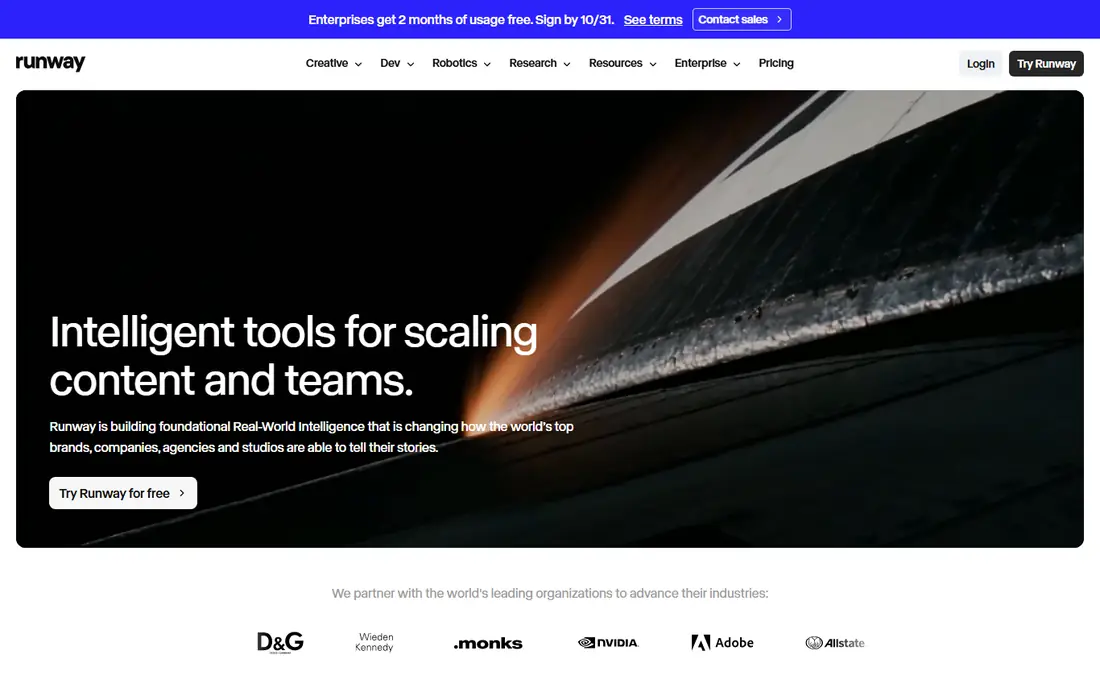
Runway Gen-4 and later models let you upload a photo, describe the motion, and control the camera path, subject movement and style. That control is why filmmakers and agencies use it for product shots, title sequences and short ads. You can also edit, extend and combine clips in the same workspace, rather than exporting to another editor for every change.
The free tier gives 125 one-time credits, which is enough to test the tool but not to run a campaign. Paid plans start at $12 per month on annual billing, with $15 per month on monthly billing. If you need precise camera moves and clean motion, Runway is worth the step up from a cheaper social tool.
- Strong camera and motion controls
- Full editing workspace
- High quality output for pro projects
- Free credits do not refill monthly
- Best models need a paid plan
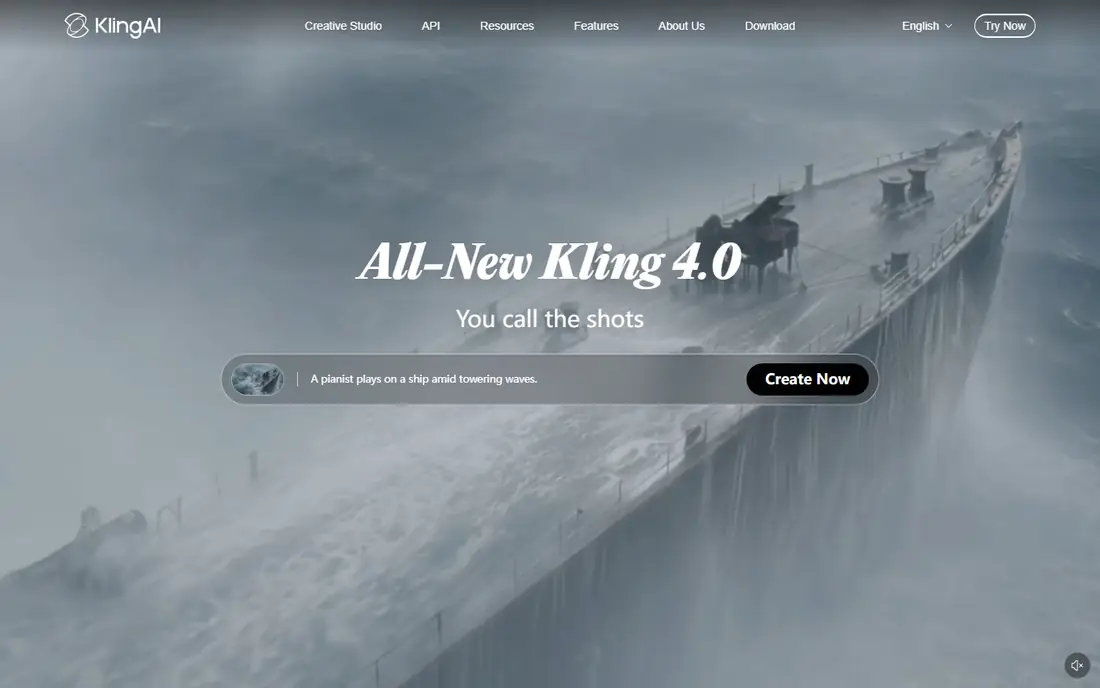
Kling has become the value pick for image to video because it handles faces, hands and body motion more cleanly than most tools at this price. Upload a product photo or a portrait you have rights to use, add a motion prompt, and you get a clip that is usable for social posts, ads and explainers. Daily free credits let you keep testing without paying.
The entry plan is $6.99 for the first month, then $8.80 per month on the Standard plan in the pricing seen in October 2026. That low entry cost, plus the daily free tier, makes Kling a good first paid tool for creators who need volume. For client work, confirm the license terms on your plan before delivery.
- Realistic human motion at a low price
- Daily free credits
- Longer clips than many rivals
- Generation queues can slow at peak times
- Commercial terms vary by plan, so check before client work
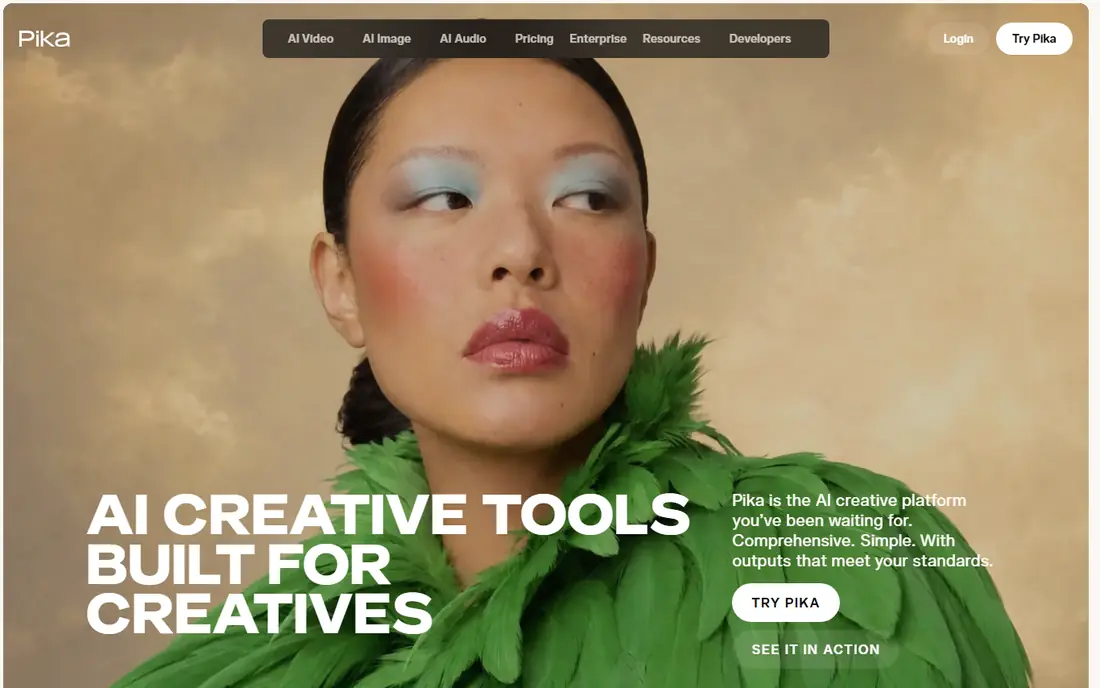
Pika suits short, stylized clips for TikTok, Reels and Shorts. Effects, lip sync and playful transformations work well when the goal is attention, not photorealism. The interface is simple: upload an image, pick an effect or write a prompt, and generate a short clip you can post the same day.
Pricing starts at $8 per month on annual billing for Starter, with a higher monthly rate if you pay month to month. The free plan is useful for testing effects, but it does not refill monthly credits in the same way as Kling. Choose Pika when speed and style matter more than a long, realistic scene.
- Fast, fun effects for social video
- No watermark on any tier
- Simple prompt flow
- Free plan uses credit packs rather than a monthly refill
- Realism trails Kling and Veo
Google Veo 3.1, accessed through Google AI Pro and Flow, produces some of the most realistic image to video clips in this list, with dialogue and sound that match the scene. That makes it a strong choice for ads, product demos and short narrative clips where audio matters as much as motion. You can start from an image, describe the scene, and get a polished result in a few minutes.
The cost is $19.99 per month for Google AI Pro, which also includes other Google AI tools, so the value depends on how much else you use. Clip length is limited, so longer stories need several generations stitched together. For a single realistic clip with sound, Veo is hard to beat.
- Very realistic footage with native audio
- Strong prompt understanding
- Part of Google AI Pro
- Clips are short, around 8 seconds per generation
- Access depends on your Google plan and region
Luma Dream Machine is known for camera work: slow pushes, orbits and sweeping moves that make a still photo feel like a film shot. That suits travel, real estate, product and brand films where the mood comes from movement, not dialogue. Keyframes let you set a start and end frame, which helps keep a shot consistent.
The Plus plan starts at $30 per month, which is a step above the budget tools here. Free access is limited, and longer or higher resolution clips use more credits. If your work is mostly short social clips, Kling or Pika will be cheaper. If you need cinematic movement for a hero video, Luma earns its price.
- Smooth cinematic camera motion
- Keyframe controls
- Strong for scene setting shots
- Higher entry price than Kling or Pika
- Credit use per clip can be high
Adobe Firefly Video lets you animate an image inside Adobe's ecosystem, with controls that fit a designer or video editor who already uses Premiere Pro, Photoshop or Express. For brands and agencies, the commercial safety story matters: Firefly is positioned for client work where rights and licensing must be clear. That reduces risk when a clip will run in paid ads.
Firefly Standard starts at $9.99 per month, with Pro at $19.99 per month for more generations. Free daily generations let you test the style. Clip length is short, so plan for several clips or use Firefly for a hero moment inside a longer edit, rather than a full narrative film.
- Trained with commercial use in mind
- Integrates with Creative Cloud
- Good for brand and client work
- Clips are short, around 5 seconds on basic plans
- Video is one part of a wider plan
Hailuo AI, also known as MiniMax video, handles scenes with more than one reference image, which helps when a clip must keep a character, product or setting consistent across shots. That is useful for short stories, ads with a recurring product, and social series where the same subject appears in several clips.
Standard pricing is listed at $14.99 per month, with a discounted rate seen in October 2026 at $10.50 per month. Free output carries a watermark, so paid plans are needed for client delivery. If you need multi shot consistency more than raw realism, Hailuo is worth testing against Kling on the same images.
- Good multi reference shots
- Flexible scene control
- Useful free trial credits
- List price is higher than Kling
- Watermark on free output
PixVerse gives 30 credits a day on the free plan, which is generous for a creator who makes a few short clips a day and can wait for the next reset. The Standard plan starts at $8 per month on annual billing, with Pro at $24 per month for higher quality and more credits. That makes it a low risk way to learn image to video before paying for a pro tool.
Output quality is solid for social posts, but it does not match Veo or Runway on complex human motion. Use PixVerse for drafts, memes, product teasers and daily social content, and move to Kling, Runway or Veo when a clip must look flawless for a client.
- Daily free credits that reset
- Simple image to video flow
- Low paid entry price
- Standard plan caps some output at 720p
- Realism trails the top tier tools
How we picked these
We compared official pricing pages, free credit terms, clip length, audio support and image to video features in October 2026. We excluded tools that had shut down their consumer product, including Sora, whose consumer web and app experience ended in 2026. We also excluded any tool marketed for undressing or altering a person without consent. Every tool here is for animating images you own or have rights to use, with a lawful and consented use.
How to get better image to video results
Start with a strong still image. A sharp, well lit photo with a clear subject and simple background animates far better than a busy or blurry image. Crop to the aspect ratio you will publish in, because a vertical social clip and a wide ad need different framing from the start.
Next, write a motion prompt that describes one action, not five. Say what moves, how it moves, and what the camera does, in plain words. For example, describe a slow push in on a product, or a person turning to smile, rather than listing a whole story in one prompt. Generate two or three versions, pick the cleanest motion, and fix faces or hands by regenerating rather than accepting a warped frame.
Finally, plan for short clips. Most tools here produce 5 to 15 second clips, so a 30 second video is a set of clips edited together. Keep the subject, lighting and style consistent across clips, add music or voiceover in your editor, and check the license terms before using a clip in paid ads or client work.
Lawful use and consent
Only animate photos you own, have licensed, or have permission to use. Do not animate a photo of a real person to imply they said or did something they did not, and do not use these tools to create intimate, deceptive or harassing images of anyone. If a tool offers a face swap or likeness feature, use it only with that person's clear consent, and keep a record of that permission for client work.
FAQ
What are the best ai tools to convert image to video for beginners?
Kling and PixVerse are the best starting points, because both offer free credits and a low paid plan. Pika is also easy for short social clips. Start with the same photo in two tools, compare motion quality, and keep the one that handles your subject best.
How long are AI image to video clips?
Most clips run 5 to 15 seconds, depending on the tool and plan. Veo generations are around 8 seconds, Firefly clips are around 5 seconds on basic plans, and Kling can reach longer shots on higher plans. Longer videos are made by stitching several clips together in an editor.
Can I use AI image to video clips for commercial work?
Often yes, but terms vary by plan and tool. Adobe Firefly is positioned for commercial use, while other tools tie commercial rights to paid plans. Read the license for your exact plan before using a clip in paid ads, and keep your source images and permissions on file.
Do I need a photo I own to animate it?
Yes, for lawful use. Use your own photos, licensed stock, or images you have permission to use. Do not upload photos of other people, celebrities or private individuals without consent, and do not use a tool to alter a person's appearance in a misleading way.
Is Sora still available as a consumer image to video tool?
No. Sora shut down its consumer web and app experience in April 2026, according to reports in October 2026. Creators looking for a replacement should test Kling, Runway, Veo or Luma, depending on budget and whether they need camera control or synced audio.