Best AI Tools to Animate a Photo in 2026: 7 Tools Compared
Best AI tools to animate a photo compared: 7 tools for moving portraits, talking photos and photo to video clips, with free plans and honest limits in 2026.

- Editor's choice
 MyHeritage Deep Nostalgia
Animating old family photos
Starts atSee websiteVisit myheritage.comFull review - Great alternative
 Pika
Short photo to video clips
Starts atSee websiteVisit pika.artFull review - Also consider
 PixVerse
Effect templates for social clips
Starts atSee websiteVisit pixverse.aiFull review
TL;DR:
- Different tools animate photos in different ways, from talking portraits to camera moves and full scene motion.
- MyHeritage Deep Nostalgia is our pick for old family portraits, while Pika and PixVerse suit short social clips from a still image.
- Free plans are useful for tests, but credits, watermarks, and clip length limits decide whether a tool suits regular use.
- Only animate photos you own or have permission to use, and never use a real person face to mislead viewers.
Quick comparison
| Tool | Best for | Starts at | Free plan? | |
|---|---|---|---|---|
| MyHeritage Deep Nostalgia | Animating old family photos | See website | Free trial | Visit |
| Pika | Short photo to video clips | See website | Yes | Visit |
| PixVerse | Effect templates for social clips | See website | Yes | Visit |
 Kaiber | Music led and stylised clips | See website | Free trial | Visit |
 Viggle | Character motion from photos | See website | Yes | Visit |
 Kling AI | Realistic photo to video motion | See website | Yes | Visit |
 Runway | Cinematic photo to video | See website | Yes | Visit |
The best AI tools to animate a photo
We compared official product pages, pricing pages, and public reviews for tools that turn a still photo into moving video in October 2026. Our pick for old family portraits is MyHeritage Deep Nostalgia, with Pika as the best all round clip maker. Note that results vary by photo quality, face angle, and prompt.
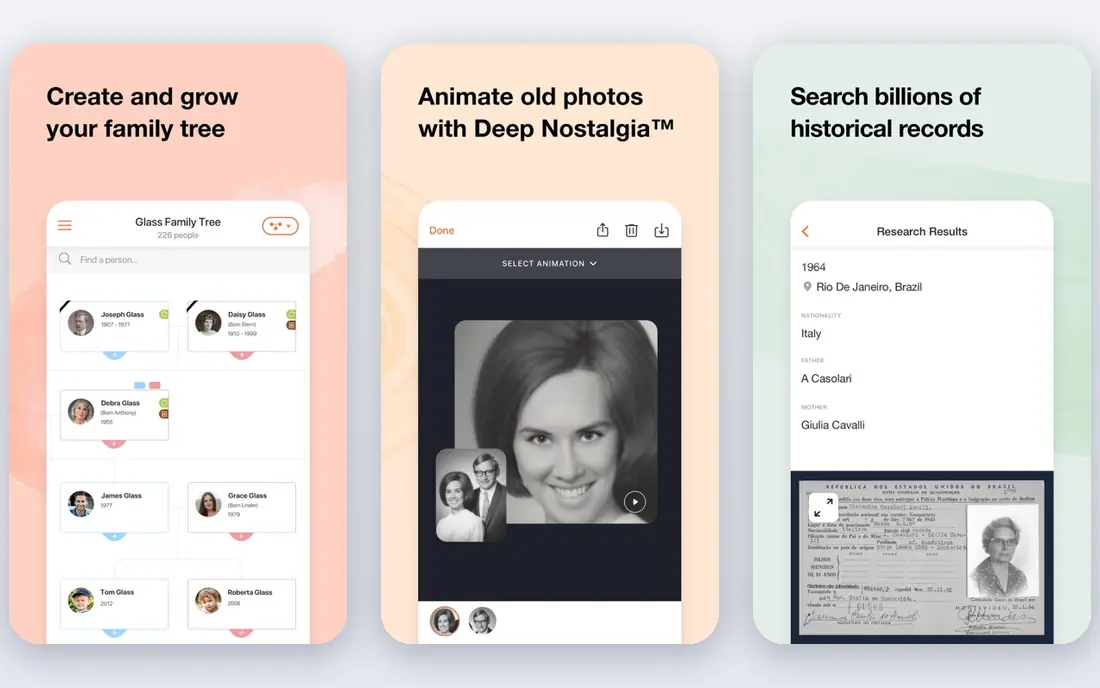
MyHeritage Deep Nostalgia animates faces in old photos, turning a still portrait into a short clip where the person blinks, turns, and smiles. It is built for family history, and it works best on clear, front facing portraits. For sharing a piece of family history with relatives, the effect can be moving and memorable.
It is not a general video maker. Full scenes, body motion, and camera moves are outside its focus, and the free allowance is limited. Use it for portraits you own, and think about consent and family feelings before you share an animated image of a deceased relative in public.
- Built for old portraits
- Simple upload and animate flow
- Useful for family history projects
- Focused on faces, not full scenes
- Higher quality output sits on paid plans

Pika lets you upload a photo, add a prompt, and generate a short moving clip, with effects that transform objects and characters. It suits social clips, product teasers, and creative experiments where a few seconds of motion add impact. The interface is approachable, and the credit table helps you see what each feature costs.
Clips are short, and you will still need an editor to join clips into a finished video. Free credits have changed over time, so check the current free plan before you rely on it. For quick, stylised photo to video work, Pika is a strong all round pick.
- Easy image to video workflow
- Effects and transformations
- No watermark on many tiers
- Best for short clips
- Higher resolutions use credits fast

PixVerse offers image to video generation plus effect templates that suit social clips. Templates give beginners a fast start, since you pick an effect, upload a photo, and get a clip without writing a long prompt. That speed helps creators who post often and need fresh visuals.
The trade off is sameness, since popular templates appear across many feeds. A good source photo also matters more than the template, since low light or blurry faces lead to weak motion. Use PixVerse for quick social experiments, and use a more controlled tool when a clip must look unique.
- Template led effects for social video
- Image to video generation
- Fast starting point for creators
- Template look can feel familiar
- Quality varies by source photo
Kaiber builds stylised video from images, prompts, and music, which suits musicians, artists, and brands that want a visual mood rather than realism. You can turn a photo into a moving, painterly clip that fits a song or a promo, and the style controls help shape the result.
It is not the best pick for a realistic talking portrait or a natural camera move. Free access is trial based rather than a lasting free plan in many cases, so regular use needs a paid plan. For music led visuals, Kaiber stands apart from the more literal tools here.
- Music driven visuals
- Stylised looks for artists
- Useful for lyric and promo videos
- Trial only free access in many cases
- Less suited to realistic portrait motion
Viggle animates characters from photos and videos, with motion templates that place a character into dances and actions. It is popular for social clips and memes, since the workflow is simple and the results are fast. For a fun, shareable clip from a photo, it is easy to try.
Realism is not the goal here, and unusual body shapes or angles can distort. Free outputs may carry a watermark, and some features need a community or app workflow. Avoid using real people, celebrities, or politicians in misleading clips, and keep the use light and clearly playful.
- Motion templates for characters
- Fun social and meme clips
- Simple character swap workflow
- Free outputs may carry a watermark
- Body proportions can distort on unusual photos
Kling AI turns a photo into a video clip with realistic motion, camera moves, and scene detail. It suits creators who want a still image to feel like a short film shot rather than a filter effect. Daily credits on free access let you test it without paying at first.
Prompt skill matters, since vague prompts lead to odd motion, and high resolution or longer clips use more credits. Test several prompts on the same photo to learn what the model does well. For realistic photo to video work, Kling is one of the strongest picks here.
- Realistic motion from images
- Strong camera and scene movement
- Daily credits on free access
- Results vary by prompt and photo
- Longer clips and high resolution cost more
Runway offers image to video generation with camera controls and a wider set of creative tools for filmmakers and brands. You can start from a photo, guide the camera, and refine the clip in the same platform, which suits teams that already edit video. The output quality on well chosen photos can look polished.
New users may find the toolset larger than they need, and credits run out fast at high quality settings. Start with short test clips and learn the camera controls before you buy a larger plan. For cinematic photo to video work, Runway is a solid professional pick.
- Image to video with camera controls
- Strong for filmmakers and brands
- Editing tools in the same platform
- Learning curve for new users
- Credits run out fast on high quality output
How we picked these
We compared official product pages, pricing pages, and public reviews, and we kept only tools that animate a photo and are usable in October 2026. We weighed animation type, ease of use, free access, output quality, and the honesty of each tool limits. We left out tools that are discontinued or that only generate images with no motion.
How to get a good result from a photo
Start with a sharp, well lit photo with a clear subject. Front facing portraits work best for talking and face tools, while wide, detailed photos work best for scene and camera motion tools. Write a short prompt that states the motion, such as a slow camera push or a gentle head turn, and avoid asking for several actions at once.
Generate a few versions and pick the best, since results vary even with the same prompt. Keep clips short, and join them in a video editor for a finished piece. Check the output frame by frame for warped hands, faces, or text, since those flaws are common and easy to miss at playback speed.
Safety and consent notes
Only animate photos you own or have clear permission to use. Do not animate a real person to make them appear to say or do something they did not, and label AI video clearly when you post it. For photos of children or private people, do not post animated versions in public without consent from the person or their guardian.
FAQ
What is the best AI tool to animate a photo?
MyHeritage Deep Nostalgia is our pick for old family portraits, Pika is our pick for short social clips, and Kling AI suits realistic scene motion. The best tool depends on whether you want a moving portrait, a social effect, or a cinematic clip.
Can I animate a photo for free?
Yes, several tools offer free plans or trials, including Pika, PixVerse, Kling AI, and Runway. Free credits are limited, and some free outputs carry watermarks or length limits.
How long are AI animated photo clips?
Most clips are a few seconds long, often 5 to 10 seconds, depending on the tool and plan. Longer videos need several clips joined in an editor.
Do I need a good photo for AI animation?
Yes, a sharp, well lit photo gives far better motion than a blurry or dark one. Front facing faces work best for portrait tools, while detailed scenes work best for camera motion.
Is it safe to animate old family photos?
Animating your own family photos for private sharing is generally fine, but think about consent and feelings before posting in public, especially for photos of deceased relatives or other people.