Best AI Tool for Summarizing PDFs in 2026: 9 Tools Compared
Find the best AI tool for summarizing PDFs in 2026. We compare ChatPDF, PDF.ai, Humata, and more on summaries, citations, and free plans for students and pros.
- Editor's choice
 ChatPDF
Quick chat and summaries
Starts atFreeVisit chatpdf.comFull review - Great alternative
 PDF.ai
Power reading and detailed questions
Starts atFreeVisit pdf.aiFull review - Also consider
 Humata
Research and long technical documents
Starts atSee websiteVisit humata.aiFull review
TL;DR:
- ChatPDF and PDF.ai are the easiest starting points for chatting with a PDF and getting a quick summary.
- Humata, SciSpace, and Scholarcy suit research and academic work, with citations and paper-focused features.
- Adobe Acrobat AI Assistant suits users already in Acrobat, while Smallpdf and UPDF AI suit users who also edit PDFs.
- Free plans help for short documents, but long PDFs, large files, and unlimited questions usually need a paid plan.
- Always check an AI summary against the original PDF before quoting it, since summaries can miss nuance or misstate details.
Quick comparison
| Tool | Best for | Starts at | Free plan? | |
|---|---|---|---|---|
| ChatPDF | Quick chat and summaries | Free | Yes | Visit |
| PDF.ai | Power reading and detailed questions | Free | Yes | Visit |
| Humata | Research and long technical documents | See website | Free trial | Visit |
 SciSpace | Academic papers and literature reviews | See website | Yes | Visit |
 Adobe Acrobat AI Assistant | Users already working in Acrobat | See website | No | Visit |
 Smallpdf | PDF tools plus AI summaries | Free | Yes | Visit |
 Scholarcy | Paper summaries and study aids | See website | Free trial | Visit |
 AskYourPDF | Student and research questions | See website | Yes | Visit |
 UPDF AI | Editing plus AI summaries | See website | Free trial | Visit |
The best AI tools for summarizing PDFs
We compared PDF AI tools on summary quality features, citations, file limits, multi-document support, and price, with attention to students, researchers, and professionals.
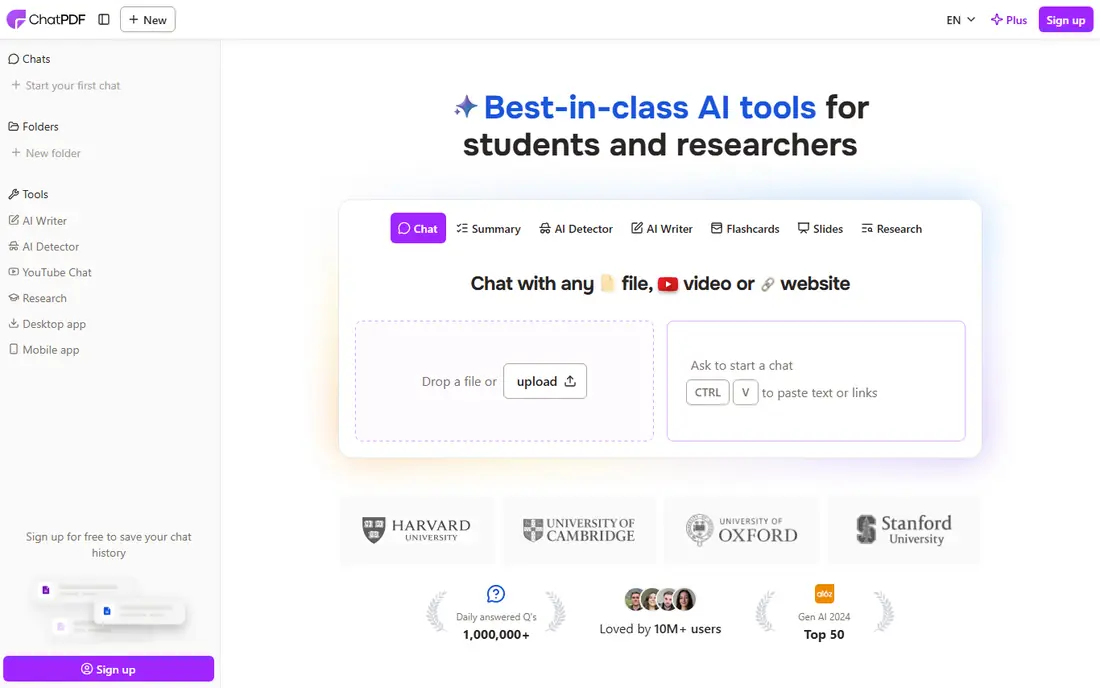
ChatPDF remains the simplest way to start with PDF AI. Upload a file, ask for a summary, then ask follow-up questions, with answers that cite the source pages they draw on. That citation feature matters, since it lets you check a claim without rereading the whole document. The free plan covers a few PDFs and questions per day, which suits occasional use. Heavy users will hit free limits quickly, and very long documents can strain accuracy, so break large reports into sections when needed. For a first AI tool for summarizing PDFs, ChatPDF is our pick for most people.
- Simple upload-and-ask flow
- Cited answers linked to source pages
- Works in many languages
- Free plan limits PDFs and questions per day
- Very long documents can reduce answer quality
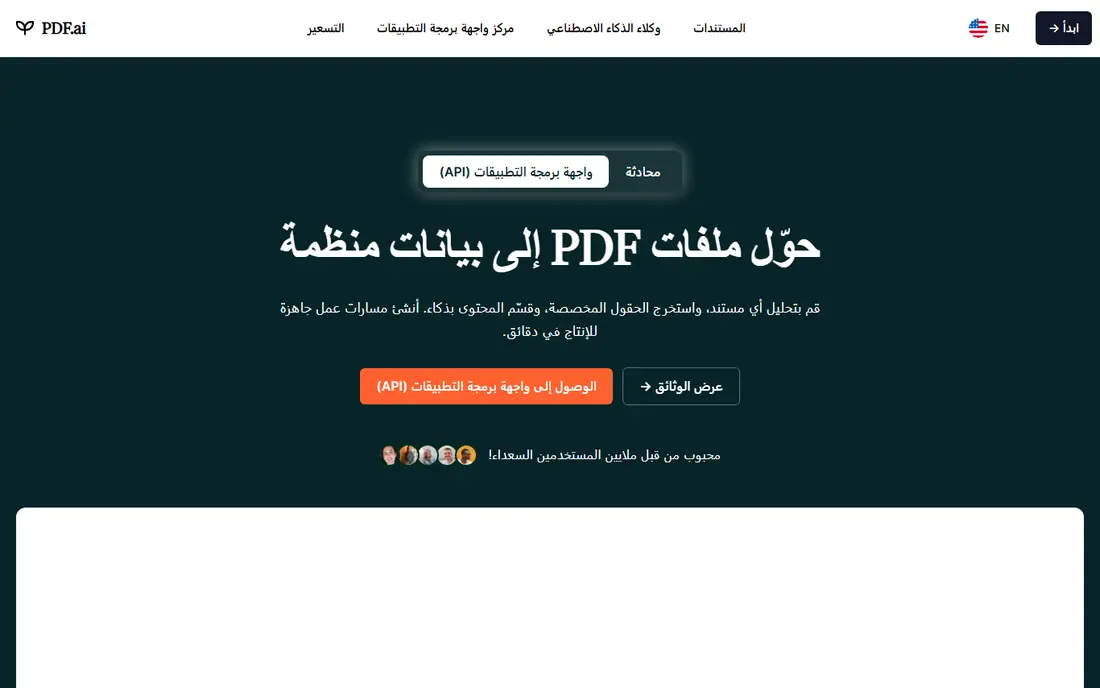
PDF.ai suits readers who work through many PDFs and want to ask detailed questions, not just get a one-paragraph summary. OCR helps with scanned documents, and paid plans support questions across multiple files, which helps for literature reviews or contract comparisons. The interface keeps the document and chat side by side, so checking answers is easy. Free use is limited, so regular users should expect a subscription. For students and professionals who read PDFs daily, PDF.ai is one of the best AI tools for summarizing PDFs, thanks to its reading experience and multi-document support.
- Strong OCR for scanned PDFs
- Multi-document questions on paid plans
- Clean reading and chat interface
- Free plan limits questions and documents
- Best features sit on paid plans

Humata is built for researchers and professionals who work with long reports, legal documents, and technical papers. It highlights source passages behind answers, which helps when accuracy matters for a report or a legal review. Workspace features let teams share documents and questions, which suits research groups and firms. Simple summary needs may not justify the price, since ChatPDF or PDF.ai cover short documents well. For long, dense PDFs where citations and precision matter, Humata is a strong, serious option.
- Built for long and technical documents
- Cited answers and highlights
- Team and workspace features
- Pricing is higher than simple chat tools
- Free trial limits file size and questions
SciSpace, formerly Typeset, helps students and researchers understand academic papers faster. It can summarise papers, explain methods and results in plainer language, and help find related work, which speeds up literature reviews. Citation tools and paper search add value beyond a single-document summary. Business users with contracts or manuals may prefer ChatPDF, PDF.ai, or Humata. For academic reading, SciSpace is one of the best AI tools for summarizing PDFs, because it understands paper structure and research context.
- Paper-focused explanations and summaries
- Literature search and citation tools
- Plain-language explanations of dense sections
- Best for academic work, less suited to general business PDFs
- Some features need a paid plan
Adobe Acrobat AI Assistant adds summaries, questions, and key-point extraction inside Acrobat, which is convenient if you already edit, sign, or store PDFs there. Answers include citations, and you can generate summaries without exporting the file to another tool. That workflow saves time for professionals who live in Acrobat. Cost is the catch, since the AI add-on sits on top of an Acrobat plan in many cases. For occasional summaries, a free tool is cheaper. For Acrobat users who summarise contracts, reports, and forms daily, the built-in assistant is a natural fit.
- Summaries inside the Acrobat app you may already use
- Cited answers
- Works with Acrobat editing and signing tools
- Requires an Acrobat subscription plus the AI add-on in many cases
- Not a standalone free tool
Smallpdf suits users who need more than summaries. Alongside AI chat and summaries, it offers compression, conversion, merging, splitting, and e-signing, all in one place. That breadth helps office workers who handle PDFs in many ways, not just reading. The interface is clean and easy for beginners. Specialist research tools offer deeper citations and multi-document analysis than Smallpdf. For everyday PDF work with occasional AI summaries, Smallpdf is a practical all-in-one choice.
- Full PDF toolkit beside AI features
- Easy compression, conversion, and editing
- Simple interface
- AI features are lighter than specialist tools
- Free use is limited per day
Scholarcy turns papers into structured summaries that highlight background, methods, results, and key findings, which helps students revise faster. Flashcards built from summaries add a study aid that simple chat tools lack. A browser extension lets you summarise papers without downloading and uploading each time. Business documents, contracts, and manuals are not its focus, so general users should pick a broader tool. For students and researchers who summarise many papers, Scholarcy is a useful specialist pick.
- Structured summaries with key findings
- Flashcards and study tools
- Browser extension for quick summaries
- Academic focus limits business use
- Free trial limits the number of summaries
AskYourPDF offers a straightforward chat-with-PDF experience with citation support and features aimed at students and researchers. You can upload a paper, ask for a summary, then drill into methods, results, or definitions. The free plan lets you test the workflow before paying, which helps for a first research tool. Power features such as multi-document work and higher limits sit on paid plans, and the interface is less polished than PDF.ai. For a simple, affordable research companion, AskYourPDF earns its place in this list.
- Chat with PDFs plus document search features
- Citation support
- Scholarly context for research papers
- Free plan limits questions and documents
- Interface is simpler than PDF.ai
UPDF AI combines a full PDF editor with AI summaries and chat, which suits users who annotate, edit, and summarise the same files. You can highlight, comment, fill forms, and ask the AI for a summary without switching apps. Mobile and desktop apps cover most workflows, and the editor itself is strong for the price. Research teams that need multi-document analysis or deep citation tools may prefer Humata or SciSpace. For everyday users who want one app for editing and summarising, UPDF AI is a sensible final pick.
- Full PDF editor with AI chat and summaries
- Works across desktop and mobile
- Annotation and form tools included
- AI features are an add-on to an editor, not a specialist research tool
- Pricing has editor plus AI tiers
How we picked these
We compared official feature pages, pricing pages, and app listings, along with public reviews on summary usefulness and citation quality. We favoured tools that cite sources, handle common PDF types including scanned files where stated, and offer a free plan or trial. Prices vary by plan and file limits, so we used See website where a single starting price could not be verified, and Free where a usable free plan exists.
How to get a reliable PDF summary
Start by asking for a structured summary, not a single paragraph. Ask for the main argument, key findings, methods, and limits, then ask follow-up questions about sections that matter to you. A structured request reveals gaps faster than a vague request for a summary.
Check citations and key claims
Click or search for the cited pages behind important claims, especially numbers, dates, and conclusions you plan to quote. AI summaries can compress nuance, merge findings, or miss a caveat in a footnote. For academic, legal, or financial use, verify every claim you reuse.
Split long documents
Very long PDFs summarise better in sections. Ask for a summary of each chapter or part, then ask for an overall summary that draws on those parts. That approach reduces errors and gives you section summaries you can reuse for notes or reports.
Mind privacy for sensitive PDFs
Avoid uploading confidential contracts, medical records, or unpublished research to a free tool without reading its privacy policy. Check whether uploads are stored, used for training, or deleted, and prefer tools with clear retention policies for sensitive work. For highly sensitive files, a local or enterprise tool with stricter controls is safer.
FAQ
What is the best AI tool for summarizing PDFs?
ChatPDF is our pick for most users, thanks to its simple upload-and-ask flow and cited answers. PDF.ai suits heavier readers with multi-document needs, while Humata suits long technical documents. Try the free plan of two tools with the same PDF and compare summaries before paying.
What are the best AI tools for summarizing PDFs for students?
ChatPDF, PDF.ai, SciSpace, and Scholarcy are strong for students, with free plans or trials and citation support. SciSpace and Scholarcy add academic features such as paper explanations and flashcards. For general coursework, ChatPDF or PDF.ai is enough, while research-heavy students benefit from SciSpace.
Can AI summarize a scanned PDF?
Yes, if the tool offers OCR, which converts scanned images into text before summarising. PDF.ai is known for OCR support, and other tools vary, so check OCR on the feature page before uploading scanned files. Poor scans still reduce accuracy, so use the clearest file you have.
Is there a free AI PDF summarizer?
Yes, ChatPDF, PDF.ai, Smallpdf, and AskYourPDF all offer free plans, though limits on documents, pages, and questions apply. Free plans suit occasional summaries of short documents. For long PDFs, frequent use, or multi-document questions, a paid plan is usually needed.
How accurate are AI PDF summaries?
AI summaries are useful for overviews and finding key sections, but they can miss nuance, overstate findings, or misstate details. Accuracy is best for clear, well-structured documents and lower for dense, scanned, or highly technical files. Always verify important claims against the original PDF before quoting or acting on them.
Can I summarize multiple PDFs at once?
Yes, some tools support multi-document questions, including PDF.ai and Humata on paid plans. That feature helps for literature reviews, contract comparisons, and report sets. Free plans usually limit you to one document at a time, so check multi-document support on the plan you buy.