Best AI Tool for Extending Images in 2026: 9 Tools Compared
We compared the best ai tool for extending images with outpainting, from Photoshop to free browser tools, so you can resize any photo without awkward cropping.

- Editor's choice
 Adobe Photoshop
Professional control
Starts atSee websiteVisit adobe.comFull review - Great alternative
 Adobe Firefly
Standalone generation
Starts atSee websiteVisit firefly.adobe.comFull review - Also consider
 Canva Magic Expand
Designs and presentations
Starts atSee websiteVisit canva.comFull review
TL;DR:
- Adobe Photoshop Generative Expand and Adobe Firefly give the most control for professional work.
- Canva Magic Expand is the easiest option when the image already lives inside a design or presentation.
- Photoroom AI Expand suits product photos that must be resized for many store and ad formats.
- Fotor, Picsart, and Clipdrop suit quick, everyday extensions without learning a full editor.
- Always inspect the extended edges closely, since AI can invent odd details, warped text, or extra fingers and objects.
Quick comparison
| Tool | Best for | Starts at | Free plan? | |
|---|---|---|---|---|
| Adobe Photoshop | Professional control | See website | Free trial | Visit |
| Adobe Firefly | Standalone generation | See website | Yes | Visit |
| Canva Magic Expand | Designs and presentations | See website | Free trial | Visit |
 Photoroom AI Expand | Product photos | $12.99 per month | Yes | Visit |
 Fotor AI Extender | Fast browser edits | $8.99 per month | Yes | Visit |
 Picsart AI Expand | Social content | $13 per month | Yes | Visit |
 getimg.ai | Batch outpainting | See website | Yes | Visit |
 OpenArt | Artistic control | See website | Yes | Visit |
 Clipdrop Uncrop | Quick aspect changes | See website | Yes | Visit |
The best AI tools for extending images
Extending an image, often called outpainting, means asking AI to continue the scene beyond the original borders so a photo fits a wider banner, a taller story, or a new aspect ratio. The nine tools below differ in control, speed, and price, but all of them can turn a too-small photo into a usable layout.
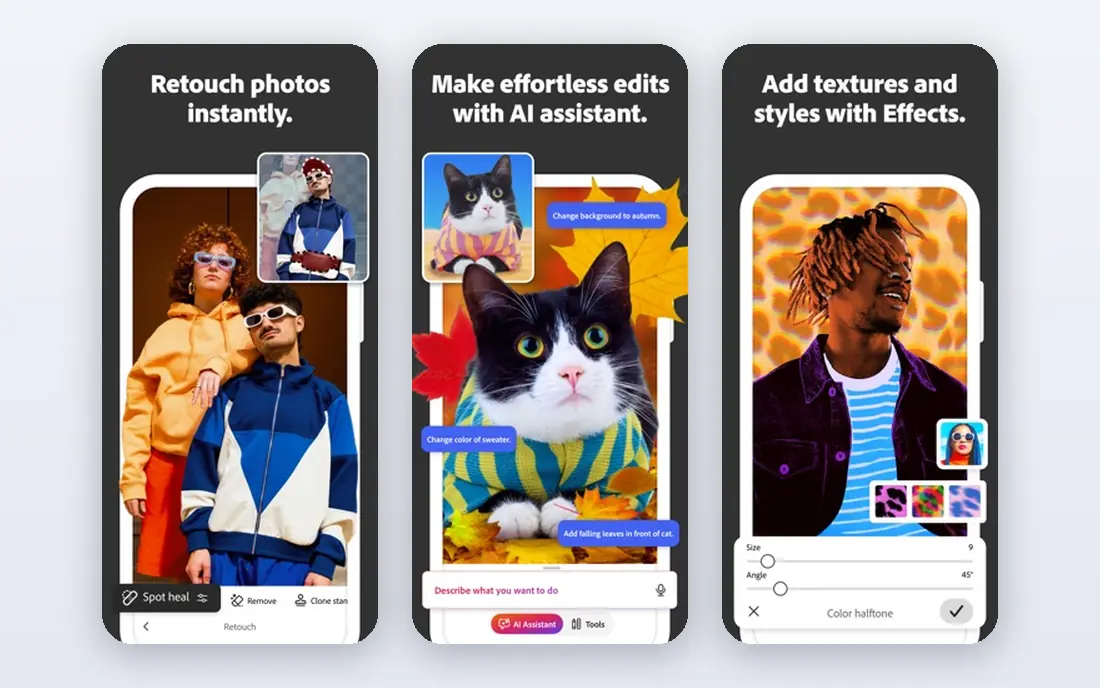
Photoshop remains the reference point for image extension because Generative Expand sits inside a complete editor. You drag the canvas larger, optionally type a prompt for what should fill the new space, and then refine the result with the same selection, retouching, and layer tools you already use. That matters, because even good extensions often need a small cleanup pass.
The price and the learning curve are the main barriers. Casual users who only need one banner resized may find a browser tool faster and cheaper. For designers, photographers, and marketers who already work in Photoshop, though, Generative Expand is the most controlled way to extend an image without leaving the file you are finishing.
- Generative Expand with prompt control and canvas dragging
- Full editing tools to fix flaws after expansion
- Strong matching of light and texture
- Subscription cost
- Learning curve for beginners
- Needs a capable computer for large files
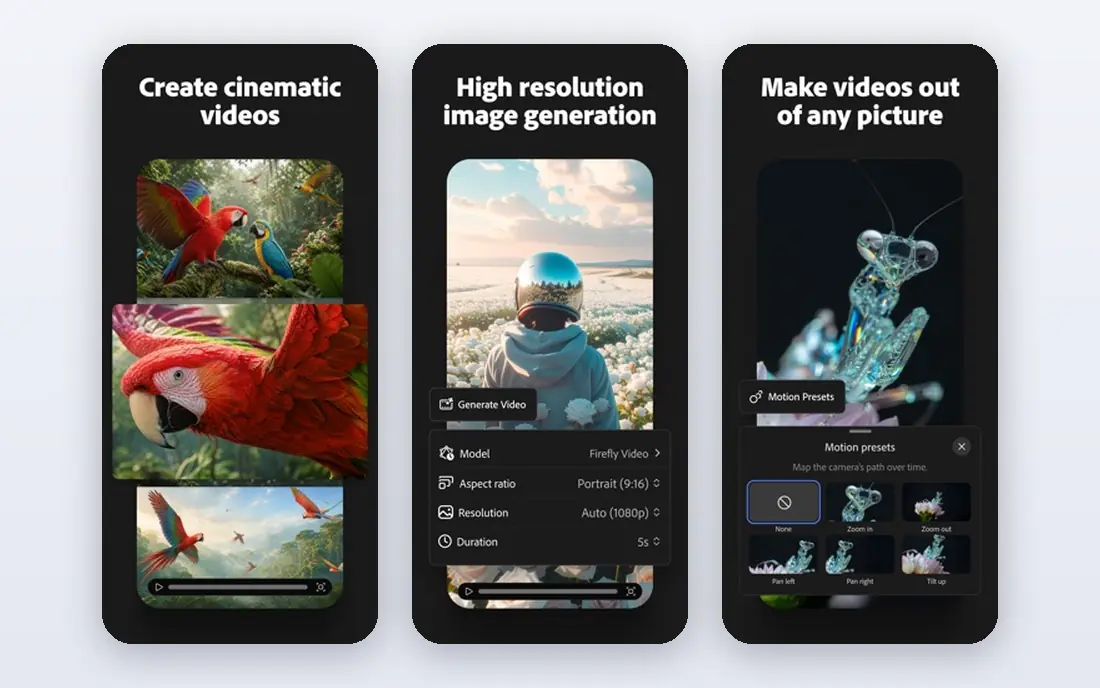
Firefly gives you Adobe's generative expansion without opening Photoshop. Upload an image, choose a new size or drag the canvas, and describe what the extended area should contain. It suits people who want Adobe-quality outpainting for a web workflow, or who need to extend images before dropping them into another app.
The tradeoff is finishing power. When an extension needs careful retouching, you will still want Photoshop or another editor. Firefly also runs on a credit system, so heavy users should check plan limits. As a standalone extender with prompt control, it is one of the strongest browser options available.
- Generative Expand in a browser tool
- Prompt control over the new areas
- Connects to the wider Adobe ecosystem
- Paid plans needed for heavy use
- Fewer finishing tools than Photoshop
- Credits limit how much you can generate

Canva Magic Expand is the most convenient extender for people who already design in Canva. Select an image, expand it to a new aspect ratio or a freeform size, and pick from the variations offered. The extended image stays inside your design, ready for text, logos, and export to social formats.
It offers less control than Photoshop, and Pro is required for regular use, but convenience is the point. If your workflow is a social post, a slide, or an ad made in Canva, expanding inside Canva saves an export and an import. For a single hero image that must be perfect, a dedicated editor may still be worth the extra step.
- Built into the Canva editor
- Preset and freeform expansion
- Four variations to choose from
- Easy to drop into a design
- Requires a Pro plan for full use
- Processing can be slow
- Less prompt control than Photoshop or Firefly
Photoroom built its name on product photography, and AI Expand fits that niche well. When a product photo is the wrong shape for a marketplace listing or an ad, you can resize it and let the AI extend the background while keeping the product itself intact. Templates for common placements make repeat work fast.
It is less suited to artistic scenes or complex group photos, where a general editor gives more control. The subscription also suits regular sellers better than someone resizing one photo a year. For stores and sellers who resize product images every week, Photoroom is one of the most practical picks here.
- Built into the resize workflow
- Preserves product appearance while extending backgrounds
- Templates for store and ad sizes
- API for larger catalogs
- Monthly price adds up for occasional use
- Best for product shots rather than complex scenes
- Some advanced features need higher plans
Fotor is a good middle ground between a one-click tool and a full editor. Its AI extender runs in the browser, offers flexible output sizes and ratios, and sits next to editing tools for cropping, retouching, and filters. You can extend an image and finish it in the same session without installing anything.
Complex scenes with people, text, or detailed patterns can still produce odd artifacts, so inspect the edges before publishing. The free tier lets you test the workflow, while the Pro plan provides higher quality output. For everyday content creators, Fotor balances speed, price, and control well.
- Simple browser workflow with size and ratio choices
- Combines outpainting with a full photo editor
- No software install needed
- Monthly plan needed for full resolution and features
- Results vary on complex scenes
- Free tier has limits
Picsart suits creators who live on social platforms and need images resized for stories, posts, and covers. Its AI Expand uses the surrounding image context to fill new areas, and you can guide it with a prompt when the automatic result misses the mood. Templates for each platform remove the guesswork about sizes.
The free tier is limited, and the subscription is the real price of regular use. Detailed or unusual backgrounds can still need a second try or a different prompt. For quick social resizing on a phone or in a browser, Picsart is fast, familiar, and well matched to the job.
- Context-aware expansion with custom prompts
- Social media templates
- Works on web and mobile
- Monthly cost for regular use
- Free use is limited
- Quality varies on detailed backgrounds
getimg.ai is built for production work, where one image becomes many sizes. It supports batch resizing, several aspect ratios, and higher-resolution output, and it preserves the original pixels while extending the edges. Teams that prepare catalogs, ads, or article images at scale will value that focus.
Casual users may find it more technical than a simple one-click extender, and the credit system needs a quick check before a large job. It is also not a general photo editor, so finishing touches happen elsewhere. When volume and consistency matter, getimg.ai earns its place.
- Batch processing and multiple ratios
- Original-pixel preservation
- Higher-resolution delivery options
- API for production workflows
- Interface is more technical than Canva or Picsart
- Pricing is credit-based
- Less of a general photo editor
OpenArt appeals to creators who want to steer the extension rather than accept the first result. You can choose models, write detailed prompts, and set any ratio, which suits artistic and stylized images where the new area should match a particular look. Output can reach 4K on paid plans, which helps for print and large displays.
That control brings complexity, and photorealistic extensions need careful prompts and sometimes several attempts. The credit system also means heavy users should plan usage. For art, concept work, and stylized content, OpenArt offers more creative room than most one-click tools.
- Model choice and prompt control for outpainting
- Any ratio supported
- Up to 4K output on paid plans
- Broader AI editing tools
- More complex than simple extenders
- Credit-based pricing
- Realistic photo results need careful prompting
Clipdrop Uncrop, from Stability AI, is the simplest tool on this list. Upload an image, pick a new aspect ratio, and get an extended version with minimal fuss. It works well for straightforward scenes, portraits, and textures where the background is easy to continue.
The simplicity limits control. You cannot guide the extension with detailed prompts the way you can in Photoshop, Firefly, or OpenArt, and complex scenes may need another tool. For a fast aspect-ratio fix, though, Uncrop is hard to beat, and it is a good first try before paying for a heavier option.
- Very simple upload and ratio flow
- Fast results
- Good for portraits, art, and textures
- Companion cleanup tools in Clipdrop
- Limited control over what fills the new area
- Higher-resolution output may need a paid plan
- Not a full editor
How we picked these
We compared official feature and pricing pages for tools with a dedicated image extension or outpainting feature, and we favored tools that are actively available in October 2026. We weighed control over the new area, output quality and resolution, batch and ratio options, ease of use, and price. General image generators without a clear extension workflow were left out.
Getting clean extensions instead of obvious AI fill
Good extensions start with a good source file. Use the highest-resolution original you have, and avoid extending an image that is already heavily compressed or cropped. The AI has more to work from when the original edges show clear patterns, textures, and light direction.
Check the seams before you publish
Zoom into the border where the original ends and the AI begins. Look for repeated patterns, warped text, extra objects, and lighting that shifts suddenly. Generate a few variations when the tool offers them, and pick the one with the least to fix. A short cleanup pass with a clone or healing tool often turns a good extension into a believable one.
Keep the original for honest use
Do not use extended images to misrepresent a product, a place, or an event. Keep the original file, and avoid extending images used as evidence, in news reporting, or in product listings where the added area could mislead a buyer. For marketing and design work, extension is a normal editing step, but the result should still show the real subject fairly.
FAQ
What is the best ai tool for extending images for free?
Clipdrop Uncrop, Fotor, and Adobe Firefly all offer free starting options for extending images. Free tiers usually limit resolution, monthly credits, or the number of images. For occasional use they are enough, but regular work usually needs a paid plan for full resolution and volume.
Can AI extend an image without changing the original part?
Most tools on this list preserve the original pixels and only generate the new areas, including Photoshop, Firefly, and getimg.ai. Check the tool's own description before use, and compare the extended result against the original at full zoom. Avoid tools that re-render the whole image when you need the original untouched.
What aspect ratios can AI extenders handle?
Most tools support common ratios for social posts, stories, banners, and print, and several support freeform sizes by dragging the canvas. Photoshop, Firefly, OpenArt, and getimg.ai offer the most flexibility, while simpler tools like Clipdrop focus on preset ratios. Check ratio support before paying if you need an unusual size.
Why do extended images sometimes look wrong?
AI fills new areas by guessing what should be there, based on the visible image and your prompt. Complex scenes, hands, text, and repeating patterns are the hardest to continue convincingly. Better prompts, higher-resolution sources, and generating several variations usually improve the result.
Can I extend images for commercial use?
Most paid plans allow commercial use, but terms differ by vendor and by the model used, so read the license for your plan before using extended images in ads or products. Keep records of the source image rights as well, since extending an image does not grant rights to the original photo.