Best AI Text to Vector Tool in 2026: 7 Tools Compared
Find the best AI text to vector tool in 2026. We compare 7 tools that turn prompts into editable SVG artwork, with prices, uses and honest limits. today.
- Editor's choice
 Recraft
Native SVG generation from prompts
Starts atFreeVisit recraft.aiFull review - Great alternative
 Adobe Illustrator
Professional vector editing and print work
Starts at$22.99 per monthVisit adobe.comFull review - Also consider
 Adobe Firefly
Fast vector generation inside Adobe workflows
Starts atSee websiteVisit adobe.comFull review
TL;DR:
- Recraft is our pick for most people, because it generates true native SVG files from a text prompt, ready to edit.
- Adobe Illustrator with Text to Vector Graphic is the best choice for print production and detailed path editing.
- Kittl suits merch and poster designers who want generation, templates, and mockups in one place.
- Some tools on this list trace a raster image into a vector, which is a useful second step after generating an image elsewhere.
Quick comparison
| Tool | Best for | Starts at | Free plan? | |
|---|---|---|---|---|
| Recraft | Native SVG generation from prompts | Free | Yes | Visit |
| Adobe Illustrator | Professional vector editing and print work | $22.99 per month | Free trial | Visit |
| Adobe Firefly | Fast vector generation inside Adobe workflows | See website | Free trial | Visit |
 Kittl | Merch, posters, and template based design | Free | Yes | Visit |
 Vectorizer.AI | Tracing raster images into clean vectors | See website | No | Visit |
 Vector Magic | Faithful tracing with hands on cleanup | See website | No | Visit |
 Linearity Curve | Vector editing on Mac, iPad, and web | See website | Yes | Visit |
The best AI text to vector tool
Text to vector tools turn a written prompt into scalable artwork made of paths, not pixels. That matters for logos, icons, and illustrations, because a vector file stays sharp at any size. The tools below differ in how true their vector output is, and how much editing you can do after generation.
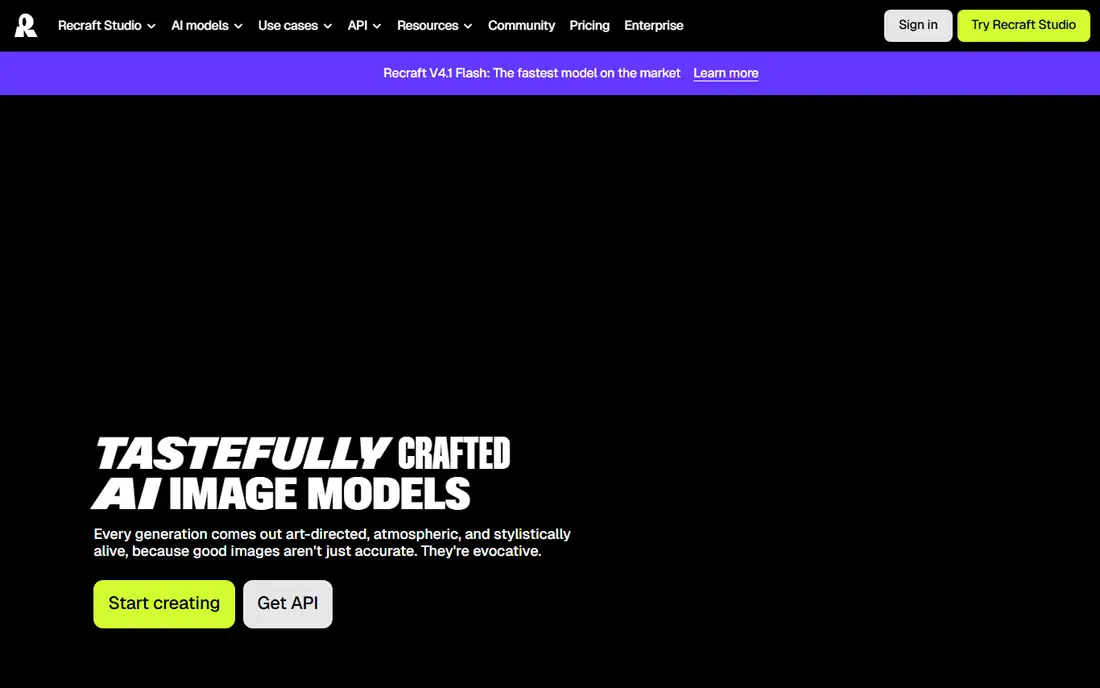
Recraft is the clearest example of a true AI text to vector tool. Its vector models generate SVG files directly from a prompt, with structured layers and editable shapes, rather than tracing a raster image after the fact. You can open the result in Illustrator or Figma and edit individual paths, change colors, and resize without losing sharpness.
The workflow is simple. Type a description of a logo, icon, or illustration, pick a style, generate a few versions, and refine the one you like. Recraft also offers an image vectorizer for existing raster files, plus mockups, upscaling, and background removal around the same canvas. That makes it useful for brand work, not just one off icons.
The honest catch is that generated artwork is a starting point, not a finished brand mark. Curves may need small corrections, and a professional logo still benefits from a designer review. For speed, flexibility, and true vector output, though, Recraft leads this list.
- Generates true SVG files from text
- Editable layers and clean paths
- Free plan with no card required
- Output still needs a human pass for a final logo
- Heavier use needs a paid plan
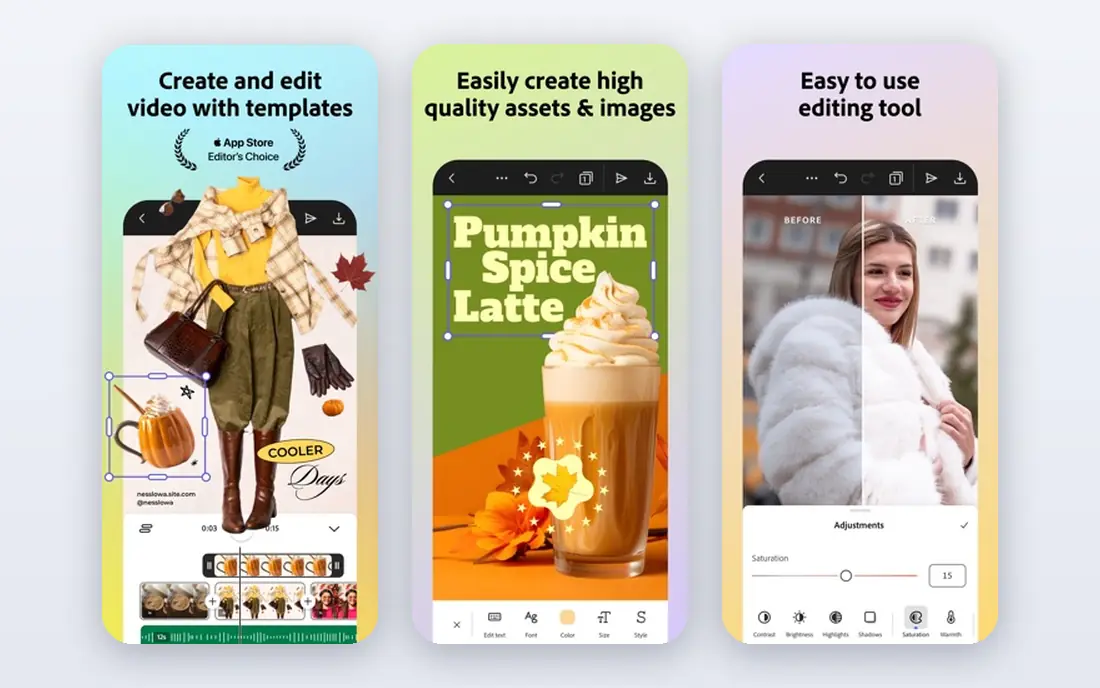
Adobe Illustrator is the professional standard for vector design, and its Text to Vector Graphic feature brings prompt based generation into that editor. Describe a scene, a subject, or an icon, and Illustrator creates editable vector artwork that you can refine with its full toolset. Nothing needs to move between apps before you start editing.
That integration is the main reason to choose Illustrator. You can adjust anchor points, clean up paths, set exact colors, and prepare files for print, packaging, or large format work. For a designer who already works in Creative Cloud, the generation feature slots into an existing workflow.
The cost and setup are the trade. Illustrator needs a paid plan after the trial, plus a desktop install, so it is not the tool for a quick browser only task. For production work where control matters more than speed, it is the strongest option here.
- Text to Vector Graphic inside a full vector editor
- Precise path and layer control
- Print ready exports
- Subscription cost
- Desktop install needed
- Slower for quick browser jobs
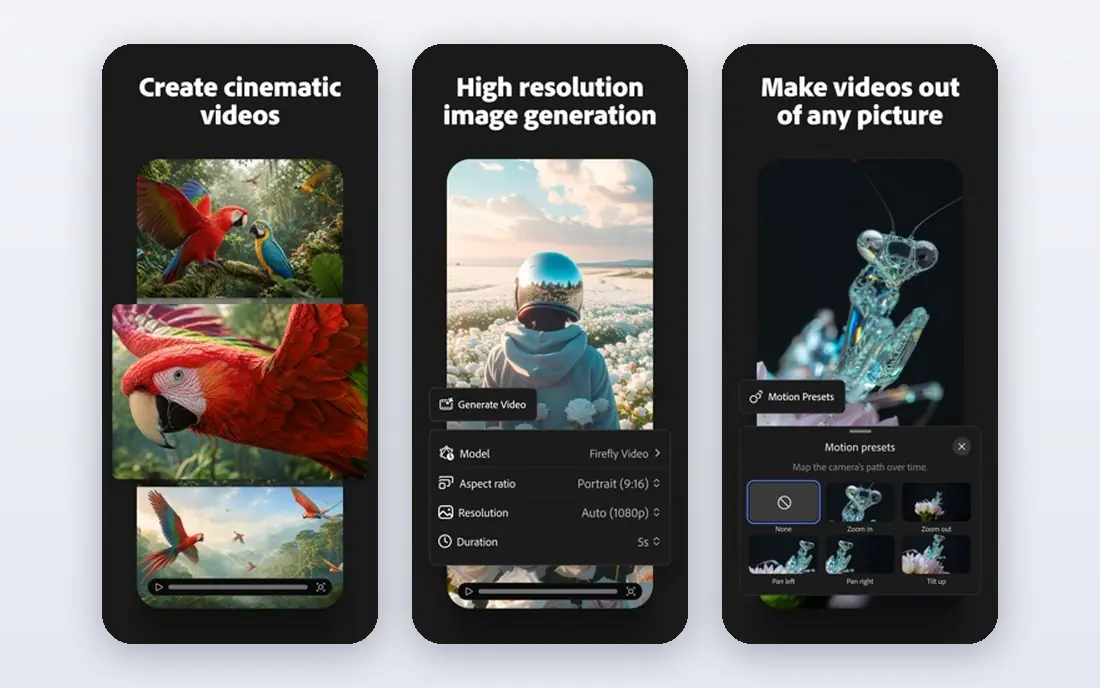
Adobe Firefly is Adobe's generative AI service, and its vector output is designed to flow into Illustrator for finishing. That makes it a good concept tool. You can generate several directions from a prompt, compare them quickly, and send the best one to Illustrator for path level cleanup.
For teams already inside Adobe apps, Firefly reduces friction. Concepts, social graphics, and presentation art can start as vectors rather than raster images that later need tracing. That saves a step and keeps the artwork scalable from the start.
Firefly alone is not a full vector editor. You will still need Illustrator for detailed control, and generation is metered on many plans. Treat Firefly as the idea stage, and Illustrator as the finishing stage, and the pairing works well.
- Prompt based vector generation
- Designed to hand off to Illustrator
- Useful for concepts and variations
- Full editing still needs Illustrator
- Usage is metered by credits on many plans
Kittl is a design platform built around templates, typography, and merch, and its AI vector generator fits that world. You can prompt a graphic, place it on a T-shirt mockup or a poster template, adjust the lettering, and export a design ready for print on demand or a client preview.
That surrounding workflow is the point. A bare SVG is useful, but a merch designer also needs mockups, color variants, and print ready layouts. Kittl keeps those steps in one browser based workspace, which helps small sellers and social media designers move fast.
The limits are token based generation and export rules. The free plan includes a small number of projects and one time AI tokens, and vector export is locked behind paid plans in many cases. If you only need a clean SVG for code or a logo system, Recraft or Illustrator may fit better.
- AI vector generation plus templates and mockups
- Strong typography tools
- Easy for non designers
- Generation is metered in tokens
- Vector export is limited on the free plan
Vectorizer.AI plays a different role in this list. It does not generate artwork from a prompt. Instead, it converts an existing raster image, such as a PNG or JPG, into a clean vector file. That makes it the second step in a common workflow, where you generate a raster image elsewhere and then trace it into SVG form.
The tracing quality is its strength. Full color tracing handles gradients, clean corners, and complex shapes better than many free tracers, and the output formats cover web, print, and cutting machines. For a logo scan, a hand drawn sketch, or a raster illustration, it often produces a usable result with little cleanup.
Previewing is free, but downloading a result needs a subscription. If you need true prompt to vector generation, start with Recraft, Illustrator, or Kittl, then use Vectorizer.AI when you have a raster source worth converting.
- High quality full color tracing
- SVG, PDF, EPS, and DXF output
- Good for logos and illustrations
- Does not generate from a text prompt alone
- Downloads need a paid plan
Vector Magic is a long running tracing tool that focuses on faithful conversion. You upload a raster image, and it produces vector paths with controls for smoothing, corner handling, and color reduction. That hands on control helps when a logo needs to stay close to the original, rather than being reinterpreted.
The desktop version suits designers who trace often, while the web version works for occasional jobs. Output formats include SVG, AI, PDF, and EPS, which covers most design and print workflows. For clean source art, such as a simple logo or icon, the results are often close to production ready.
Like Vectorizer.AI, Vector Magic is not a text to vector generator on its own. It belongs in this list because many prompt workflows end with a raster image that still needs a vector version. Pair it with a generator, and it completes the job.
- Careful tracing with manual controls
- Desktop and web versions
- Good for clean source logos
- No text prompt generation
- Preview only on the free tier
Linearity Curve, formerly Vectornator, is a vector design app for Mac, iPad, and the web. It is not primarily a prompt generator, but it gives you a polished place to edit, refine, and export vector artwork generated elsewhere. Its AI assisted tools help with layout and design tasks, and the interface feels modern on touch devices.
For illustrators and brand designers, that editing stage matters. A generated SVG often needs path cleanup, color adjustment, and layout work before it can ship. Linearity Curve handles that stage well, especially for designers who work on an iPad with a stylus.
The catch is scope. If you want prompt to SVG in one step, Recraft is more direct. If you want a capable editor to finish generated artwork, Linearity Curve is a strong, accessible choice with a free plan to start.
- Clean vector editor with AI assisted tools
- Works across Mac, iPad, and web
- Good for branding and illustration
- AI generation is not as central as Recraft
- Advanced features need a paid plan
How we picked these
We compared official product pages, feature documentation, and pricing pages for tools that generate vector artwork from text, or that play a clear role in turning prompted art into editable vectors. We favored tools available in October 2026 with real SVG output, and we labeled tracing tools honestly, so readers can tell generation from conversion. Tools that only produced raster images were left out.
How to get usable vectors from a prompt
A good prompt is specific about subject, style, and color count. Name the design type, such as a flat icon or a two color logo, limit the palette to two to four colors, and say what to leave out. Fewer colors usually mean cleaner paths and an easier edit later.
Check the paths before you ship
Open the SVG in a vector editor and zoom in on curves, corners, and small details. Generated artwork can hide messy paths, overlapping shapes, or stray points that look fine at small sizes. Clean those up before you use the file for print or a logo system.
Keep the source file, not just the PNG
Export and store the SVG or native vector file, not only a PNG preview. The vector source is what lets you resize, recolor, and edit later. A PNG export is a dead end for a logo, even if it looks sharp on screen.
Plan for a human finish
Treat AI output as a strong draft. A designer review, or at least a careful self review, catches awkward letterforms, unbalanced layouts, and paths that need simplifying. That final pass is what turns a generated graphic into a professional asset.
FAQ
What is the best AI text to vector tool?
Recraft is our pick for most people, because it generates native SVG files directly from a prompt, with editable layers. Adobe Illustrator is better for print production and detailed path work, while Kittl suits merch and poster design.
Can AI generate a true SVG from text?
Yes, with the right tool. Recraft generates structured SVG files from prompts, and Adobe Illustrator creates editable vector artwork from text descriptions. Many other AI image tools only produce raster images, which then need tracing to become vectors.
Is there a free AI text to vector tool?
Yes. Recraft and Kittl both offer free plans, and Linearity Curve has a free tier for editing. Free plans usually limit credits, projects, or exports, so check the current limits before building a workflow around them.
What is the difference between generation and vectorizing?
Generation creates new vector artwork from a text prompt. Vectorizing, or tracing, converts an existing raster image into a vector file. Tools such as Vectorizer.AI and Vector Magic do the second job, and they are useful after you generate a raster image elsewhere.
Can I use AI generated vectors for a logo?
Yes, in most cases, but check the license for commercial use on your plan, and review the artwork carefully. A generated logo still benefits from a human pass to clean paths, check letterforms, and make sure the mark works at small sizes.
Which tool is best for icons?
Recraft is a strong pick for icon sets, because it can generate consistent styles and export clean SVGs. Illustrator is better when icons need exact grid alignment, precise strokes, and production ready files for an app or design system.