Best AI-Powered Video Editing Tool in 2026: 8 Tools Compared
Best AI-powered video editing tool options compared for 2026, with editing, captions, and pricing for creators and teams for 2026, with pricing and features.
- Editor's choice
 Descript
Podcasters and video creators
Starts atFreeVisit descript.comFull review - Great alternative
 CapCut
Short-form creators
Starts atFreeVisit capcut.comFull review - Also consider
 Runway
Creators using generative video
Starts atSee websiteVisit runwayml.comFull review
TL;DR:
- Descript is our pick for editing by transcript, since cutting words in text cuts the video too.
- Opus Clip and Pictory are strongest when you need short clips or a video from a script.
- Caption accuracy and export quality matter more than the number of AI features on a sales page.
- Check monthly minutes and export limits before you pay, since those caps shape real costs.
Quick comparison
| Tool | Best for | Starts at | Free plan? | |
|---|---|---|---|---|
| Descript | Podcasters and video creators | Free | Yes | Visit |
| CapCut | Short-form creators | Free | Yes | Visit |
| Runway | Creators using generative video | See website | Free trial | Visit |
 Opus Clip | Turning long videos into shorts | Free | Yes | Visit |
 Pictory | Script to video for marketers | See website | Free trial | Visit |
 InVideo | Teams making marketing video fast | Free | Yes | Visit |
 Veed.io | Captions and browser editing | Free | Yes | Visit |
 Filmora | Beginners who want AI help plus control | Free | Yes | Visit |
The best AI-powered video editing tools
AI video tools now cut silences, add captions, find highlights, and turn long recordings into short clips. The best choice depends on whether you start from a script, a long video, or raw footage, so we compared tools across those three starting points.
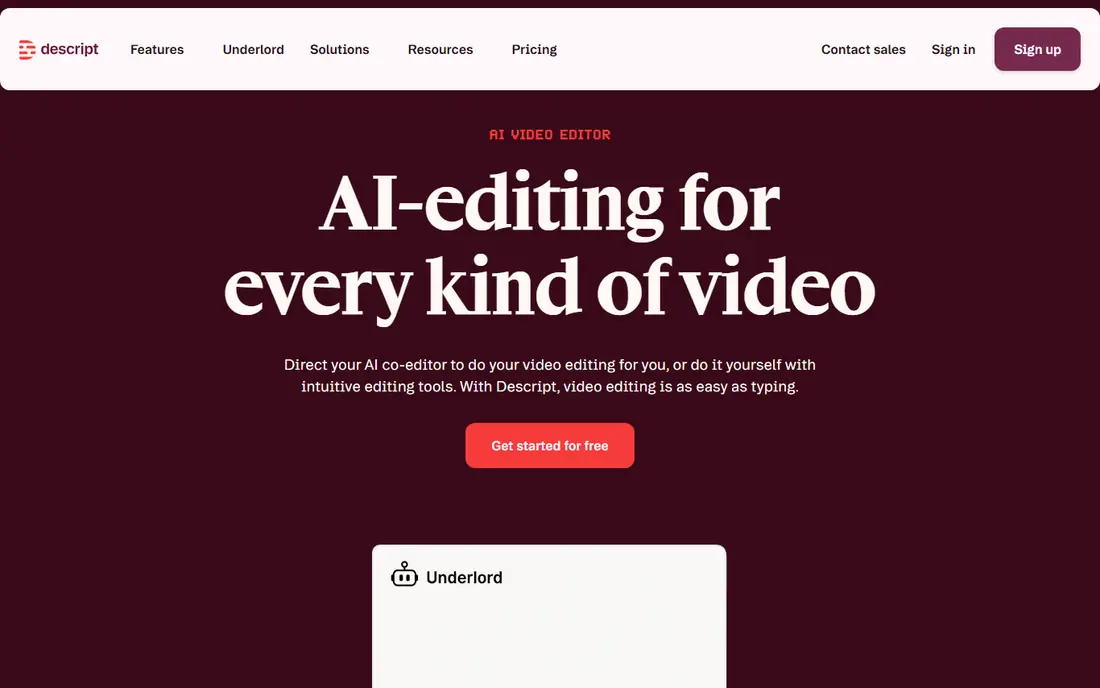
Descript turns your recording into a transcript, and deleting a sentence in the text removes it from the video. That approach suits interviews, tutorials, and podcasts, where the words matter more than complex visual effects. It also handles captions, filler word removal, and overdub-style voice fixes, though you should use voice tools with care and only with your own voice.
For podcasters and video creators, the appeal is practical rather than flashy. The strengths listed above show up in daily use, while the drawback is worth weighing before you commit to a paid plan. We would start on the free tier where one exists, test a real project, and only then decide if the extra features justify the cost.
- Edit video by editing text
- Strong transcription
- Filler word removal
- Free plan has limits
- Web editor can be heavy on large files
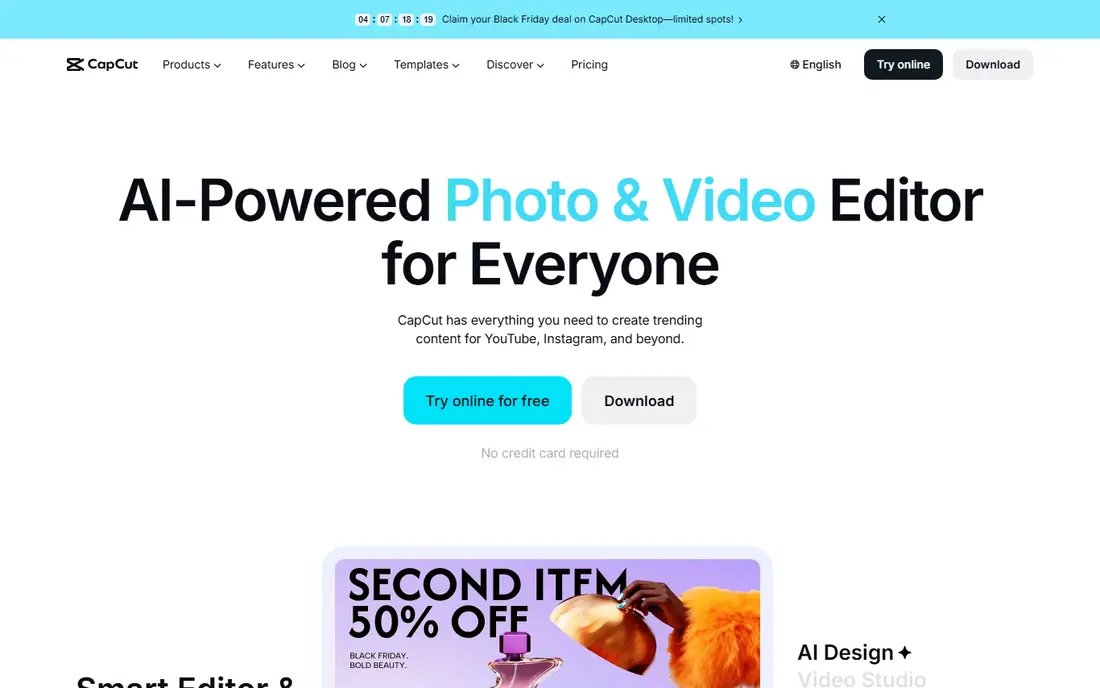
CapCut is built for short videos that need to be finished quickly, with auto captions, templates, effects, and music in one place. It suits creators who post often and need a reliable mobile workflow, plus a desktop editor for longer cuts. The free tier covers a lot, but check which effects and export options sit behind the paid plan before you rely on them.
This is a solid fit for short-form creators. Its main strengths are clear from its feature set, and its limits are the kind that matter more on larger projects than on small ones. Try it with one typical job first, check the export quality, and compare the result with the next option on this list.
- Fast mobile and desktop editing
- Auto captions
- Many templates
- Some features need a paid plan
- Cloud features vary by region
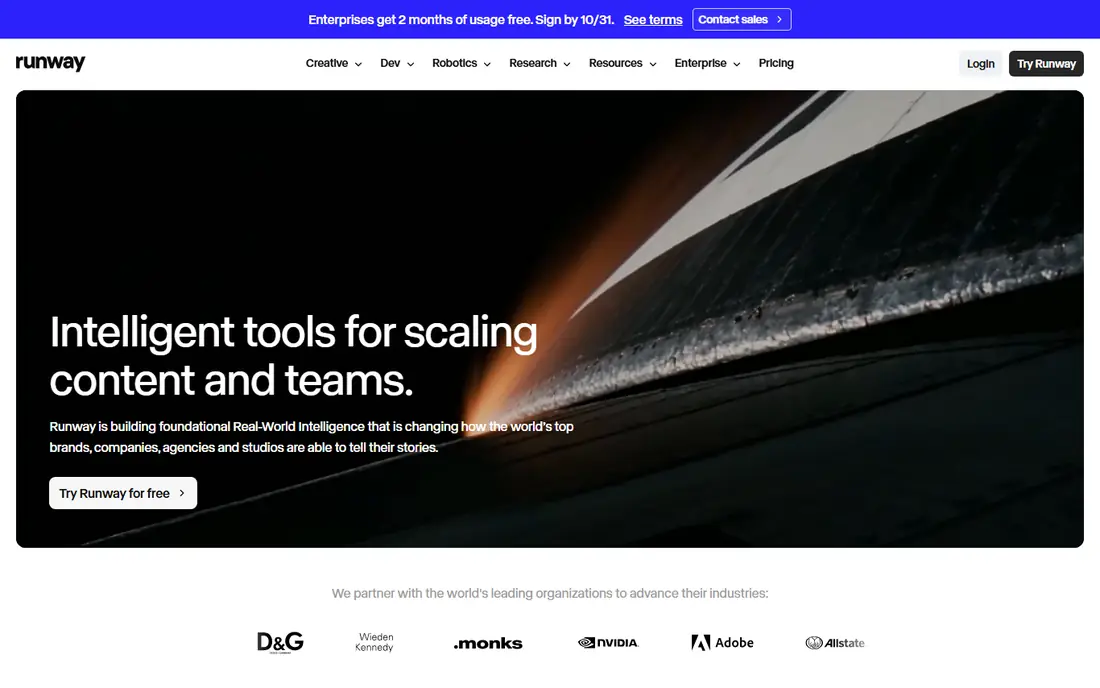
Runway is known for generative video research and tools that create or extend clips from text and images. It suits creators who want to experiment with new visual ideas, test scenes, or build backgrounds that would be hard to film. The results can be striking, but they can also contain odd details, so review every generated clip before you publish it.
Buyers looking for creators using generative video should shortlist this one. The pros explain why it keeps appearing in recommendations, and the cons explain why it is not right for everyone. A short trial on a real task will tell you more than any feature page, so use that step before paying.
- Generative video tools
- Strong research background
- Creative controls
- Pricing can rise fast
- Output needs review for errors
Opus Clip watches a long video, finds moments that may work as short clips, and adds captions and framing for vertical video. It suits podcasters and streamers who want several shorts from one recording without rewatching the whole session. The scoring helps you sort clips, but you should still review each pick, since an AI highlight is not always the moment your audience will remember.
For turning long videos into shorts, this option balances ease of use with enough depth to grow into. The listed drawback is real, but it is manageable if you know about it in advance. Check the pricing page for the current plan limits, since those details change more often than the headline features.
- Finds likely highlights
- Auto captions
- Clip scoring
- Clip picks need human review
- Free plan has limits
Pictory turns a script, blog post, or article into a video with stock footage, text on screen, and a voiceover. It suits marketers and small teams who need regular video content but do not film often. The workflow is fast, and the trade-off is less fine control than a timeline editor, plus stock clips that may need careful selection to avoid a generic look.
For script to video for marketers, the appeal is practical rather than flashy. The strengths listed above show up in daily use, while the drawback is worth weighing before you commit to a paid plan. We would start on the free tier where one exists, test a real project, and only then decide if the extra features justify the cost.
- Turns scripts and articles into video
- Stock footage library
- Voiceovers
- Less control over fine edits
- Stock footage can feel generic
InVideo offers a large template library and a text to video workflow that helps a small team produce ads, explainers, and social clips on a schedule. Collaboration features help when more than one person reviews a draft. Free exports carry a watermark, so plan for a paid plan if you publish regularly, and treat AI drafts as a first cut rather than a finished video.
This is a solid fit for teams making marketing video fast. Its main strengths are clear from its feature set, and its limits are the kind that matter more on larger projects than on small ones. Try it with one typical job first, check the export quality, and compare the result with the next option on this list.
- Template library
- Text to video
- Collaboration tools
- Free exports carry a watermark
- AI output needs editing
Veed.io runs in a browser, so you can edit, caption, and share a video without installing software. Its subtitle tools are a clear strength, including auto captions that you can style and correct. That makes it a good fit for teams that publish captioned clips often. Browser editing is convenient, but very large projects may feel slower than a desktop editor.
Buyers looking for captions and browser editing should shortlist this one. The pros explain why it keeps appearing in recommendations, and the cons explain why it is not right for everyone. A short trial on a real task will tell you more than any feature page, so use that step before paying.
- Browser-based editor
- Strong subtitles
- Simple sharing
- Free plan has limits
- Heavy projects may run slowly in a browser
Filmora pairs a traditional timeline with AI helpers such as silence detection, auto captions, and smart cutout tools. It suits a creator who wants more control than a template tool, but still wants AI to handle the repetitive parts. The free version is useful for learning, but exports carry a watermark until you pay, so factor that into the cost.
For beginners who want ai help plus control, this option balances ease of use with enough depth to grow into. The listed drawback is real, but it is manageable if you know about it in advance. Check the pricing page for the current plan limits, since those details change more often than the headline features.
- Timeline editing
- AI tools
- Large effect library
- Free exports carry a watermark
- Some AI tools need a paid plan
How we picked these
We compared official feature pages, current pricing pages, app store listings, and privacy or help documentation for each option, and we checked that each product is still offered and still fits the topic in October 2026. We favoured tools with a clear free tier or trial, honest pricing, and a track record of regular updates, and we left out products that looked discontinued, that hid their pricing entirely, or that did not match the topic closely enough. We did not claim hands-on testing, and we did not invent ratings, user counts, or awards.
We also weighed the trade-offs that matter in real use, such as export limits, file quality, support options, and how much work it takes to learn the tool. A tool can be powerful and still be the wrong pick if its pricing jumps sharply after the first tier or if its best features sit behind a plan most readers will not need. That is why this list mixes well-known leaders with smaller options that suit narrower needs and smaller budgets.
How to pick an AI video tool without paying for features you will not use
Match the tool to your starting material
If you start with a script, a script to video tool will save the most time. If you start with a long recording, a highlight and caption tool is more useful. If you start with raw footage, a timeline editor with AI helpers gives you the most control. Picking the wrong starting point is the most common reason people pay for a tool they stop using.
Test captions, exports, and minutes
AI captions save time only if they are accurate enough to correct quickly, so test with your own voice and background noise. Check export resolution, watermark rules, and monthly minute caps, since those limits decide the true cost. A tool that looks cheap can become costly if every project uses up its allowance.
Keep a human in the final review
AI tools can cut the wrong sentence, pick a weak highlight, or generate a detail that looks wrong. Watch the final video once from start to finish, check names and numbers on screen, and confirm music rights before you publish. That short review step protects your channel and your audience.
FAQ
What is the best AI-powered video editing tool for beginners?
CapCut and Filmora are strong starting points for beginners, since both pair simple editing with AI helpers such as captions and templates. Descript is better if you prefer editing by transcript. Try the free tier of each with a short project before you commit.
Can AI video editing tools replace a human editor?
They can speed up repetitive work such as captions, silence removal, and first-cut highlights, but they do not replace judgment about story, pacing, and accuracy. Use AI for the first draft and keep a human review for the final version, especially for client or brand work.
Are AI video editing tools free?
Many offer a free plan or trial, but free plans often limit minutes, resolution, or exports, and some add a watermark. Check the pricing page for the plan that matches how many videos you make each month, rather than judging by the free tier alone.
How accurate are AI captions?
Accuracy varies with audio quality, accents, and background noise. Clear speech in a quiet room gives the best results, while noisy recordings need more correction. Always proofread captions, since errors in names or numbers are easy to miss.
What is the best AI tool for YouTube Shorts?
Opus Clip is built for turning long videos into shorts, while CapCut is strong for editing shorts from scratch. The right pick depends on whether you already have long recordings to cut down or you film short clips directly.